How to Export Favorites in Microsoft Edge

You export your Microsoft Edge Favorites to an HTML file to back them up or transfer them to another browser or device.
Microsoft Edge Favorites, often called Bookmarks in other browsers, are shortcuts to websites you want to easily revisit. Edge is the default browser for Windows 11 and uses the same underlying technology as Google Chrome.
Exporting your Favorites creates a single HTML file containing all your saved links. This process is straightforward and takes just a few clicks within the browser’s settings.
This is incredibly useful if you’re setting up a new PC or switching browsers. You can quickly import this HTML file on your new setup, ensuring you don’t lose access to your favorite websites. It’s also a smart way to create a manual backup of your browsing history’s most important links.
Export your “Favorites” to an HTML file in Edge
As mentioned above, users can export and import their browser Favorites in the Microsoft Edge browser to backup if they accidentally lose or delete their saved websites.
Here’s how to do it.
First, open the Microsoft Edge browser.
Then click on Setting and more (Alt+F) three dots (…) in the upper right-hand corner to access the Settings menu.
Or, press the CTRL + SHIFT + O keys to open your Favorites.
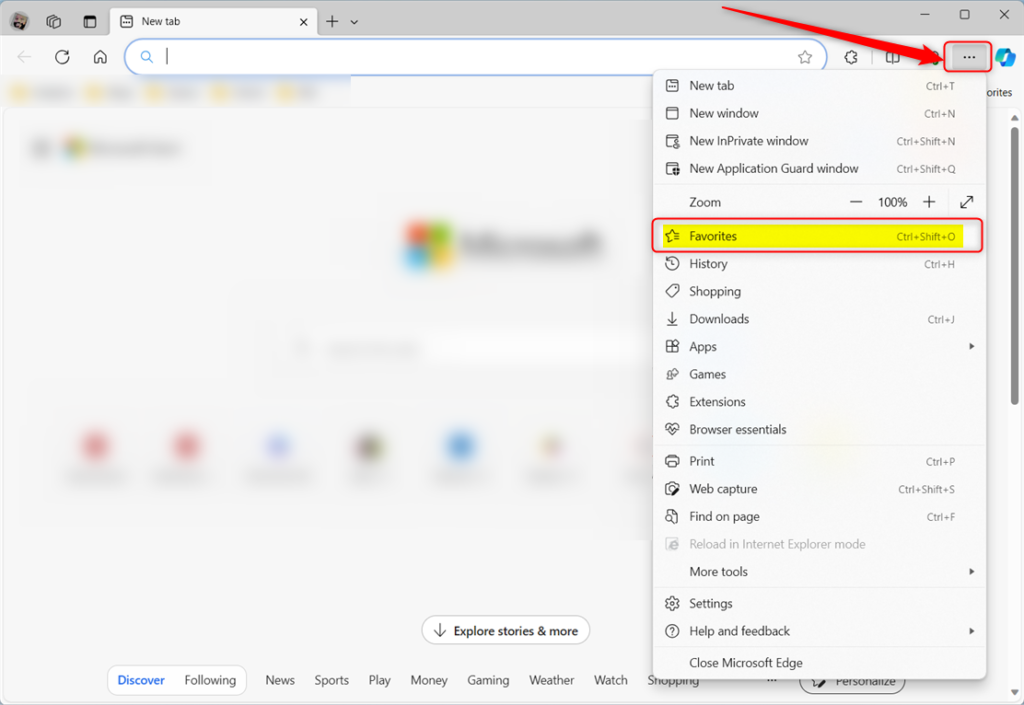
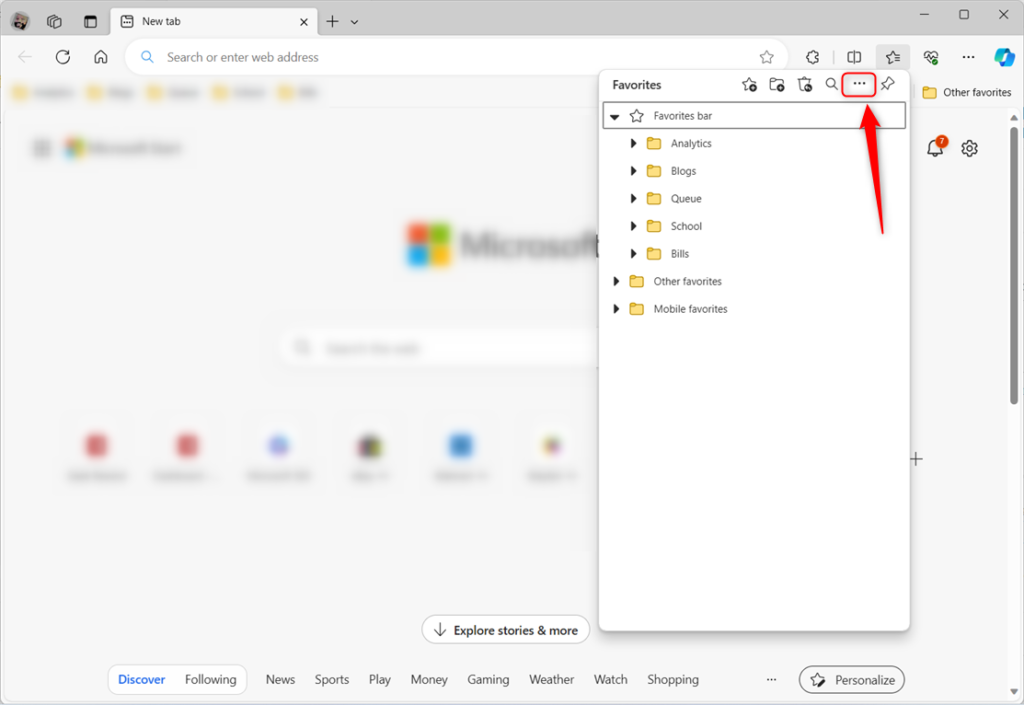
On the Favorites pane, click the ‘More option‘ (three-dots) button and select ‘Export favorites.’
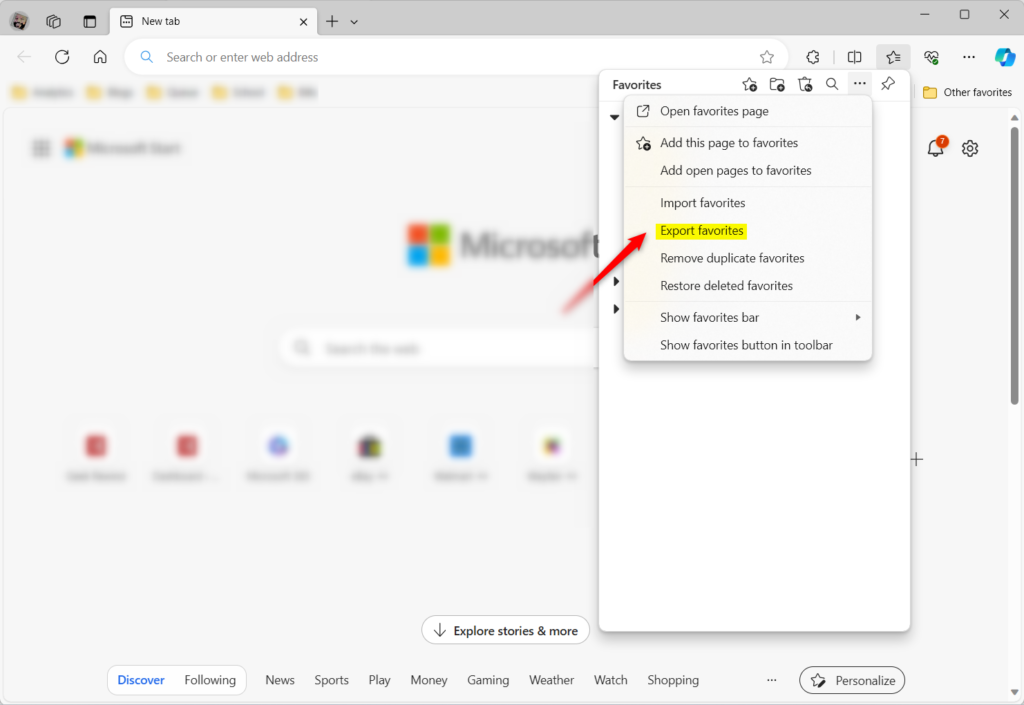
Click the ‘Export favorites‘ command on the context menu.
When you click ‘Export favorites‘ it will launch the File Explorer ‘Save As‘ window. Choose a location to save the file, preferably on your ‘Desktop.’
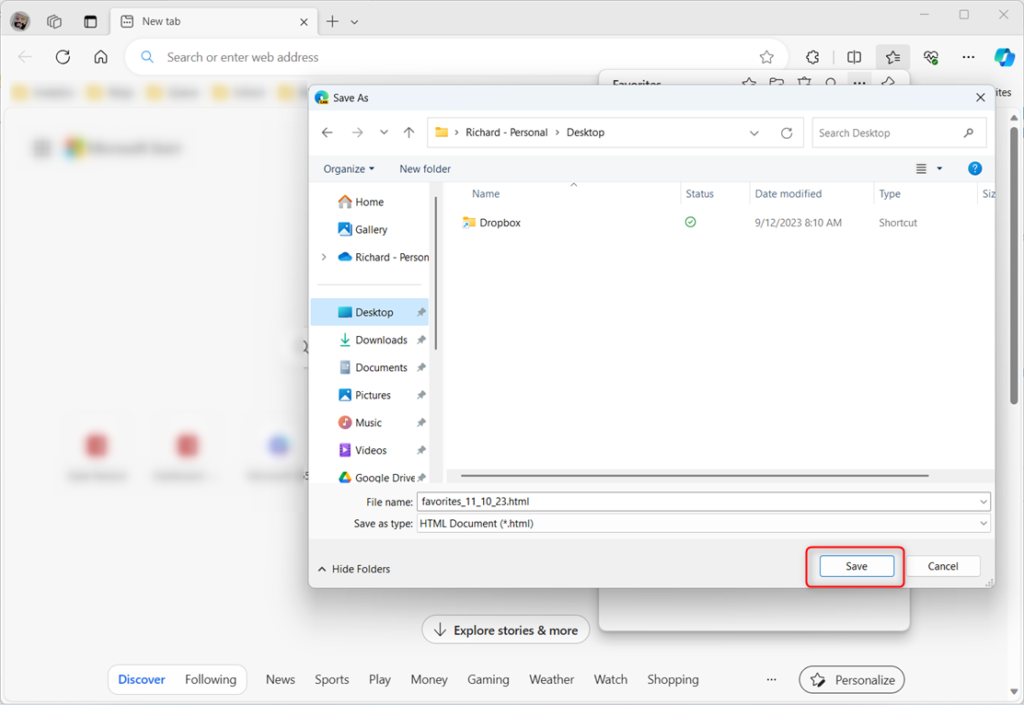
The file should appear at your selected location once you click the ‘Save‘ button.
Import Favorites in Microsoft Edge
After exporting the file, copy it to another computer using a USB thumb drive or other means. On the computer you want to import your ‘Favorites,’ open Microsoft Edge using the steps above.
Then, select the ‘Import favorites‘ command on the “Favorites” pane. Browse for the file on the USB drive or the computer and import.
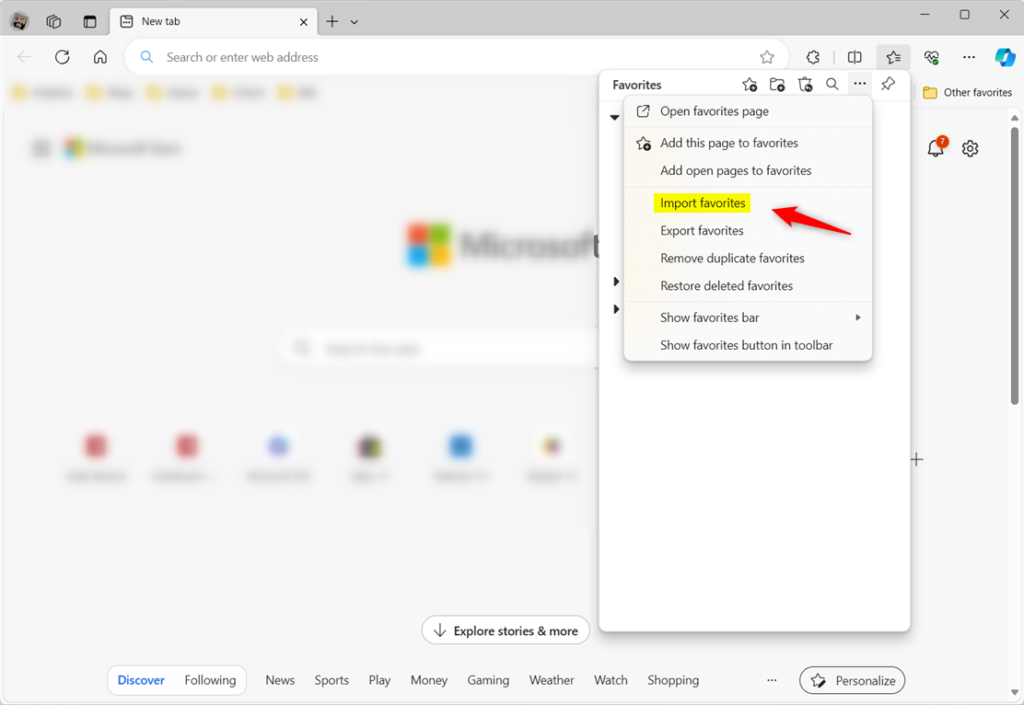
That should do it.
Conclusion:
- Exporting your “Favorites” in Microsoft Edge is a practical way to transfer saved websites to a new device. It eliminates the need to manually re-add each website.
- It is a valuable backup, safeguarding against accidental loss or deletion of saved websites.
- This feature also enables effortless sharing of frequently visited websites with others.
Frequently Asked Questions
How do I export my favorites from Microsoft Edge?
Can I import favorites to Microsoft Edge from another device?
What file format is used when exporting favorites from Edge?
Is there a way to back up my favorites in Edge?
What should I do if I can't find my exported favorites file?
Was this guide helpful?

About the Author
Richard
Tech Writer, IT Professional
Richard, a writer for Geek Rewind, is a tech enthusiast who loves breaking down complex IT topics into simple, easy-to-understand ideas. With years of hands-on experience in system administration and enterprise IT operations, he’s developed a knack for offering practical tips and solutions. Richard aims to make technology more accessible and actionable. He's deeply committed to the Geek Rewind community, always ready to answer questions and engage in discussions.



No comments yet — be the first to share your thoughts!