How to Show Your Profile Icon in Microsoft Edge

You show your Microsoft Edge profile icon in the top title bar of the browser window to free up toolbar space.
This feature moves your avatar from the main toolbar, making room for extensions or the Copilot sidebar. Edge’s design prioritizes quick access to these features.
For example, if you frequently use several extensions, relocating your profile icon helps you maintain a cleaner, more organized browser interface.
To show your profile icon in the Microsoft Edge title bar, go to Settings > Appearance > Customize toolbar. Then, click “Select which buttons to show on the toolbar” and toggle “Profile icon” on.
Show the profile icon on the title bar in Microsoft Edge
You can choose to show your Microsoft Edge profile icon on the title bar, making it a quick way to access your accounts.
Here is how to update your view:
- Open the Microsoft Edge browser browser.
- Click the three dots (…) in the top right corner.
- Select Settings from the menu.
- Click Appearance on the left-hand menu.
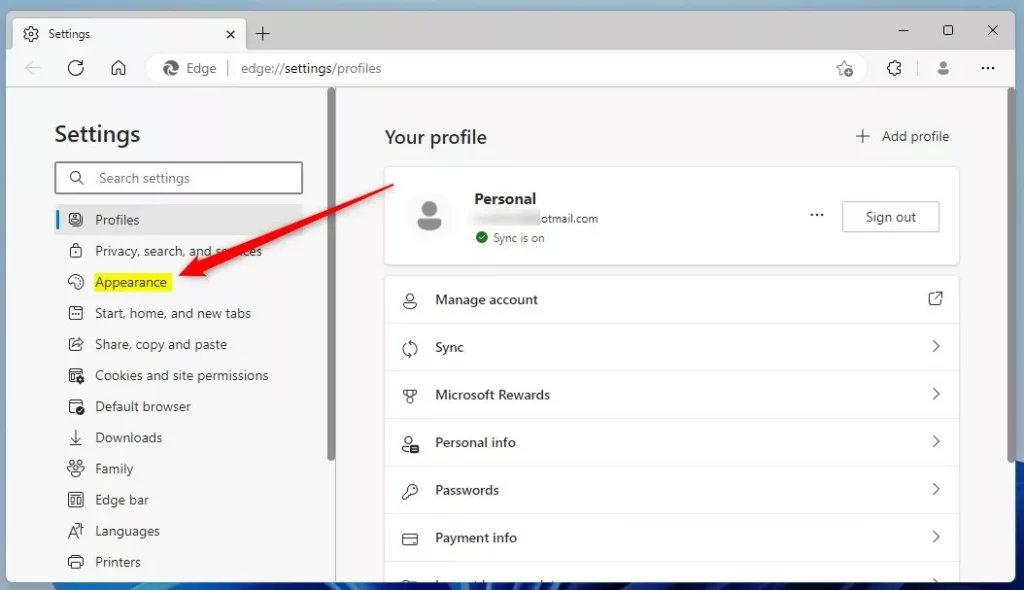
- Scroll down to the Customize toolbar section.
- Look for the Select which buttons to show on the toolbar link and click it.
- Find the Profile icon toggle.
Switching this toggle acts as a shortcut to move your profile hub. When turned on, the icon sits in the title bar. When turned off, it might appear within the main toolbar or the browser’s overflow menu.
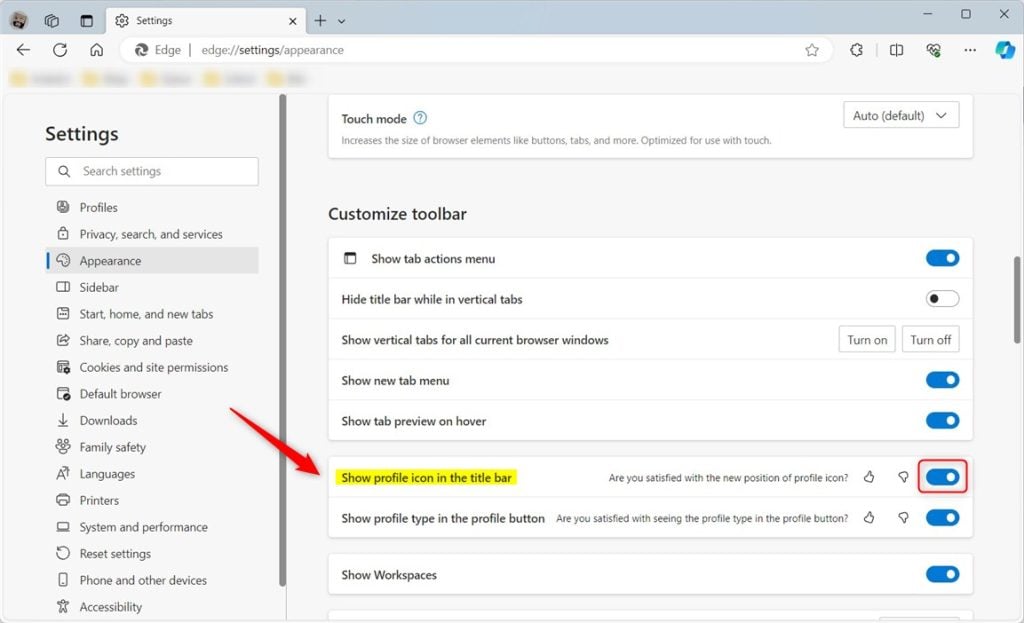
Examples of the profile icon placement:

Was this guide helpful?

About the Author
Richard
Tech Writer, IT Professional
Richard, a writer for Geek Rewind, is a tech enthusiast who loves breaking down complex IT topics into simple, easy-to-understand ideas. With years of hands-on experience in system administration and enterprise IT operations, he’s developed a knack for offering practical tips and solutions. Richard aims to make technology more accessible and actionable. He's deeply committed to the Geek Rewind community, always ready to answer questions and engage in discussions.


this information is outdated profile icon options removed by Microsoft
even on there own Support page it still says to use the options they removed, it’s a Joke when Microsoft Can’t even Update there own sites info.