How to Enable Mouse Gestures in Microsoft Edge

You enable mouse gestures in Microsoft Edge by installing a browser extension.
Mouse gestures are a powerful way to control your browser, allowing you to perform actions like navigating back or opening new tabs by drawing specific shapes with your mouse while holding down a button.
Microsoft Edge itself doesn’t offer native mouse gesture functionality. However, you can easily add this feature using free extensions available in the Microsoft Edge Add-ons store. For example, the popular “Mouse Gestures” extension by Foscus supports Edge version 110 and newer.
This guide helps you find, install, and set up an extension so you can navigate the web faster.
Install a mouse gesture browser extension from the Microsoft Edge Add-ons store. Open Edge settings, navigate to Appearance, and toggle the Mouse Gesture switch to On. Alternatively, advanced users can enable it via the Windows Registry Editor.
Why use Mouse Gestures?
Mouse gestures let you control your browser with quick movements instead of clicking small buttons. This saves time when you are browsing the web.
What happens when done?
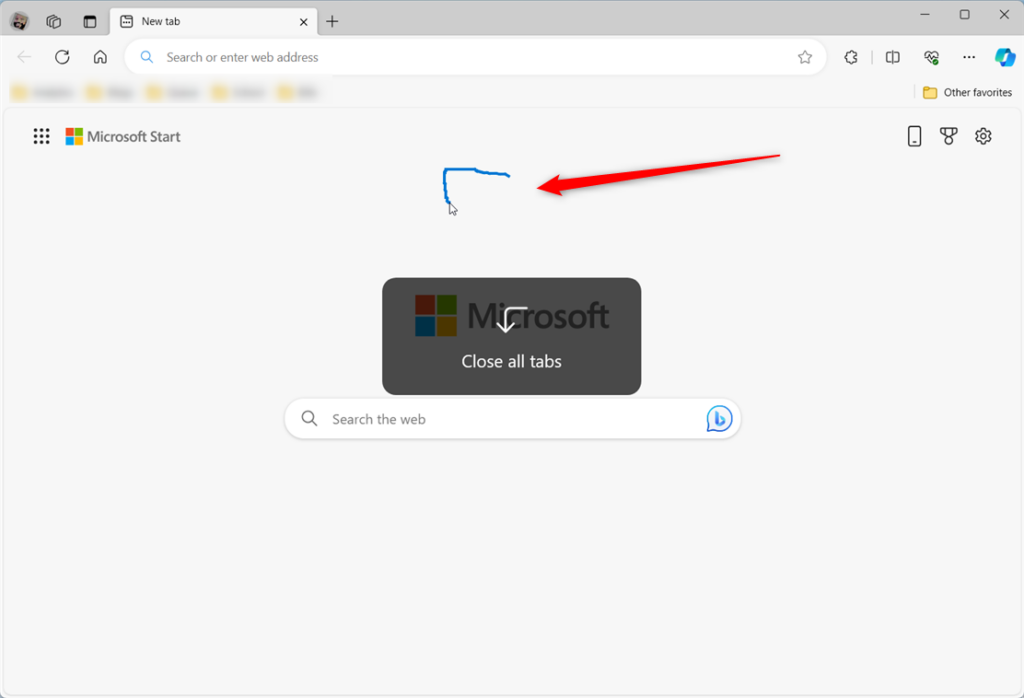
When you enable mouse gestures in Microsoft Edge, you can control the browser by drawing simple shapes with your right mouse button.
- Go Back: Draw a line to the left.
- Go Forward: Draw a line to the right.
- Refresh Page: Draw a line up, then down.
- Open New Tab: Draw a line down, then right.
- Close Tab: Draw a line down, then left.
Turn on ‘Mouse Gesture’ on or off in Edge
You can easily turn mouse gestures on or off in Microsoft Edge using the browser’s settings menu.
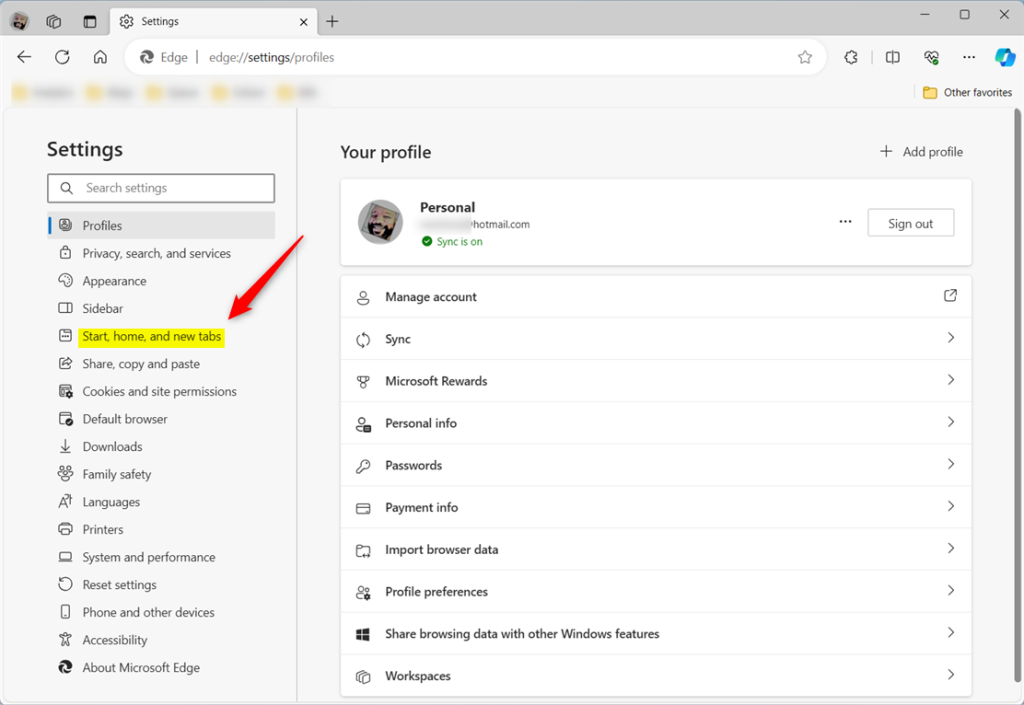
- Click the Settings and more (three dots) icon in the top right corner.
- Select Settings from the menu.
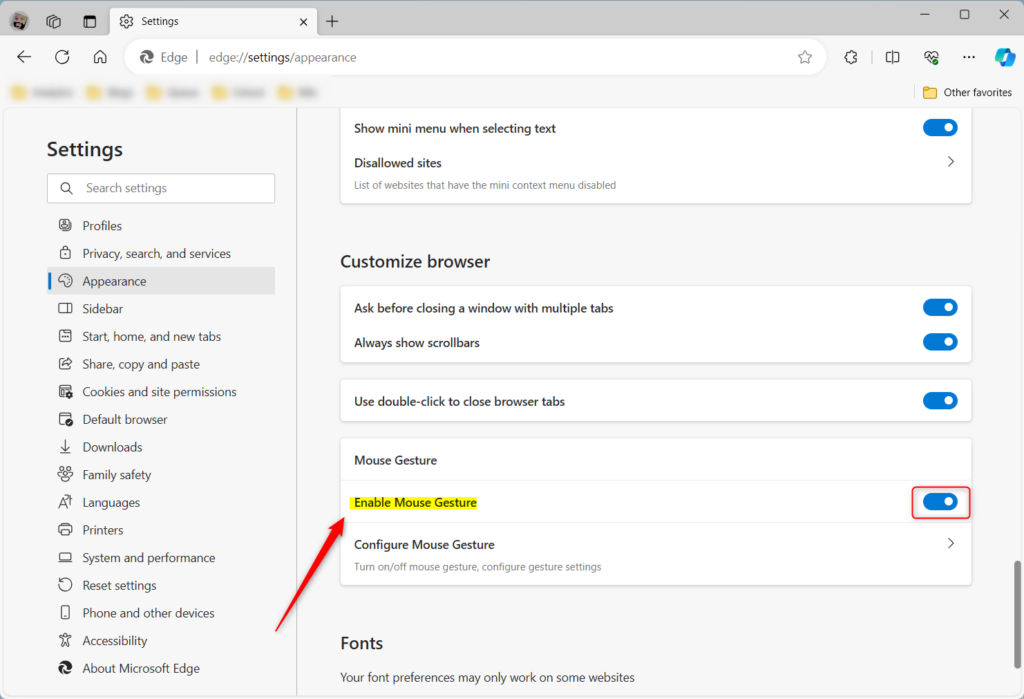
- On the left sidebar, click Appearance.
- Scroll down to the Mouse Gesture section.
- Toggle the switch to On or Off based on your preference.
Turn Mouse Gesture on or off using the Windows Registry Editor
For advanced users, you can turn mouse gestures on or off in Edge by changing a setting in the Windows Registry Editor.
First, open the Windows Registry Editor. Then, navigate to this path:
Computer\🗝️HKEY_LOCAL_MACHINE\SOFTWARE\Policies\Microsoft\Edge
If you don’t see that path, you might need to create the folders yourself. Once you’re there, double-click the MouseGestureEnabled (REG_DWORD) value in the right pane:
- Set the value to 1 to enable Mouse Gestures.
- Set the value to 0 to disable Mouse Gestures.
If you don’t see the item, right-click an empty spot, choose ‘New,’ then ‘DWORD (32-bit) Value,’ and name it ‘MouseGestureEnabled.’ You’ll likely need to restart Edge for these changes to take effect.

Experimenting with these gestures will help you decide if they make your browsing faster and more comfortable. If you find they get in the way, you can turn them off using the same steps above.
How do I enable mouse gestures in edge?
Method 1: Control mouse gestures via Microsoft Edge settings Select the three-dot menu (•••) on the top-right and press Settings. Click Appearance, then scroll down until you find Browser behavior and features. Find and toggle Enable mouse gesture to match the setting you prefer: On: Allows mouse gestures for Edge.
What does "enable mouse gesture" mean?
This feature provides an easy way for users to complete tasks like scroll forward or backward, open new tab, refresh page, etc. They can finish a task by pressing and holding the mouse right button to draw certain patterns on a webpage, instead of clicking the buttons or using keyboard shortcuts.
How do I turn on mouse gestures?
And if you start typing mouse. Then you will see a feature called as mouse. Gesture. Under mouse gesture you can enable the mouse gesture. So I'll just enable it. And configure mouse gesture.
Was this guide helpful?

About the Author
Richard
Tech Writer, IT Professional
Richard, a writer for Geek Rewind, is a tech enthusiast who loves breaking down complex IT topics into simple, easy-to-understand ideas. With years of hands-on experience in system administration and enterprise IT operations, he’s developed a knack for offering practical tips and solutions. Richard aims to make technology more accessible and actionable. He's deeply committed to the Geek Rewind community, always ready to answer questions and engage in discussions.



[…] is only available in the latest Microsoft Edge Dev and Canary versions. Additionally, the Mouse Gesture feature must be turned on to use Circle to […]