How to Change Default Search Engine in Microsoft Edge

You change your default search engine in Microsoft Edge to use Google, DuckDuckGo, or any other preferred search provider.
Microsoft Edge allows you to customize which search engine it uses when you type search queries directly into the address bar.
This functionality extends to any website that supports the OpenSearch standard, ensuring you get search results from your chosen engine, not just Bing.
For example, you can easily set Google as your default in Edge, replacing Bing for all your address bar searches.
Go to Settings, then Privacy, search, and services, and click Address bar and search. Select your preferred search engine from the dropdown menu. Your changes take effect immediately.
Why Change Your Search Engine?
You might want to change your search engine in Edge if you prefer a different search experience than Bing, even though Bing offers direct links to Windows apps and work-related suggestions.
If you want to use another search engine as your default, follow the steps below to change the address bar search engine in Microsoft Edge.
How to Change the Default Address Bar Search Engine
Step 1Open Microsoft Edge
First, open the Microsoft Edge browser.
Step 2 Go to Settings
Click the three horizontal dots (that’s the ‘Settings and more’ button, often labeled Alt+F) in the top right corner. Then select Settings.
Step 3Navigate to Privacy and Search Settings
On the Settings page, look at the left panel. Click on Privacy, search, and services.

Step 4Expand Address Bar Settings
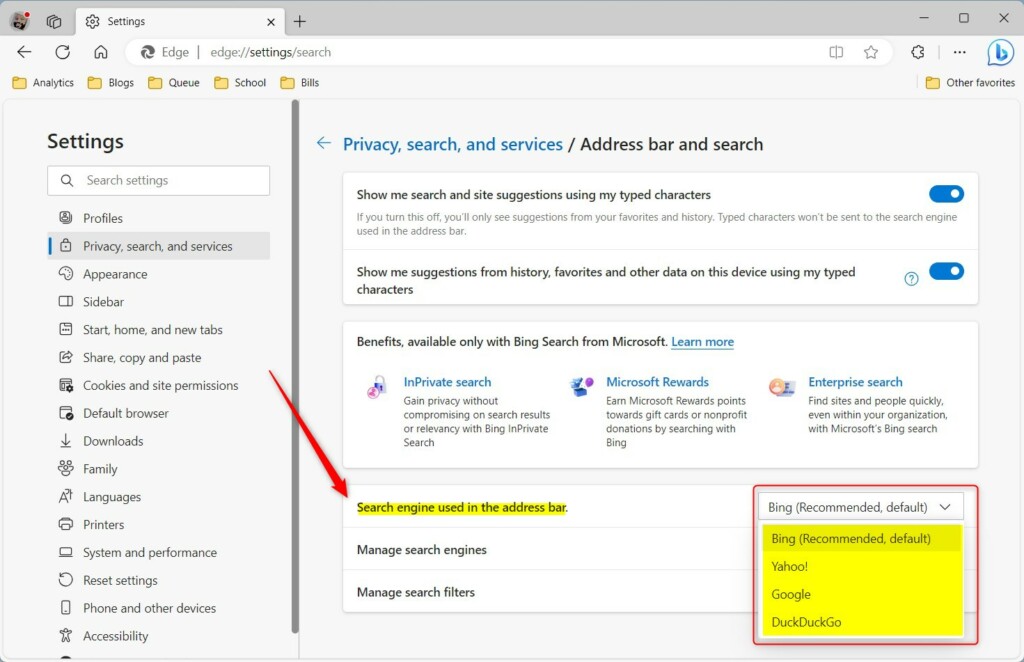
Scroll down to the middle section. Under Services, click the Address bar and search tile to expand it.

Step 5Choose Your Search Engine
Next, choose your preferred search engine from the Search engine used in the address bar menu. These options are currently available:
- Bing (Recommended default)
- Yahoo!
- DuckDuckGo
More options may be added to the list in the future.
Step 6Add a Custom Search Engine (Optional)
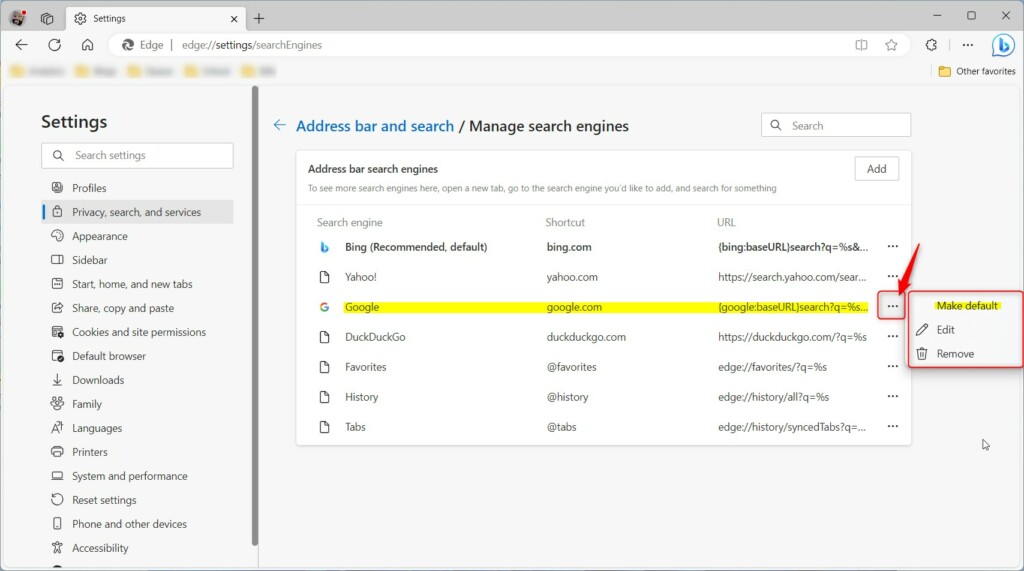
If the search engine you want isn’t already listed in Edge, you can add a custom search engine by going to Settings, then Privacy, search, and services, and selecting ‘Manage search engines’.
Then select the Manage search engines tile to expand it. On the ‘Manage search engines’ page, pick a search engine from the list and then click the three-dot ‘More actions’ button. From there, you can set it as default, edit it, or remove it from Edge.
Step 7Your Changes Apply Immediately
Your changes should apply right away. You’re all set!
What Happens When You Change Your Search Engine?
Once you change your default search engine, every time you type in the address bar, your new search engine will handle your searches instead of Bing. Your browser will remember this choice and use it until you change it again.
Reference
Summary
Changing your default search engine in Microsoft Edge is straightforward, letting you pick favorites like Google or DuckDuckGo directly from the settings menu.
Was this guide helpful?

About the Author
Richard
Tech Writer, IT Professional
Richard, a writer for Geek Rewind, is a tech enthusiast who loves breaking down complex IT topics into simple, easy-to-understand ideas. With years of hands-on experience in system administration and enterprise IT operations, he’s developed a knack for offering practical tips and solutions. Richard aims to make technology more accessible and actionable. He's deeply committed to the Geek Rewind community, always ready to answer questions and engage in discussions.




No comments yet — be the first to share your thoughts!