How to Control Copilot’s Access to Context in Microsoft Edge

You control Copilot’s access to your browsing context in Microsoft Edge, which determines the information it uses to assist you.
Browsing context refers to the data Copilot can access from your current webpage or browser history, allowing it to provide more relevant answers and understand your queries better.
You can disable Copilot’s ability to read your current page and browser history to enhance your privacy. This setting is crucial for managing what Microsoft’s AI assistant knows about your online activities.
For instance, if you’re researching a new software, restricting access prevents Copilot from using that page’s content for unrelated tasks. You can find this privacy toggle within Microsoft Edge’s Copilot settings menu.
You control Copilot’s context access in Microsoft Edge via its settings. Navigate to Settings, then Copilot and sidebar, and toggle “Allow Copilot to read context clues on the web” on or off to manage its access to your browsing information.
Turn off “Allow Copilot to read context clues on the web” in Edge
You can stop Copilot from reading what’s on your web pages in Microsoft Edge by turning off its context clue setting.
First, open the Microsoft Edge browser.
Then, click the three horizontal dots (Setting and more, or Alt+F) in the top right corner and select Settings.
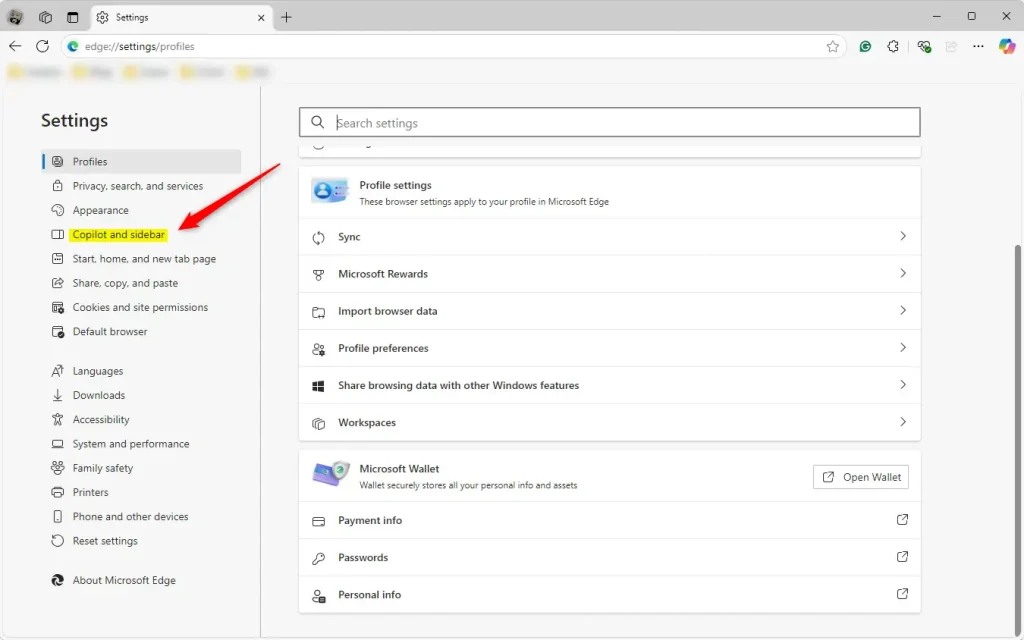
Select “Copilot and sidebar” on the Settings page on the left.
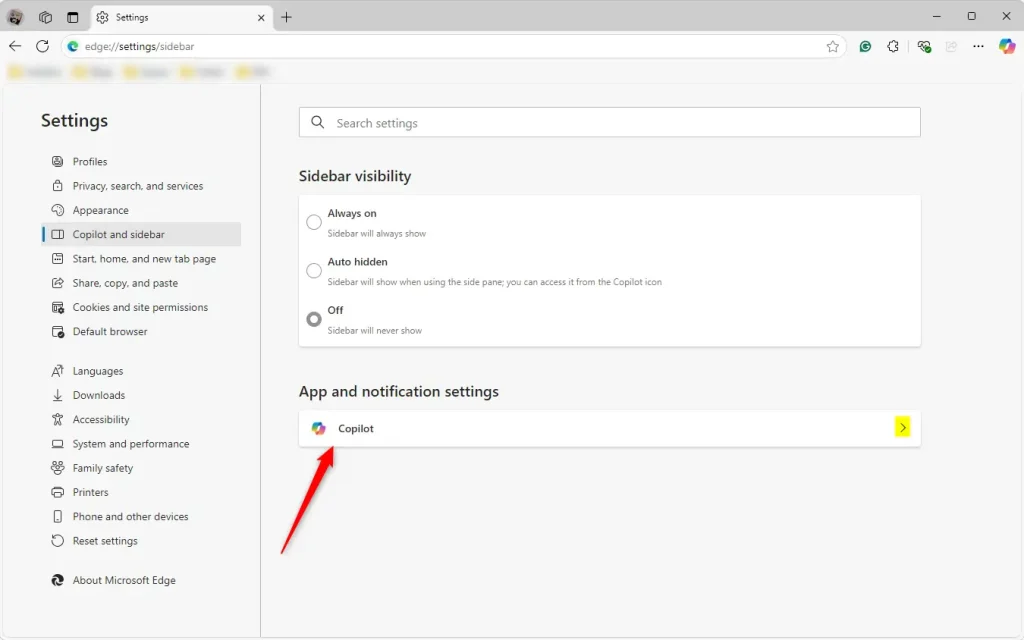
Under “App and notification settings,” click the Copilot tile to expand it.
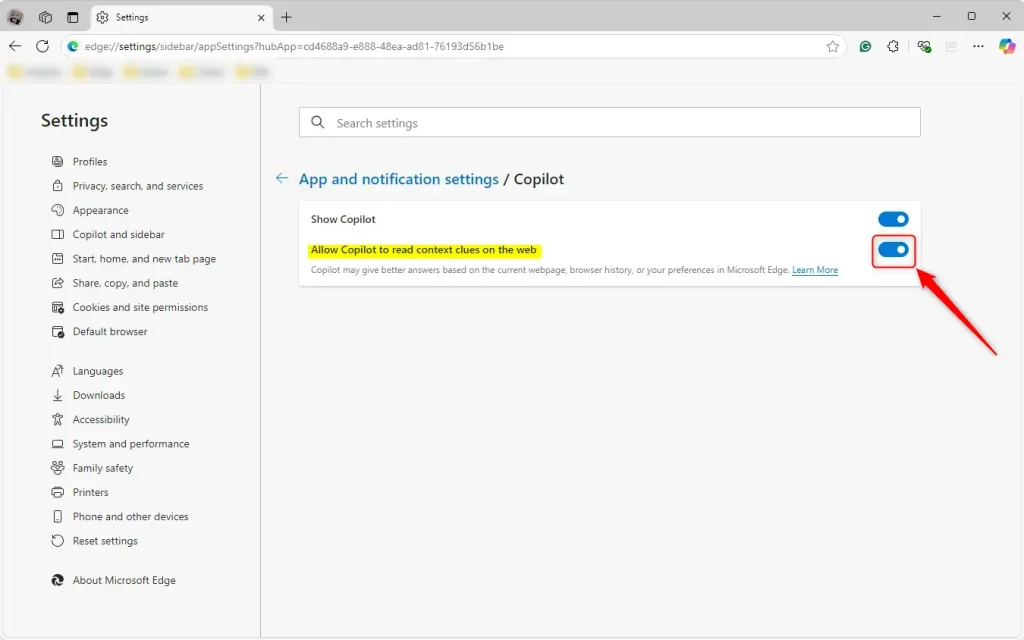
Then, select the “Allow Copilot to read context clues on the web” option and toggle the button to turn it on or off.
Close the Settings page when you are done.
That should do it!
Reference:
Managing how Copilot accesses your browsing information in Microsoft Edge is a good way to control your privacy. Here’s a quick recap:
- Microsoft Edge is the default browser in Windows 11 and leverages browsing context to enhance the Copilot experience.
- Users can turn the “Allow Copilot to read context clues on the web” feature on or off according to their preferences.
- The process involves navigating Settings > Copilot and sidebar > App and notification settings, then toggling the relevant option.
- Disabling this feature can help users maintain a more private browsing experience by preventing the use of browser history and preferences for prompt responses.
- Always ensure that your Edge browser is up to date to access the latest features and settings.
Users can customize their Copilot experience and enhance their browsing privacy by following these steps.
How to give Microsoft Copilot context?
How can you give Microsoft Copilot context? You can bring web content into Copilot Chat with the new URL context feature. Copilot Chat can reference information directly from web pages you choose; just paste a URL into your prompt.
How do I remove Copilot from Edge context menu?
To remove Copilot from the Taskbar, you must right-click the Taskbar, select “Taskbar settings,” and toggle Copilot to “Off.”
Can Copilot scrape a website for MS Edge?
Use Copilot in Edge to extract data from any web page 🌐💡 The Copilot pane works on the currently open tab(s) to scrape data 📊 Compare ⚖️ Summarize 📝 and more ✨
Was this guide helpful?

About the Author
Richard
Tech Writer, IT Professional
Richard, a writer for Geek Rewind, is a tech enthusiast who loves breaking down complex IT topics into simple, easy-to-understand ideas. With years of hands-on experience in system administration and enterprise IT operations, he’s developed a knack for offering practical tips and solutions. Richard aims to make technology more accessible and actionable. He's deeply committed to the Geek Rewind community, always ready to answer questions and engage in discussions.



No comments yet — be the first to share your thoughts!