How to Turn “Show tab actions menu” On or Off in Microsoft Edge

You turn the “Show tab actions menu” on or off in Microsoft Edge to control whether a specific toolbar button appears, offering quick access to tab management features.
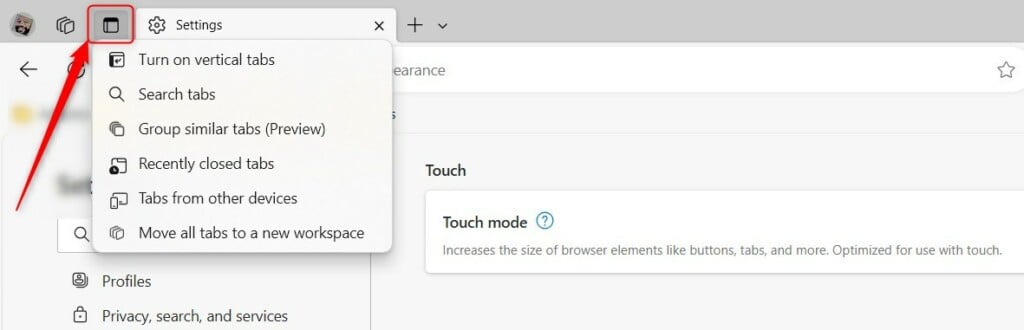
This menu is a handy button that sits beside your open tabs, letting you quickly switch to vertical tabs, search through your tabs, or group them together.
Disabling this feature helps you declutter your Microsoft Edge browser toolbar, especially if you use other integrated tools like the Edge Sidebar. This change maximizes your visible browsing space.
Go to Settings and more (…), then Settings. Select Appearance, find “Show tab actions menu” under the toolbar buttons section, and toggle the switch to your preference.
Turn the “Show tab actions menu” on or off in Microsoft Edge
You can turn the tab actions menu on or off in Microsoft Edge to make browsing easier. This handy menu gives you quick access to tools for managing your tabs, letting you choose to keep it visible or hide it for a cleaner look.
- Open the Microsoft Edge browser.
- Click the Settings and more button. This looks like three dots (…) in the top right corner.
- Select Settings from the menu.
micrsoft edge browser more option and settings Microsoft Edge browser has more options and settings - On the left side of the screen, click Appearance.
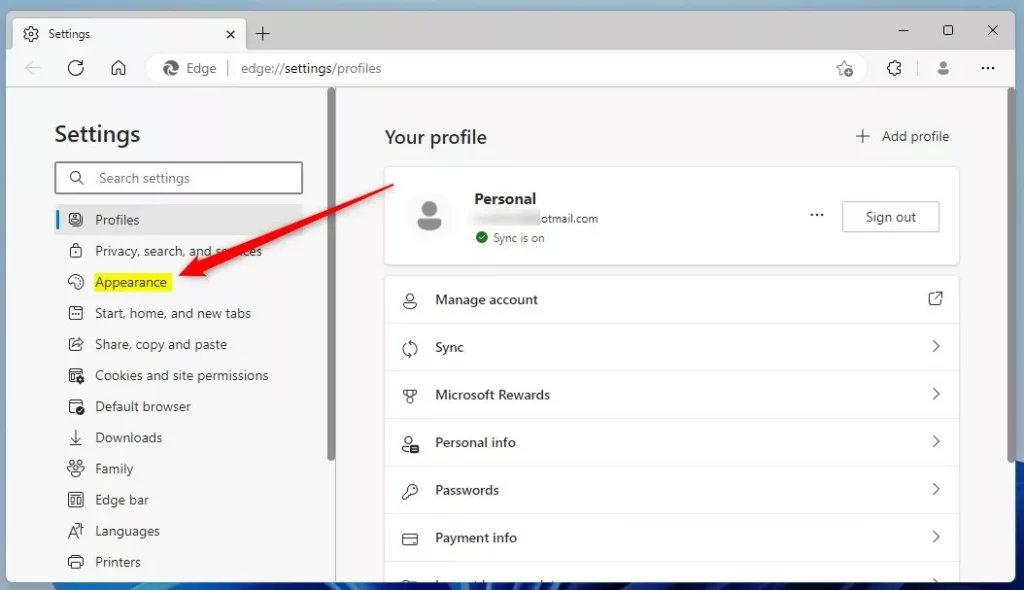
microsoft edge settings appearance Microsoft Edge settings appearance - Look for the section labeled Select which buttons to show on the toolbar.
- Find the Show tab actions menu option.
- Toggle the switch to On to show the menu. Toggle it to Off to hide it.
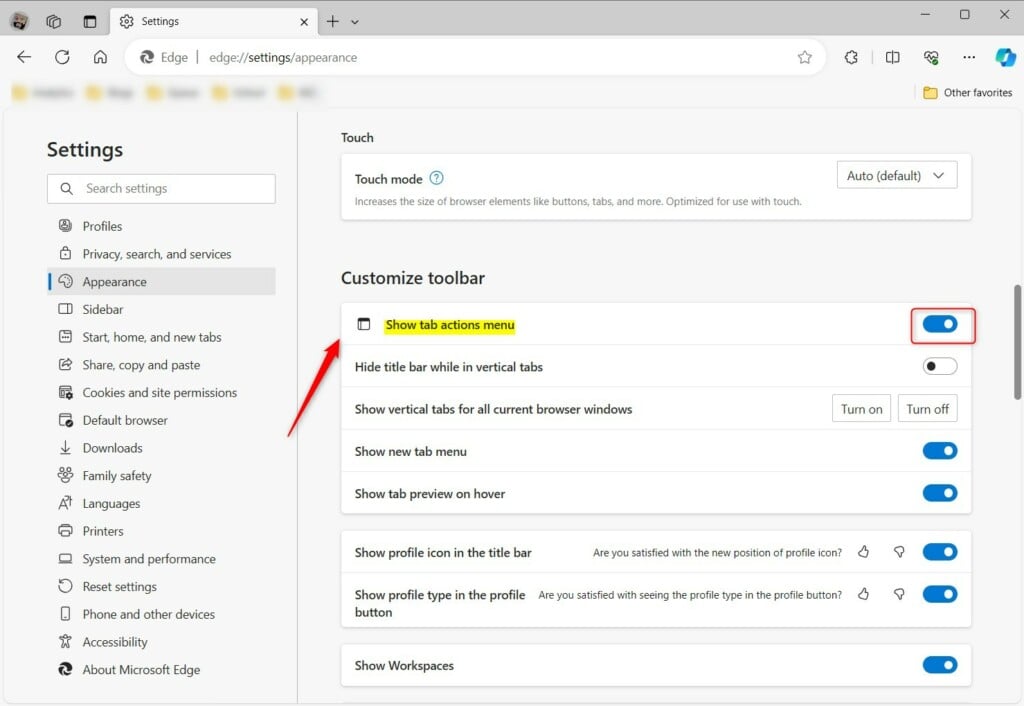
The icon will appear or disappear from your toolbar immediately.
Conclusion
Deciding whether to show or hide the tab actions menu in Microsoft Edge is all about making your browser work best for you. If you prefer a simple look, hiding it works well, but keeping it visible offers handy shortcuts for managing your tabs.
Note: If your browser is managed by a school or a workplace, some of these settings might be hidden or locked by your organization’s IT department.
Where is the tab action menu in Edge?
If we head up to our top left hand side of the browser. We get our tab actions menu. And this is a feature you can enable and disable in the settings as I've mentioned previously.
What is the tab action menu?
And if we just go back. Turn off vertical tabs. And you can show your recently closed tabs. And that just drops down in your recently closed section in the the history.
Was this guide helpful?

About the Author
Richard
Tech Writer, IT Professional
Richard, a writer for Geek Rewind, is a tech enthusiast who loves breaking down complex IT topics into simple, easy-to-understand ideas. With years of hands-on experience in system administration and enterprise IT operations, he’s developed a knack for offering practical tips and solutions. Richard aims to make technology more accessible and actionable. He's deeply committed to the Geek Rewind community, always ready to answer questions and engage in discussions.




You should add a picture of this tab right at the beginning. I came here because MS talks about this tab without giving any hint as to what it looks like.