How to Enable Enhanced Security Mode in Microsoft Edge

You enable security-on-or-off-with-microsoft-edge/" class="sal-link" rel="noopener" target="_blank" data-sal-id="42385">enhanced security mode in Microsoft Edge to protect yourself from malicious websites and phishing attacks.
Enhanced security mode, also known as Microsoft Defender SmartScreen, offers stronger protection than the default settings by blocking more potentially dangerous sites and downloads. It leverages Microsoft Defender SmartScreen’s threat intelligence to identify and prevent access to harmful content.
This feature is available in Microsoft Edge version 92 and later. Turning it on is a simple process within the browser’s settings, adding a crucial layer of defense as you browse online.
Why Use Enhanced Security Mode?
Microsoft Edge offers an enhanced security mode. This extra layer of protection helps keep you safe when browsing the web. It’s especially useful when visiting unfamiliar websites.
What Happens When You Enable Enhanced Security?
When enhanced security is turned on, you can choose from three security levels: Basic, Balanced, and Strict. The feature protects against memory-related vulnerabilities. It does this by disabling just-in-time (JIT) JavaScript compilation. It also enables additional protections from your operating system.
You can manually add site exceptions. This automatically turns off the enhanced security mode for those specific websites.
Security Levels Explained
- Off (Default) — Feature is turned off.
- Basic (Recommended) — Microsoft Edge applies added security protections to less visited sites. Websites will work as expected.
- Balanced — Microsoft Edge applies added security protections to sites you don’t engage with often or are unknown to you. Websites you browse frequently will be left out. Most sites will work as expected.
- Strict — Microsoft Edge applies added security protections to all sites visited by default. Strict mode may impact your ability to complete normal tasks on the web because some parts of websites might not work as expected.
How to Enable or Disable Enhanced Security Mode
Method 1Using Microsoft Edge Settings
- Open the Microsoft Edge browser.
- Click the Setting and more button. This is the 3 horizontal dots on the top right corner. You can also press Alt+F.
- Select Settings.
- Click on Privacy, search, and services on the left panel.
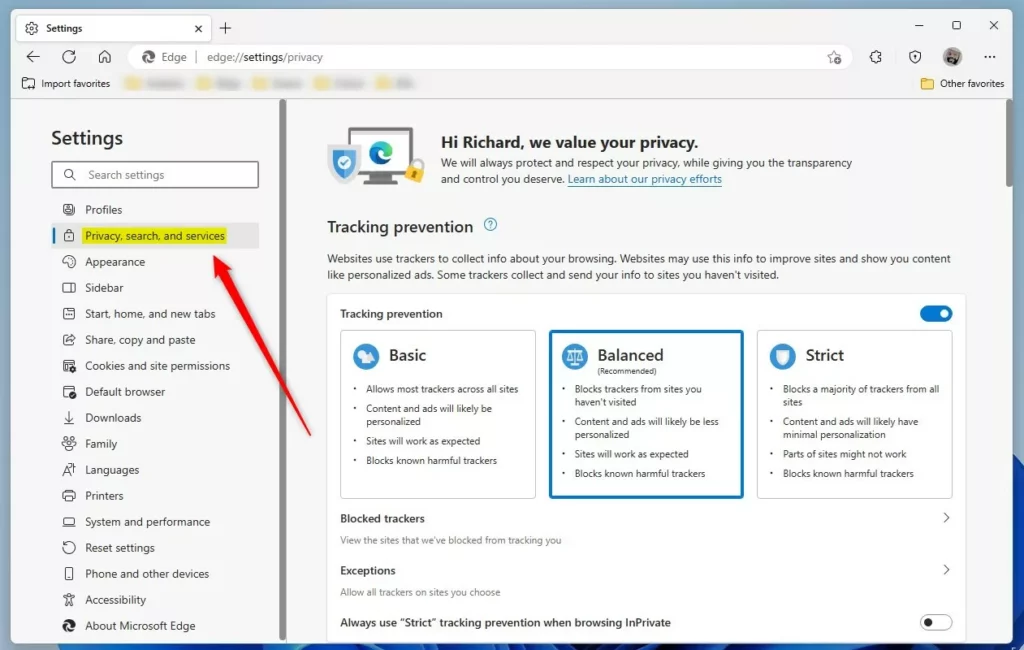
- On the Privacy, search, and Services page, find the Security section.
- Toggle the button for Enhance your Security on the web to the On position to enable it .
- To disable it , simply toggle the button back to the Off position.
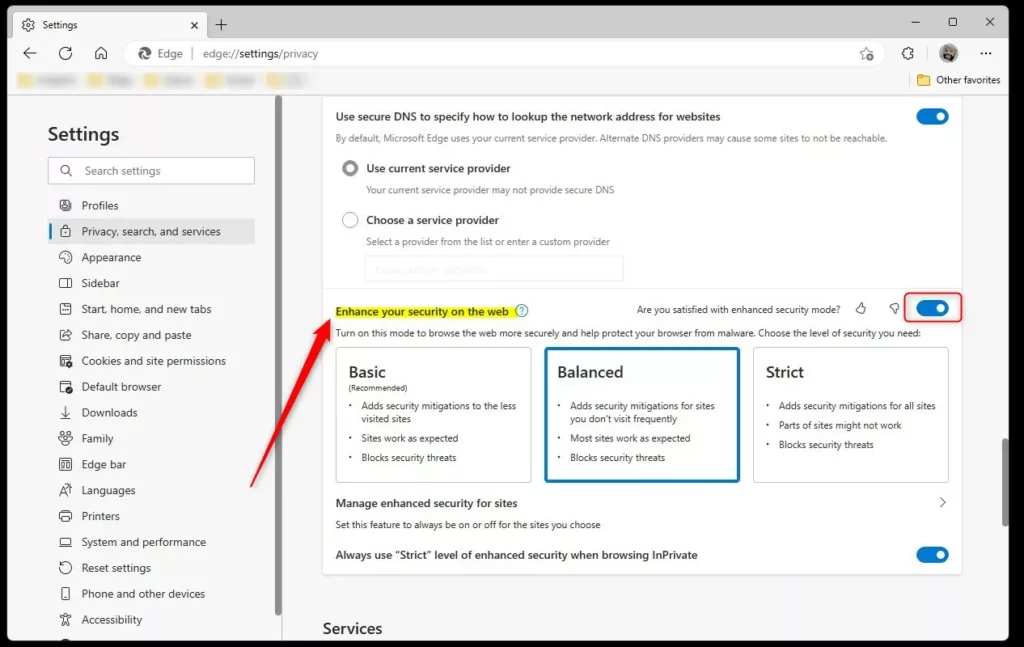
- Once enabled, you can choose the security level you need. Select from Basic, Balanced, or Strict.
- Exit and restart Microsoft Edge for the changes to take effect.
Method 2Using Windows Registry Editor
⚠️ FLAG: This method requires admin privileges.
Alternatively, you can use the Windows Registry Editor to turn enhanced security mode on or off in Edge.
- Open the Windows Registry Editor.
- Navigate to this folder key path:
HKEY_LOCAL_MACHINE\SOFTWARE\Policies\Microsoft\Edge
If you don’t see the Edge folder key, right-click on the Microsoft parent key. Then create a new subkey folder called Edge.
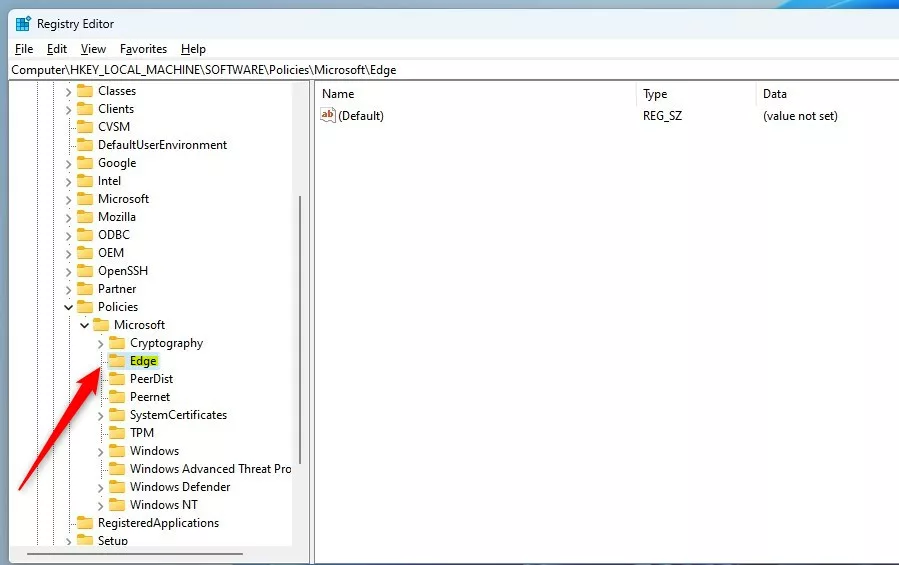
- Right-click in the Edge folder’s right pane.
- Select New and then DWORD (32-bit) Value.
- Type a new key name:
EnhanceSecurityMode
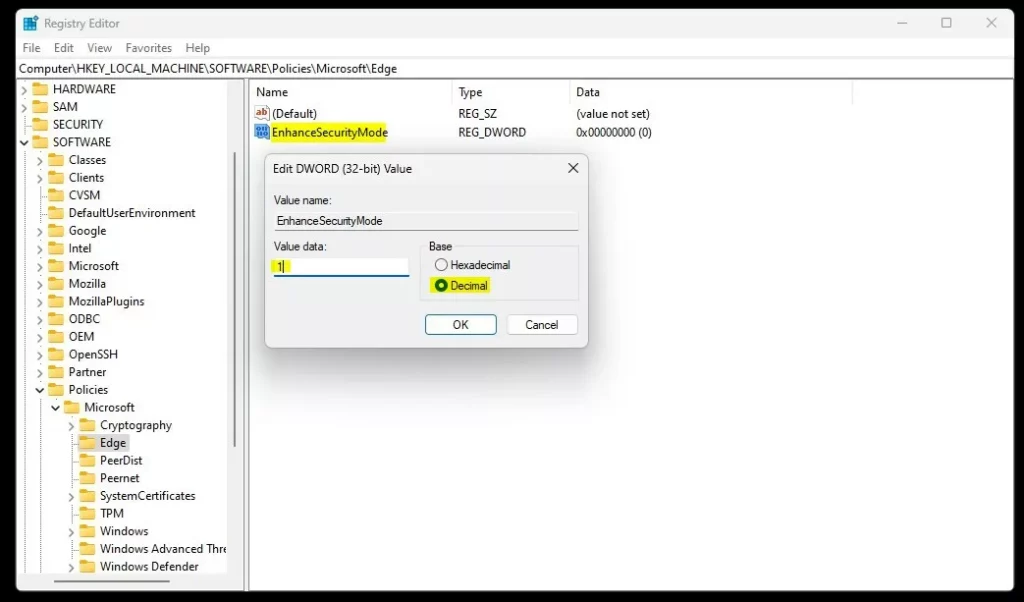
- Double-click the new value name
EnhanceSecurityMode. - Enter the Value data:
- Enter
1to enable enhanced security mode in Edge.
- Enter
- Enter
0to disable enhanced security mode in Edge. - Click OK.
- Restart your computer for the changes to apply.
Summary
Enabling enhanced security mode in Microsoft Edge protects you against memory-related vulnerabilities. You have two simple ways to enable or disable it . You can use the Settings menu in Edge. Or you can use the Windows Registry Editor for more control. The feature offers three security levels to choose from: Basic, Balanced, and Strict. Choose the level that matches your browsing needs. Remember to restart Edge or your computer after making changes. This ensures the new settings take effect properly.
Reference:
Was this guide helpful?

About the Author
Richard
Tech Writer, IT Professional
Richard, a writer for Geek Rewind, is a tech enthusiast who loves breaking down complex IT topics into simple, easy-to-understand ideas. With years of hands-on experience in system administration and enterprise IT operations, he’s developed a knack for offering practical tips and solutions. Richard aims to make technology more accessible and actionable. He's deeply committed to the Geek Rewind community, always ready to answer questions and engage in discussions.




[…] article explains how to enable or disable bypassing the Enhanced Security Mode feature in the Microsoft Edge […]