How to Manage Instant Updates in Microsoft Edge

You can manage Microsoft Edge’s ‘Instant Updates’ feature to control when your browser restarts for new versions.
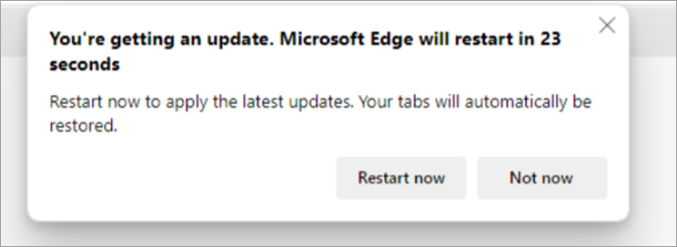
Instant Updates is a Microsoft Edge setting that automatically restarts the browser to apply new versions when your system is idle, aiming to prevent unexpected interruptions during your browsing sessions.
This feature helps keep your browser secure and up-to-date, often updating silently in the background. For instance, it might apply critical security patches from Microsoft’s latest release, such as version 120.0.2210.91.
You have the power to decide whether Edge restarts automatically. This control is invaluable if you’re concerned about losing unsaved work or disrupting active tasks.
Manage Microsoft Edge instant updates by going to Settings, then Privacy, search, and security. Under the Security section, toggle the switch for “Instant updates” to turn it on or off. You can also directly access this setting via edge://settings/privacy#instantupdates.
Turn on or off instant updates in Edge
Microsoft Edge instant updates can be turned on or off easily, letting you choose if the browser installs them right away or waits until you restart.
First, open the Microsoft Edge browser.
Then click on Setting and more (Alt+F), which is the 3 horizontal dots button on the top right corner, and select Settings.
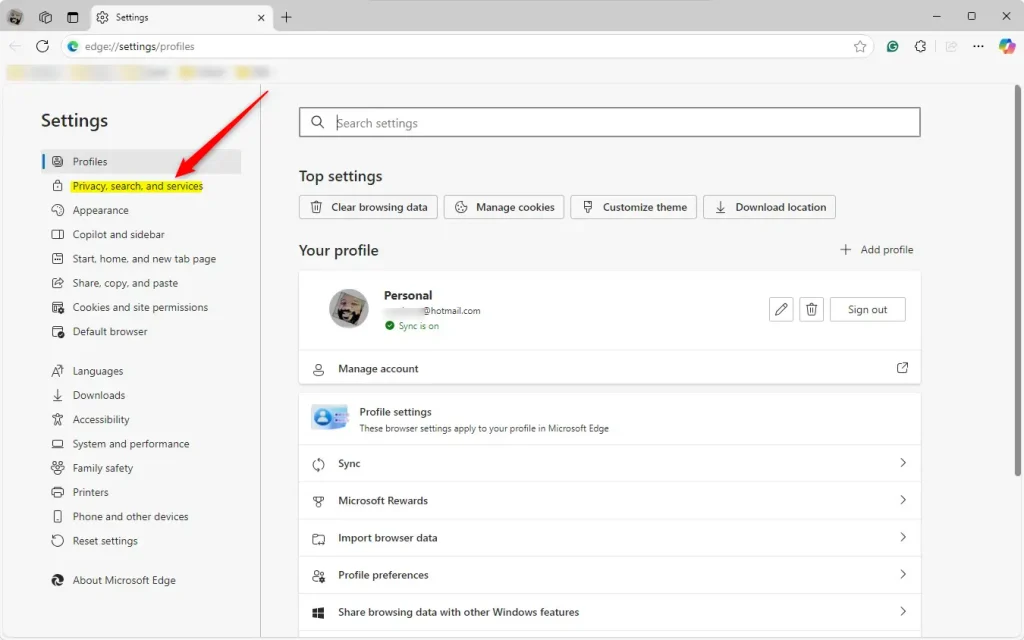
On the Settings page, select “Privacy, search, and security” from the left-hand menu.
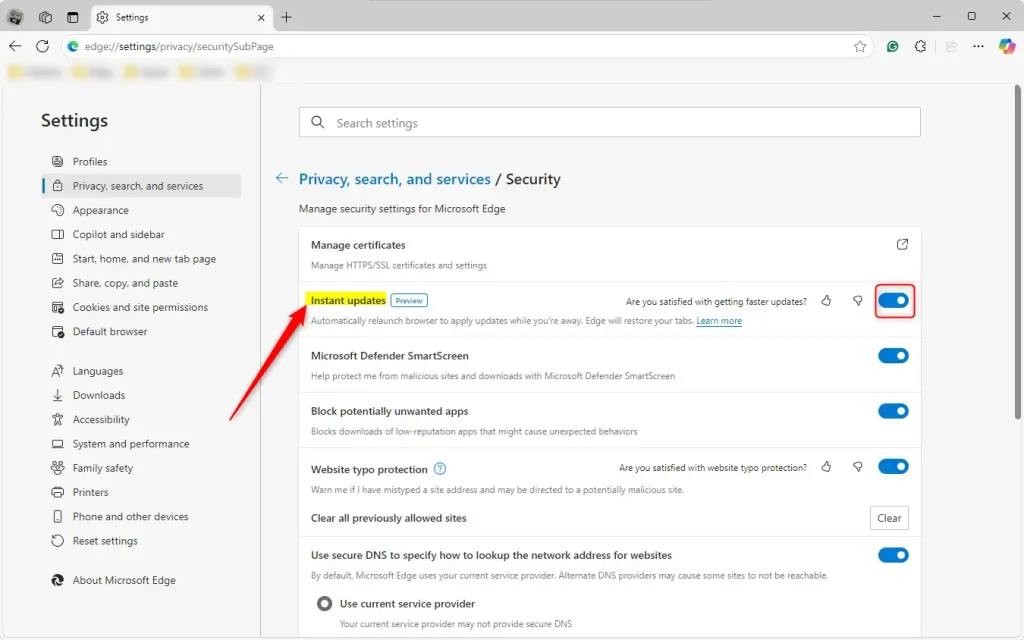
Under Security, toggle the switch for Instant updates. To turn off the feature, simply move the switch to the off position.
You can also go directly to Privacy Settings. Open your browser and enter the following web address:
edge://settings/privacy#instantupdates
Then, open the “Security” section and toggle your browser’s “Instant updates” feature.
That should do it!
Reference:
Conclusion:
So, managing Edge’s Instant updates is quite simple and can make your browsing smoother. Here’s a quick recap:
- User Control: You can turn Instant updates on or off based on your preferences.
- Convenience: Instant updates occur when the browser is not in use, minimizing disruptions.
- Access to Settings: Easily navigate to settings through the Settings and more menu to adjust the feature.
- Direct URL: Use the URL
edge://settings/privacy#instantupdatesfor quick access to the privacy settings related to Instant updates. - Improved Security: Keeping your browser updated helps ensure you have the latest security features and optimizations.
By following the steps in this article, you can manage updates in Microsoft Edge effectively for a seamless browsing experience.
How to get Edge to update automatically?
By default, Microsoft Edge automatically updates when you restart your browser. However, there are two situations where you may need to manually download an update: Metered connections, whether cellular, wi-fi or Ethernet, have data limits associated with them.
Was this guide helpful?

About the Author
Richard
Tech Writer, IT Professional
Richard, a writer for Geek Rewind, is a tech enthusiast who loves breaking down complex IT topics into simple, easy-to-understand ideas. With years of hands-on experience in system administration and enterprise IT operations, he’s developed a knack for offering practical tips and solutions. Richard aims to make technology more accessible and actionable. He's deeply committed to the Geek Rewind community, always ready to answer questions and engage in discussions.


No comments yet — be the first to share your thoughts!