Enable Copilot Data Access in Microsoft Edge

You enable Copilot data access in Microsoft Edge by turning on the “Allow Microsoft to access page content” setting.
This setting grants Microsoft Copilot permission to use your browsing data within Edge, allowing it to provide more personalized and contextually relevant AI assistance directly within Windows. Copilot, Microsoft’s AI assistant, leverages this browsing information to refine its responses.
For example, enabling this feature allows Copilot to see if you’ve recently visited websites related to PC gaming. If you ask Copilot for hardware recommendations, it can then suggest components that align with your recent browsing interests.
You control this privacy setting. Disabling it limits Copilot’s access to your browsing history, resulting in AI answers that are less tailored to your specific online activities.
Go to Settings > Sidebar > Copilot. Toggle “Allow Microsoft to access page content” to On. This setting lets Copilot use your browsing data for more personalized AI responses.
Turn “Allow Microsoft to access page content” on or off
You can control whether Microsoft sees the web pages you visit in Edge to help train its AI. To change this setting, first open the Microsoft Edge browser and click the three dots (…) in the upper right-hand corner to open the Settings menu.
First, open the Microsoft Edge browser.
Then click on Setting and more (Alt+F) three dots (…) in the upper right-hand corner to access the Settings menu.
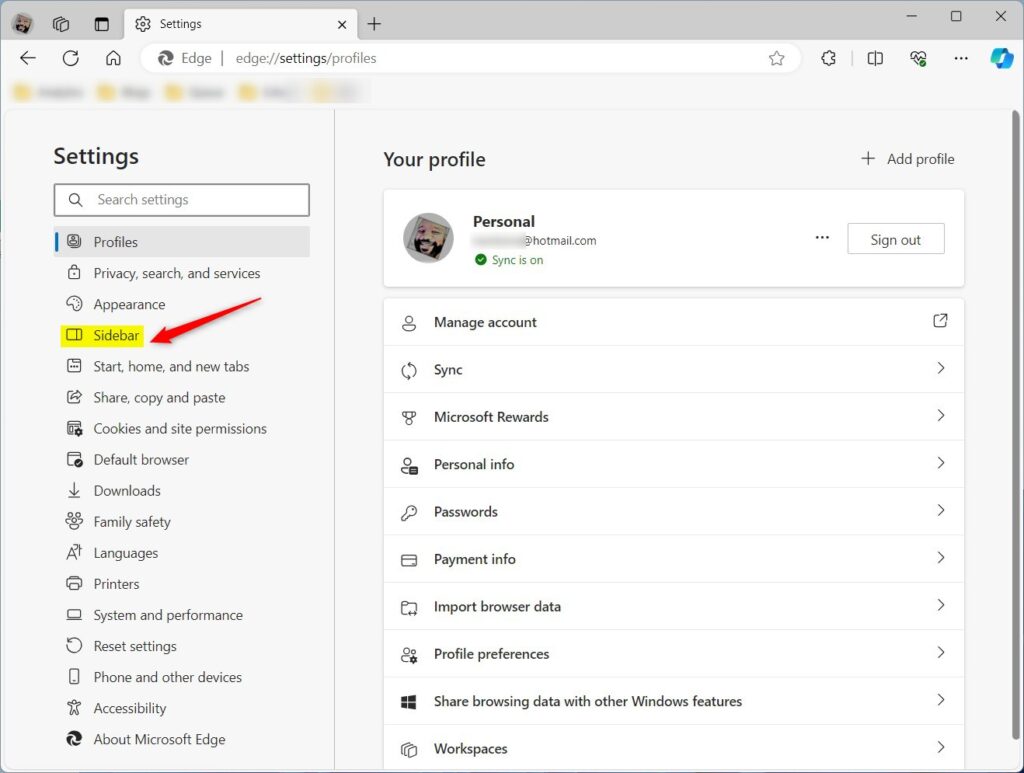
On the Settings page, click the Sidebar button in the left panel.
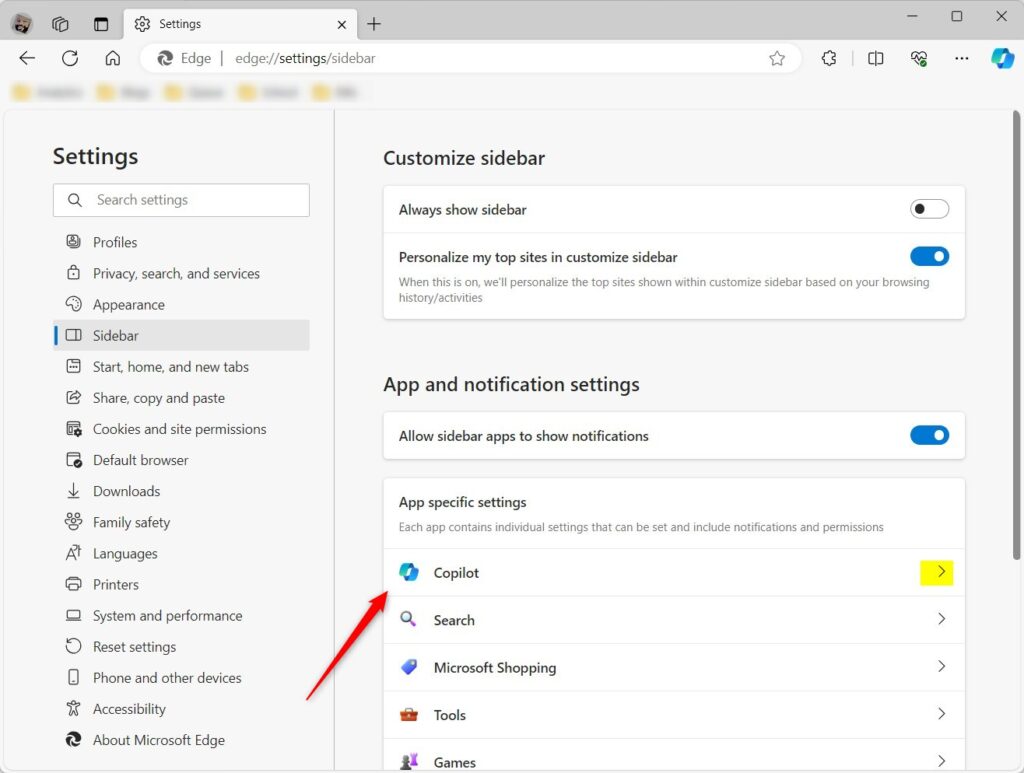
On the right, select the “Copilot” tile to expand it.
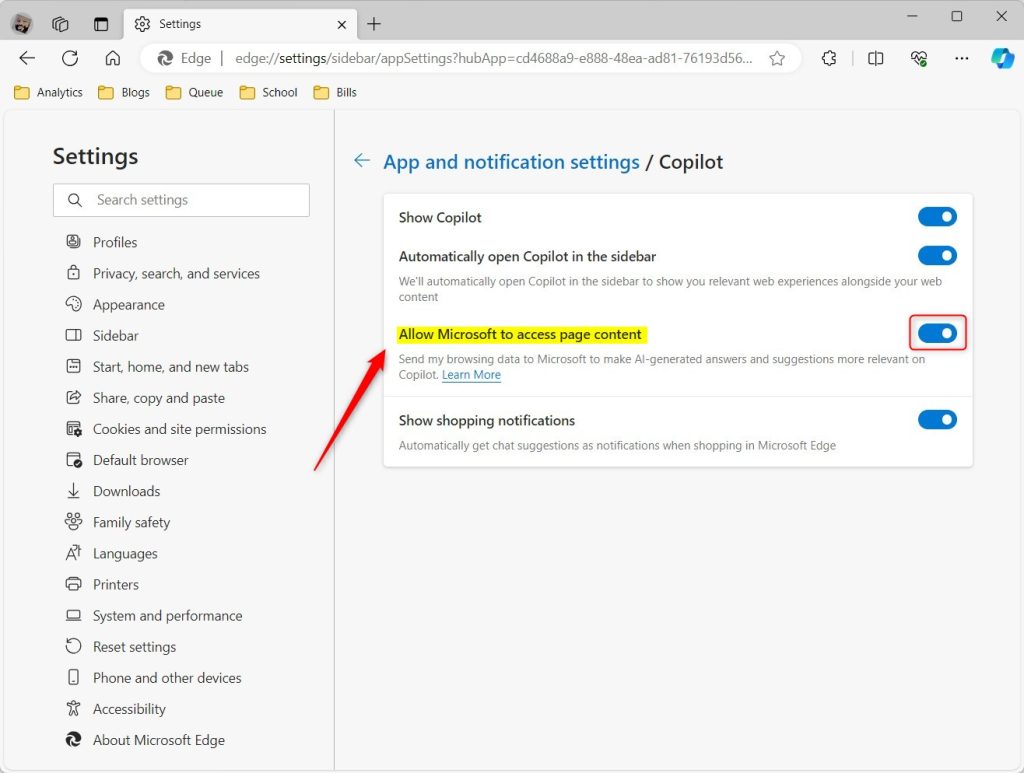
Next, toggle the ‘Show Copilot’ button to the On position to enable Copilot in Edge. You can’t change the settings to allow Microsoft to access page content when Copilot is off.
Then, select the “Allow Microsoft to access page content” tile and toggle the switch button to the On position to enable it.
To disable it, toggle the switch button to the Off position.
That should do it!
Conclusion:
- Enabling the “Allow Microsoft to access page content” feature in Microsoft Edge can improve the accuracy and personalization of Copilot’s suggestions and answers by granting access to browsing history and search queries.
- Disabling this feature ensures that Copilot does not access your browsing data, providing a more private browsing experience. However, the suggestions and answers may not be as tailored to your preferences.
- Users can easily manage these settings by accessing the Sidebar in the Microsoft Edge browser and toggling the appropriate options under the Copilot section.
Feel free to reach out through the comments section if you have any corrections or additional insights.
Can Microsoft access Copilot data?
Except for certain categories of users or users who have opted out, Microsoft uses data from Bing, MSN, Copilot, and interactions with ads on Microsoft for AI training.
How to access Copilot in Edge browser?
Accessing Copilot in the Edge browser is simple and starts with a click. Just look for the Copilot icon in the upper right corner of Edge to open it in the sidebar, and it will ask for your permission the first time you use it.
Where does Microsoft store Copilot data?
Copilot interaction data is stored within Microsoft 365 services and can be discovered, audited, and retained using Microsoft Purview capabilities. Microsoft 365 can capture: Audit records for Copilot prompts, responses, and referenced content. Copilot interaction data for eDiscovery and compliance investigations.
How to get rid of Copilot in Edge browser?
On this page we scroll down till we see co-pilot and sidebar. And on this page. Click on co-pilot. And here you'll see show copilot button on the toolbar.
Was this guide helpful?

About the Author
Richard
Tech Writer, IT Professional
Richard, a writer for Geek Rewind, is a tech enthusiast who loves breaking down complex IT topics into simple, easy-to-understand ideas. With years of hands-on experience in system administration and enterprise IT operations, he’s developed a knack for offering practical tips and solutions. Richard aims to make technology more accessible and actionable. He's deeply committed to the Geek Rewind community, always ready to answer questions and engage in discussions.



No comments yet — be the first to share your thoughts!