Enable or Disable Chrome Download Location Prompt

You can easily enable or disable Chrome’s download location prompt to choose where your files are saved.
This setting determines if Chrome automatically saves downloads to your default folder or if it asks you to select a location for each file. For instance, starting with Chrome version 120, enabling this prompt pauses the download process and presents a dialog box for you to pick the destination.
This control is incredibly useful for keeping your downloaded files organized. You decide whether Chrome prompts you for each download or if it handles them automatically.
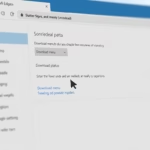
To enable or disable the Chrome download location prompt, go to Settings, search for “Ask where to save each file,” and click the toggle. This setting controls whether Chrome prompts you to choose a download folder or saves files to the default location.
Enable/Disable Download Location Prompt in Chrome
You can easily turn the Chrome download location prompt on or off directly within Chrome’s settings menu.
- Open Google Chrome browser.
- Click the three dots in the top right corner and choose Settings.
- In the search bar at the top of the Settings page, type “Ask”.
- Look for the setting that says “Ask where to save each file before downloading.”
Click the toggle switch to turn it On or Off.
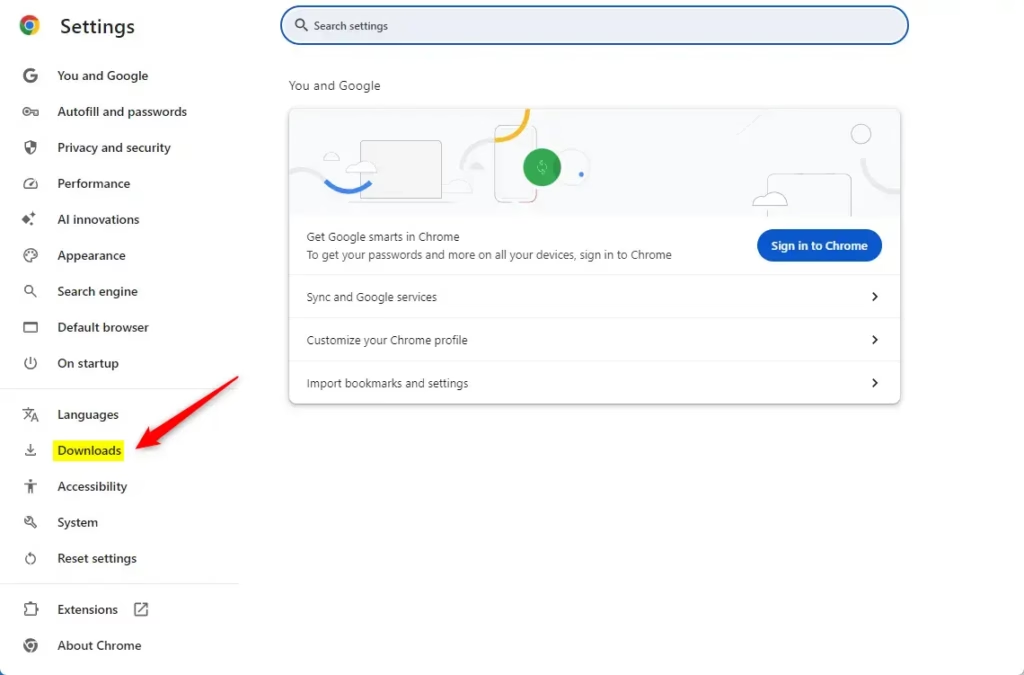
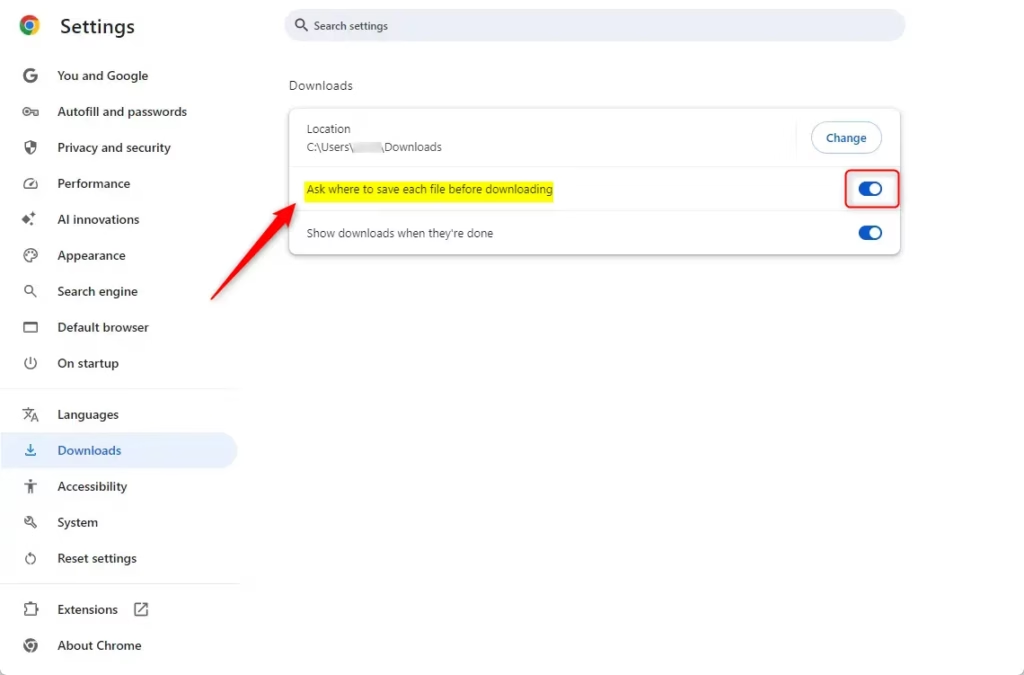
You can close the settings tab when you are finished.
Enable / Disable Download Location Prompt using the Registry
For those comfortable with advanced settings, you can change the Chrome download location prompt using the Windows Registry.
For your own account, we suggest using the 🗝️HKEY_CURRENT_USER (HKCU) path. If you want to change this for every person who uses the computer, you can use 🗝️HKEY_LOCAL_MACHINE (HKLM), but this requires administrative privileges.
- Open the Windows Registry.
- Go to this path: Computer\🗝️HKEY_CURRENT_USER\SOFTWARE\Policies\Google\Chrome
If the “Google” or “Chrome” folders aren’t there, right-click the folder above them. Then, choose New > Key and give it the correct name.
- Right-click in the empty space on the right, select New > DWORD (32-bit) Value, and name it PromptForDownloadLocation.
- Double-click PromptForDownloadLocation to edit it.
- Set the Value data to 1 to force the prompt to appear. Set it to 0 to disable the prompt (this is the default behavior).
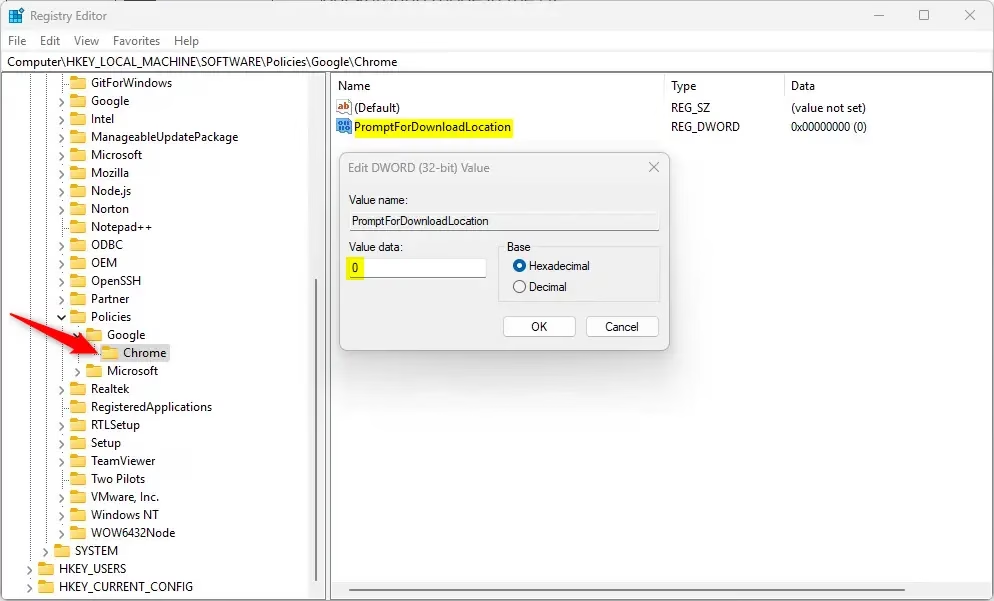
To return to the default settings later, delete the PromptForDownloadLocation value you created. You may need to restart your computer for these changes to take effect.
For more technical details, check the Chrome Enterprise Policy.
How to fix Chrome download location?
On your computer, open Chrome. Go to Downloads. Adjust your download settings: To change the default download location, click Change and select where to save your files.
Was this guide helpful?
0% of readers found this helpful (1 votes)

About the Author
Richard
Tech Writer, IT Professional
Richard, a writer for Geek Rewind, is a tech enthusiast who loves breaking down complex IT topics into simple, easy-to-understand ideas. With years of hands-on experience in system administration and enterprise IT operations, he’s developed a knack for offering practical tips and solutions. Richard aims to make technology more accessible and actionable. He's deeply committed to the Geek Rewind community, always ready to answer questions and engage in discussions.

No comments yet — be the first to share your thoughts!