Enable Download Location Prompt in Microsoft Teams

You can enable a prompt in Microsoft Teams to choose a download location for every file you save.
This setting transforms Teams’ default auto-save behavior into a manual selection process, allowing you to immediately organize downloaded files into specific folders beyond the standard Downloads directory.
Microsoft Teams, particularly version 2.0 on Windows, provides this granular control to help you manage your downloaded content efficiently. For instance, if you frequently download project assets or important documents, this feature prevents them from getting lost and saves you the time of searching later.
Go to Settings, then Files and links, and toggle “Always ask where to save downloaded files” to On. This ensures a prompt appears each time you download a file, letting you select the save location.
Where is the Downloads folder?
Files you download from Microsoft Teams usually go straight to your computer’s main Downloads folder.
Does Microsoft Teams use browser download settings?
If you use the web version of Microsoft Teams, it follows your browser’s rules. If you use Chrome or Edge, Teams will use the download path set in that browser’s settings. Changing the download path in your browser will automatically change where your web-based Teams files are saved.
How to enable the download location prompt
You can make Microsoft Teams ask you every time where you want to save a downloaded file, which is handy if you like to keep your files organised.
1. Launch the Microsoft Teams app from your Start menu.
2. Click the Settings and more (…) button near your profile picture.

3. Select Settings from the menu.
4. Click the Files and links tab on the left.
5. Toggle the switch for Always ask where to save downloaded files to On.
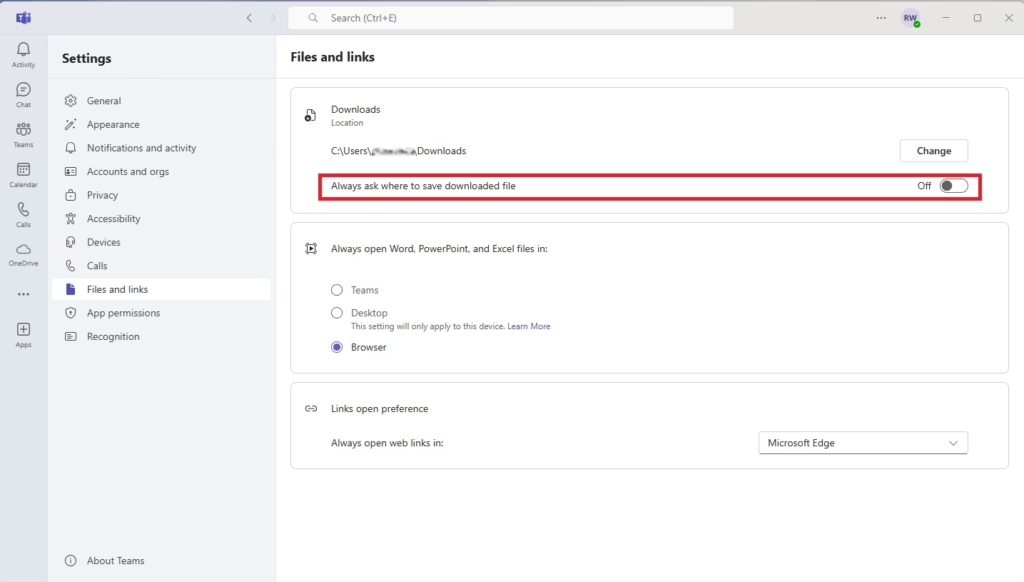
Once enabled, a window will pop up every time you click download, letting you choose the exact folder for that file.
Troubleshooting missing files
If you can’t find a file you downloaded from Microsoft Teams, the first place to look is your Downloads folder.
Summary
Keeping track of where your Microsoft Teams files go helps you stay organised and find things faster.
Can I change the default download location for Microsoft Teams?
Microsoft Teams’ desktop app saves downloads to your system’s Downloads folder by default.
Why don’t my files download to a specific folder?
If your files aren’t saving to the folder you want in Microsoft Teams, it’s likely the ‘Always ask’ setting is turned off.
Where are Microsoft Teams Downloads saved?
The files you download from Microsoft Teams automatically go to your device's Downloads folder. To download a file from a channel, click … and choose Download. To download a file from a chat, click the file and choose the download arrow right beside the Close button.
Where is MS Teams download?
Using your mobile device, go to aka.ms/teamsmobiledownload to get the Teams mobile app.
Was this guide helpful?

About the Author
Richard
Tech Writer, IT Professional
Richard, a writer for Geek Rewind, is a tech enthusiast who loves breaking down complex IT topics into simple, easy-to-understand ideas. With years of hands-on experience in system administration and enterprise IT operations, he’s developed a knack for offering practical tips and solutions. Richard aims to make technology more accessible and actionable. He's deeply committed to the Geek Rewind community, always ready to answer questions and engage in discussions.



No comments yet — be the first to share your thoughts!