Enable or Disable Mica Effect in Microsoft Edge

You can enable or disable the Mica effect in Microsoft Edge to control its transparent, frosted glass-like appearance.
Mica is a design element that adds subtle transparency to applications, allowing your desktop wallpaper to subtly show through, enhancing the visual appeal of elements like the Edge address bar and tabs.
This feature is enabled by default in Microsoft Edge versions 122.0.2349.0 and later. You’ll find it can significantly modernize your browsing experience.
Whether you can utilize this effect depends on your PC’s hardware capabilities and specific Windows settings.
Open Microsoft Edge Settings, navigate to Appearance, and toggle “Show Windows 11 visual effects in browser” on or off. Restart the browser to apply your selection.
Enable or disable the Mica effect in Microsoft Edge
You can easily turn the Mica effect on or off in Microsoft Edge to change how the browser looks. This effect adds a subtle, translucent background that shifts with your desktop wallpaper, giving your browser a more integrated feel. If you want to change this visual setting, here’s how to do it.
First, open the Microsoft Edge browser.
Then, click the three dots (…) for Settings and more (Alt+F) in the upper right-hand corner to open the Settings menu.
Once you’re on the Settings page, click on Appearance in the left-hand menu.

On the right side, under Customize appearance, find the “Show Windows 11 visual effects in browser” option. Flip the switch to the ‘On’ position to enable Mica, or to ‘Off’ to disable it.
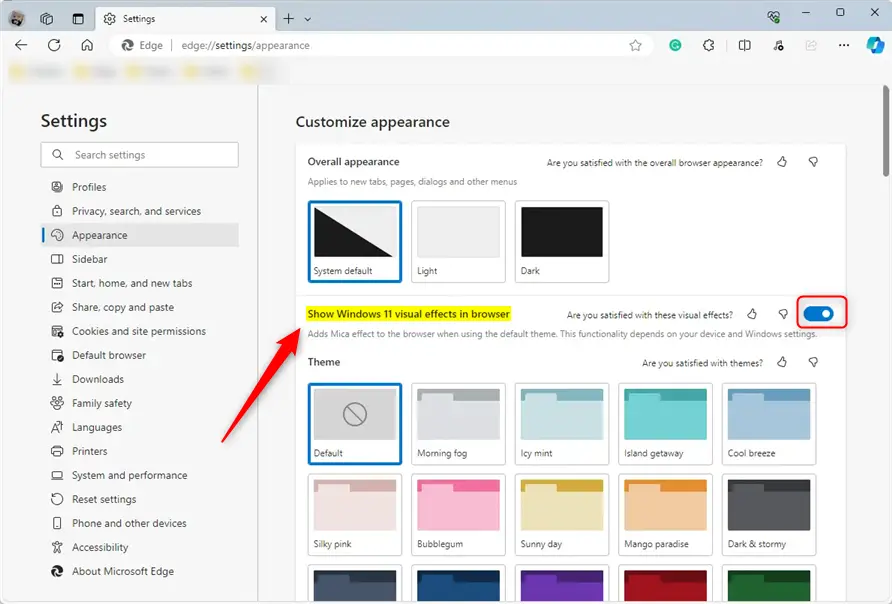
Restart your browser to apply the changes.
That should do it!
Conclusion:
- Enabled or disabled the Mica effect in Microsoft Edge based on personal preference
- Implemented the changes using the Settings menu in the browser
- Successfully restarted the browser for the changes to take effect
Why is the mica effect not working in Microsoft Edge?
It will only work if the Theme is set to Default, not another (selected) colour. To do this > edge://flags. In the search box type Mica. Enable & Restart.
Why does Edge look pixelated?
In Edge, go to Settings > Appearance > Fonts. From here, you can adjust the default font size, family, and weight. Try setting larger or different fonts to see if this helps resolve the fuzziness.
What is the mica effect on windows?
Mica is an opaque, dynamic material that incorporates theme and desktop wallpaper to paint the background of long-lived windows such as apps and settings.
Was this guide helpful?

About the Author
Richard
Tech Writer, IT Professional
Richard, a writer for Geek Rewind, is a tech enthusiast who loves breaking down complex IT topics into simple, easy-to-understand ideas. With years of hands-on experience in system administration and enterprise IT operations, he’s developed a knack for offering practical tips and solutions. Richard aims to make technology more accessible and actionable. He's deeply committed to the Geek Rewind community, always ready to answer questions and engage in discussions.
📚 Related Tutorials




No comments yet — be the first to share your thoughts!