How to Turn “Show new tab menu” On or Off in Microsoft Edge

You turn the “Show new tab menu” on or off in Microsoft Edge to control whether a quick access button for tab organization appears on your toolbar.
This feature provides a streamlined shortcut for managing your open web pages directly from your browser’s toolbar, complementing other tab management tools like Vertical Tabs.
When enabled, you’ll see a dedicated icon, offering immediate access to options such as creating tab groups, reviewing your history, or finding recently closed tabs without navigating away from your current page.
Open Microsoft Edge, click the three dots menu, go to Settings, then Appearance. Under Customize toolbar, toggle the “Show new tab menu” option on or off.
Add or remove the “New tab menu” in Edge
You can easily turn the Microsoft Edge new tab menu on or off right from the browser’s settings.
- Open the Microsoft Edge browser.
- Click the Settings and more button (the three dots icon) in the top right corner.
- Select Settings from the menu.
Microsoft Edge browser has more options and settings - On the left side of the screen, click Appearance.
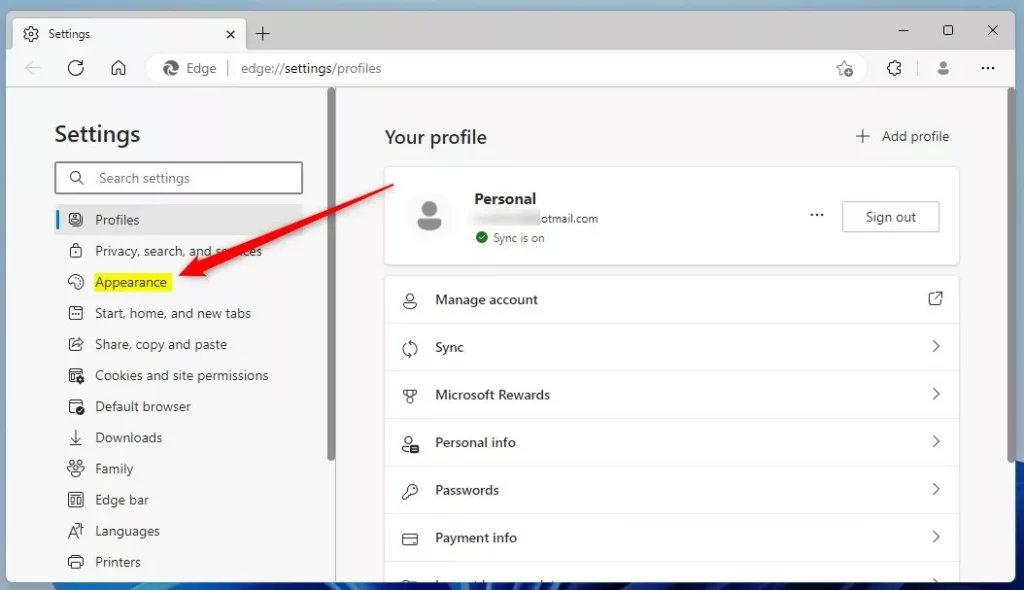
Microsoft Edge settings appearance - Look for the Customize toolbar section on the right.
- Find the Show new tab menu option.
- Click the toggle switch to turn it On or Off.
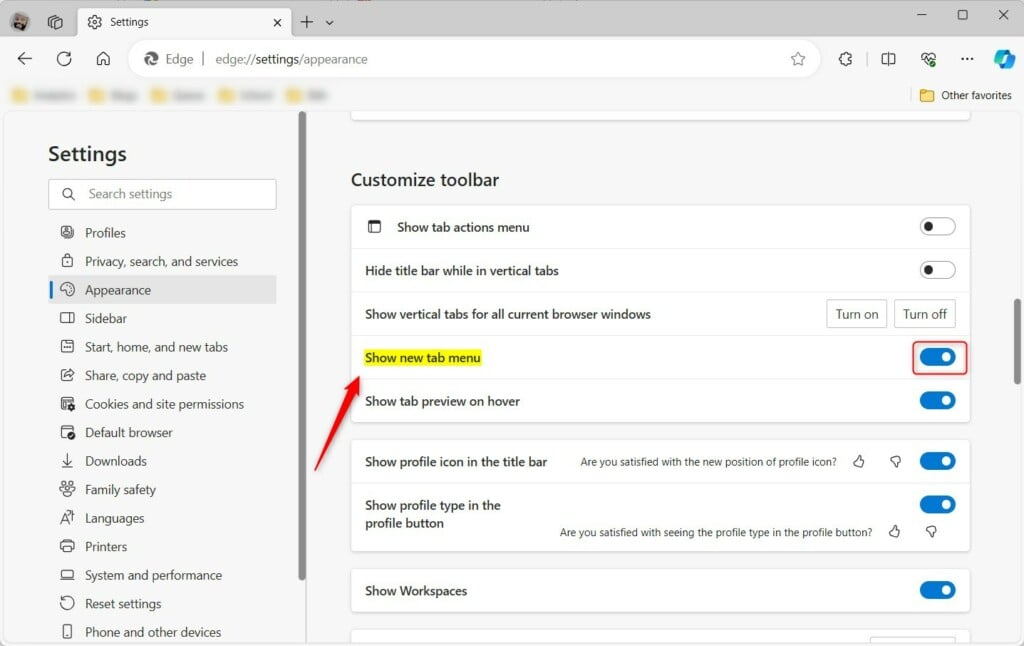
Add or remove the New tab menu in Edge
If you turn it on, the menu icon will appear on your toolbar immediately. 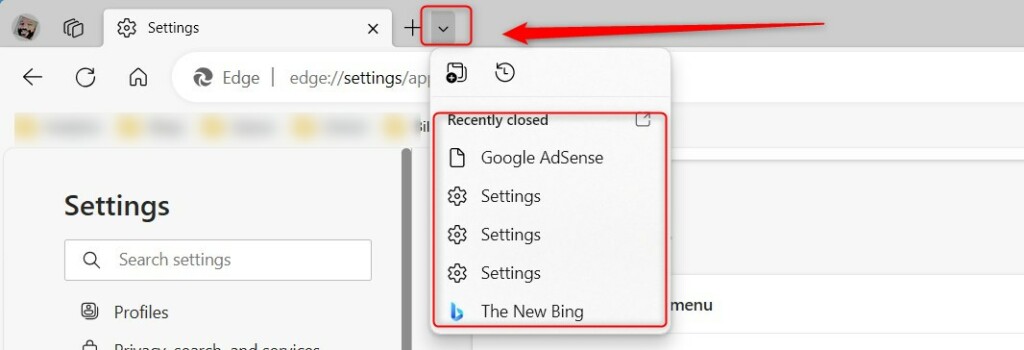
Conclusion
Enabling the “New tab menu” makes it easier to keep your tabs grouped and organized. If you prefer a cleaner look with fewer buttons, you can easily turn it off to keep your toolbar simple.
Was this guide helpful?

About the Author
Richard
Tech Writer, IT Professional
Richard, a writer for Geek Rewind, is a tech enthusiast who loves breaking down complex IT topics into simple, easy-to-understand ideas. With years of hands-on experience in system administration and enterprise IT operations, he’s developed a knack for offering practical tips and solutions. Richard aims to make technology more accessible and actionable. He's deeply committed to the Geek Rewind community, always ready to answer questions and engage in discussions.



No comments yet — be the first to share your thoughts!