How to Enable or Disable Auto Sign-In on Microsoft Edge

You can enable or disable auto sign-in for Microsoft Edge to automatically log you in using your Microsoft account credentials from other Windows apps.
Microsoft Edge, the default browser on Windows 11, leverages Chromium technology. Signing into Edge with your Microsoft account syncs your browsing data like bookmarks and history across all your devices.
The auto sign-in feature, controlled by the SeamlessWebToBrowserSignInEnabled policy, uses your existing Microsoft account login from applications such as Outlook. This means you won’t have to re-enter your username and password for Edge.
For this convenience to work, another policy, WebToBrowserSignInEnabled, must also be active. This guide shows you exactly how to manage this setting.
Enable or disable auto sign-in in Microsoft Edge by going to Settings > Profile > Profile preferences and toggling the “Automatic sign in on Microsoft Edge” option. Alternatively, use the Windows Registry to set the SeamlessWebToBrowserSignInEnabled policy.
Turn on or off automatic sign in to Edge
You can easily turn Microsoft Edge auto sign-in on or off right in the browser’s settings. This lets you decide if you want Edge to automatically log you into websites and apps using your Microsoft account details.
Here’s how to enable or disable it.
Step 1: Open Microsoft Edge.
Step 2: Click the “Setting and more” button (the 3 horizontal dots) in the top right corner and select “Settings”.
Step 3: Select “Profile” on the left side of the Settings page. Click the “Profile preferences” option on the right to expand it.
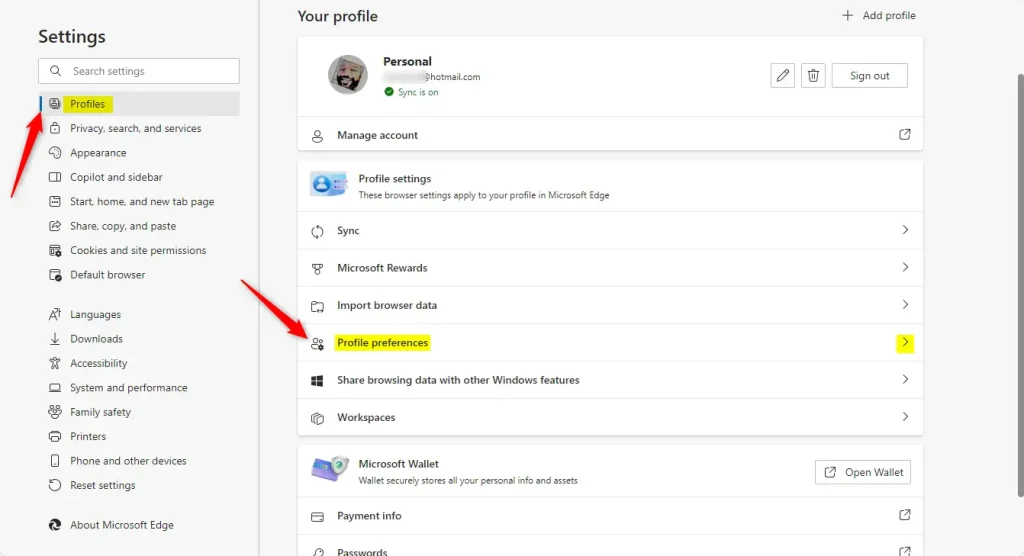
Step 4: Find the “Automatic sign in on Microsoft Edge” option. Toggle the switch button to turn it on or off.

Step 5: Close the Edge settings page when you’re done.
Enable or disable automatic sign in using the Windows Registry
Managing Microsoft Edge auto sign-in through the Windows Registry gives you more control, especially if you look after multiple computers. This method changes the setting for all users on your PC, so it’s best for advanced users or administrators.
Step 1: Open the Windows Registry on your computer.
Before you dive into the Registry, it’s really important to back it up. Creating a System Restore point is also a smart move for extra protection.
Step 2: Navigate to this folder path:
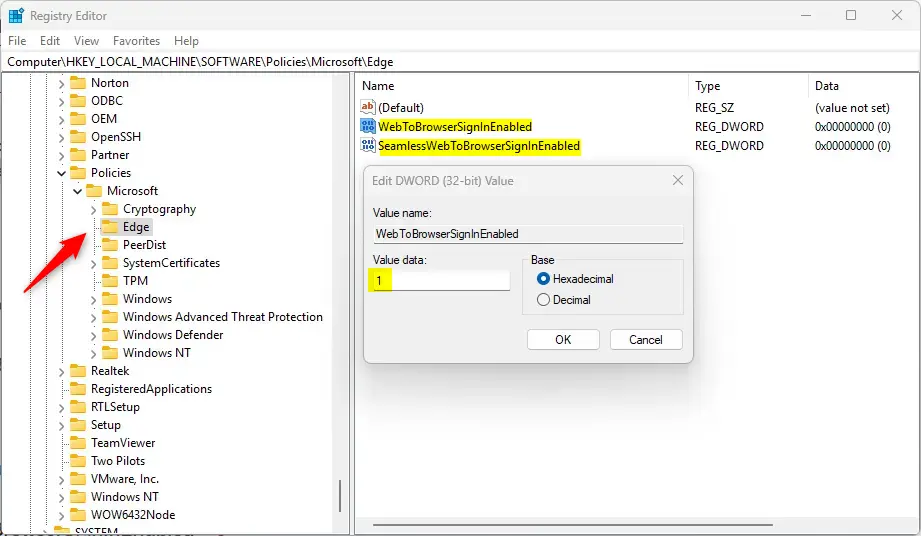
Computer\HKEY_LOCAL_MACHINE\SOFTWARE\Policies\Microsoft\EdgeStep 3: Right-click on “Edge”. Select “New” and then “DWORD (32-bit) Value”. Create two new items with these names:
- WebToBrowserSignInEnabled
- SeamlessWebToBrowserSignInEnabled
Step 4: Double-click on each item you just created. Set the value to 1 to turn on automatic sign-in for all users:
WebToBrowserSignInEnabled = 1
SeamlessWebToBrowserSignInEnabled = 1
Step 5: To turn off automatic sign-in for all users, set the value to 0 instead:
WebToBrowserSignInEnabled = 0
SeamlessWebToBrowserSignInEnabled = 0
Step 6: To restore the default behavior and let users choose, delete both items you created:
- WebToBrowserSignInEnabled
- SeamlessWebToBrowserSignInEnabled
Note: You may need to restart your computer for the changes to take effect.
Summary
You have two main ways to control Microsoft Edge auto sign-in on your Windows computer. You can adjust the settings directly within the Edge browser, or for more advanced control, you can use the Windows Registry.
- You have choices: You can pick whether you want Edge to sign you in automatically or not.
- Two ways to do it: You can use Edge settings or the Windows Registry. Pick whichever is easier for you.
- Syncing across devices: When you use a Microsoft account, your browsing information syncs across all your devices. This makes it easy to pick up where you left off.
- You’re in control: These settings let you customize your experience based on what you need.
- Always back up first: Before changing the Windows Registry, create a backup to prevent problems.
Using these options, you can make Microsoft Edge work the way you want it to.
How do I turn on auto sign in on Microsoft Edge?
On the right pane, under Profile settings, click Profile preferences. Find the Automatically sign in to sites with your current work or school account and toggle the switch beside it to: On = Enable automatic sign-in.
Was this guide helpful?

About the Author
Richard
Tech Writer, IT Professional
Richard, a writer for Geek Rewind, is a tech enthusiast who loves breaking down complex IT topics into simple, easy-to-understand ideas. With years of hands-on experience in system administration and enterprise IT operations, he’s developed a knack for offering practical tips and solutions. Richard aims to make technology more accessible and actionable. He's deeply committed to the Geek Rewind community, always ready to answer questions and engage in discussions.



No comments yet — be the first to share your thoughts!