How to Always Show the Forward Button in Microsoft Edge

You can always show the forward button in Microsoft Edge by enabling a specific setting in the browser’s appearance options.
This tweak ensures the forward navigation arrow remains visible on your toolbar, even when it’s not actively usable to go back through your browsing history.
Microsoft Edge, built on the same Chromium engine as Google Chrome, typically hides the forward button until a forward action is possible. However, many users prefer its constant presence for quicker navigation.
Enabling this feature means you’ll see the forward button all the time, ready to take you forward in your browsing history with a single click or by using the Alt+→ Arrow keyboard shortcut.
Always show the forward button in Microsoft Edge by going to Settings > Appearance > Customize toolbar. Select “Always show” for the Forward button option to keep it visible on your toolbar. This makes forward navigation readily accessible.
How to Always Show the Forward Button in Microsoft Edge
Step 1Open Edge Settings
- Open Microsoft Edge.
- Click the Settings and More button (the 3 dots in the top right).
- You can also press Alt+F on your keyboard.
- From the menu that appears, click Settings.
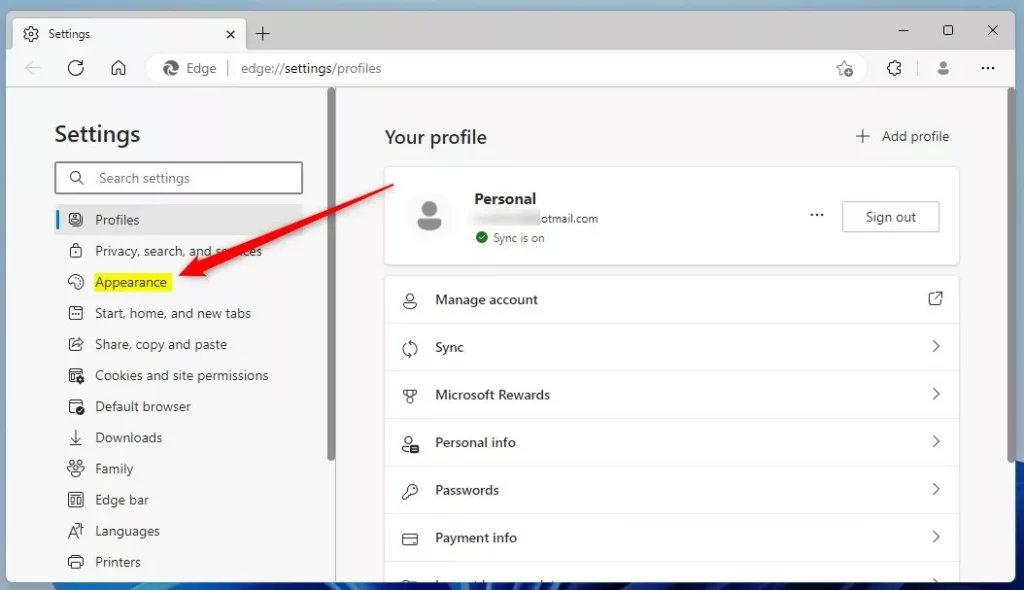
Step 2Go to Appearance Settings
- On the Settings page, click Appearance on the left side.
Step 3Customize Your Toolbar
- Look for the Customize toolbar section.
- Click the option that says Select which buttons to show on the toolbar.
- Find the Forward button option.
- Choose one of these options:
- Show automatically – The forward button only appears when you can move forward.
- Always show – The forward button is always visible.
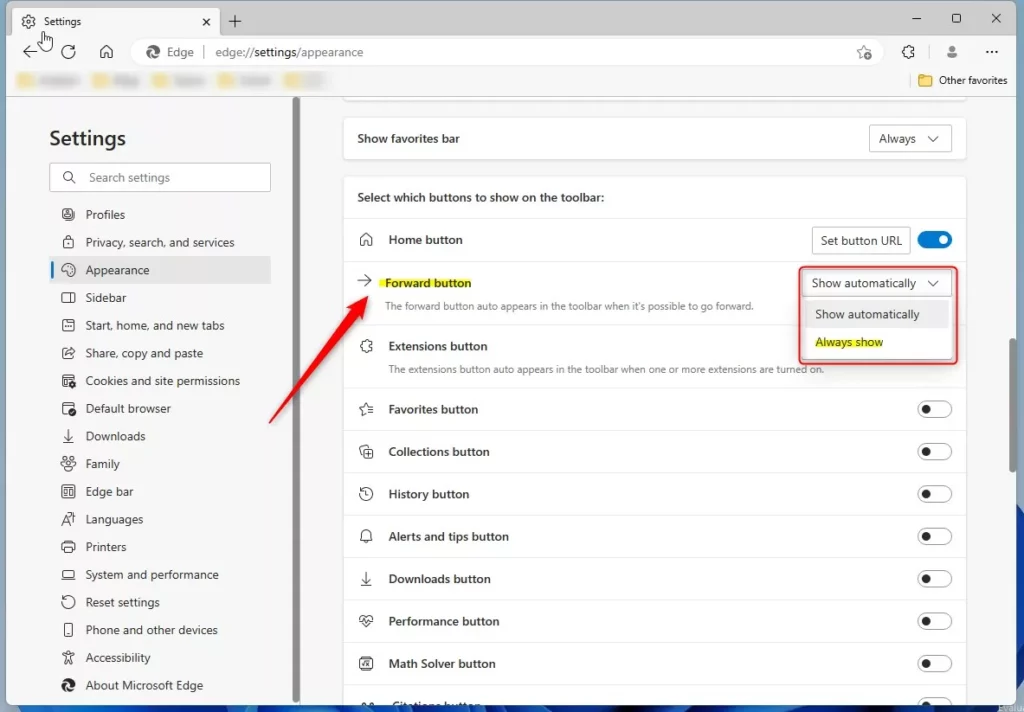
You can customize your toolbar to always show the forward button by changing a simple setting.
That’s it! Your forward button setting is now updated.
Summary
Changing the forward button in Microsoft Edge is quite simple. Open Settings, head to Appearance, locate ‘Customize toolbar,’ and then choose your preferred option for the forward button. You can make it show automatically or always be visible. Pick whichever option works best for how you browse.
What is the forward button?
A 'Forward Button' is a standard feature in the IE 8 toolbar that allows users to navigate forward through previously visited web pages with a single click.
Why doesn't Edge have a forward button?
Click on those go down to settings. Click on settings. And then once that loads go to appearance on the left hand side click on that.
Was this guide helpful?

About the Author
Richard
Tech Writer, IT Professional
Richard, a writer for Geek Rewind, is a tech enthusiast who loves breaking down complex IT topics into simple, easy-to-understand ideas. With years of hands-on experience in system administration and enterprise IT operations, he’s developed a knack for offering practical tips and solutions. Richard aims to make technology more accessible and actionable. He's deeply committed to the Geek Rewind community, always ready to answer questions and engage in discussions.


No comments yet — be the first to share your thoughts!