How to Toggle Copilot Vision in Microsoft Edge

You toggle Copilot Vision in Microsoft Edge by adjusting a specific setting within the browser’s privacy options.
Copilot Vision allows Microsoft Edge to analyze content directly on your screen, providing AI-powered assistance for tasks like summarizing web pages or answering questions about visual elements. Microsoft began rolling out these enhanced AI capabilities in early 2024.
This feature lets you interact with web content by circling or highlighting elements, then asking Copilot context-aware questions directly in the sidebar.
Activating Copilot Vision makes your browsing more interactive, enabling you to point and ask for AI assistance right where you need it.
To toggle Copilot Vision in Microsoft Edge, go to Settings, then Copilot and AI services, and adjust the “Enable Copilot Vision” switches. This allows you to control whether Edge analyzes on-screen content for AI assistance.
Turn Copilot Vision on or off in Microsoft Edge
You can easily turn Copilot Vision on or off in Microsoft Edge to change how the browser works with AI.
- Open the Microsoft Edge browser.
- Click on Settings and more (the three horizontal dots in the top right corner).
- Select Settings from the menu.
- Open Microsoft Edge.
- Click the three horizontal dots (Settings and more) in the top right.
- Select ‘Settings’ from the menu.
- In the left-hand menu, click ‘Copilot and AI services’.
- Find the ‘Copilot Vision’ section.
- Toggle the switches for these options: ‘Enable Copilot Vision for anything on screen’ and ‘Enable Copilot Vision on webpages in Edge’.
- On the left-hand menu, click on Copilot and AI services.
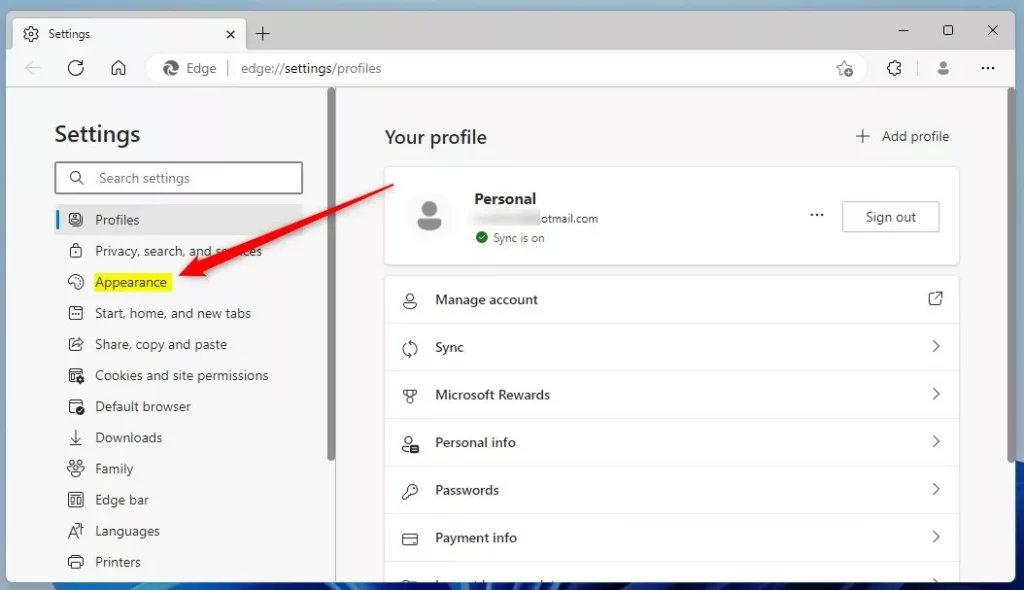
- Look for the Copilot Vision section.
- Toggle the switches to On or Off for the following options:
- Enable Copilot Vision for anything on screen
- Enable Copilot Vision on webpages in Edge
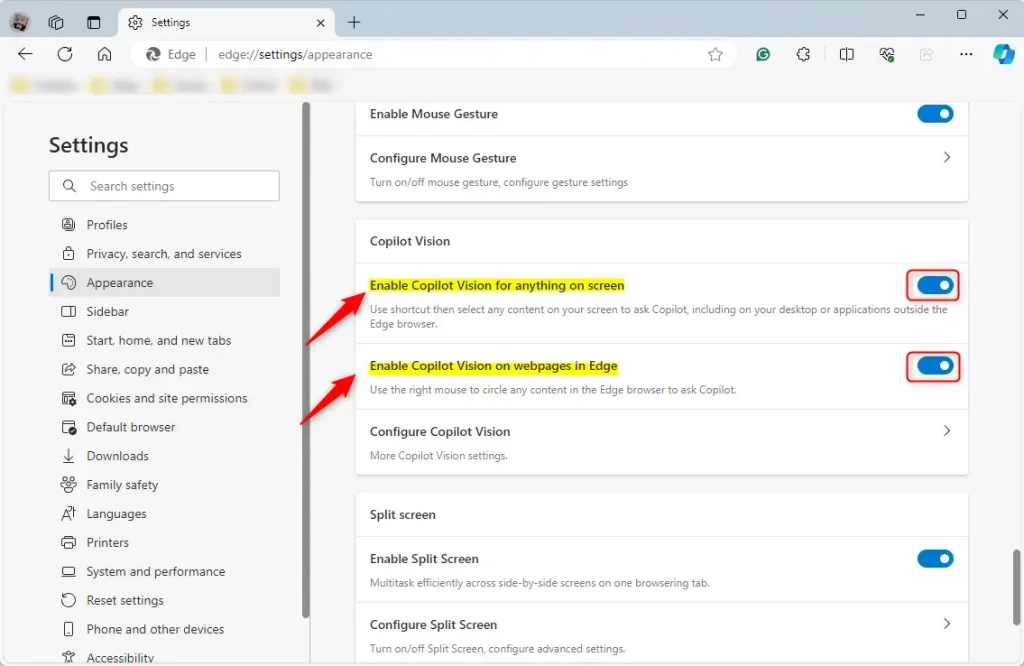
Close the Settings tab when you are finished. Your changes will take effect immediately.
Conclusion
Managing Copilot Vision in Microsoft Edge lets you decide if you want the AI assistant to see your screen.
Was this guide helpful?

About the Author
Richard
Tech Writer, IT Professional
Richard, a writer for Geek Rewind, is a tech enthusiast who loves breaking down complex IT topics into simple, easy-to-understand ideas. With years of hands-on experience in system administration and enterprise IT operations, he’s developed a knack for offering practical tips and solutions. Richard aims to make technology more accessible and actionable. He's deeply committed to the Geek Rewind community, always ready to answer questions and engage in discussions.



No comments yet — be the first to share your thoughts!