Unlock a More Private Web Experience with Microsoft Edge’s InPrivate Mode

Microsoft Edge’s InPrivate mode lets you browse the web privately. It stops your browsing history, cookies, and site data from being saved on your device after you close all InPrivate windows. (Think of cookies like little digital memory notes for websites.)
Think of this mode as a temporary sandbox for your online activity. It means your browsing sessions won’t leave a lasting footprint on your computer.
When you open an InPrivate window, Edge ensures that your activity is isolated from your regular browsing sessions. Your searches and visited sites won’t appear in your history or autofill suggestions.
This feature is crucial if you’re using a shared computer or want to keep certain searches or purchases completely confidential. It provides peace of mind for your online privacy.
Microsoft Edge’s InPrivate mode prevents your browsing history, cookies, and site data from being saved. To open an InPrivate window, click the three dots (…) in the top-right corner and select “New InPrivate window,” or press Ctrl+Shift+N. Your activity remains private on your device after closing all InPrivate windows.
What is InPrivate Browsing?
Microsoft Edge’s InPrivate mode is a private browsing feature that stops Edge from saving your browsing history, cookies, and site data on your device after you close the window.
- Browsing History: A list of websites you visited.
- Cookies: Small files websites use to remember you, like your login details or settings.
- Site Data: Information websites store to load faster or save your preferences.
- Form Entries: Text you type into online forms, like your name or address, which your browser might suggest later.
- Browsing History: A list of websites you visited.
- Cookies: Small files websites use to remember you, like your login details or settings.
- Site Data: Information websites store to load faster or save your preferences.
- Form Entries: Text you type into online forms, like your name or address, which your browser might suggest later.
InPrivate browsing tells Microsoft Edge to ignore this information for a specific session. When you close all your InPrivate windows, Edge deletes your browsing history, cookies, site data, and form entries from your computer for that session. It’s like that browsing session never happened on your device.
Important Note: InPrivate mode helps keep your activity private on your own computer. It does not make you anonymous online. Your internet provider, your workplace network, and the websites you visit can still see what you do. It’s great for stopping others who use your computer from seeing your activity or for preventing certain searches from influencing ads you see later.
How to Open Your First InPrivate Window
Ready to try it? Opening an InPrivate window in Microsoft Edge is a great way to add a layer of privacy. Here are two ways to do it:
Method 1Using the Edge Menu
You can open a Microsoft Edge InPrivate window by clicking the three dots (…) in the top-right corner of the browser and selecting ‘New InPrivate window’ from the menu.
- Open Microsoft Edge: Start your Microsoft Edge browser.
- Click the Settings and More icon: Look for the three dots (
...) in the top-right corner of the Edge window. This opens the menu. - Select “New InPrivate window”: A menu will appear. Click on “New InPrivate window.”
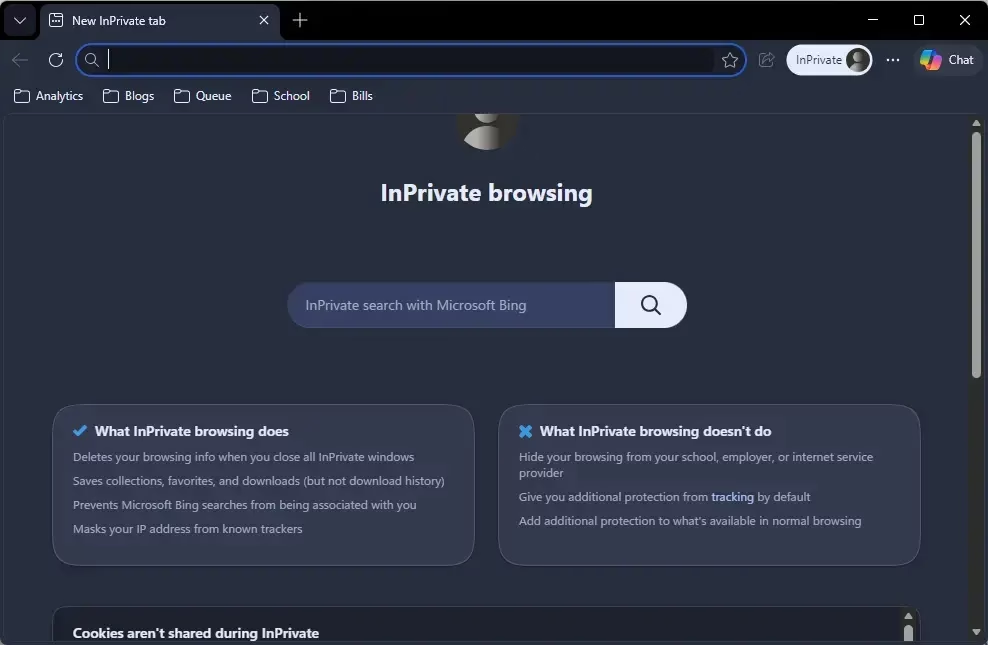
- See the InPrivate window: A new Edge window will open. It usually has a darker look and says “InPrivate” with a blue icon at the top. This shows you’re browsing privately.
- Start your Microsoft Edge browser.
- Then, look for the ‘Settings and More’ icon – those three dots ( ) in the top-right corner of the Edge window.
- Click it, and a menu will appear.
- Now, select ‘New InPrivate window.’
Method 2Using a Keyboard Shortcut
To quickly open a private browsing session in Microsoft Edge, simply press the Ctrl+Shift+N keys on your keyboard at the same time.
- Make sure Edge is open: Have Microsoft Edge running.
- Press Ctrl+Shift+N: On your keyboard, press and hold the Ctrl key, then the Shift key, and then tap the N key. Release all keys.
- Open your Microsoft Edge browser.
- Press the Ctrl+Shift+N keys on your keyboard simultaneously.
Warning: Make sure you press the correct keys! Other key combinations might perform different actions.
An InPrivate window will open right away. You’ll see the “InPrivate” label to confirm it’s active.
What Happens When You Browse InPrivate?
When you browse using Microsoft Edge’s InPrivate mode, your computer won’t save your browsing history, cookies, or site data from that session once you close the InPrivate window.
- No History Saved: Websites you visit won’t be saved in your regular browsing history.
- Cookies are Temporary: When you close the InPrivate window, all cookies from that session are deleted. You won’t be automatically logged into sites the next time you open a normal window.
- Site Data Cleared: Any temporary internet files or site data saved during your InPrivate session are also deleted when you close the window.
- Your browsing history is not saved.
- Cookies and site data are deleted when you close all InPrivate windows.
- Information you enter in forms is not remembered.
Downloads and Favorites are Safe: Don’t worry, InPrivate mode doesn’t delete everything! Files you download will stay on your computer. Any favorite websites you add will be saved to your normal favorites list.
Practical Tip: This is great for shopping for gifts, researching private topics, or using a shared computer. You can even log into a second account on a website without logging out of your main account in another window.
When to Use InPrivate Mode
You should use Microsoft Edge’s InPrivate mode when browsing on a shared computer to keep your activity private, or if you want to avoid targeted ads and website tracking.
- Protecting Privacy on Shared Devices: If you share your computer, InPrivate mode leaves no trace of your activity. Use it for private research or surprises, then close the InPrivate window when done. Your history, cookies, and site data are automatically cleared.
- Avoiding Targeted Ads and Tracking: Websites use cookies to track you and show you ads. If you don’t want your browsing to influence ads, use InPrivate windows. Cookies are deleted when you close the window, making it harder for advertisers to track you.
- Testing Websites: For website creators, InPrivate mode helps see how a site looks to a new visitor. Open your website in an InPrivate window to check how it appears without any stored data interfering.
- Logging into Multiple Accounts: Need to be logged into two accounts for the same service at once? For example, a personal and work email. Open a new InPrivate window and log into your second account there. The sessions won’t interfere with each other.
- Shopping for gifts: Keep surprise purchases hidden.
- Researching sensitive topics: Browse without creating a record.
- Using a shared computer: Prevent others from seeing your activity.
- Testing websites: See how a site behaves for a new visitor.
- Managing multiple accounts: Log into a different account on the same site.
Warning: Remember, InPrivate mode doesn’t hide your activity from your internet provider or the websites themselves. For true anonymity, consider using tools like VPNs.
Closing Your InPrivate Session
You can close your Microsoft Edge InPrivate session by clicking the ‘X’ button on the InPrivate window or by using the keyboard shortcut Ctrl+Shift+W on Windows.
- Identify the InPrivate window: Make sure you are closing the window that says “InPrivate” at the top.
- Close the window: Click the “X” button in the top-right corner of the InPrivate window (or use Ctrl+Shift+W on Windows).
- Close all of your InPrivate windows.
That’s it! All browsing data from that InPrivate session is automatically deleted from your computer. Your regular browsing windows are unaffected.
Tip: If you have multiple InPrivate windows open, closing one closes that specific session. To end all InPrivate browsing, close *all* InPrivate windows.
Summary
Microsoft Edge’s InPrivate mode offers a simple way to boost your privacy by not saving history or cookies, perfect for shared devices or avoiding tracking.
What happens when you use InPrivate browsing in Edge?
When you use InPrivate browsing in Microsoft Edge, your browsing history, cookies, site data, and form entries are not saved on your device for that session. Once you close all InPrivate windows, this temporary data is automatically deleted, offering a cleaner browsing experience.
Is InPrivate browsing really private?
InPrivate browsing enhances privacy by not saving your browsing history, cookies, or site data locally. However, it doesn’t make you anonymous online. Your activity may still be visible to websites you visit, your employer, or your internet service provider. It primarily prevents local data storage.
How to enable InPrivate browsing on Microsoft Edge?
To enable InPrivate browsing on Microsoft Edge, click the three horizontal dots (Settings and more) in the top-right corner of the browser window. Then, select ‘New InPrivate window’ from the dropdown menu. A new window will open with an InPrivate icon, indicating it’s active.
Should I always browse in private mode?
Browsing in private mode is beneficial for sensitive searches or when using a shared computer, as it prevents local data saving. However, it’s not necessary for everyday browsing. Normal browsing allows for saved logins and faster site loading, which are often convenient for regular use.
Was this guide helpful?

About the Author
Richard
Tech Writer, IT Professional
Richard, a writer for Geek Rewind, is a tech enthusiast who loves breaking down complex IT topics into simple, easy-to-understand ideas. With years of hands-on experience in system administration and enterprise IT operations, he’s developed a knack for offering practical tips and solutions. Richard aims to make technology more accessible and actionable. He's deeply committed to the Geek Rewind community, always ready to answer questions and engage in discussions.



No comments yet — be the first to share your thoughts!