How to Enable Location Override in Windows 11


Location override in Windows 11 lets you manually set your computer’s location, instead of letting Windows guess it using Wi-Fi or GPS.
This is handy for apps that need to know your physical spot, especially if you use virtual machines or remote desktop. Setting the location yourself makes sure these apps show your real location, not the server’s.
For example, if your virtual machine is running in New York but you’re actually in London, location override can make the VM think it’s in London. This helps apps like weather or navigation tools work correctly for you.
Open Settings, then Privacy & security, and click Location. Find “Allow location override” and toggle the switch to On. This lets you manually set your PC’s location for apps.
How to Enable or Disable via Settings
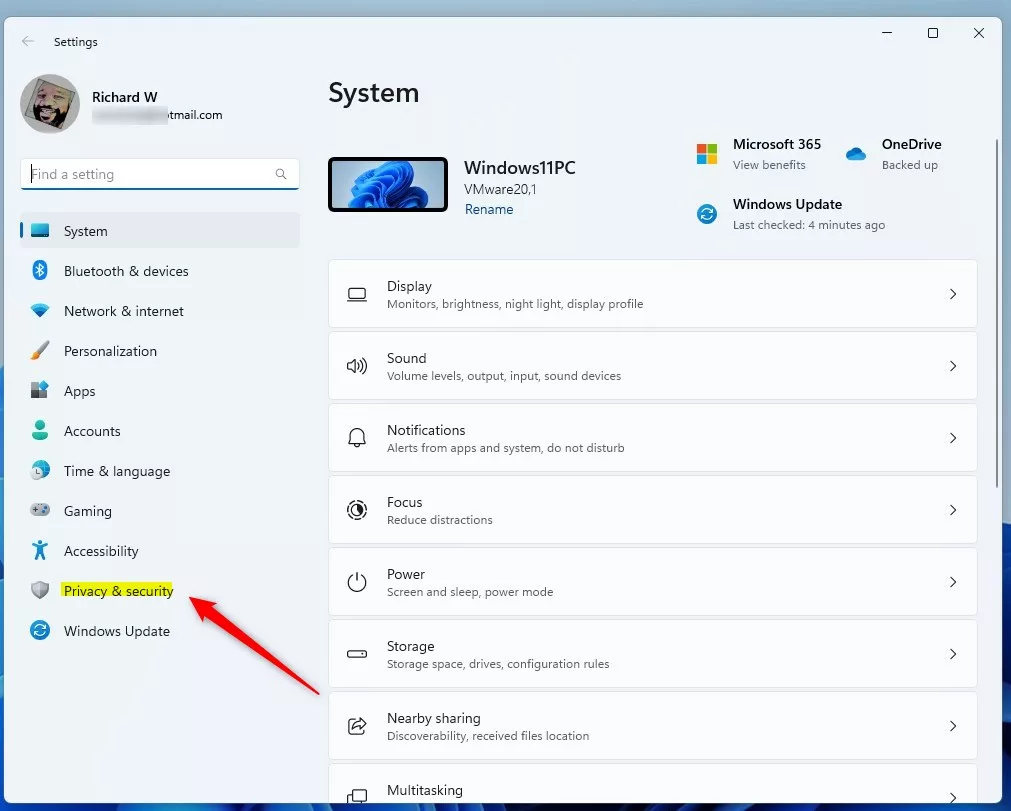
You can enable or disable location override in Windows 11 through the Settings app. Open Settings, go to Privacy & security, then click on Location. You’ll find the ‘Allow location override’ switch there to turn it on or off.
2. Select Privacy & security on the left sidebar.
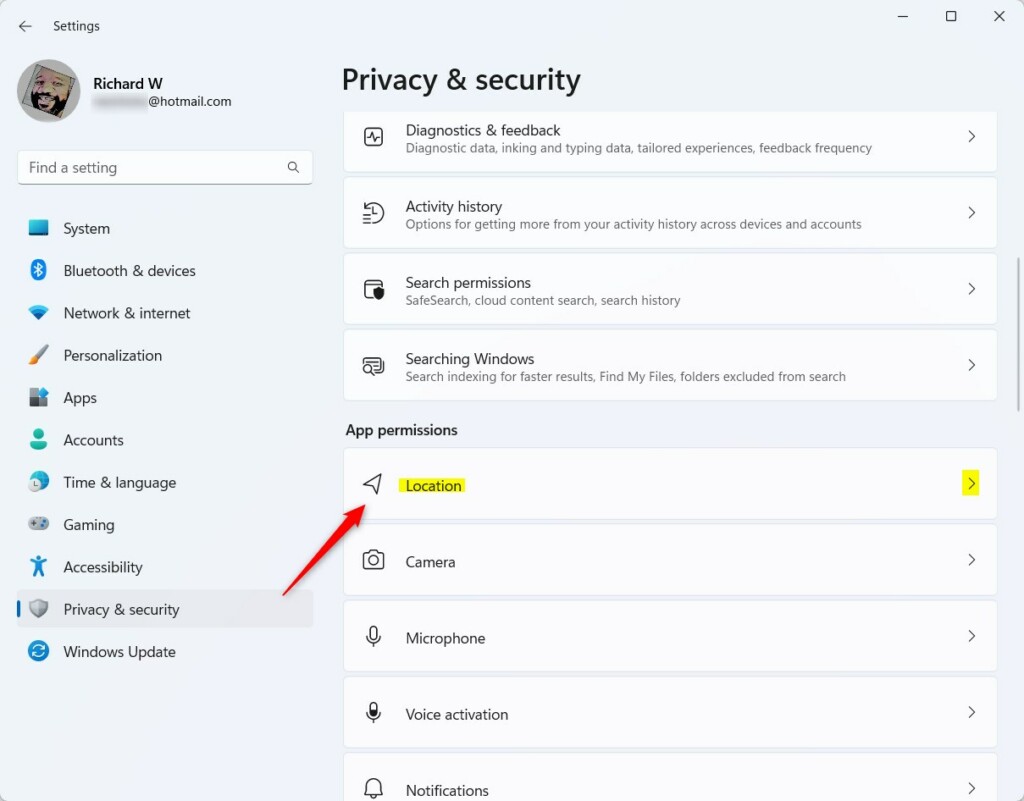
3. Click the Location tile on the right to see more options.
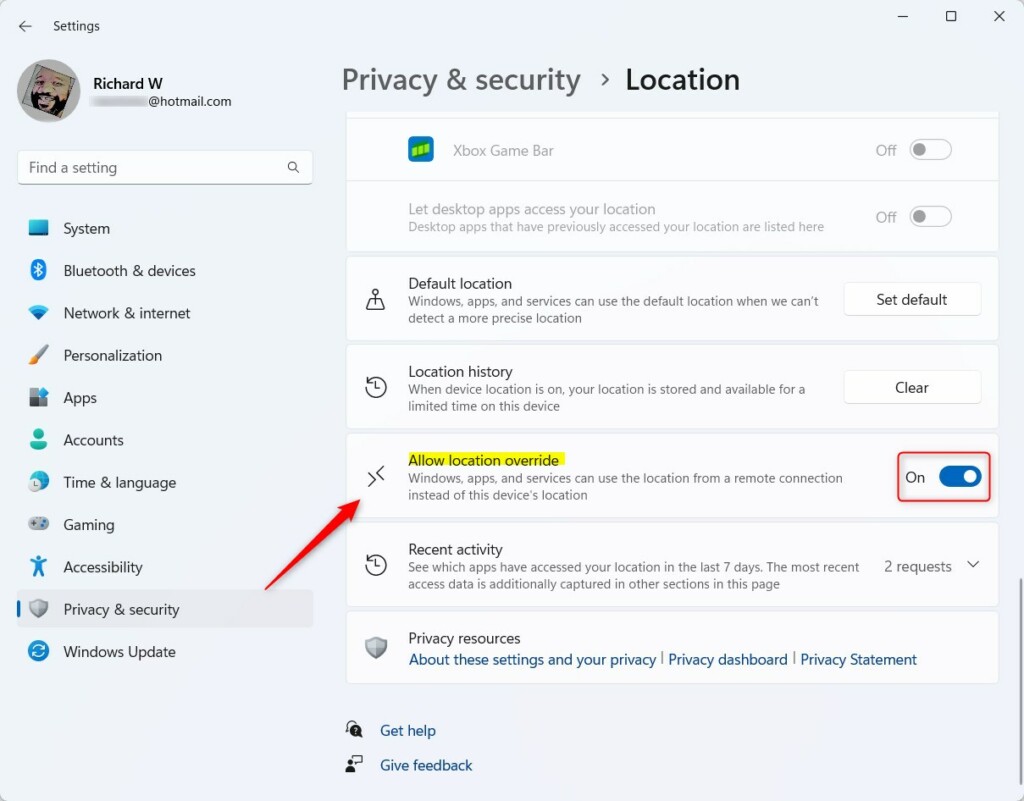
Find the “Allow location override” section. Toggle the switch to “On” to let apps use your manually set location. Set it to “Off” to prevent this and force apps to use your device’s actual location.
5. Close the Settings app when finished.
Advanced Configuration: Registry Editor
You can turn the location override setting on or off in Windows 11 using the Registry Editor. This advanced method requires administrator rights. Back up your registry (a central database of system settings) before you make changes to prevent potential system problems.
A heads-up before we dive in: this step requires administrator privileges. Incorrectly modifying the registry can cause system instability. Always back up your registry before making changes.
- Open the Windows Registry editor by pressing ⊞ Win+R, typing regedit.exe, and pressing Enter.
- Navigate to this location in the Registry Editor:
HKEY_CURRENT_USER\Software\Microsoft\Windows\CurrentVersion\CPSS\Store\UserLocationOverridePrivacySetting - If you do not see the UserLocationOverridePrivacySetting folder, right-click the Store folder, select New > Key, and name it
UserLocationOverridePrivacySetting.
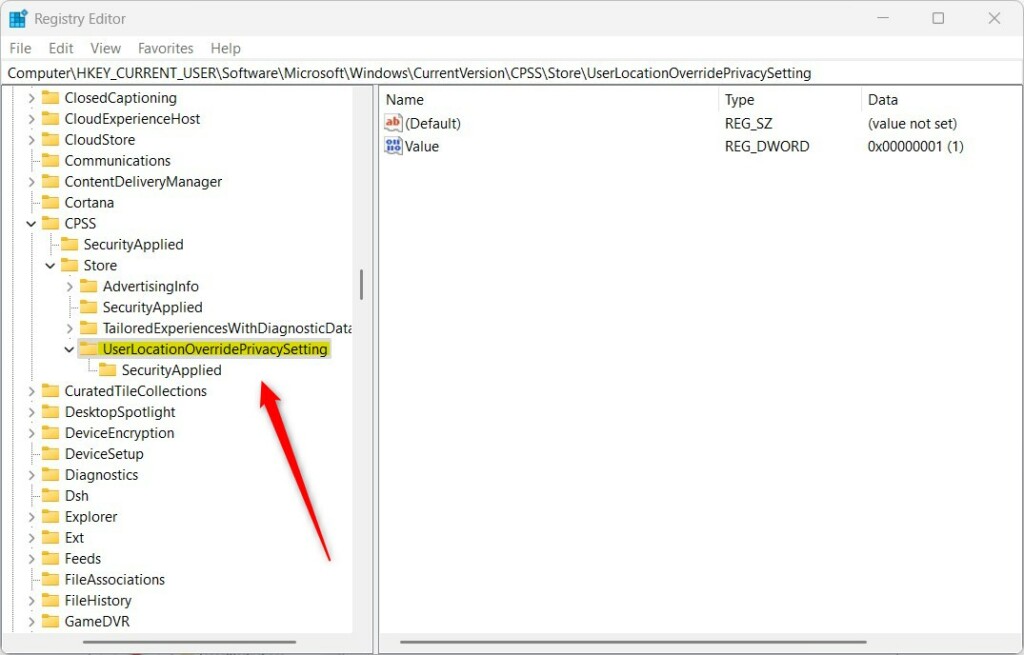
4. Right-click in the empty space on the right side, select New > String Value, and name it Value.
5. Double-click Value and change the data to 1 to enable or 0 to disable.
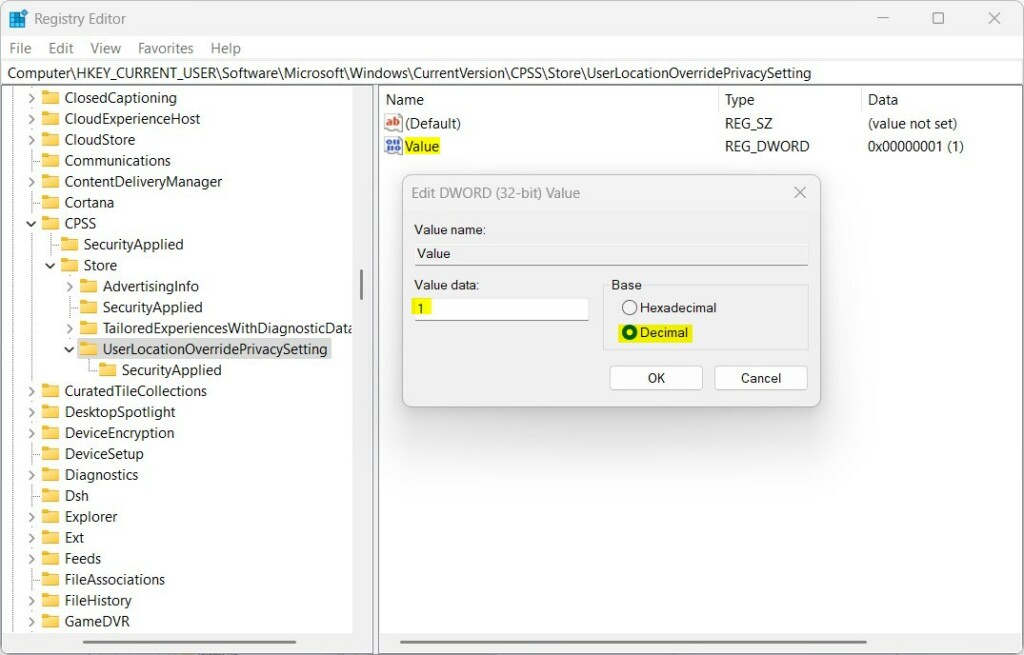
6. Restart your computer to apply the changes.
Managing Location via Group Policy (GPO)
If you’re in a work or school setting, your IT administrator can control the location override feature in Windows 11 using the Group Policy Editor.
Troubleshooting: Why is the button greyed out?
If the location override button in Windows 11 is greyed out, it usually means your computer’s settings are controlled by your workplace or school through a policy.
Summary
The “Allow location override” feature in Windows 11 helps apps get your location, especially useful for remote work, and you can manage it through Settings or the Registry.
Is location override a security risk?
Turning on location override in Windows 11 is generally safe, but it does let apps see your location, so it’s smart to check which apps have permission.
Does enabling location override affect Find My Device?
No, enabling location override does not interfere with the Find My Device feature. Find My Device operates independently through your Microsoft account to track your hardware’s last known location. Location override is specifically designed to assist apps in determining your current position for functional purposes during remote sessions.
Was this guide helpful?

About the Author
Richard
Tech Writer, IT Professional
Richard, a writer for Geek Rewind, is a tech enthusiast who loves breaking down complex IT topics into simple, easy-to-understand ideas. With years of hands-on experience in system administration and enterprise IT operations, he’s developed a knack for offering practical tips and solutions. Richard aims to make technology more accessible and actionable. He's deeply committed to the Geek Rewind community, always ready to answer questions and engage in discussions.




No comments yet — be the first to share your thoughts!