How to Change Remote Desktop Port in Windows 11


Changing the default Remote Desktop port is one of the quickest ways to secure a Windows 11 machine. It takes about five minutes: one registry edit, one firewall rule and a restart.
Open Registry Editor, navigate to 🗝️HKEY_LOCAL_MACHINE\
Why change the Remote Desktop port?
Moving away from port 3389 makes it harder for hackers to find and attack your computer. This port number is the standard address that Remote Desktop connections use by default, and automated scanners check it first.
Before you start, note that a Windows 11 PC can only accept incoming Remote Desktop connections if it runs Pro, Enterprise or Education. Windows 11 Home can connect out to other PCs but cannot host. Also make sure Remote Desktop is switched on under Settings System Remote Desktop
What happens when done?
After changing the port and updating your firewall, your computer stops listening on the default port 3389. Instead, incoming remote connections arrive only on the new custom port. Remember to include this new port number when connecting from other devices.
Pick a number between 1024 and 65535 that no other service on the PC uses. Avoid well-known ports such as 80, 443 or 445. Write the number down before you begin, because you will use it in the registry, in the firewall rule and on every client.
Step 1Back Up Your Registry (Required)
Proceed carefully when editing the registry because mistakes cause system instability. Always create a backup first by going to File Export in the Registry Editor.
Save the export somewhere you can find it, such as your Documents folder. If something goes wrong, double-click the exported file to restore the old values.
Step 2Change the Port in Registry Editor
Sign in with an administrator account, then open the Registry Editor by typing regedit into the Windows search bar. Navigate to the specific path for Remote Desktop settings to locate the port number.
- Click the Search icon and type
regeditto open the Registry Editor. If Windows shows a User Account Control prompt, click Yes. The Registry Editor window should now open. - Navigate to this path:
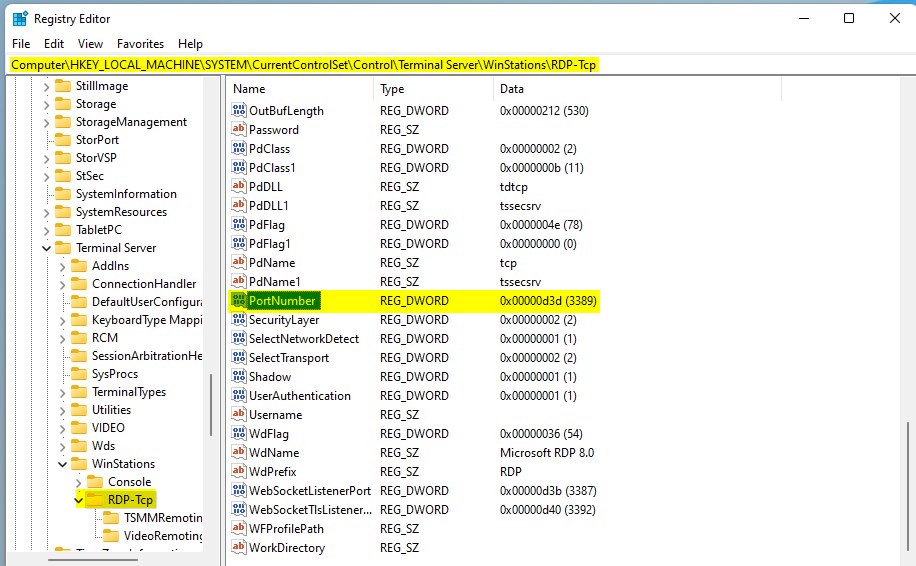
HKEY_LOCAL_MACHINE\System\CurrentControlSet\Control\Terminal Server\WinStations\RDP-Tcp. You can paste it into the address bar at the top of the Registry Editor, or expand the folders in the left pane one by one. When you reach the last key, its values appear in the right pane.
- Find the
PortNumberentry on the right side. Its data currently shows the default port, which the editor displays in hexadecimal at first. - Right-click it and select Modify. An Edit DWORD (32-bit) Value box opens.
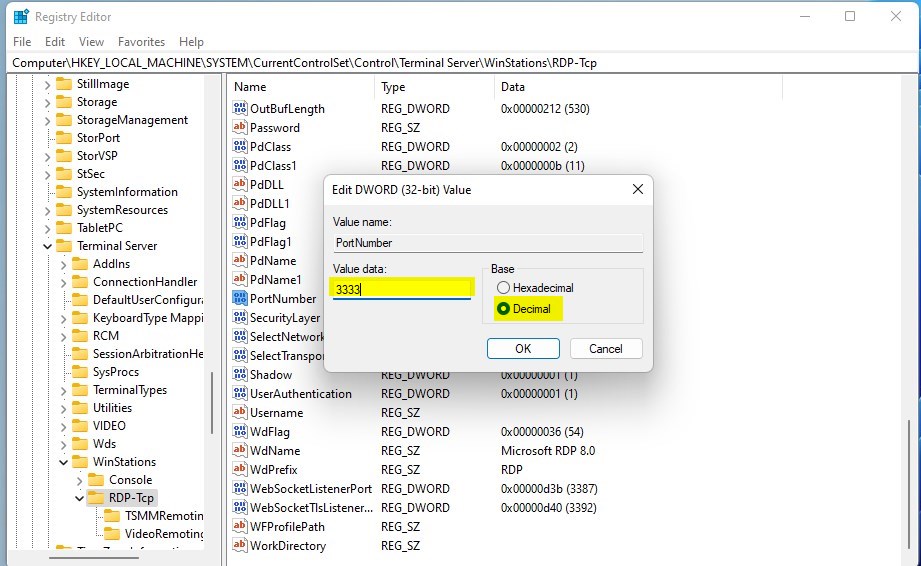
- Select the Decimal option under Base. Do this before you type anything. If you leave it on Hexadecimal, Windows reads your number as a different port.
- Type your new port number (e.g., 5555) in the Value data box and click OK. The entry in the right pane should now show your new number in brackets.
Otherwise the new port will be blocked when the PC comes back up and you will lose your connection.
Step 3Update Windows Firewall
After changing the port, update Windows Firewall to let connections through on the new port. The built-in Remote Desktop rule only covers the old port. Open Windows Firewall with Advanced Security and create a new inbound rule. Set the rule to allow TCP connections on the new port number across all network profiles.
- Open Windows Firewall with Advanced Security. Search for it in the Start menu. It needs administrator rights.
- Click Inbound Rules and then New Rule on the right. The New Inbound Rule Wizard opens.
- Select Port, click Next, and choose TCP.
- Enter your new port number in Specific local ports and click Next.
- Follow the prompts to Allow the connection for all profiles (Domain, Private and Public). Give the rule a name you will recognize, such as "RDP custom port", and click Finish. The new rule should appear in the Inbound Rules list.
If you connect from outside your home or office network, you also need to change any port-forwarding rule on your router so it points to the new port. The router sits outside Windows, so the exact steps depend on the model.
Step 4Verify and Connect
Restart the computer to apply changes. To confirm the changes are working, open PowerShell as an administrator and check active ports. The PC should be listening on your new port, and nothing should be listening on 3389.
To connect from a client device later, include the new port in your connection settings: 192.168.1.50:5555. If the connection fails, check that the port in the registry and in the firewall rule match, and that you chose Decimal when you entered the number.
To undo the change, set the port value back to 3389 in Decimal, then restart. You can also disable or delete the custom firewall rule. The built-in Remote Desktop rules will work again for 3389.
Summary
Changing the port hides your computer from automated bots scanning the network. It is not a full defense, because a determined attacker can still scan for the new port. Keep strong passwords, leave Network Level Authentication turned on, and consider a VPN if you need access from the internet.
Have a question about this guide?
Answered by AI from this guide. Good questions may be added to this page — please don't include personal details.
Did this guide fix your problem?

About the Author
Richard
Tech Writer, IT Professional
Richard is a writer at Geek Rewind who turns complex IT tasks into clear, step-by-step guides. He draws on years of hands-on experience in system administration and enterprise IT operations, focusing on Windows, Linux and WordPress: the problems people actually run into, and the fixes that work. His server and WordPress guides come from systems he runs himself. Richard builds and maintains the platform behind Geek Rewind, from its Ubuntu servers and Nginx configuration to its custom WordPress plugins. Many new tutorials start with readers' questions, and he's always glad to answer them in the comments.
No comments yet — be the first to share your thoughts!