How to Show or Hide Gallery in Windows 11 File Explorer

Windows 11 introduced the Gallery feature to help you manage your photos. It acts as a central hub for all your images.
Why use it? It makes finding and organizing your pictures much faster by pulling them into one view. What happens when you use it? Your photos appear in a single list without moving the actual files from their original folders. This feature is available in Windows 11 build 23435 and later.
Method 1: Using the Registry Editor (Advanced)
Note: This process requires administrative privileges. Always back up your registry before making changes.
- Open the Windows Registry by typing “regedit” in your search bar and pressing Enter.
- Navigate to this path:
HKEY_CURRENT_USER\Software\Classes\CLSID\{e88865ea-0e1c-4e20-9aa6-edcd0212c87c} - If you do not see the
{e88865ea-0e1c-4e20-9aa6-edcd0212c87c}folder, right-click on theCLSIDfolder, select New, and create the subkey.
- Right-click in the empty space on the right side of the window.
- Select New, then choose DWORD (32-bit) Value.
- Name the new item:
System.IsPinnedToNameSpaceTree - Double-click your new
System.IsPinnedToNameSpaceTreeitem. - Set the Base to Decimal.
- Change the Value data to 1 to show the Gallery or 0 to hide it.
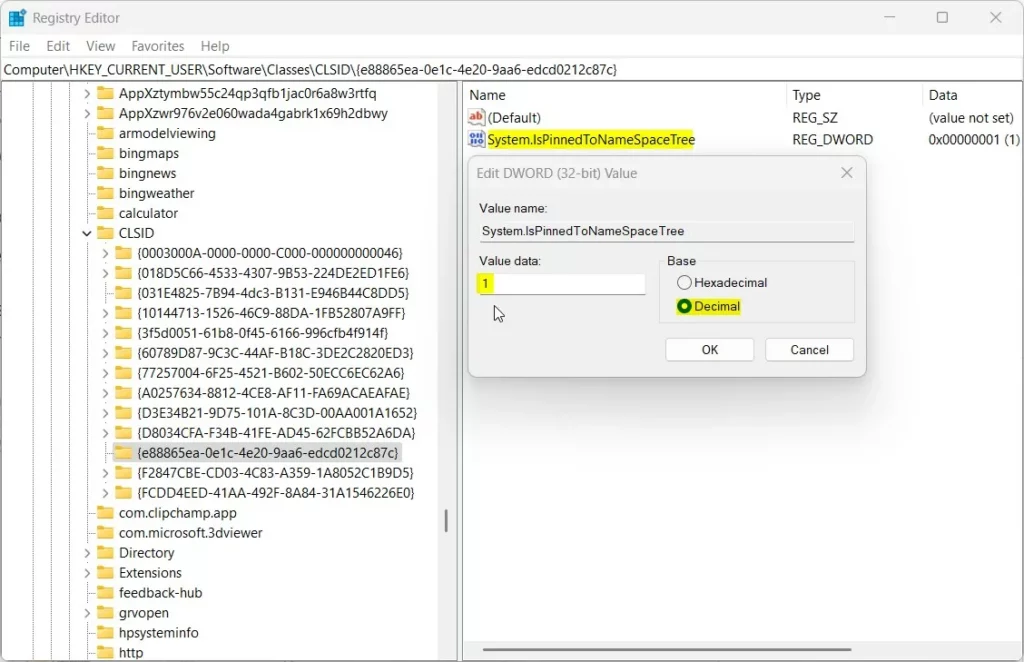
Save your changes and restart your computer to see the update.
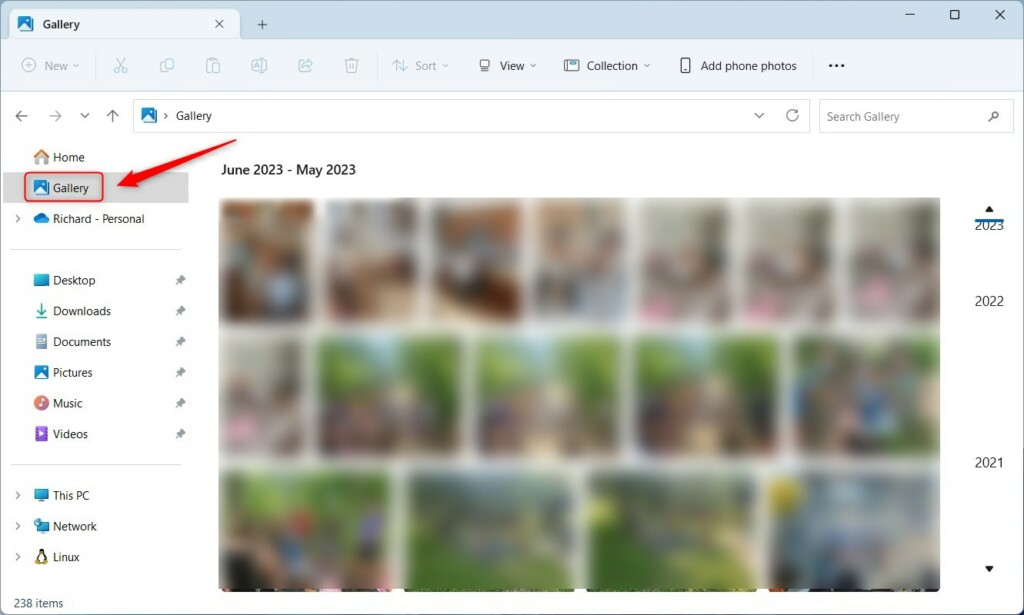
Troubleshooting and Permissions
Why does the Registry method fail for some users? Sometimes, the registry path might be protected by system permissions. If you cannot create the key, you may need to take ownership of the CLSID folder. Additionally, ensure you are logged in with an account that has administrative privileges. If you are on a work computer, your IT department may have disabled these customizations via Group Policy.
Summary
Customizing your File Explorer helps you stay organized. Whether you want to hide the Gallery to clean up your sidebar or restore it for quick access to your photos, these registry tweaks provide full control. Remember that these changes are specific to your user profile and do not affect your actual files. For more tips on Windows 11 customization, check out our other guides.
Does removing the Gallery from the navigation pane delete my actual photos?
No, removing the Gallery icon from the File Explorer navigation pane does not delete your photos. This action only hides the shortcut link from your sidebar. Your original image files remain safely stored in their original folders on your hard drive or OneDrive. You can restore the link at any time.
Is it possible to restore the Gallery after removing it?
Yes, you can easily restore the Gallery. Simply follow the registry steps again and change the value of System.IsPinnedToNameSpaceTree from 0 back to 1. Once you restart your computer or refresh File Explorer, the Gallery icon will reappear in your navigation pane exactly as it was before.
Does this change affect all user accounts on the PC?
No, the registry method described here uses the HKEY_CURRENT_USER hive. This means the change only applies to the user account currently logged into the computer. Other users on the same PC will keep their own File Explorer settings, including whether or not they choose to show or hide the Gallery.
Was this guide helpful?

About the Author
Richard
Tech Writer, IT Professional
Richard, a writer for Geek Rewind, is a tech enthusiast who loves breaking down complex IT topics into simple, easy-to-understand ideas. With years of hands-on experience in system administration and enterprise IT operations, he’s developed a knack for offering practical tips and solutions. Richard aims to make technology more accessible and actionable. He's deeply committed to the Geek Rewind community, always ready to answer questions and engage in discussions.


[…] and Redo commands, enable or disable File Explorer folder options, show or hide the details pane, show or hide the Gallery, and […]
I’m confused because although blurred, the gallery is still visible after the registry modification.
The registry modification provided is also ineffective for regular users like myself because Wins 11 registry key(s) DEFAULT TO A HEXADECIMAL BASE therefore the provided registry modification won’t work.
[…] article explains how to add or remove folders in the File Explorer Gallary collection on Windows […]
[…] open File Explorer and open your Google Drive folder. You can find it in the File Explorer navigator pane, Quick access, or in “This […]