How to Show or Hide Preview Pane in File Explorer in Windows 11

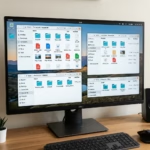
Want to see what’s inside a file without opening it first? You can show or hide the preview pane in Windows 11 File Explorer for a quick look.
This feature lets you see images, documents, and other file types right in the File Explorer window, saving you time.
In Windows 11, you can toggle this pane on or off with just a couple of clicks from the File Explorer ribbon.
This lets you decide whether you want that extra peek or a cleaner, less cluttered view as you navigate your folders.
Press Alt+P to toggle the preview pane on or off. Alternatively, click View, then Show, and select Preview pane. This lets you see file contents directly in File Explorer.
Why use the Preview Pane?
The Windows 11 preview pane lets you see what’s inside files like pictures or documents without opening them first, saving you time when you’re looking for something specific.
How to Show or Hide Preview Pane in File Explorer
You can manage your view settings. Here are the best ways to do it.
Method 1The Quick Keyboard Shortcut
The fastest way to toggle the pane is using your keyboard. Press Alt+P while File Explorer is open. This will instantly show or hide the pane. It is the most efficient way to manage your file explorer customization.
Method 2Using the Command Bar
1. Open File Explorer by pressing ⊞ Win+E.
2. Click on the View menu in the top bar.
3. Select ‘Show,’ and then click ‘Preview pane’ to turn it on or off.
Method 3Using the Registry Editor (Advanced)
You can turn the preview pane on or off using the Registry Editor, but this is an advanced method that needs admin rights and careful steps.
Show Preview pane:
reg add "HKCU\Software\Microsoft\Windows\CurrentVersion\Explorer\Modules\GlobalSettings\DetailsContainer" /v DetailsContainer /t REG_BINARY /d 0200000001000000 /f
reg add "HKCU\Software\Microsoft\Windows\CurrentVersion\Explorer\Modules\GlobalSettings\Sizer" /v DetailsContainerSizer /t REG_BINARY /d 150100000000000000000000c0030000 /f
Hide Preview pane:
reg add "HKCU\Software\Microsoft\Windows\CurrentVersion\Explorer\Modules\GlobalSettings\DetailsContainer" /v DetailsContainer /t REG_BINARY /d 0200000002000000 /f
reg add "HKCU\Software\Microsoft\Windows\CurrentVersion\Explorer\Modules\GlobalSettings\Sizer" /v DetailsContainerSizer /t REG_BINARY /d 150100000000000000000000c0030000 /f
Troubleshooting and Performance
If your computer feels slow when looking through folders with lots of big files, the preview pane might be the cause, and hiding it can help improve performance.
If you do not see a preview, ensure the file type is supported. Also, check if your thumbnail previews are turned off in the Folder Options settings.
Summary
The preview pane in Windows 11 helps you view files fast, and you can turn it on or off easily using keyboard shortcuts, the View menu, or the Registry.
Can I use the preview pane for all file types?
No, the preview pane only supports specific file types like images, PDFs, and text documents. If a file format is not supported by Windows or your installed apps, the pane will remain blank or show a generic icon instead of the file content.
Was this guide helpful?

About the Author
Richard
Tech Writer, IT Professional
Richard, a writer for Geek Rewind, is a tech enthusiast who loves breaking down complex IT topics into simple, easy-to-understand ideas. With years of hands-on experience in system administration and enterprise IT operations, he’s developed a knack for offering practical tips and solutions. Richard aims to make technology more accessible and actionable. He's deeply committed to the Geek Rewind community, always ready to answer questions and engage in discussions.



No comments yet — be the first to share your thoughts!