How to Restart Windows Explorer in Windows 11

Restarting Windows Explorer can quickly fix frozen taskbars, desktops, or File Explorer windows in Windows 11.
Windows Explorer, also known as `explorer.exe`, is the process that manages your desktop environment and File Explorer. A quick restart often fixes many visual glitches when it becomes unresponsive.
This method is much faster than a full system reboot. You can usually complete the process in under a minute.
Open Task Manager by pressing Ctrl+Shift+Esc. Find “Windows Explorer” in the Processes tab, click it, and then click the Restart button. This will refresh your desktop, taskbar, and File Explorer.
What is Windows Explorer?
Windows Explorer is the program that runs your desktop, taskbar, and all the file windows you see, making it a key part of using your PC.
Why does this help? When Explorer restarts, it clears temporary problems and reloads. Think of it like giving your system a quick refresh without shutting everything down.
Note: When Explorer stops, your screen may go black except for your mouse pointer. Don’t worry! You just need to start Explorer again.
Option 1Restart Explorer Using Task Manager
- Press
Ctrl + Shift + Escon your keyboard to open Task Manager. - In the Processes tab, find and click on Windows Explorer.
- Click the Restart button at the bottom right. (If you see “Restart task” instead, click that.)
- Your desktop and taskbar will refresh shortly.
- You can now close Task Manager.
The easiest way to restart Windows Explorer is by using Task Manager.
What happens: Task Manager stops and restarts the Explorer process. Your desktop reappears refreshed.
Option 2Restart Explorer Using Command
You can quickly restart Windows Explorer using a simple command in PowerShell or Command Prompt.
- Open Windows Terminal, PowerShell, or Command Prompt.
- Right-click the Start button and select Windows Terminal or Windows Terminal (Admin).
- Copy and paste one of the commands below and press
Enter:
For PowerShell or Windows Terminal:
powershell "Get-Process -Name explorer | Stop-Process; Start-Process explorer.exe"For Command Prompt:
taskkill /f /im explorer.exe && start explorer.exeWhat happens: The command stops Explorer and then starts it again right away. Your desktop and taskbar refresh.
Why use this method? It works quickly and you don’t need to click through menus. It’s useful if Task Manager won’t open.
Option 3Start Explorer Manually if It’s Stopped
If your screen suddenly goes black and you only see your mouse pointer, Windows Explorer has likely stopped, but you can easily start it again using Task Manager.
- Press
Ctrl + Shift + Escto open Task Manager. - Depending on your version of Task Manager:
- Old Task Manager: Click on File in the menu bar, then select Run new task.
- New Task Manager: Click Run new task at the top right.
- Type
explorer.exein the box and click OK. - Your desktop and taskbar should now appear again.
- You can close Task Manager when done.
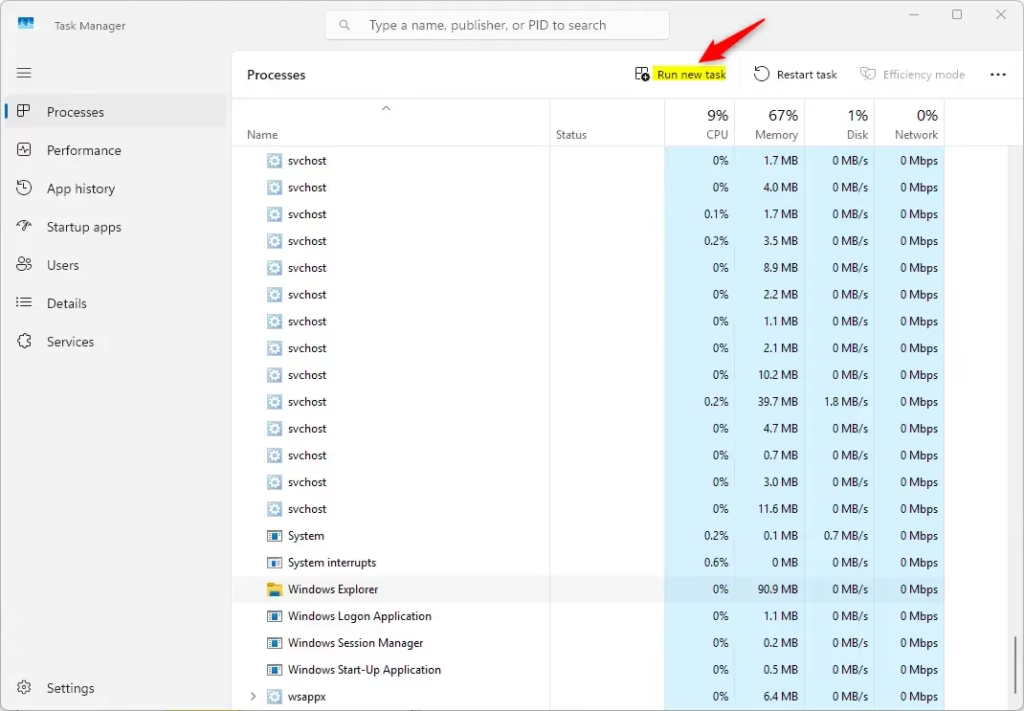
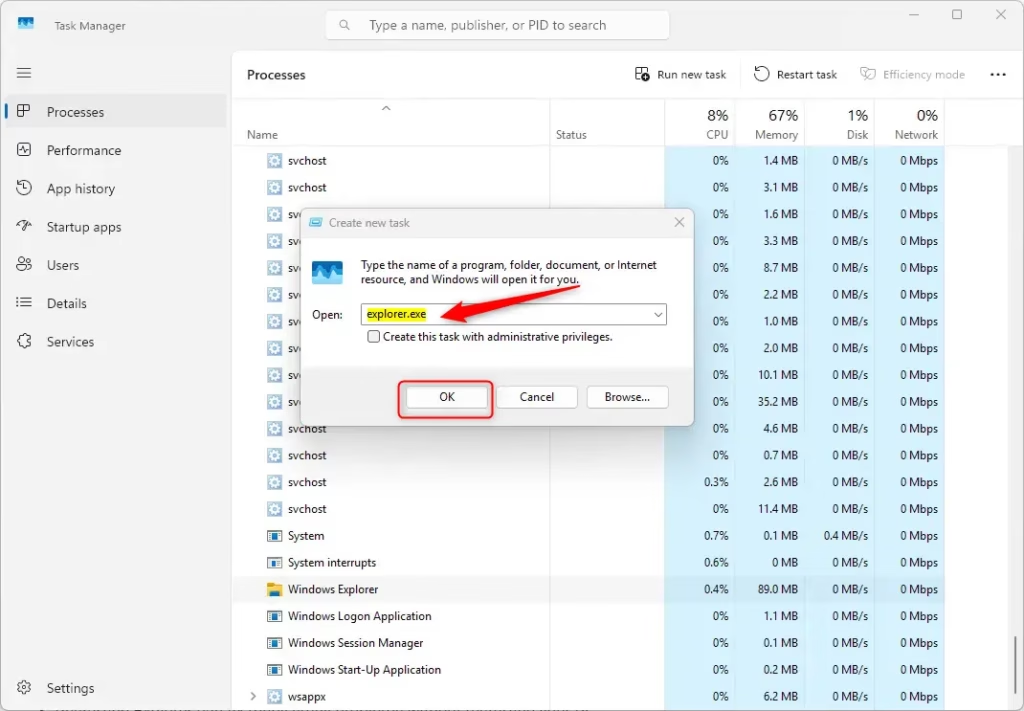
Why is this helpful? If Explorer completely stops, you need a way to start it without using the normal interface. Task Manager lets you launch the program directly.
Summary
- Windows Explorer controls your desktop, taskbar, and file browsing.
- Restarting Explorer can fix many small problems without restarting your PC.
- You can restart it easily using Task Manager or commands.
- If Explorer stops completely, you can manually start it again using Task Manager.
- These quick fixes save time and keep your Windows running smoothly.
Windows Explorer is the program that manages your desktop, taskbar, and file windows, and restarting it can fix many small issues without needing to reboot your whole PC.
Was this guide helpful?

About the Author
Richard
Tech Writer, IT Professional
Richard, a writer for Geek Rewind, is a tech enthusiast who loves breaking down complex IT topics into simple, easy-to-understand ideas. With years of hands-on experience in system administration and enterprise IT operations, he’s developed a knack for offering practical tips and solutions. Richard aims to make technology more accessible and actionable. He's deeply committed to the Geek Rewind community, always ready to answer questions and engage in discussions.



No comments yet — be the first to share your thoughts!