How to Keep Windows 11 Task Manager Always on Top

You can keep the Windows 11 Task Manager always on top of your other open windows using its built-in “Always on top” setting.
Windows Task Manager is a vital tool that shows you all the applications and processes running on your PC, including how much CPU (Central Processing Unit) and memory (RAM) they’re using. This “always on top” feature ensures you can monitor your system’s performance in real-time without the Task Manager window being hidden by other applications.
This functionality is particularly useful when you need to identify resource-hungry programs or troubleshoot performance issues. For instance, Windows 11’s Task Manager has been updated to match your system’s theme, giving you quick access to this important information.
Open Task Manager by pressing Ctrl+Shift+Esc. Click “Always on top” in the menu to make it stay visible above other windows. This setting ensures you can monitor system activity without the window being hidden.
How to Turn On or Off “Always on Top” in Task Manager
Follow these steps to keep Task Manager always on top or to turn this feature off:
Step 1Open Task Manager
You can open the Task Manager in Windows 11 using a few easy methods, which is the first step to keeping it always on top.
Alternatively, you can right-click the Start button and select Task Manager from the menu.
You can also right-click the Task Manager icon on your Taskbar – that’s the bar at the bottom of your screen. If you don’t see the icon right away, check the Taskbar overflow area by clicking the up arrow near the clock.
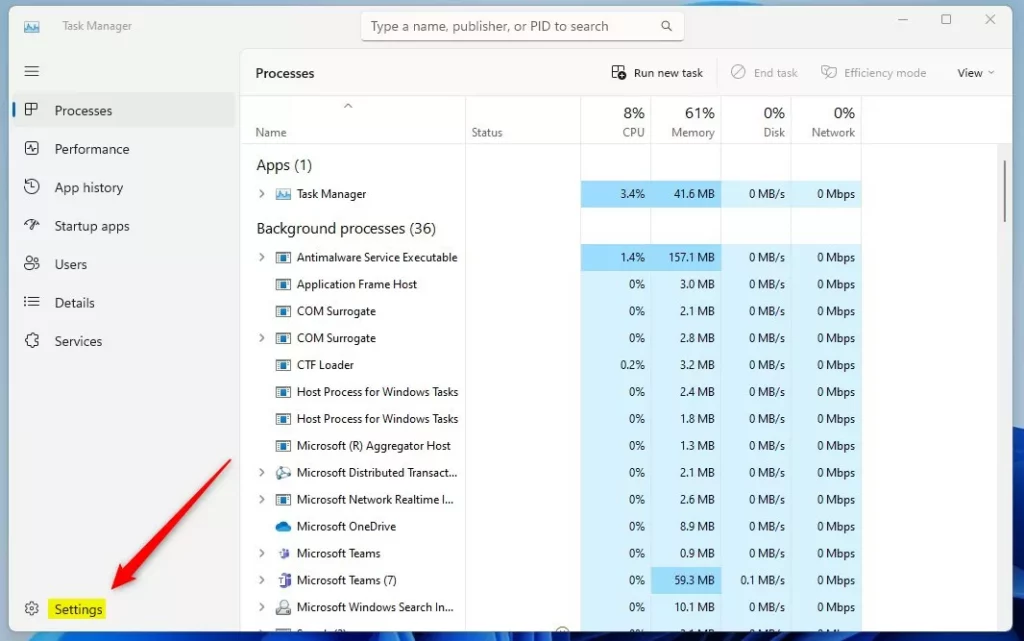
Step 2Turn on “Always on Top”
From the menu that appears, click on Always on top to turn it on or off.
Alternative Method:
You can turn the ‘always on top’ feature for Task Manager on or off directly in its settings menu, making it simple to control.
Then, look for the ‘Windows management’ section and check or uncheck the box next to Always on top.
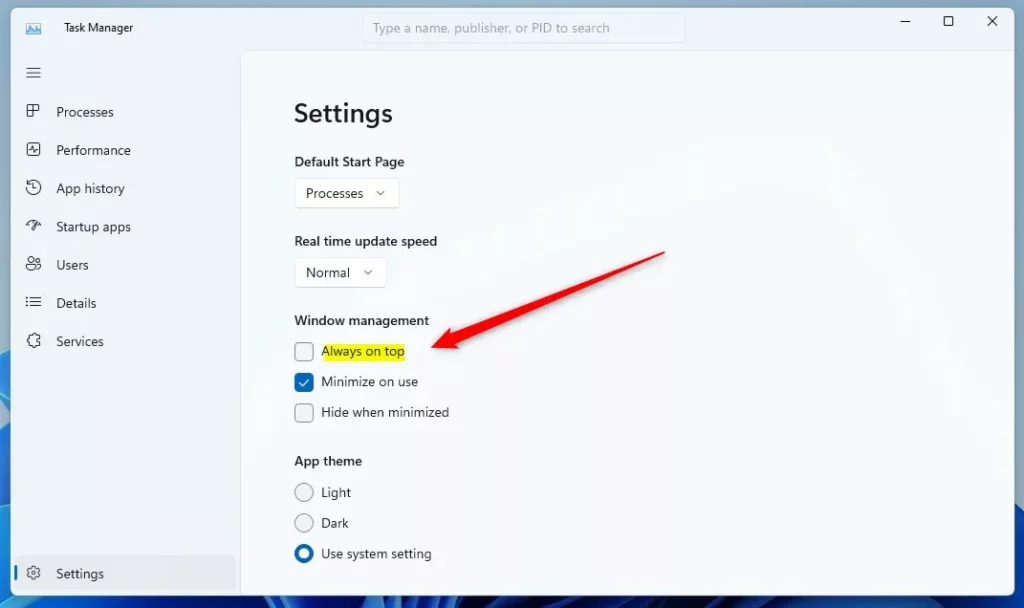
Tip: You can also press Alt + A on your keyboard to quickly toggle the “Always on top” option on or off when inside Task Manager’s Settings.
Summary
- “Always on top” keeps the Task Manager window visible above all other windows.
- Use
Ctrl + Shift + Escto open Task Manager quickly. - Right-click the Taskbar icon or use Task Manager’s Settings to turn “Always on top” on or off.
- This helps you watch your computer’s activity without losing the Task Manager behind other apps.
Keeping the Task Manager always on top means its window stays visible above all other apps, so you can easily monitor your computer’s activity.
That’s it! Now you can keep Task Manager right where you want it.
What does "always on top" mean in Task Manager?
The ‘always on top’ option in Task Manager means the window stays visible above all other apps, even when you click on something else.
Why is my taskbar staying on top?
If your taskbar won’t hide even when the auto-hide feature is on, it’s usually because of an application. The taskbar stays visible if a program or service running on your computer ‘notifies’ it. An example is if an app has different icon images for different events.
How to get rid of Task Manager overlay?
To toggle the statistics overlay on and off, you just need to click on it and press Del. Then the shortcut is gone. So if I press Alt+R again, it doesn’t toggle.
Was this guide helpful?

About the Author
Richard
Tech Writer, IT Professional
Richard, a writer for Geek Rewind, is a tech enthusiast who loves breaking down complex IT topics into simple, easy-to-understand ideas. With years of hands-on experience in system administration and enterprise IT operations, he’s developed a knack for offering practical tips and solutions. Richard aims to make technology more accessible and actionable. He's deeply committed to the Geek Rewind community, always ready to answer questions and engage in discussions.



No comments yet — be the first to share your thoughts!