How to Turn On or Off Always On Top for Windows Terminal in Windows 11

This guide will help you keep the Windows Terminal window on top of all other windows. Or turn that feature off if you don’t need it anymore.
Open Windows Terminal, click the down arrow next to tabs, select Settings, then navigate to Appearance. Toggle the “Always on top” option to On or Off, and click Save.
What is Windows Terminal?
Windows Terminal is a handy app that lets you use command-line tools like Command Prompt and PowerShell all in one place.
You can learn more about Windows Terminal on its official page here: Windows Terminal Documentation.
What does “Always On Top” mean?
If you turn on Always On Top, your Windows Terminal window will stay visible on your screen. This happens even when you’re using other apps. Why is this useful? You can keep an eye on commands or outputs while working in other programs.
How to Enable or Disable Always On Top
- Open Windows Terminal. Click the Start menu and type Windows Terminal to find it.
- At the top of the Windows Terminal window, find the down arrow button next to the tabs and click it. Then click Settings. You can also use
Ctrl + ,(comma) as a shortcut to open Settings. Windows Terminal Settings button updated - In the Settings menu on the left side, click Appearance.
- Look for the option called “Always on top”. Turn it On if you want Windows Terminal to stay on top. Turn it Off if you don’t want this feature.
- Click the Save button at the bottom right to apply your choice.
- Close the Settings tab and continue using Windows Terminal as usual.
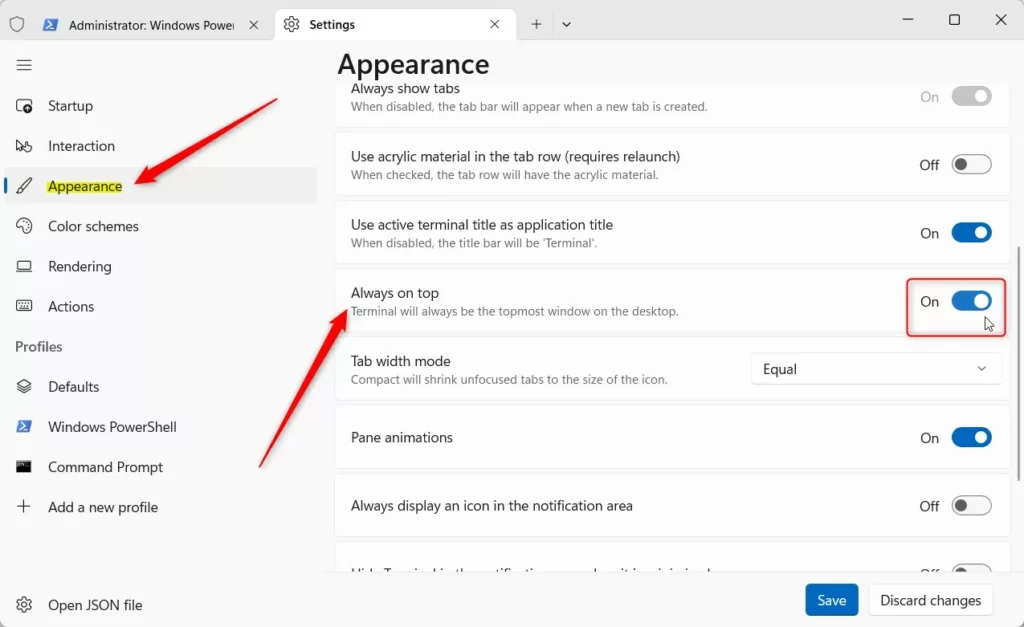
You can easily make your Windows Terminal window stay on top of all other apps, keeping it visible no matter what else you’re doing.
Summary
Keeping Windows Terminal always on top is a handy trick that makes sure your command window is always visible, which is great when you need to run commands quickly.
You can easily turn this feature on or off in the Appearance settings.
Customizing Windows Terminal helps create a workspace that fits your needs.
Remember to check for updates often to get new features and fixes.
For more detailed information, visit the official Windows Terminal Documentation.
How to make terminal always on top?
Then you want to go down to where it says settings. And click on settings. Now on the pane off to the left hand side you want to click on appearance.
Was this guide helpful?

About the Author
Richard
Tech Writer, IT Professional
Richard, a writer for Geek Rewind, is a tech enthusiast who loves breaking down complex IT topics into simple, easy-to-understand ideas. With years of hands-on experience in system administration and enterprise IT operations, he’s developed a knack for offering practical tips and solutions. Richard aims to make technology more accessible and actionable. He's deeply committed to the Geek Rewind community, always ready to answer questions and engage in discussions.



No comments yet — be the first to share your thoughts!