How to Enable Automatically Hide Window in Windows Terminal

This article explains how to turn the “Automatically hide window” feature on or off in the Terminal app.
Open Windows Terminal, click the down arrow, and select Settings. Navigate to the Appearance tab and toggle “Automatically hide window” to On. Click Save.
What is Windows Terminal?
Windows Terminal is a single app that lets you use Command Prompt, PowerShell, and other command-line tools together. It’s a customizable tool that helps you manage different command-line programs from one spot.
Windows Terminal offers a lot of customization. You can tweak the language, launch size, default profile, and startup behavior. You can even open it as an administrator, set it to launch at startup, or have it automatically copy selected text to your clipboard, among other options.
Why Use Automatically Hide Window?
The ‘Automatically Hide Window’ feature in Windows Terminal helps keep your desktop neat by hiding the window when you switch to another program. This is super handy if you jump between apps a lot, as it stops the Terminal from cluttering your screen.
This feature is helpful if you switch between apps often, keeping your desktop less cluttered. However, if you prefer to have the Terminal window visible all the time, you can disable this feature. It really depends on how you like to work.
How to Enable Automatically Hide Window
Turning on the ‘Automatically Hide Window’ feature in Windows Terminal is easy and helps keep your workspace tidy. First, open the Windows Terminal app by searching for it in the Start menu.
- Open the Windows Terminal app. Click the Start menu and search for “Terminal.” Select and open the Windows Terminal app from the results.
- Click the down arrow button at the top of the Terminal window. Then click Settings (or press Ctrl + ,).

- In the Settings window, click the Appearance tab on the left side.
- Find the “Automatically hide window” option. Toggle the switch to the On position to enable it . Toggle it to Off to disable it .
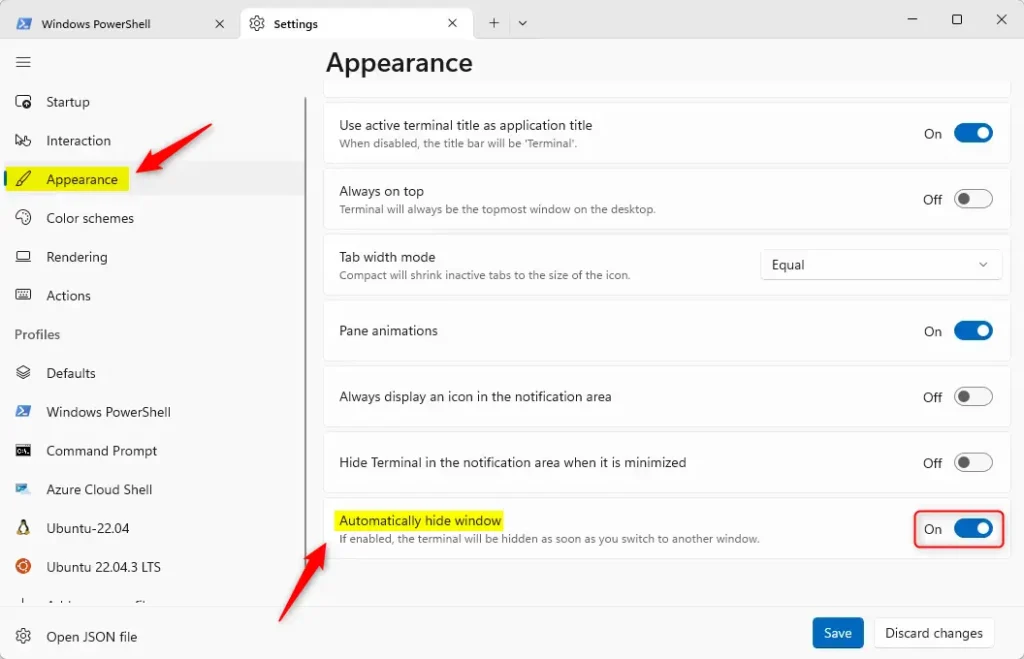
- Click the Save button at the bottom to save your changes. Then close the Settings window.
And that’s it!
What Happens When You Enable This?
When you turn on automatic hiding, the Terminal window will conceal itself as soon as you click on another app or window. This helps maintain a clean and organized desktop.
Summary
The ‘Automatically Hide Window’ feature in Windows Terminal is a simple way to keep your desktop organized by hiding the window when you’re not using it.
How do I hide a terminal window?
Press ⊞ Win+X and then select Terminal. Press Ctrl + comma key (,) to open Windows Terminal settings. Click Appearance on the left pane, then find Hide terminal in the notification area when it is minimized on the right pane.
Was this guide helpful?

About the Author
Richard
Tech Writer, IT Professional
Richard, a writer for Geek Rewind, is a tech enthusiast who loves breaking down complex IT topics into simple, easy-to-understand ideas. With years of hands-on experience in system administration and enterprise IT operations, he’s developed a knack for offering practical tips and solutions. Richard aims to make technology more accessible and actionable. He's deeply committed to the Geek Rewind community, always ready to answer questions and engage in discussions.




[…] Terminal automatically at startup, add copy selection to the clipboard automatically, automatically hide the Terminal window, and […]