How to Change Windows Terminal Launch Size

You can change the Windows Terminal launch size by editing its settings file to set a specific default window dimension.
Windows Terminal is a modern, fast, and extensible terminal application that brings together command-line tools you use every day, like Command Prompt, PowerShell, and WSL. Setting a custom launch size ensures your workspace is immediately comfortable and ready for your tasks.
By default, Windows Terminal opens with a size determined by your system’s display settings, often requiring manual adjustment. Fortunately, you can easily pre-configure its dimensions, for example, to a width of 1200 pixels and a height of 700 pixels, to avoid this repetition.
Edit the settings.json file by holding Alt and clicking Settings, then add or modify initialCols and initialRows properties within profiles.defaults or a specific profile. Save the file and restart Windows Terminal to apply the new launch size.
What happens when you are done?
Once you save your settings, the Windows Terminal will automatically open at your chosen width and height. This provides a personalized experience every time you start your session, whether you are using Command Prompt, PowerShell, or WSL.
Understanding the settings.json file
Windows Terminal uses a file called settings.json to store your preferences. While the graphical interface is easy to use, editing this file directly gives you more control. You can modify the initialCols and initialRows properties to set exact window dimensions.
Warning: Always create a backup of your settings.json file before making manual changes. You can find it by holding the Alt key while clicking the Settings menu in the Terminal.
Global vs. Profile-specific settings
You can set a default size for all windows or specific sizes for individual profiles like PowerShell or Command Prompt. Use the following table to understand the difference:
| Setting Type | Scope | Use Case |
|---|---|---|
| Global (Startup) | App-wide | Consistent size for every terminal window. |
| Profile-specific | Individual shell | Different sizes for specific tasks like coding vs. server management. |
How to change the Windows Terminal launch size
You can adjust the columns (width) and rows (height) by following these steps:
- Open the Windows Terminal app.
open the Terminal app in Windows - Click the down arrow button on the top bar and select Settings.
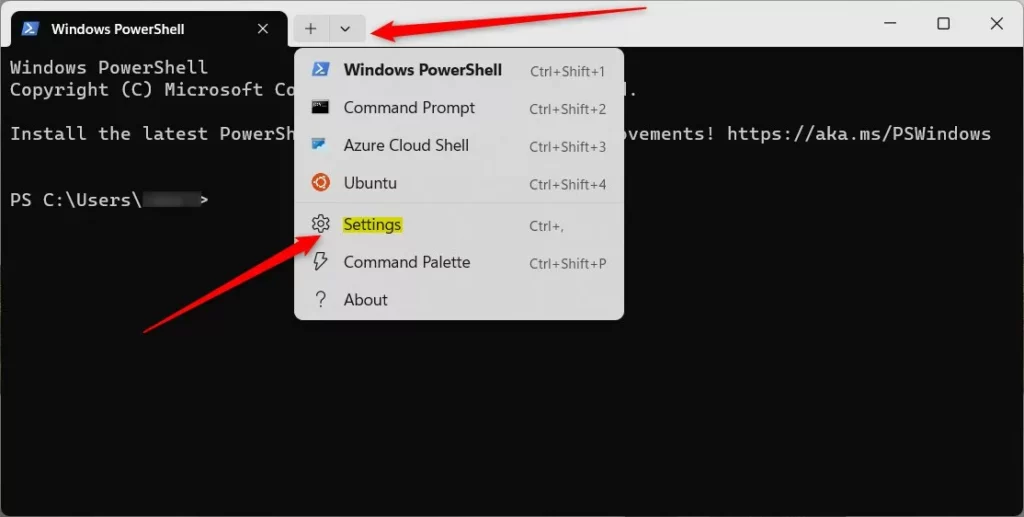
Windows Terminal Settings button updated - To edit the JSON file directly, hold the Alt key and click Settings. This opens the configuration file in your default text editor.
- Locate the
profiles.defaultssection to change settings for all profiles, or find a specific profile ID to change only one. - Add or modify the
initialColsandinitialRowsproperties as shown above. - Save the file and restart the Terminal to see your changes.
Note: These changes do not require administrative privileges.
Summary
Customizing your Windows Terminal launch size is a quick way to improve your workflow. By using the settings.json file or the Startup menu, you can lock in a window size that fits your screen perfectly. Remember to back up your configuration file before editing, and use the initialCols and initialRows properties to achieve your desired terminal window dimensions. For more advanced customization, check the official documentation at Microsoft.com.
How do I reset Windows Terminal to default size?
To reset your size, open the Settings menu, go to the Startup tab, and clear the values in the Launch size fields. Alternatively, delete the initialCols and initialRows lines from your settings.json file. This reverts the terminal to its original default dimensions of 120 columns by 30 rows.
Why is my Windows Terminal ignoring my size settings?
If your settings are ignored, check for syntax errors in your settings.json file. Ensure you have used valid JSON formatting, such as proper commas and quotes. Also, verify that you are not using conflicting settings in both the global and profile-specific sections, as profile settings will override global defaults.
Was this guide helpful?

About the Author
Richard
Tech Writer, IT Professional
Richard, a writer for Geek Rewind, is a tech enthusiast who loves breaking down complex IT topics into simple, easy-to-understand ideas. With years of hands-on experience in system administration and enterprise IT operations, he’s developed a knack for offering practical tips and solutions. Richard aims to make technology more accessible and actionable. He's deeply committed to the Geek Rewind community, always ready to answer questions and engage in discussions.




[…] Adjust the Launch Size […]
[…] Adjust Launch Size […]
[…] can customize many things in the Terminal app in Windows. You can change the language, adjust the launch size, set the default profile, change the startup behavior, open the admin window, open Terminal […]
[…] Terminal app in Windows allows many customizations. You can change the language, adjust the launch size, set the default profile, change the startup behavior, open the admin window, open Terminal […]
[…] Terminal app in Windows allows many customizations. You can change the language, adjust the launch size, set the default profile, change the startup behavior, open the admin window, and […]
[…] Windows Subsystem for Linux (WSL). You can customize many settings in the app, such as language, adjust the launch size, set the default profile, change the startup behavior, open the admin window, open Terminal […]