How to Open Windows Terminal at Startup in Windows 11

You can open Windows Terminal automatically at startup in Windows 11 by configuring its settings.
Windows Terminal is your all-in-one command-line experience, integrating Command Prompt, PowerShell, and WSL environments into a single application. It provides a modern, tabbed interface for interacting with your PC via text commands.
Many users, especially those frequently using command-line tools, find launching Windows Terminal upon login significantly speeds up their workflow. Imagine having your essential command interfaces ready the moment you boot up your PC.
This tutorial will show you how to set Windows Terminal, which first shipped in preview with Windows 10 version 1903, to launch automatically with Windows 11.
Open Windows Terminal, then click the down arrow and select Settings. Navigate to the Startup tab and toggle “Launch on machine startup” to On. Click Save to confirm.
Why Automate Terminal Launch?
Configuring the Terminal app to launch automatically when you log in to Windows saves time. You won’t have to manually open it every time you start your computer. This is especially helpful if you use the command-line interface frequently.
Additionally, if you have customized your Terminal app with specific settings, having it launch automatically ensures that those settings are applied every time you log in to Windows.
How to Automatically Launch the Terminal App on Windows
Step 1: Open the Windows Terminal App
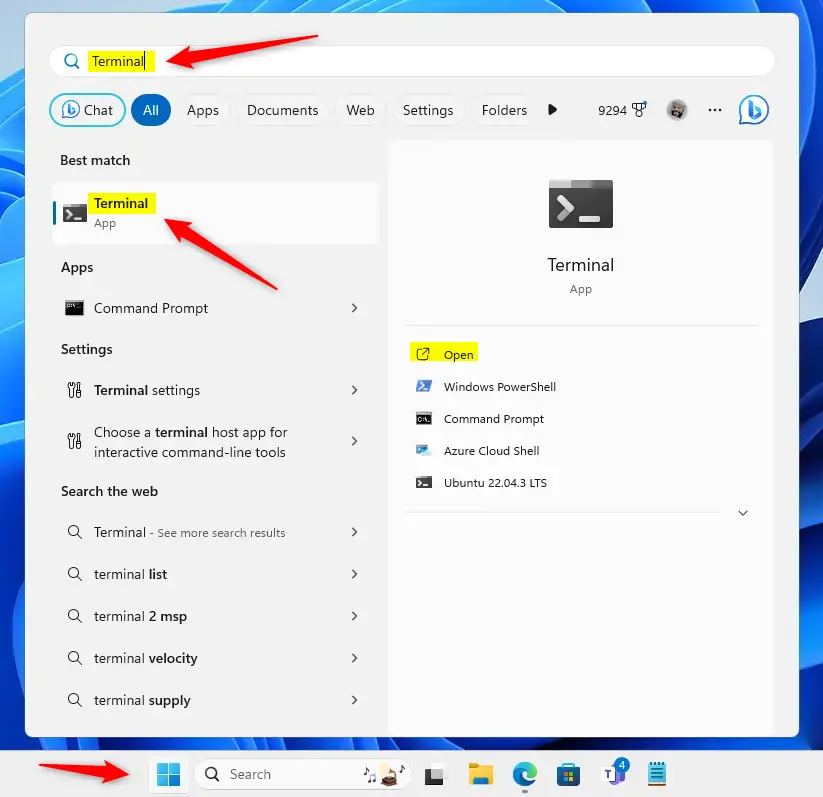
First, open the Windows Terminal app. Click on the Start menu and search for “Terminal.” Under Best match, select and open the Windows Terminal app.
Step 2: Access Terminal Settings
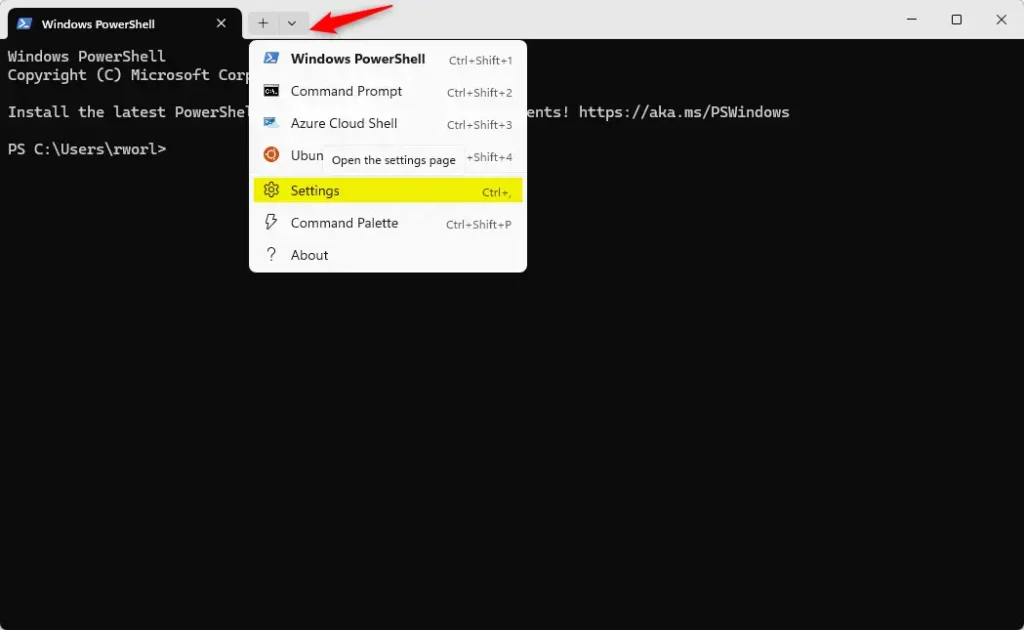
When the Terminal app opens, click the down arrow button on the top bar and select Settings (Ctrl +,).
Step 3: Enable Startup Launch
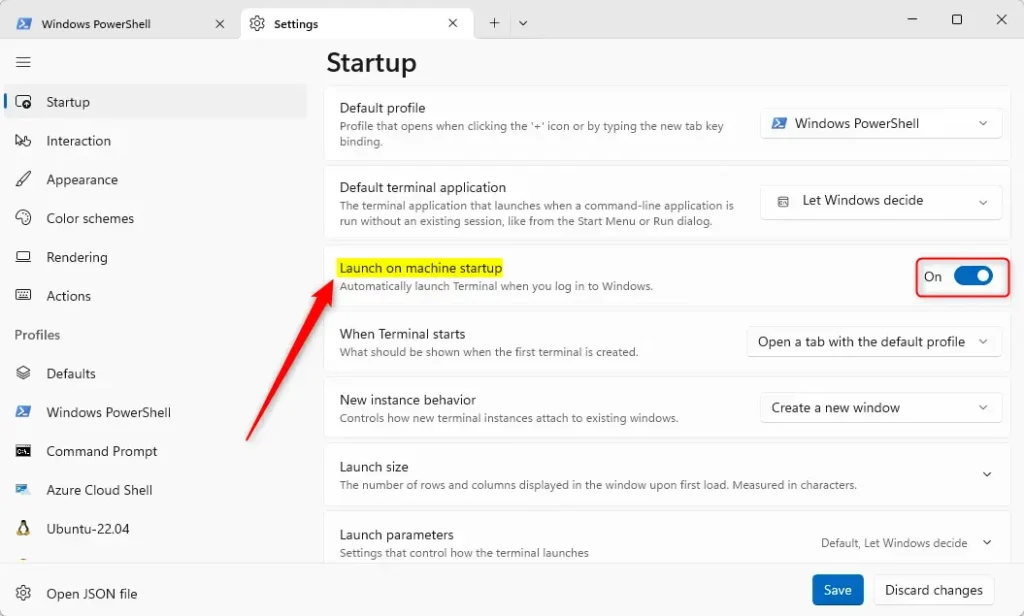
On the Settings window, click on the Startup tab. Then, select the “Launch on machine startup” tile and toggle the switch button to the On position.
What happens when you enable this? Windows Terminal will now open automatically every time you log in to your computer.
Step 4: Save Your Changes
Click the Save button at the bottom to save your changes, then exit.
That’s it! Your Terminal app will now launch automatically on startup.
Want to Turn It Off?
To disable automatic launch, simply toggle the switch button back to the Off position in the Startup settings.
Summary
Configuring the Windows Terminal app to launch automatically on Windows startup is a convenient time-saver for frequent command-line users. When enabled, Terminal opens automatically every time you log in, and all your customized settings are applied right away. The process is simple: open Terminal, go to Settings, find the Startup tab, and toggle “Launch on machine startup” to On. You can disable it anytime by toggling the switch back to Off.
Please use the comments section below for any additional feedback or questions.
Was this guide helpful?

About the Author
Richard
Tech Writer, IT Professional
Richard, a writer for Geek Rewind, is a tech enthusiast who loves breaking down complex IT topics into simple, easy-to-understand ideas. With years of hands-on experience in system administration and enterprise IT operations, he’s developed a knack for offering practical tips and solutions. Richard aims to make technology more accessible and actionable. He's deeply committed to the Geek Rewind community, always ready to answer questions and engage in discussions.



[…] check to see if UCPD is running. You can do that using the Terminal app with the PowerShell or Command Prompt […]
[…] open Windows Terminal and select Windows […]
[…] the launch size, set the default profile, change the startup behavior, open the admin window, open Terminal automatically at startup, add copy selection to the clipboard automatically, automatically hide the Terminal window, […]
[…] the default profile, change the startup behavior, open the admin window, open Terminal automatically at startup, add copy selection to the clipboard automatically, automatically hide the Terminal […]