Enable Shield Icon in Windows Terminal Admin Mode

You enable the shield icon in Windows Terminal admin mode to visually confirm administrator privileges.
This feature, available in Windows Terminal Preview version 1.23.10353.0, adds a distinct shield icon to the title bar when you run the application as an administrator.
This clear visual cue helps you avoid accidentally making critical system changes. Once enabled, the icon automatically appears whenever you launch Windows Terminal with elevated permissions.
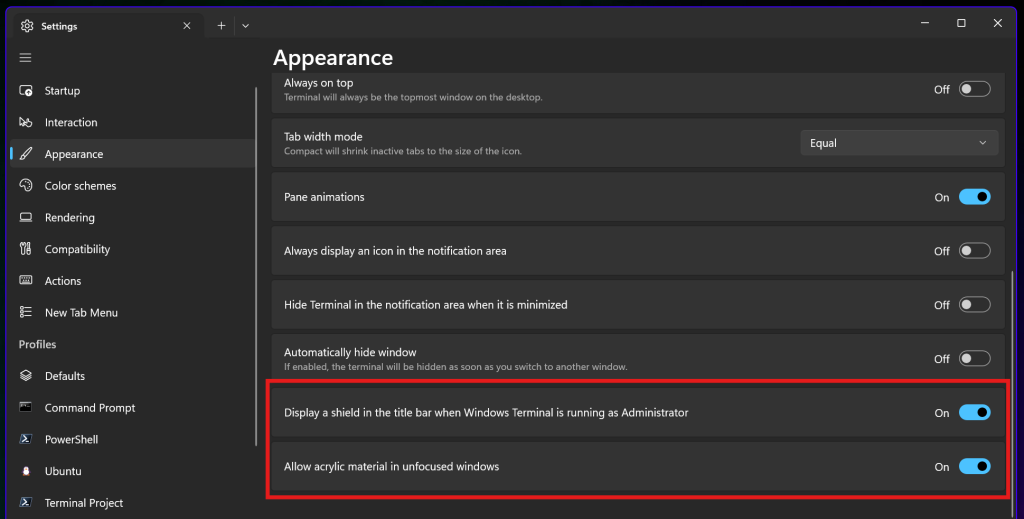
Open Windows Terminal Settings, navigate to the Appearance tab, and toggle the “Display a shield in the title bar when Windows Terminal is running as Administrator” option to On. Save your changes to enable the shield icon for elevated sessions.
How to toggle the shield icon
You can easily turn the Windows Terminal shield icon on or off right from the app’s settings menu, letting you see when you’re running as an administrator.
- Open the Windows Terminal app. You can find it by clicking the Start menu and searching for “Terminal.”

- Click the down arrow button at the top of the window and select Settings (or press Ctrl + , on your keyboard).

- Click the Appearance tab on the left side of the menu.
- Look for the option labeled “Display a shield in the title bar when Windows Terminal is running as Administrator.”
- Toggle the switch to On to see the shield or Off to hide it.
- Click the Save button at the bottom of the window to apply your changes.
Reference: Microsoft
Summary
- The shield icon is a visual indicator that your Terminal has elevated “Administrator” rights.
- You can easily turn this icon on or off through the Appearance section of the Terminal settings.
- This feature helps you stay aware of your current permission level to keep your system safe.
- Changes take effect immediately after you click the Save button.
The shield icon in Windows Terminal is a helpful visual cue that shows you’re running the app with administrator rights, meaning it has more power to make system changes.
How do I get rid of the shield icon in 🪟 Windows 10?
Then, open Control Panel and click the yellow or blue shield icon. Double-click it to remove the shield. You can also use the command line to run the application without prompting.
Was this guide helpful?

About the Author
Richard
Tech Writer, IT Professional
Richard, a writer for Geek Rewind, is a tech enthusiast who loves breaking down complex IT topics into simple, easy-to-understand ideas. With years of hands-on experience in system administration and enterprise IT operations, he’s developed a knack for offering practical tips and solutions. Richard aims to make technology more accessible and actionable. He's deeply committed to the Geek Rewind community, always ready to answer questions and engage in discussions.



[…] copy selection to the clipboard automatically, automatically hide the Terminal window, enable admin mode shield, and […]