How to Enable Dark Mode in Outlook for Windows 11

You enable dark mode in Outlook for Windows 11 to switch its interface from a bright white to a dark color scheme, which helps reduce eye strain and can conserve battery life on OLED displays.
Dark mode applies a high-contrast color palette, enhancing readability by making text stand out and reducing overall screen glare, especially in dimly lit environments.
This feature is readily available for Outlook versions that integrate with the Windows 11 dark theme, typically found in current Microsoft 365 subscriptions.
In New Outlook, click the sun/moon icon in the top right to cycle themes or go to Settings > General > Appearance. For Classic Outlook, click File > Office Account and select Black or Dark Gray under Office Theme.
How to Identify Your Outlook Version
Knowing your Outlook version is the first step to enable dark mode in Outlook for Windows 11, and it’s easy to check.
Fastest Method: New Outlook for 🪟 Windows 11
The new Outlook for Windows makes switching themes very simple. You do not need admin privileges for these steps.
- Open the Outlook app.
Open the new Outlook app in Windows 11 - Look for the Appearance icon (sun or moon) in the top right corner.
- Click the icon to cycle through Light, Dark, or System settings.
Detailed Settings for New Outlook
- Click the Settings (gear icon) in the top right.

Add Gmail to Outlook app in Windows 11 - Select General on the left menu.
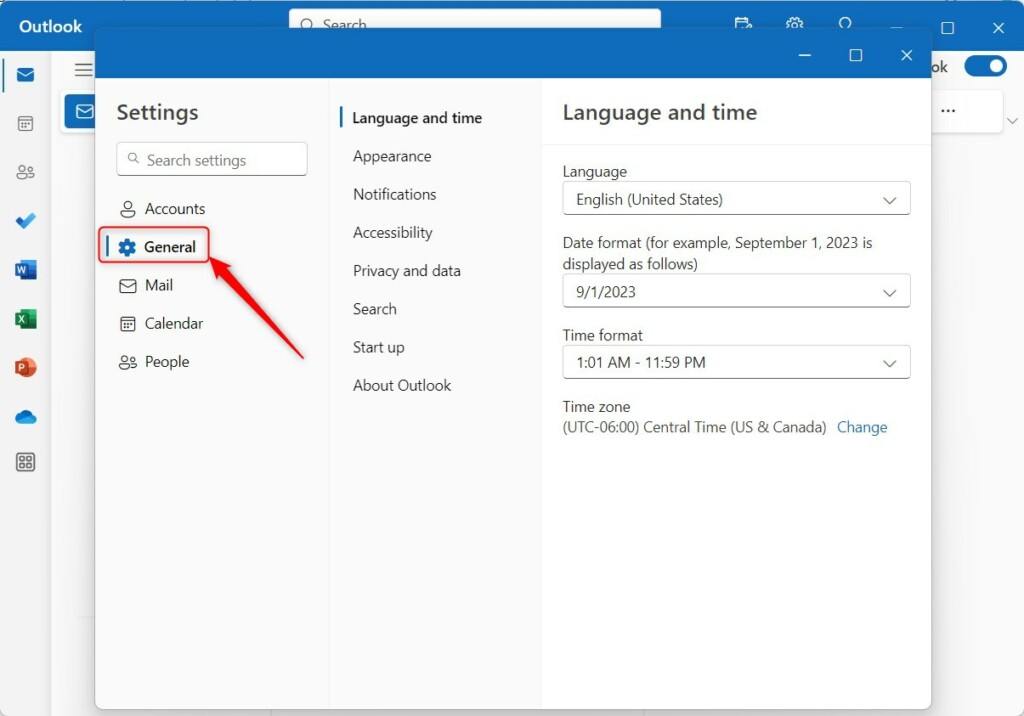
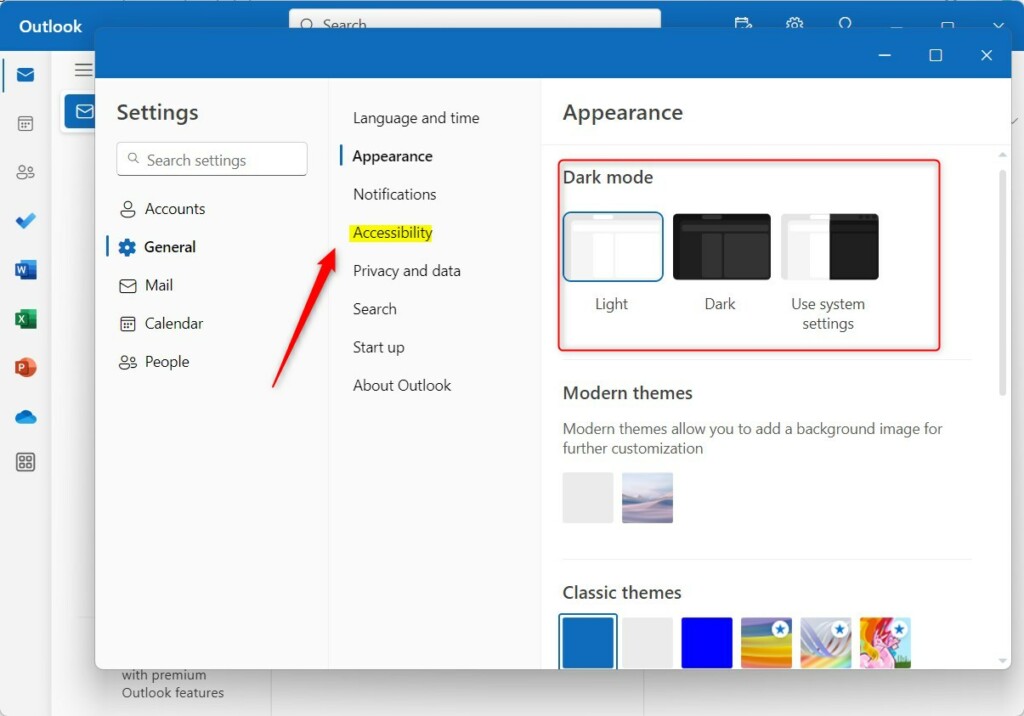
Turn dark mode on or off for Outlook app - Click Appearance.
- Choose Dark to force the theme, or Use system settings to sync with your Windows 11 display settings.
Classic Outlook: Office Theme Settings
Classic Outlook uses the Office 365 dark mode settings. Changing this will affect other Office apps like Word and Excel.
- Open Outlook and click File in the top left.
- Select Office Account.
- Under Office Theme, choose Black or Dark Gray.
Syncing with 🪟 Windows 11 System Settings
Pro-tip: You can make Outlook match your Windows 11 theme automatically. Go to Windows Settings > Personalization > Colors and set your mode to Dark. If you select Use system settings inside the Outlook Appearance menu, Outlook will switch whenever Windows switches.
Summary
You can quickly enable dark mode in Outlook for Windows 11 using the New Outlook’s toggle or the Classic version’s Office Theme settings.
Why is my reading pane still white in dark mode?
Your Outlook reading pane might still look white in dark mode because the email message background needs its own setting changed.
Does changing Outlook to dark mode affect other Office apps?
In the Classic Outlook version, yes. Because it uses the Office 365 account settings, changing the theme to Black or Dark Gray will automatically update Word, Excel, and PowerPoint to match. The New Outlook version is independent and only changes the theme for the email application.
How do I toggle dark mode for a single email only?
You can toggle the background of a single email by clicking the sun or moon icon located in the top right corner of the message reading pane. This allows you to view a specific email in light mode while keeping the rest of your Outlook interface in dark mode.
Was this guide helpful?

About the Author
Richard
Tech Writer, IT Professional
Richard, a writer for Geek Rewind, is a tech enthusiast who loves breaking down complex IT topics into simple, easy-to-understand ideas. With years of hands-on experience in system administration and enterprise IT operations, he’s developed a knack for offering practical tips and solutions. Richard aims to make technology more accessible and actionable. He's deeply committed to the Geek Rewind community, always ready to answer questions and engage in discussions.



[…] history, export your search history, adding or removing events from emails to your Calendar, switching to dark mode, link preview, sound alerts for notifications, turn on or off notifications when Outlook is […]
[…] history, export your search history, add or remove events from emails to your Calendar, switch to dark mode, link preview, and […]