Optimize Your Outlook Inbox with Safe Senders

This guide explains how to use the Safe Senders feature in Outlook to control exactly who can reach your inbox.
Why do this? Your inbox can get cluttered with spam. Using Safe Senders ensures that only emails from people or companies you trust arrive in your main inbox, while everything else goes to the Junk folder.
What happens when done? Outlook will block unknown senders, keeping your inbox clean and organized.
The new Outlook app for Windows 11 is designed to be faster and easier to use. It supports sharing a calendar, changing language, date, and time format, public a calendar, showing week numbers in Outlook calendar, deleting your search history, export your search history, adding or removing events from emails to your Calendar, switching to dark mode, link preview, sound alerts for notifications, turn on or off notifications when Outlook is closed, turn on or off incoming email alert sounds, customizing Calendar alerts, and sharing your work hours and location.
How to set up Safe Senders
You can choose how Outlook handles new messages using Junk email settings. You can pick between Standard or Strict mode.
- Standard: Outlook automatically moves likely junk mail to the Junk folder.
- Strict: Only emails from your “Safe Senders” list go to your inbox. Everything else is moved to the Junk folder.
Follow these steps to configure your settings:
- Open the Outlook app from your Start menu.
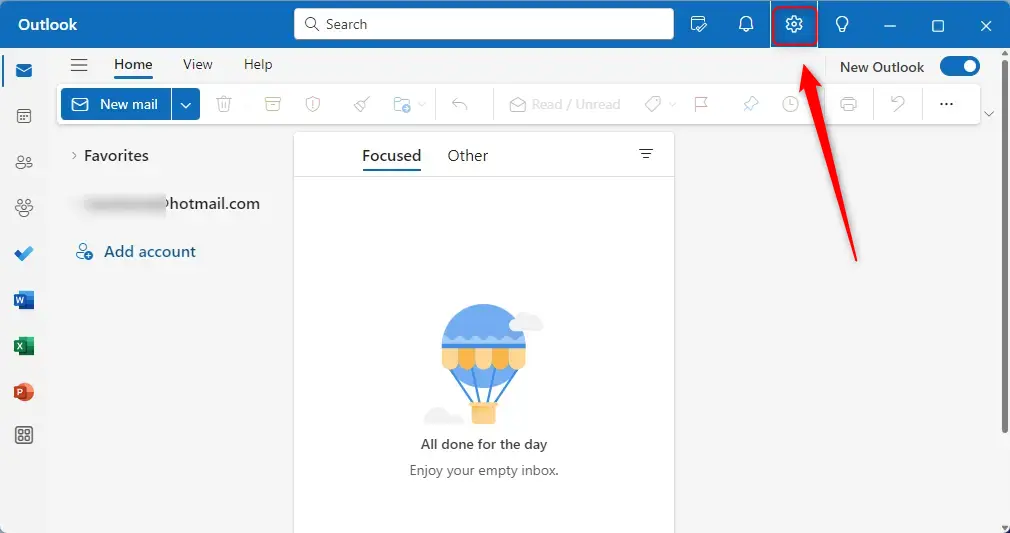
- Click the Settings gear icon located at the top right of the menu bar.
- Select Mail from the left-hand menu.
- Click on Junk email in the side panel.
- Under Incoming mail handling, select Strict.
- Add the email addresses or domains you trust to the Safe senders and domains list at the bottom of the panel.
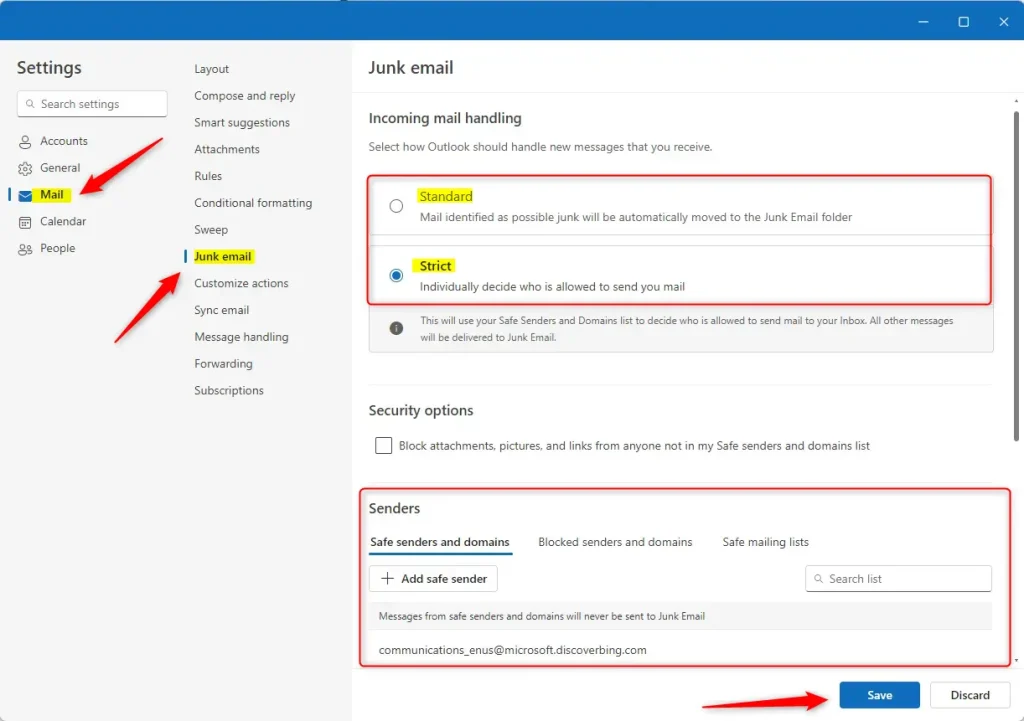
- Click the Save button to finish.
Note: These changes are applied within your user profile settings and do not require administrative privileges to change.
Summary
By switching your Outlook settings to Strict mode and building a list of Safe Senders, you take full control over your inbox. This setup forces unknown senders into your Junk folder, ensuring that only messages from people you know and trust land where you can see them. It is a simple way to increase your security and reduce daily email clutter.
What is the Safe Senders feature in Outlook?
How do I access the Safe Senders list in Outlook?
What happens when I set Outlook to Strict mode?
Can I customize how Outlook handles junk mail?
How do I add senders to my Safe Senders list?
Was this guide helpful?





Leave a Reply Cancel reply