How to Customize Outlook Calendar Alerts on Windows 11

You can customize Outlook calendar alerts on Windows 11 to control how and when you get reminders for your meetings and appointments.
Outlook calendar alerts are notifications designed to inform you about upcoming events, ensuring you stay on track with your schedule. On Windows 11, you have granular control over these, allowing you to tailor them precisely to your needs.
For instance, you can decide if Outlook plays a sound or just displays a visual banner for each reminder. This capability is built into the latest versions of the Outlook app for Windows 11.
By adjusting these notification settings, you ensure your PC alerts you about your schedule in a way that works best for you, helping you avoid missed appointments and stay organized.
Open Outlook, click the gear icon, then General, and Notifications. Under Calendar, enable notifications and choose your preferred reminder style. Adjust Windows notification settings if alerts aren’t appearing.
How to change Outlook Calendar notification styles
You can change how Outlook Calendar alerts look on your Windows 11 PC by adjusting the notification styles right in the app’s settings.
- Open the Outlook app from your Start menu or by searching for it in the taskbar.
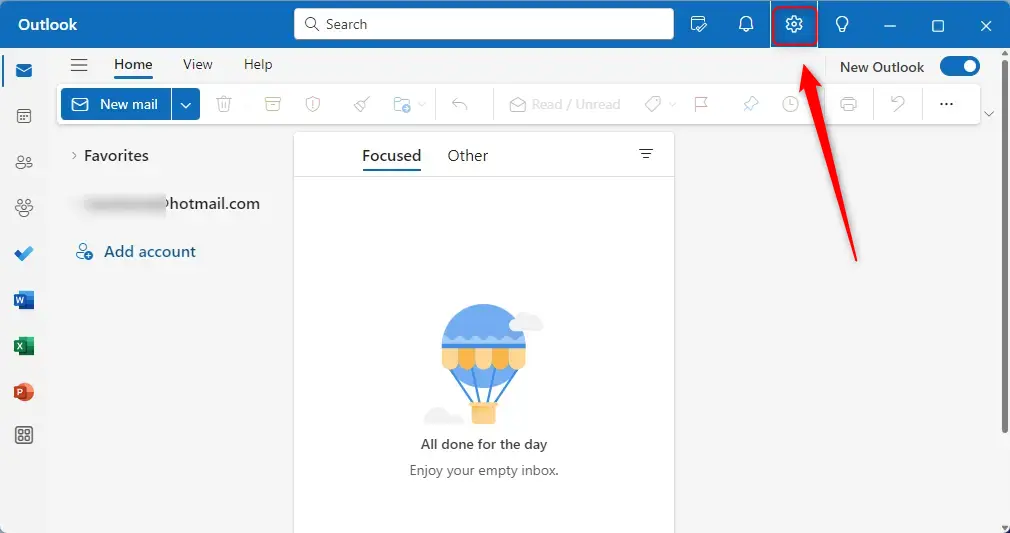
- Click the Settings (gear) icon located at the top right of the menu bar.
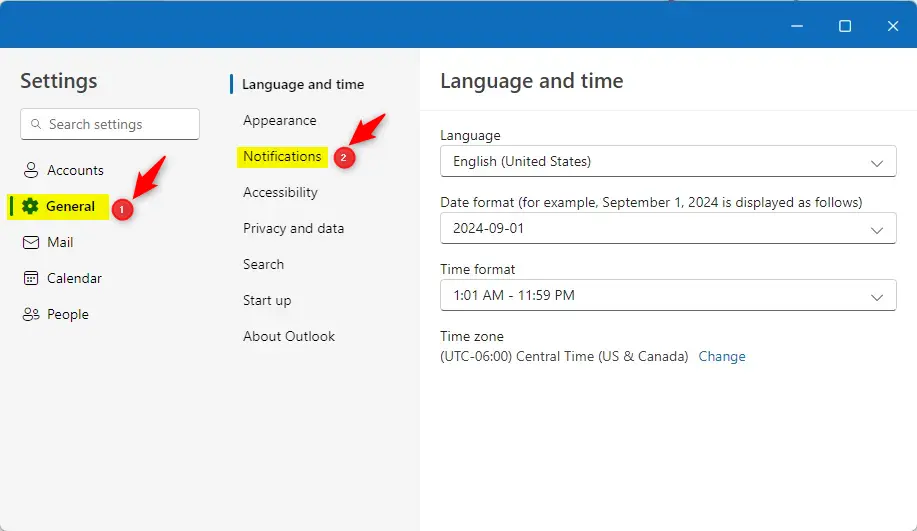
- In the sidebar, click General, then select Notifications.
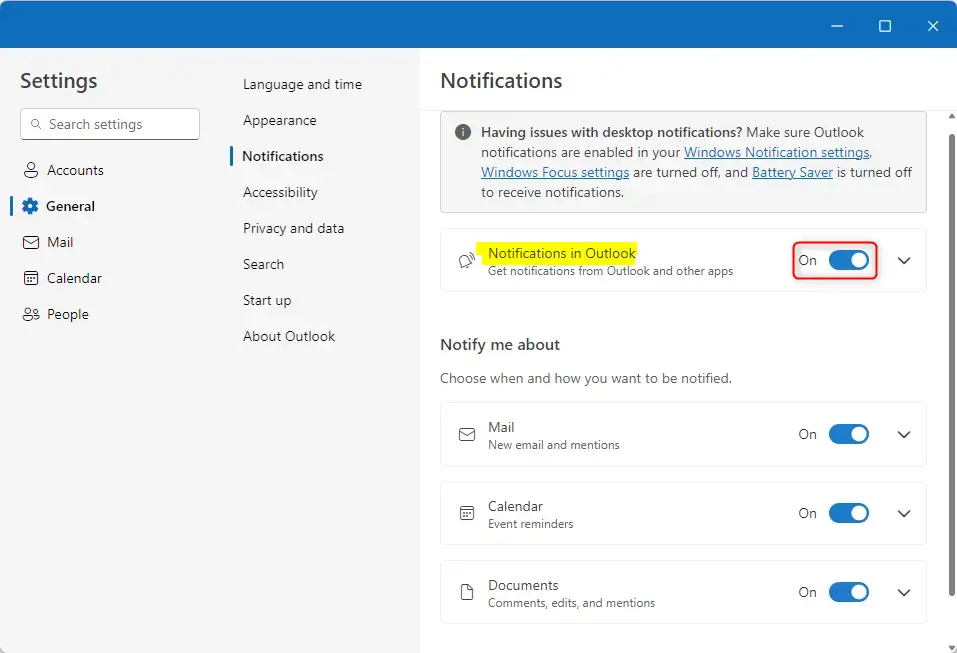
- Look for the Notifications in Outlook section. Ensure you have “Notification in Outlook” turned on. If your alerts are not working, check that Outlook notifications are enabled in your Windows Notification settings, that Windows Focus settings are turned off, and that Battery Saver is turned off.
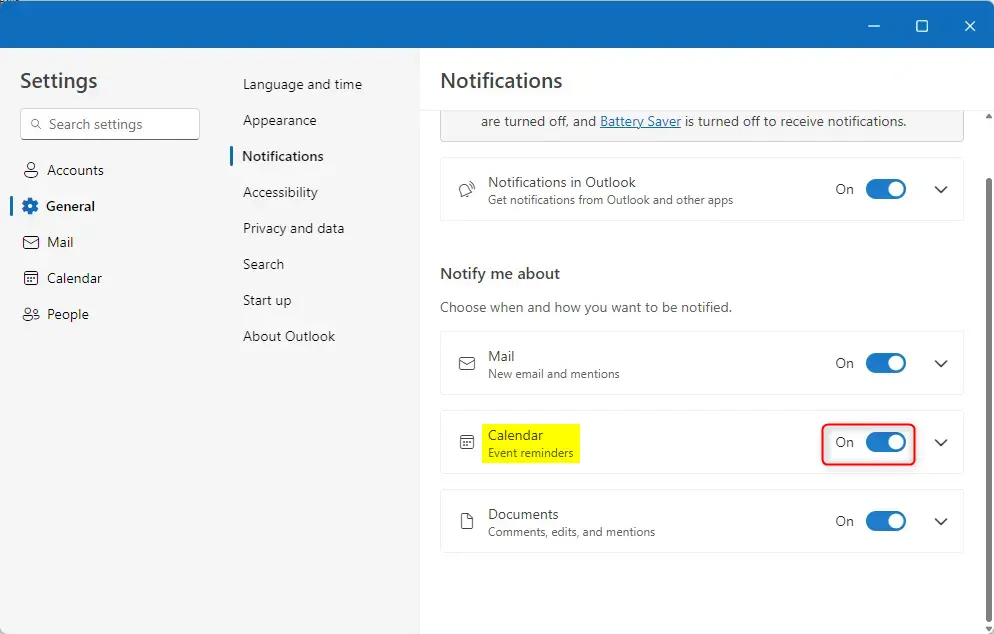
- Once Notification in Outlook is enabled, find the Calendar tile. You can toggle the switch to On or Off to enable or disable reminders.
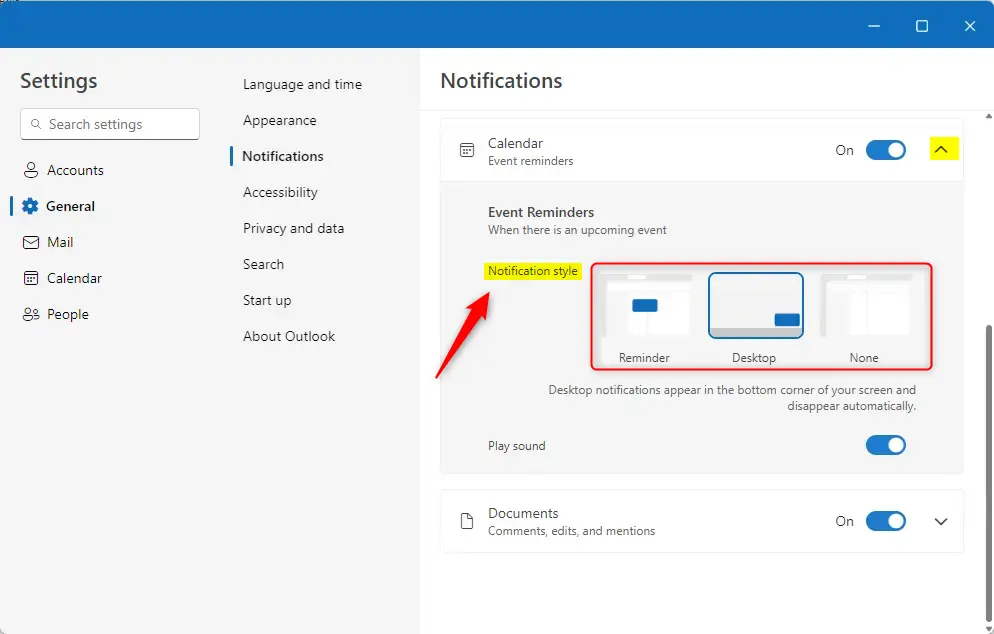
- Once Calendar notifications are enabled is enabled, click the dropdown arrow on the Calendar tile to see more options. Under Event Reminders, choose one of these styles:
- Reminder: A pop-up appears in the center of your screen and stays until you close it.
- Desktop: A notification appears in the bottom corner of your screen and fades away on its own.
- None: No alerts will appear.
- If you choose the Reminders style, you can also set the app to automatically dismiss pop-ups for past events.
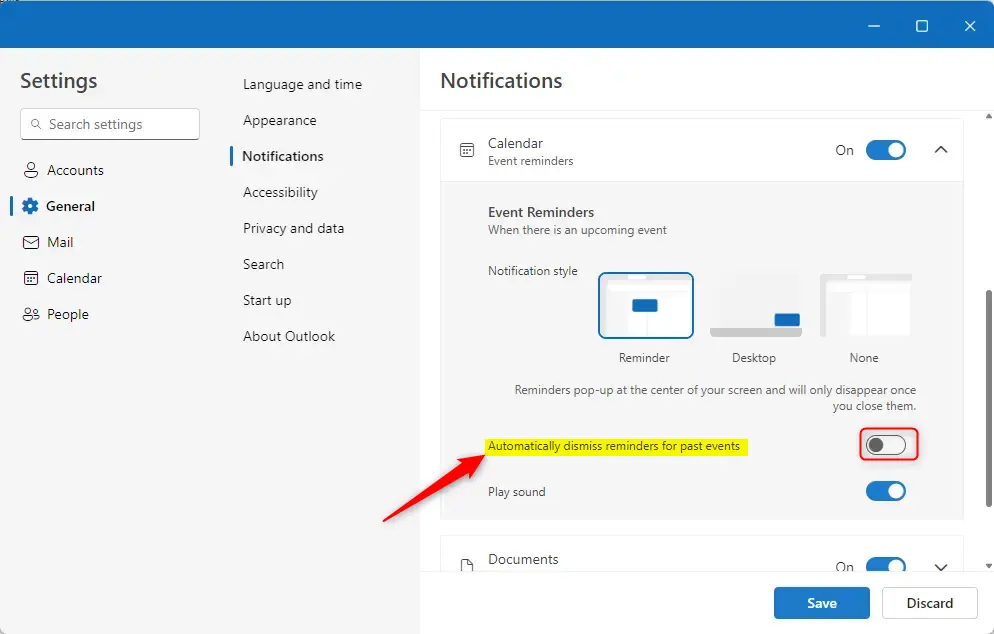
- Click the Save button at the bottom to finish.
Note: To make system-wide changes to notification files, you might need admin privileges. This is necessary if you’re modifying specific system paths, like 📁C:\Windows\System32, or registry keys found at 🗝️HKEY_CURRENT_USER\Control Panel\Desktop.
Summary
Customizing your Outlook Calendar notifications helps you stay organized. By choosing between pop-up reminders or subtle desktop alerts, you can manage your time more efficiently and cut down on unnecessary interruptions during your workday.
Can you change alert settings for Outlook calendar?
Turn the notifications window on or off for Calendar events Under Notify me about, go to the Calendar section and set the toggle to Off if you don't want to see these notifications. To turn notifications on, set the toggle to On and expand the Calendar section.
Was this guide helpful?

About the Author
Richard
Tech Writer, IT Professional
Richard, a writer for Geek Rewind, is a tech enthusiast who loves breaking down complex IT topics into simple, easy-to-understand ideas. With years of hands-on experience in system administration and enterprise IT operations, he’s developed a knack for offering practical tips and solutions. Richard aims to make technology more accessible and actionable. He's deeply committed to the Geek Rewind community, always ready to answer questions and engage in discussions.




[…] or off notifications when Outlook is closed, turn on or off incoming email alert sounds, customizing Calendar alerts, sharing your work hours and location, and […]
[…] on or off notifications when Outlook is closed, turn on or off incoming email alert sounds, customizing Calendar alerts, sharing your work hours and location, and […]