How to Hide Office.com Files in Windows 11 File Explorer

You can hide Office.com files from your Windows 11 File Explorer Home view to declutter your workspace.
File Explorer’s Home view consolidates recent documents, including those stored online with your Microsoft 365 or Office.com account. This can sometimes make the interface feel cluttered.
Windows 11 defaults to displaying these cloud-based files prominently. Fortunately, you can disable this integration through a simple settings adjustment, making your file management smoother.
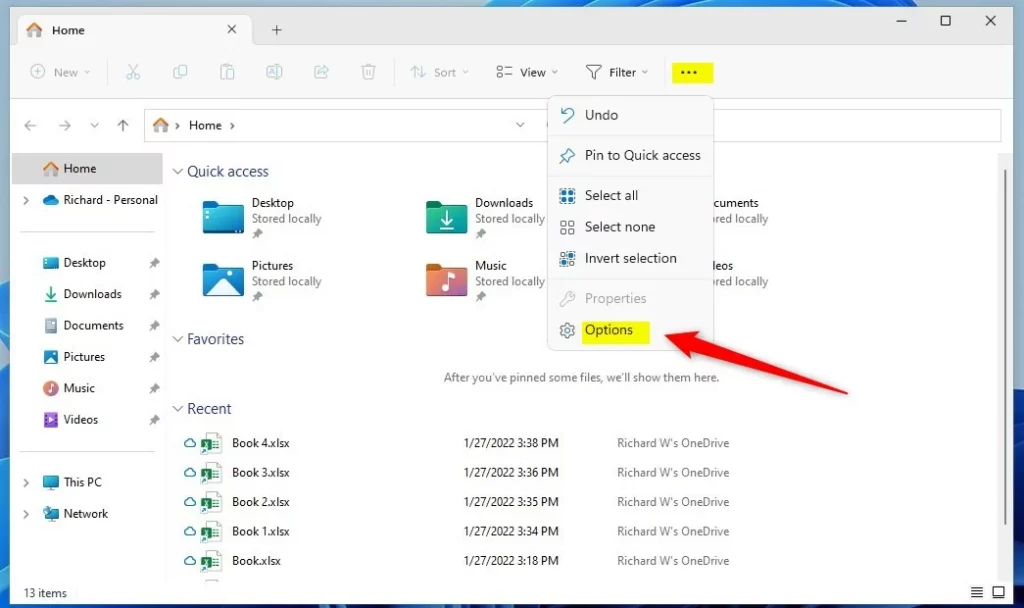
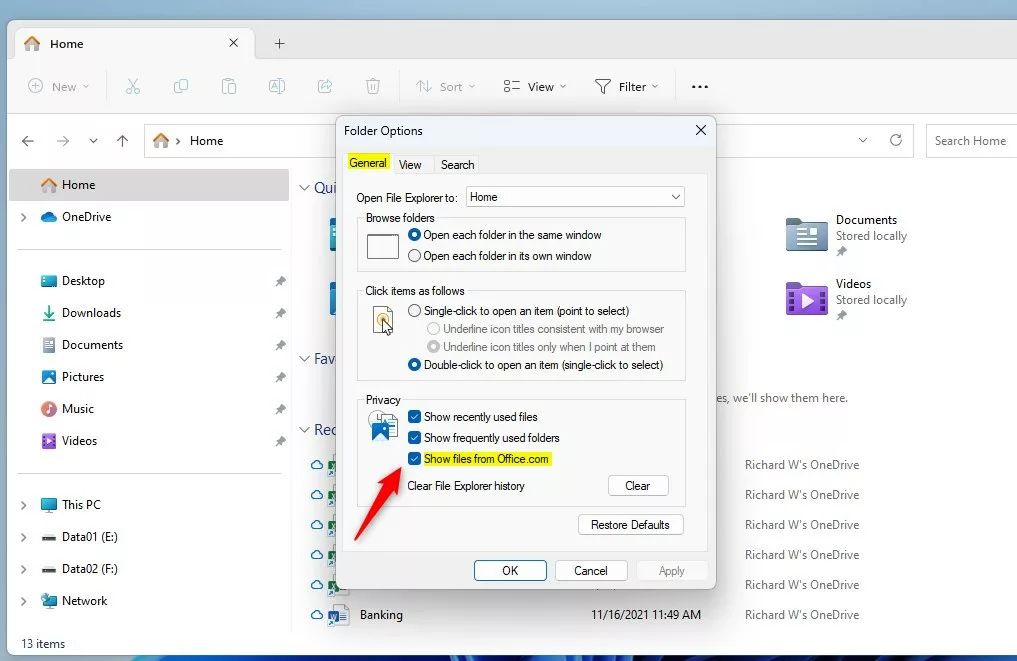
To hide Office.com files in Windows 11 File Explorer, open File Explorer, click the three dots (…), select Options, and uncheck “Show files from Office.com” under the Privacy section. Save the changes by clicking OK.
Why Manage Office.com Files?
Windows 11 File Explorer’s Home view often displays cloud-based file recommendations from your Microsoft 365 account. While helpful for some, others might find it distracting or a privacy concern. Adjusting these settings lets you clean up your workspace and keep your personal and work files separate.
What happens when you are done?
When you disable these settings, Office.com files won’t show up on your File Explorer Home page anymore. This doesn’t delete the files from the cloud; it just stops Windows from suggesting them in your local file manager.
Method 1Using Folder Options
You can hide Office.com files in Windows 11 File Explorer for your personal account by changing a simple setting in Folder Options.
- Open File Explorer.
- Click the three dots (…) in the top menu and select Options.
- Under the General tab, look for the Privacy section.
- Check or uncheck the box labeled Show files from Office.com.
- Click OK to save.
Method 2Using Local Group Policy Editor (Admin Required)
To hide Office.com files in File Explorer for everyone using the computer, you’ll need to use the Local Group Policy Editor.
- Press the Windows key and search for Edit group policy. Select the result.
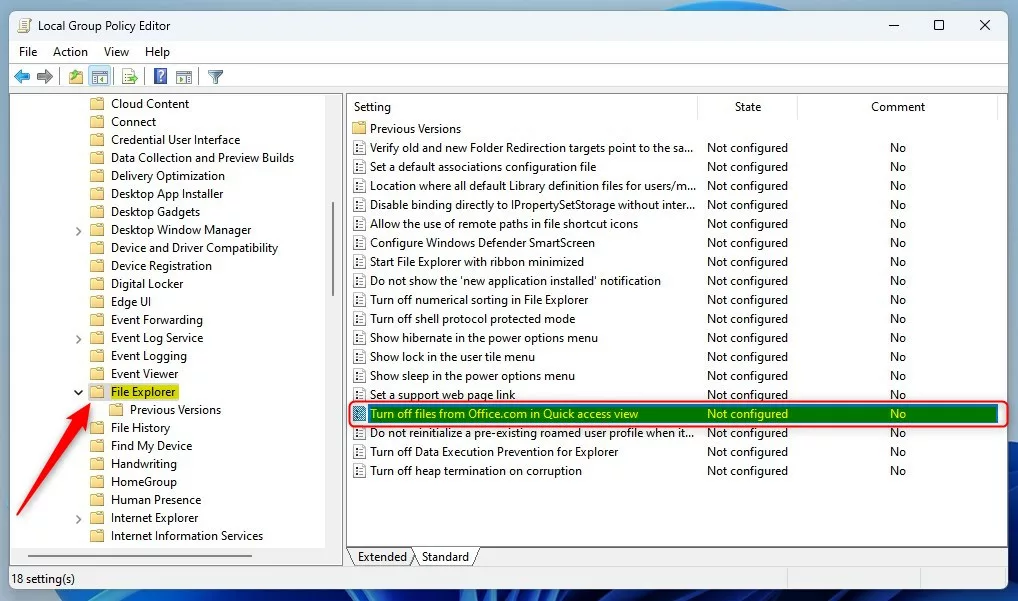
- Navigate to: Computer Configuration > Administrative Templates > Windows Components > File Explorer.
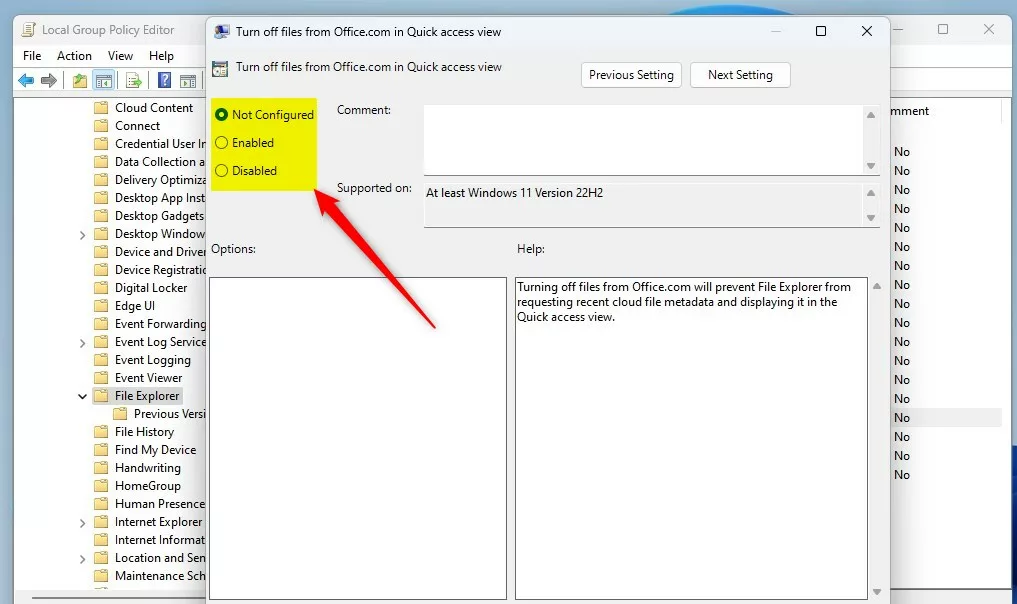
- Find the setting named Turn off files from Office.com in Quick access view and double-click it.
- Choose Enabled to hide the files or Disabled to show them.
- Click OK and restart your computer.

Method 3Using the Windows Registry (Admin Required)
If you can’t use the Group Policy Editor, you can hide Office.com files in File Explorer by making changes in the Windows Registry.
- Press the Windows key, type
regedit, and press Enter to open the Windows Registry. - Go to the following path:
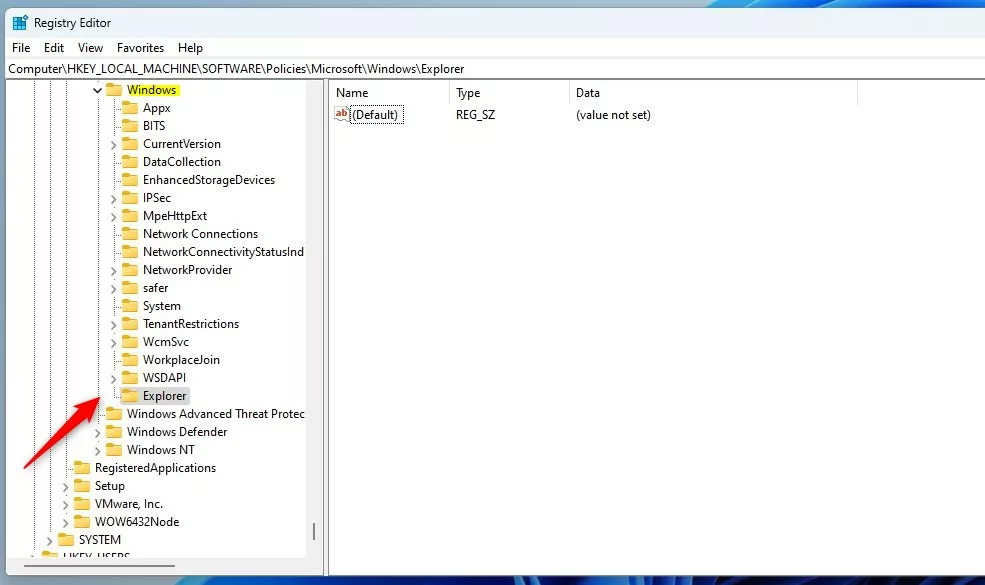
HKEY_LOCAL_MACHINE\SOFTWARE\Policies\Microsoft\Windows\Explorer - If the Explorer folder does not exist, right-click the Windows folder, select New > Key, and name it
Explorer. - Right-click in the empty space on the right, select New > DWORD (32-bit) Value, and name it
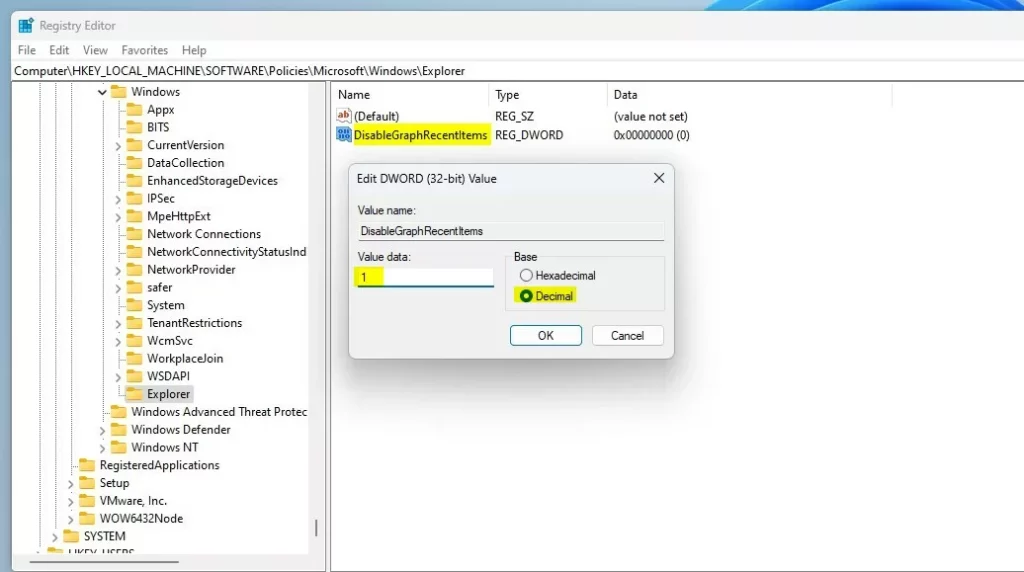
DisableGraphRecentItems. - Double-click
DisableGraphRecentItems. Set the value to1to hide the files, or0to show them. - Restart your computer to apply the changes.
Troubleshooting Sync and Updates
Sometimes, Office.com files might reappear in File Explorer after a Windows update because your settings get reset.
Summary
You can easily manage Office.com files in Windows 11 File Explorer to keep your Home view clean and organised.
Does disabling Office.com files delete the files from the cloud?
No, disabling this setting does not delete your files. It only removes the shortcut links from your File Explorer Home view. Your documents remain safely stored in your OneDrive or SharePoint cloud storage, and you can still access them through your web browser or the Office application.
Is this setting specific to Microsoft 365 Personal or Business accounts?
This setting applies to both Microsoft 365 Personal and Business accounts. If you are signed into Windows with a Microsoft account, the File Explorer Home page will attempt to show recent cloud-based file recommendations regardless of the subscription tier, provided the integration is enabled in your privacy settings.
Was this guide helpful?

About the Author
Richard
Tech Writer, IT Professional
Richard, a writer for Geek Rewind, is a tech enthusiast who loves breaking down complex IT topics into simple, easy-to-understand ideas. With years of hands-on experience in system administration and enterprise IT operations, he’s developed a knack for offering practical tips and solutions. Richard aims to make technology more accessible and actionable. He's deeply committed to the Geek Rewind community, always ready to answer questions and engage in discussions.


No comments yet — be the first to share your thoughts!