Hide or Unhide Personal Folder in Ubuntu Linux

You hide or unhide your personal Home folder in Ubuntu Linux to manage desktop clutter and file accessibility.
The Home folder acts as your central storage location for all personal files, including documents, images, and videos.
Ubuntu Linux typically displays this folder by default on your desktop for quick access.
Hiding the Home folder declutters your screen, while unhiding makes it readily available when you need it.
You can control its visibility directly within Ubuntu’s settings.
Access System Settings, click Appearance, and toggle the “Show Personal folder” switch to hide or unhide your Home folder on the Ubuntu desktop. This simple setting controls the visibility of your main file storage.
How to hide or unhide personal folder on desktop in Ubuntu Linux
When you install Ubuntu Linux, your Home folder usually appears on the desktop by default.
Here’s how to show or hide it in Ubuntu Linux.
Ubuntu Linux keeps most of its settings in one place. You can manage system configurations, user accounts, and updates all from the System Settings panel.

Alternatively, find the System menu in the top-right corner of your desktop’s top bar.
On the System menu, select Settings, as shown below.

Click on the Appearance tile to open this section within the Settings app.
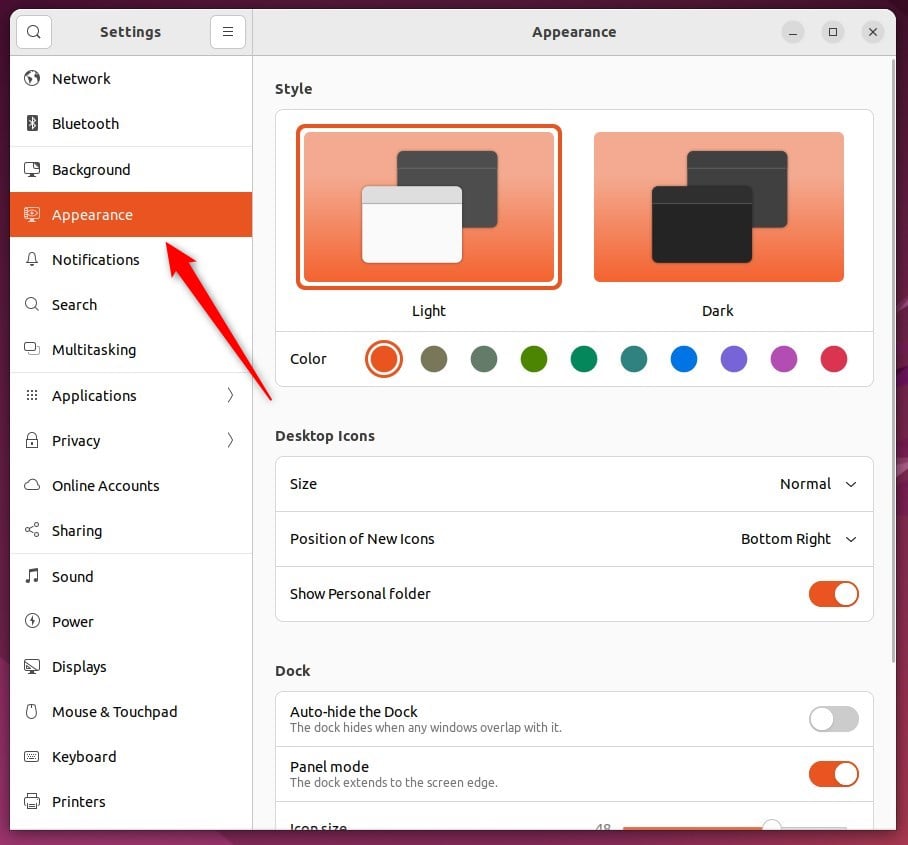
In the System Settings > Appearance panel, look under Desktop icons. Toggle the switch for Show Personal folder to On to display it, or Off to hide it.
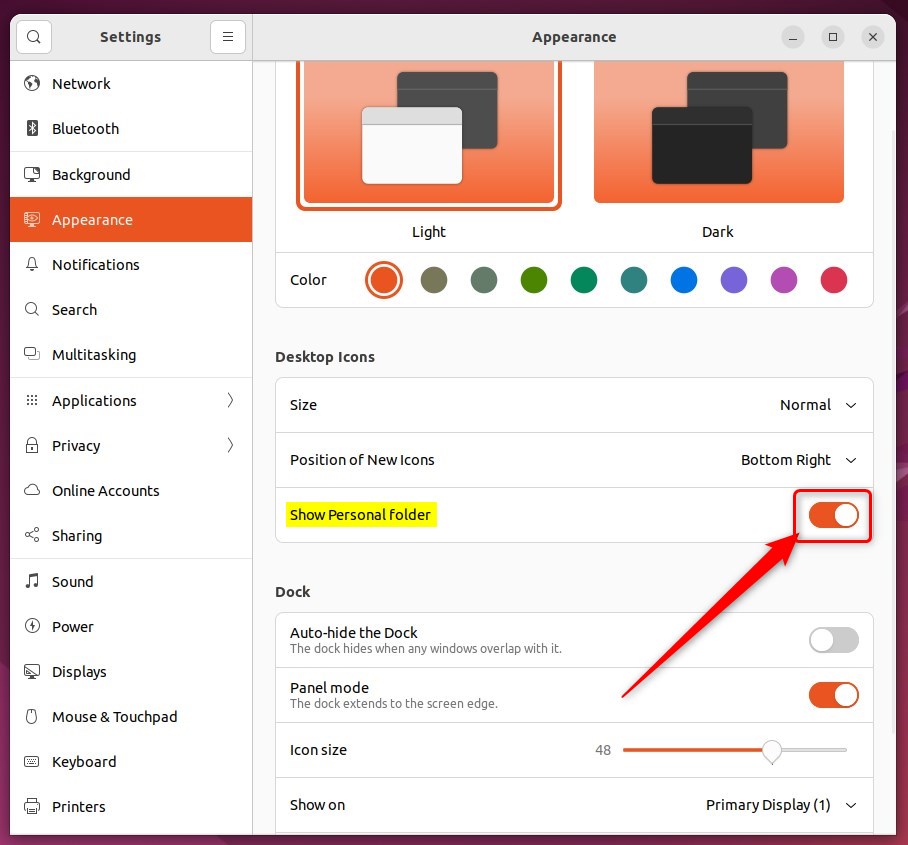
Turning it off hides the folder. Turning it on makes the folder appear again.
That should do it!
Conclusion:
- Ubuntu Linux provides a centralized location for managing settings and configurations, including desktop icons.
- Users can conveniently hide or unhide their personal folders on the desktop by accessing the System Settings panel and navigating to the Appearance section.
- Toggling the “Show Personal folder” switch allows for seamless control over the folder’s visibility, enabling users to keep their desktops clean or readily access their home folder as needed.
Was this guide helpful?

About the Author
Richard
Tech Writer, IT Professional
Richard, a writer for Geek Rewind, is a tech enthusiast who loves breaking down complex IT topics into simple, easy-to-understand ideas. With years of hands-on experience in system administration and enterprise IT operations, he’s developed a knack for offering practical tips and solutions. Richard aims to make technology more accessible and actionable. He's deeply committed to the Geek Rewind community, always ready to answer questions and engage in discussions.


[…] typical Ubuntu desktop will come with a single (Personal) folder icon on the desktop after installation. However, you can add additional icons on the […]
[…] typical Ubuntu desktop will come with a single (Personal) folder icon on the desktop after installation. However, you can add more icons on the desktop, […]
[…] typical Ubuntu desktop will come with a single (Personal) folder icon on the desktop after installation. Computers running Ubuntu usually have clean and […]