How to Disable Logout on Ubuntu Desktop

You can disable the logout option on Ubuntu Desktop by modifying system settings, making the “Log Out” button inaccessible from the top-right system menu.
This process effectively hides the logout functionality, preventing accidental session termination and simplifying your desktop for specific use cases. It’s a useful tweak for shared computers or if you simply prefer a less cluttered interface.
This method is applicable to Ubuntu versions utilizing the GNOME desktop environment, such as Ubuntu 22.04 LTS, and typically takes effect after a quick desktop refresh or session restart.
Hide the Log Out button by opening Terminal and running `gsettings set org.gnome.desktop.lockdown disable-log-out true`. To show it again, use `gsettings reset org.gnome.desktop.lockdown disable-log-out`. Alternatively, use Dconf Editor to toggle the `disable-log-out` setting.
Prevent users from logging out of Ubuntu
You can stop people from logging out of Ubuntu by hiding the Log Out button using a simple command in the Terminal.
Once the Terminal window is open, type this command and press Enter to hide the button:
gsettings set org.gnome.desktop.lockdown disable-log-out true
If you want to bring the Log Out button back later, use this command instead:
gsettings reset org.gnome.desktop.lockdown disable-log-out
Disable or enable the Log out command using the Dconf Editor
If you prefer not to use commands, you can turn the Log Out option on or off in Ubuntu with the Dconf Editor, a tool similar to the Windows Registry Editor.
Security Disclaimer: Please note that this is only a UI-level restriction. It is not a robust system-level security measure and will not stop someone who knows how to use the command line.
To use this tool, you must install it first. Open your Terminal and run the following command:
sudo apt install dconf-editor
This is currently the most reliable way to get the tool. Once installed, open the Dconf Editor from your app list.
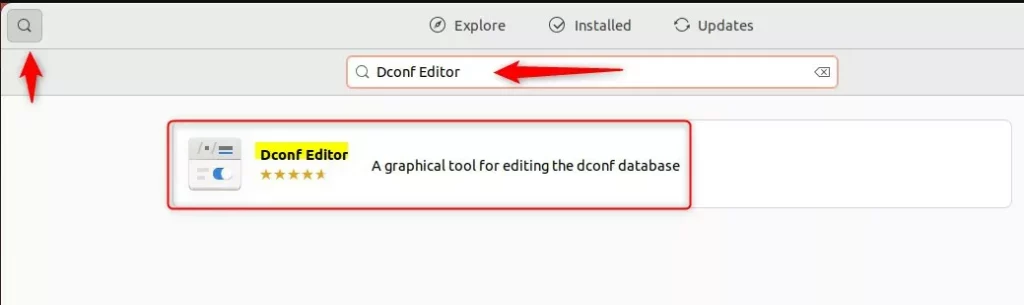
Navigate to this path inside the app:
org -> gnome -> desktop -> lockdown
Find the setting called disable-log-out. Click the toggle switch to turn it on or off.
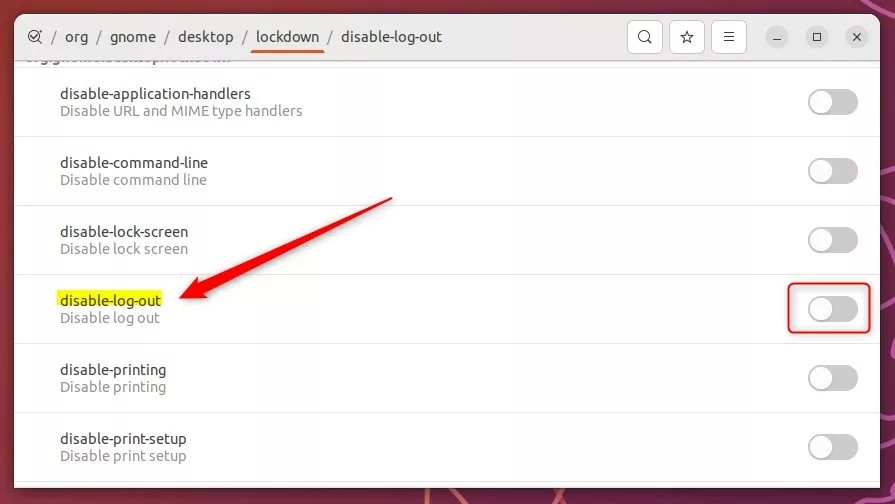
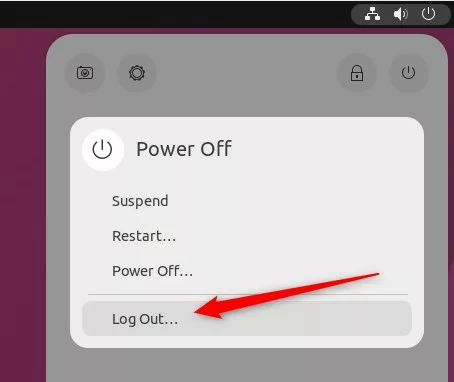
Once you toggle this, the change happens immediately. You can check your system menu at the top right to see if the button is gone.
How to disable automatic logout?
Click yes wait for the GUI server to be up. From M9. 0.22 besides CCM the EM system parameters can also be updated from the ControlM web client let's switch over to ControlM web log in to controlm.
How do I turn off logging in Ubuntu?
Screen where you would ask to enter the username. And password. And that's it simple as that.
Was this guide helpful?

About the Author
Richard
Tech Writer, IT Professional
Richard, a writer for Geek Rewind, is a tech enthusiast who loves breaking down complex IT topics into simple, easy-to-understand ideas. With years of hands-on experience in system administration and enterprise IT operations, he’s developed a knack for offering practical tips and solutions. Richard aims to make technology more accessible and actionable. He's deeply committed to the Geek Rewind community, always ready to answer questions and engage in discussions.



No comments yet — be the first to share your thoughts!