Using File Manager (Nautilus) in Ubuntu Linux

Ubuntu Linux’s File Manager, Nautilus, helps you browse, organize, and manage all your files and folders.
Nautilus is the default graphical file manager in Ubuntu and is part of the GNOME desktop environment. It’s your primary tool for interacting with your file system.
You can launch Nautilus by clicking its icon on the Ubuntu Dock or by searching for it in the Activities overview. This application is essential for everyday file operations.
With Nautilus, you can create new folders, copy, move, rename, and delete files with ease. It even lets you connect to network locations, streamlining your workflow on versions like Ubuntu 22.04 LTS and later.
Open File Manager by clicking the folder icon on the Ubuntu Dock or using the Home folder on your desktop. You can then navigate, organize, copy, move, and delete files and folders.
How to open File Manager in Ubuntu Linux
You can open a new File Manager window in a few ways. By default, Ubuntu adds a File Manager icon to its Dock. This icon looks like a folder.
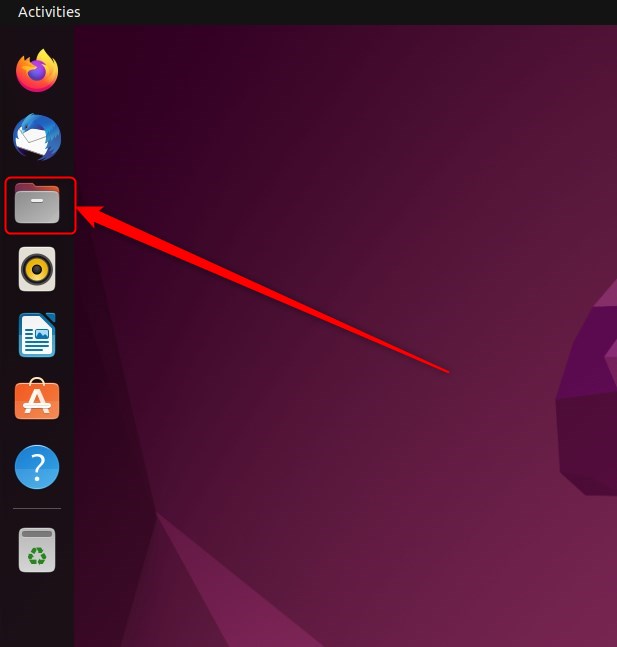
Click on the Folder icon on the Dock, as highlighted above, to open File Manager.
File Manager will open, showing your Home folder. From there, you can click “Home” on the left to see your default directories.
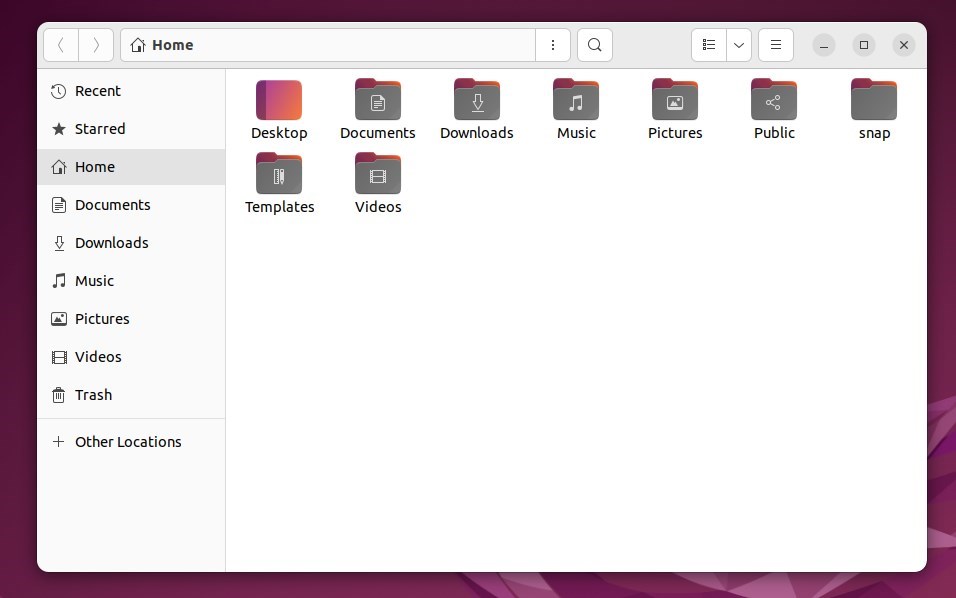
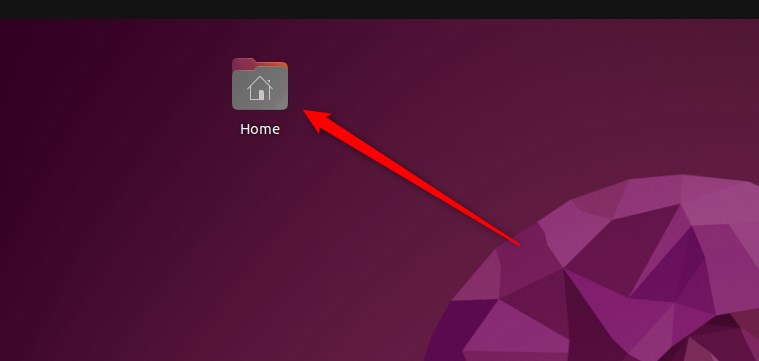
You can also use the Home folder icon that Ubuntu often places on your desktop after installation to launch File Manager.
Ubuntu Linux, by default, will add a Home folder on your desktop after installation. Use this folder to open File Manager.
How to use File Manager in Ubuntu Linux
Now that File Manager is open, you can perform some of these tasks using File Manager.
- Your search for missing files: How to search for missing or lost files
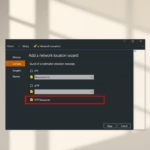
- You can browse network locations: How to share files with Windows
- You can share your public folder: How to share the public folder
You can also perform many more tasks in File Manager.
That should do it!
Conclusion:
- File Manager (Nautilus) in Ubuntu Linux provides a user-friendly interface for organizing and managing files and folders on your computer and network resources.
- Users can easily create documents and folders, display files and folders, search for and manage files, and open network locations using the File Manager.
- Opening File Manager in Ubuntu Linux can be done by clicking the folder icon on the Dock or using the Home folder on the desktop.
- With File Manager open, users can efficiently search for missing files, browse network locations, share public folders, and perform various other tasks.
- This guide has successfully illustrated how to open and utilize File Manager in Ubuntu Linux, empowering users to manage their files and folders effectively.
Was this guide helpful?

About the Author
Richard
Tech Writer, IT Professional
Richard, a writer for Geek Rewind, is a tech enthusiast who loves breaking down complex IT topics into simple, easy-to-understand ideas. With years of hands-on experience in system administration and enterprise IT operations, he’s developed a knack for offering practical tips and solutions. Richard aims to make technology more accessible and actionable. He's deeply committed to the Geek Rewind community, always ready to answer questions and engage in discussions.


How do you manage the little number which appears by Nautilus Icon?
What does it signify? How do you use it?