How to Add or Remove Network Locations in Windows 11

This guide will walk you through adding and removing network locations in Windows 11.
Add a network location by opening File Explorer, right-clicking This PC, selecting “Add a network location,” and following the wizard to enter the network address and name. Remove one by right-clicking the location in File Explorer and selecting Delete.
What Is a Network Location?
A network location in Windows 11 is like a bookmark for files on another computer or server, letting you quickly access shared folders, FTP sites, or web servers right from File Explorer without needing extra software.
Why use a network location? It keeps your File Explorer clean. Unlike a mapped network drive, it doesn’t take up a drive letter like Z: or Y:. It’s a great way to manage files on a remote server as if they were on your own PC.
Prerequisites: Preparing Your Network
Before adding network locations in Windows 11, make sure your computer can see other devices by turning on Network Discovery in your advanced sharing settings.
[ADMIN PRIVILEGES REQUIRED] To enable this, head over to Settings > Network & internet > Advanced network settings > Advanced sharing settings. Once there, turn on Network discovery and File and printer sharing.
Mapped Drives vs. Network Locations
Mapped drives and network locations both connect you to network resources, but they work differently in Windows 11; a mapped drive gets its own drive letter like Z:, while a network location is just a shortcut for quick access.
How to Add a Network Location in 🪟 Windows 11
Step 1Open File Explorer
Click the folder icon on your taskbar.
Step 2Access the Network Location Menu
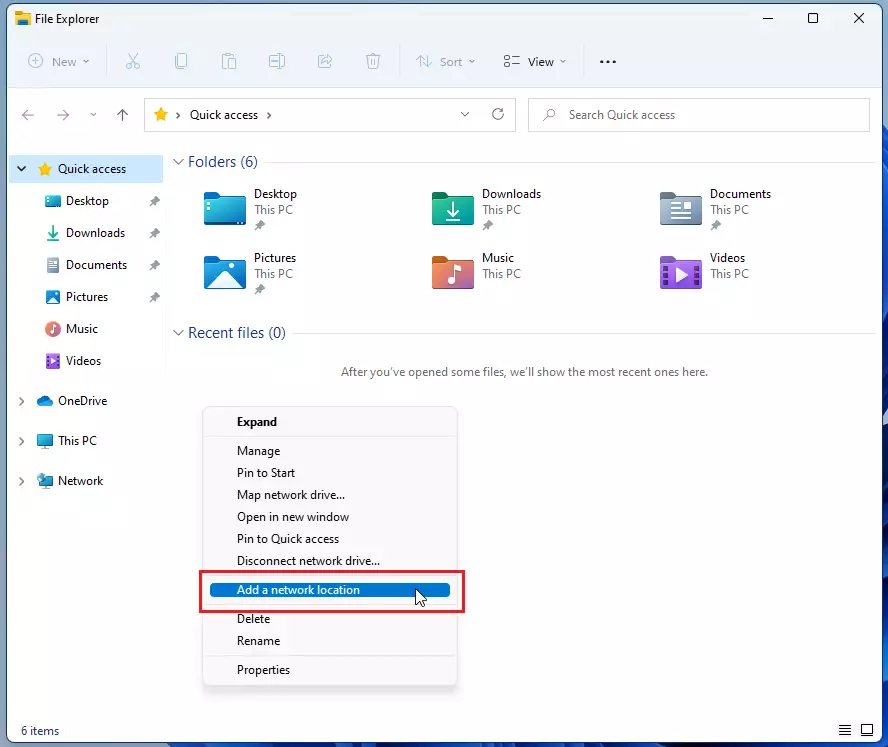
Right-click This PC in the left sidebar. Click ‘Show more options’.
Select Add a network location.
Step 3Start the Setup Wizard
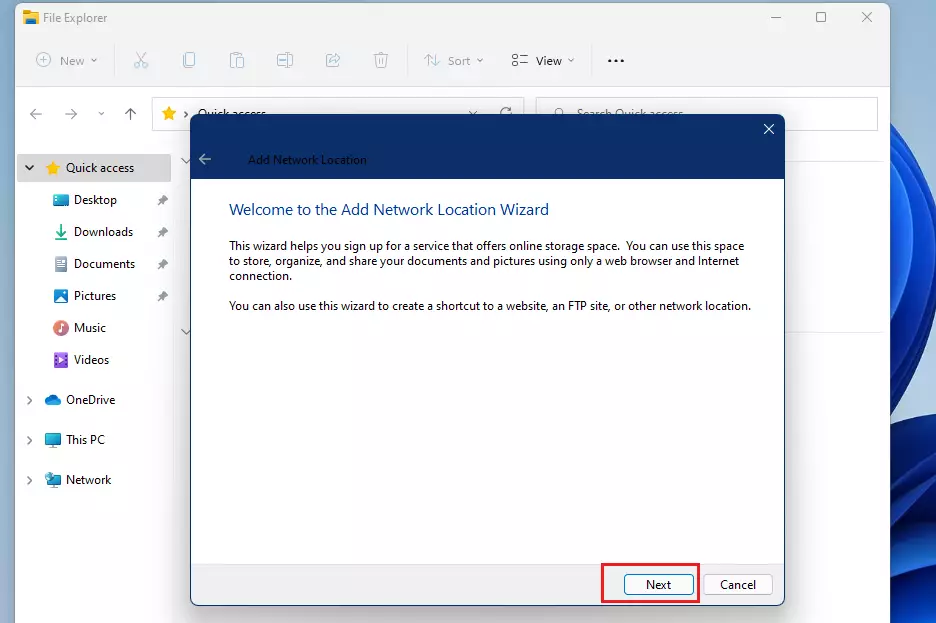
Click Next on the welcome screen.
Step 4Choose a Custom Network Location
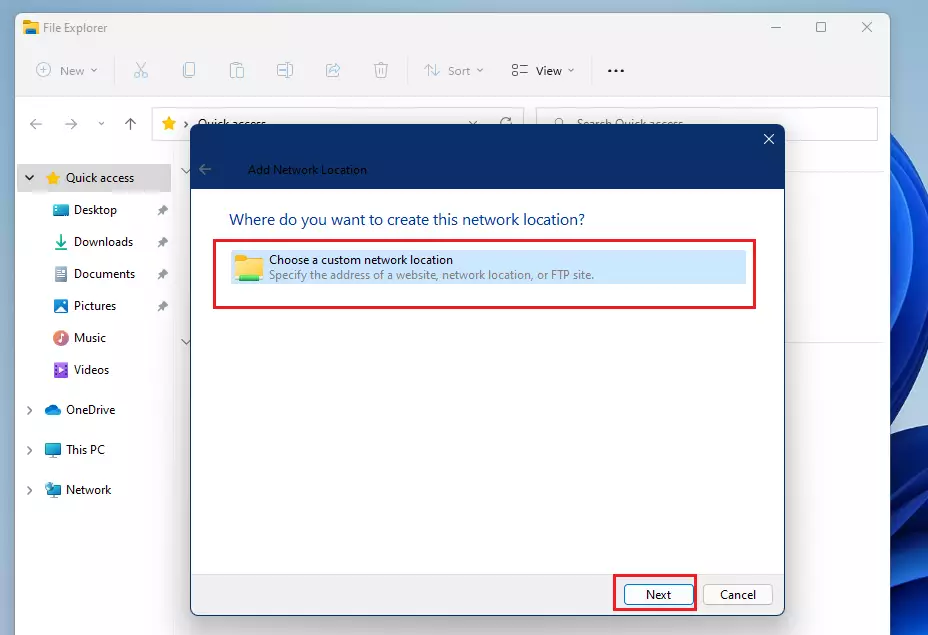
Select Choose a custom network location and click Next.
Step 5Type the Network Address
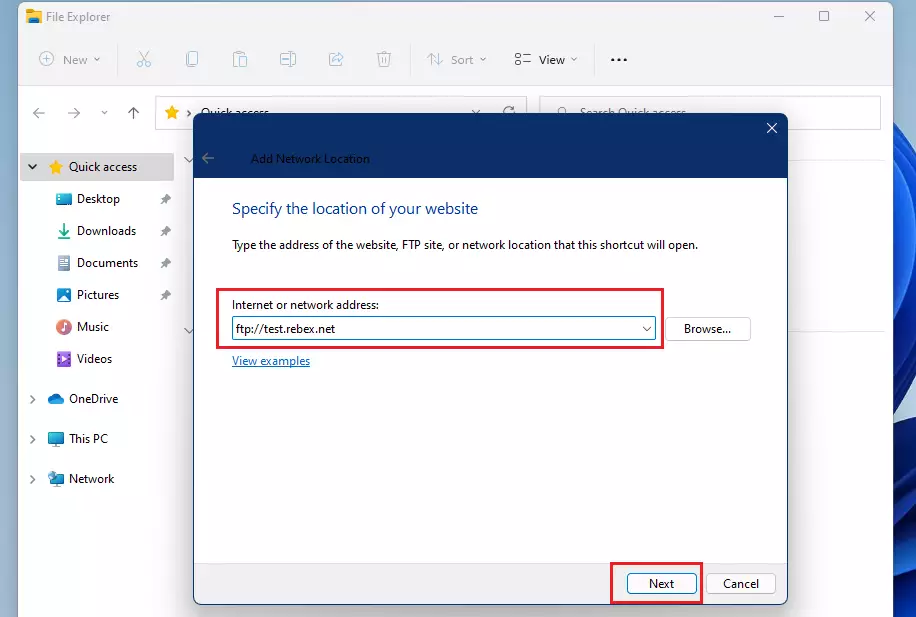
Enter your address. You’ll use this for FTP sites, websites, or Windows file shares. For example, use ftp://example.com for FTP, http://example.com for websites, or \\server\share for Windows file shares.
Step 6Log In Information
If the server needs a password, enter your username. If it’s public, choose Log on anonymously.
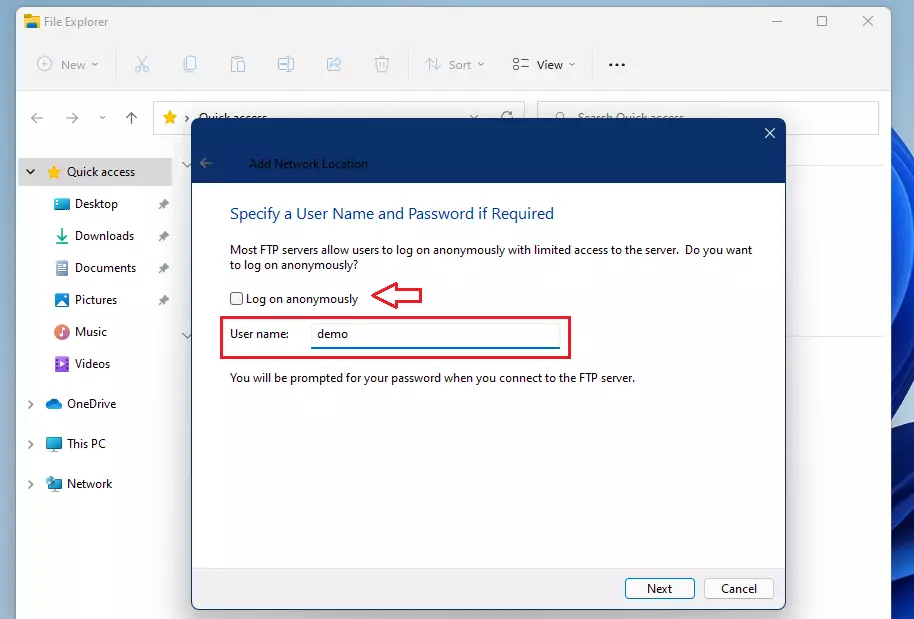
Step 7Name Your Location
Give it a name you will recognize later.
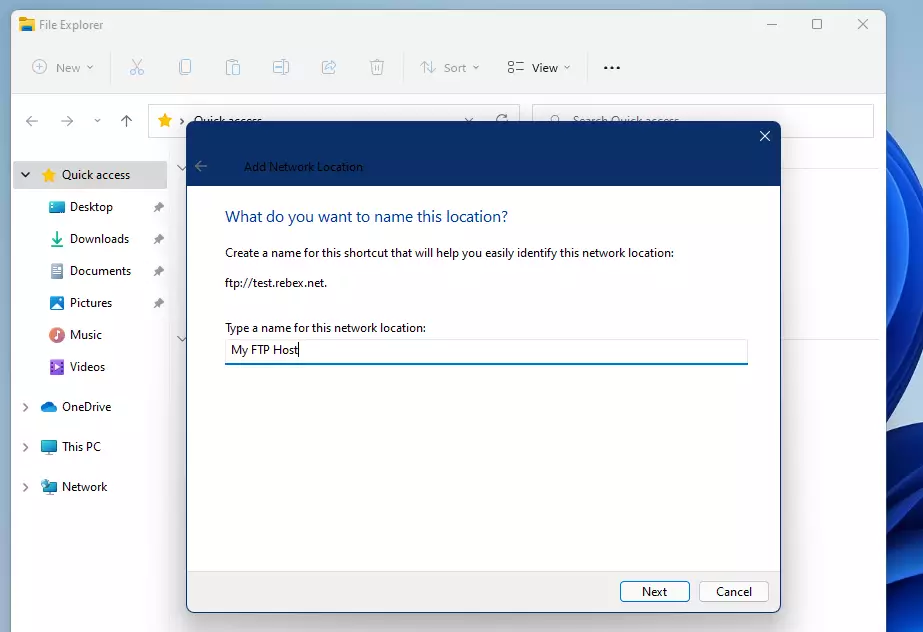
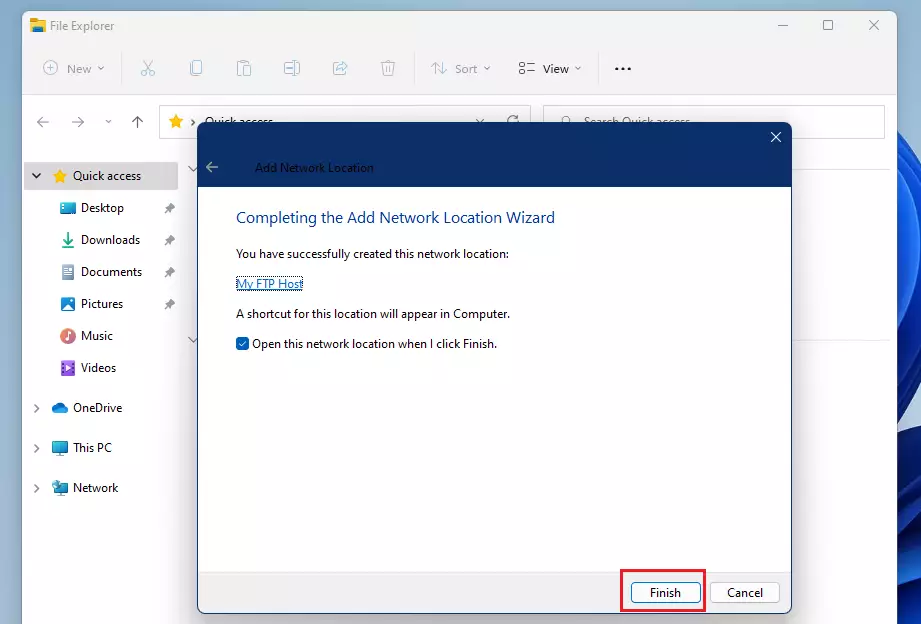
Step 8Finish Setup
Click Finish.
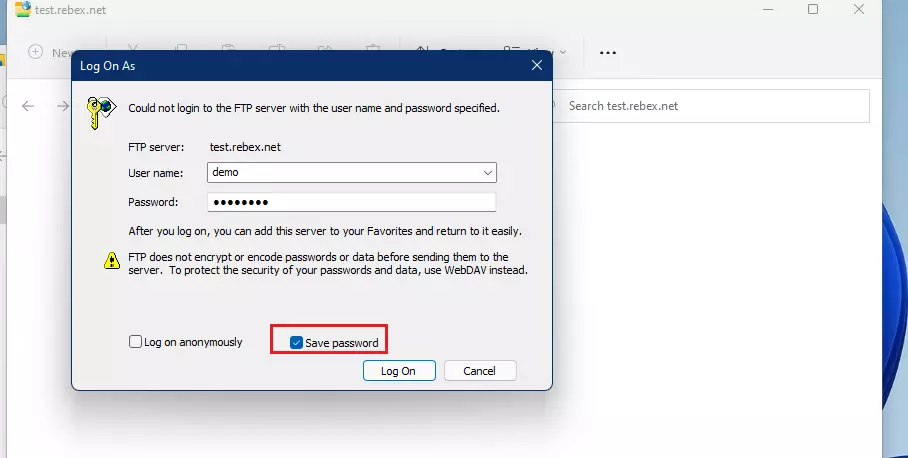
Step 9Log In to the Server
Enter your credentials when prompted. You can save these in the Windows Credentials Manager for easier access next time.
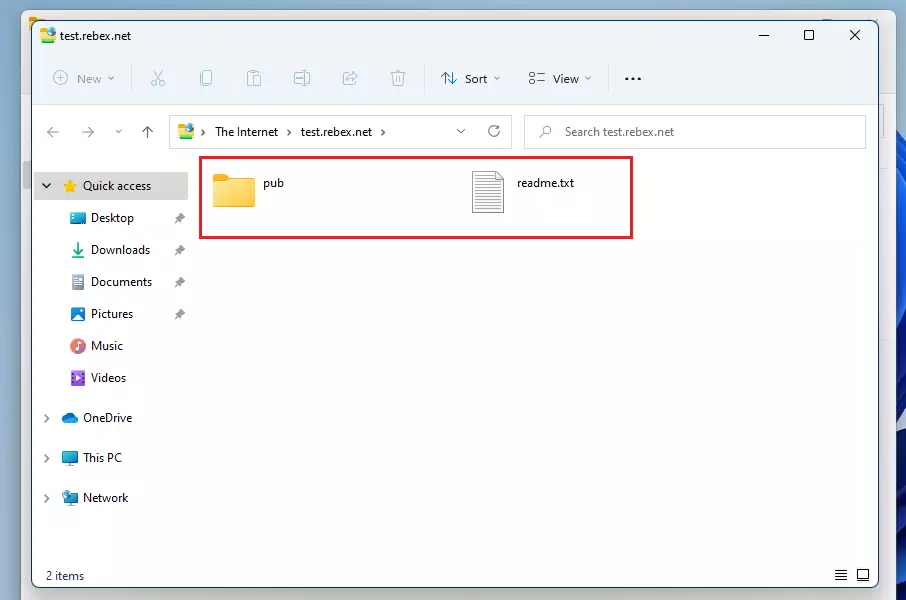
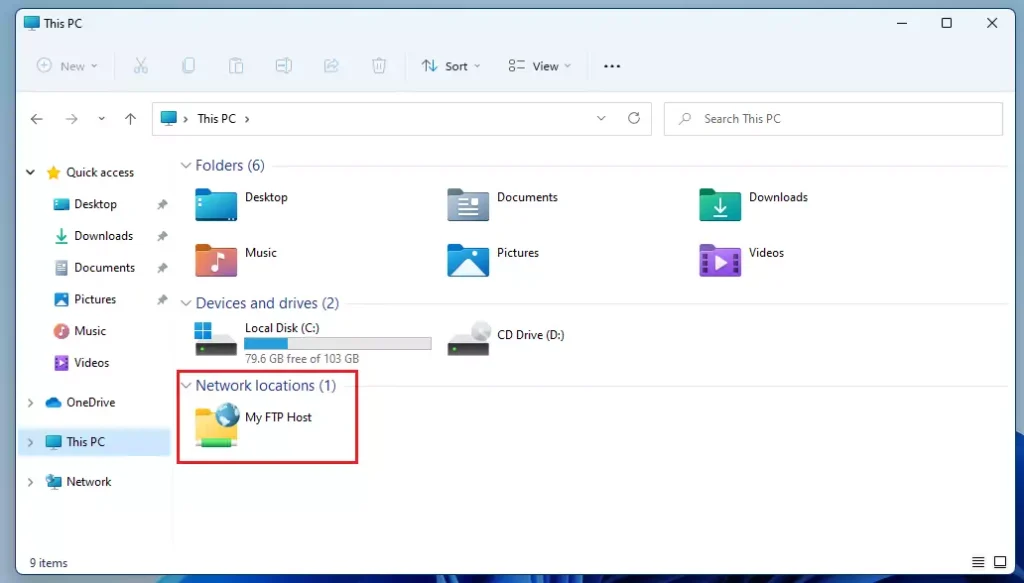
Your new folder will appear under Network Location in File Explorer.
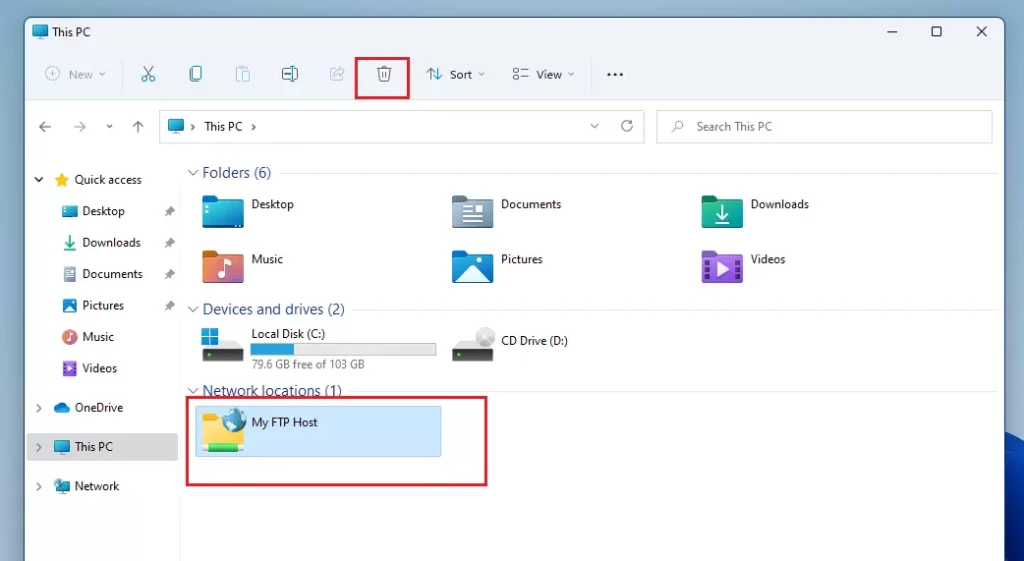
How to Remove a Network Location
Right-click the folder and select Delete. This removes the shortcut but doesn’t delete the files on the remote server.
Summary
Network locations are a great way to access remote files. Always ensure Network Discovery is on. Use them for FTP or web shares to keep your computer organized. For more help with sharing, visit the official Microsoft file sharing guide.
Why does my network location keep disconnecting?
This often happens if your internet connection is unstable or the server goes to sleep. Check your network settings and ensure the remote server is active. If you are using a VPN, ensure it is connected before trying to access the location, as the path may be unreachable otherwise.
How to fix ‘Windows cannot access’ errors when adding a network location?
If you see the ‘Windows cannot access’ error when adding a network location, it usually means your PC can’t find the server or you lack permission; first, check that Network Discovery is on and use the correct server address.
Can I add a network location for an FTP server in 🪟 Windows 11?
Yes, you can. Windows 11 supports FTP natively. Simply follow the ‘Add a network location’ wizard and enter your FTP address starting with ftp://. Once added, you can drag and drop files between your computer and the FTP server directly within File Explorer without needing third-party software.
Was this guide helpful?

About the Author
Richard
Tech Writer, IT Professional
Richard, a writer for Geek Rewind, is a tech enthusiast who loves breaking down complex IT topics into simple, easy-to-understand ideas. With years of hands-on experience in system administration and enterprise IT operations, he’s developed a knack for offering practical tips and solutions. Richard aims to make technology more accessible and actionable. He's deeply committed to the Geek Rewind community, always ready to answer questions and engage in discussions.

Hi Richard,
Thanks for your article. Very useful with W11 dialogues..
It is not clear in your article how to differentially access FTP and SFTP. I believe this is achieved by using port 21 for FTP and 22 SFTP but windows doesn’t seen to provide you with a port choice. There is a warning on the LogOnAs dialogue box about entering using FTP but I cant see how you can be sure you’re using SFTP. Also what is sFTP?
TQ Paul.
This page claims to show how to connect to SFTP, but does not actually demonstrate an SFTP connection. FTP is not SFTP, it seems the author got those two confused.
[…] The Network icon is included in the File Explorer navigation pane by default. This makes it easier for users to browse their local network locations. […]