How to Enable File and Printer Sharing in Windows 11

This guide explains how to manage File and Printer sharing in Windows 11.
Enable file and printer sharing by going to Settings > Network & internet > Advanced network settings > Advanced sharing settings. Toggle the switch to “On” for your current network profile. You can also use the Command Prompt with the command netsh advfirewall firewall set rule group=”File and Printer Sharing” new enable=Yes.
Why Enable File Printer Sharing?
Turning on file and printer sharing lets other computers on your network use your shared files and printers, making it easy to share resources with family or colleagues.
Why: It simplifies collaboration by allowing multiple users to access a single shared resource.
What happens: Once enabled, your computer becomes visible to other devices on the same network, allowing them to open, copy, or print your shared items.
Prerequisites for Network Sharing
Before you begin, ensure all devices are connected to the same local area network (LAN). They must be on the same subnet to communicate. If you are in a domain environment, your network administrator may have restricted these settings via Group Policy.
How to Change Sharing Settings in 🪟 Windows 11
You can change your file and printer sharing settings easily through the main Windows Settings by going to Network & internet, then Advanced network settings, and finally Advanced sharing settings.
- Open your computer Settings by pressing the Windows key + I on your keyboard, or by clicking Start then Settings.
windows 11 start settings - Click on Network & internet.
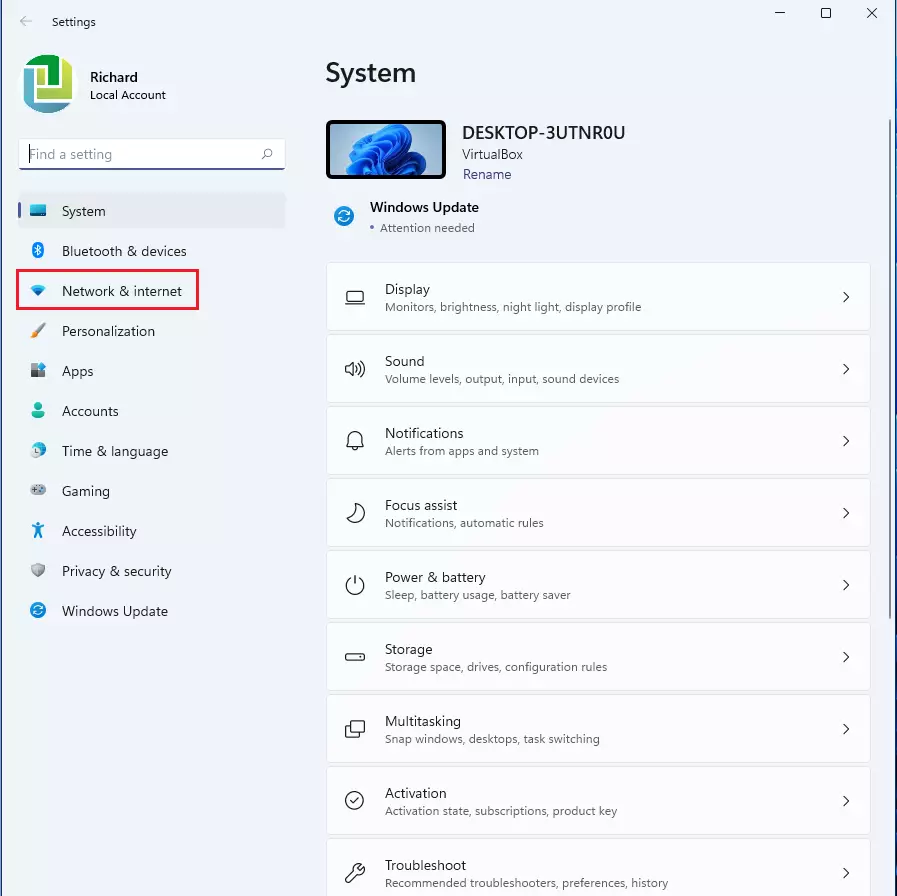
windows 11 network internet pane - Click on Advanced network settings near the bottom of the list.
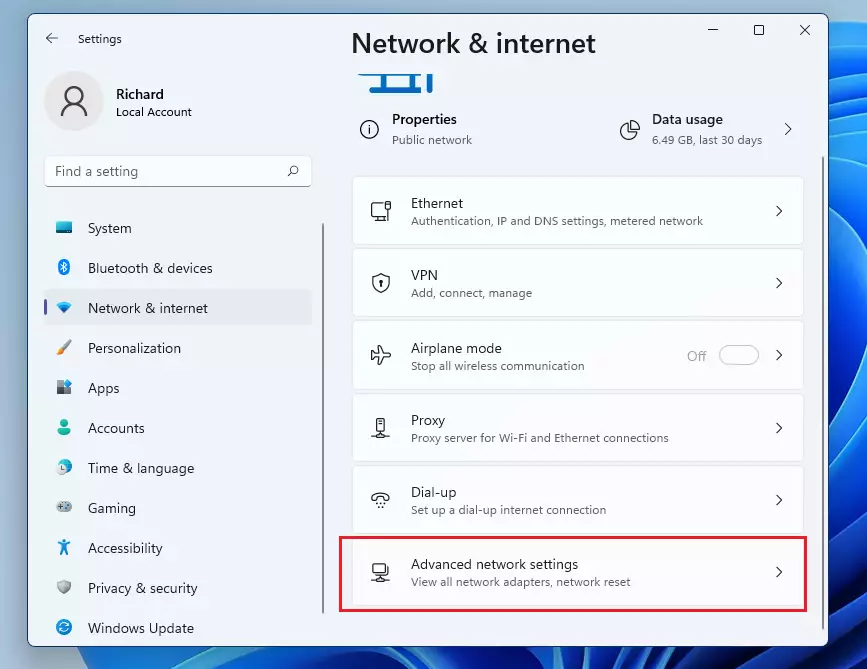
windows 11 advanced network settings - Select Advanced sharing settings.
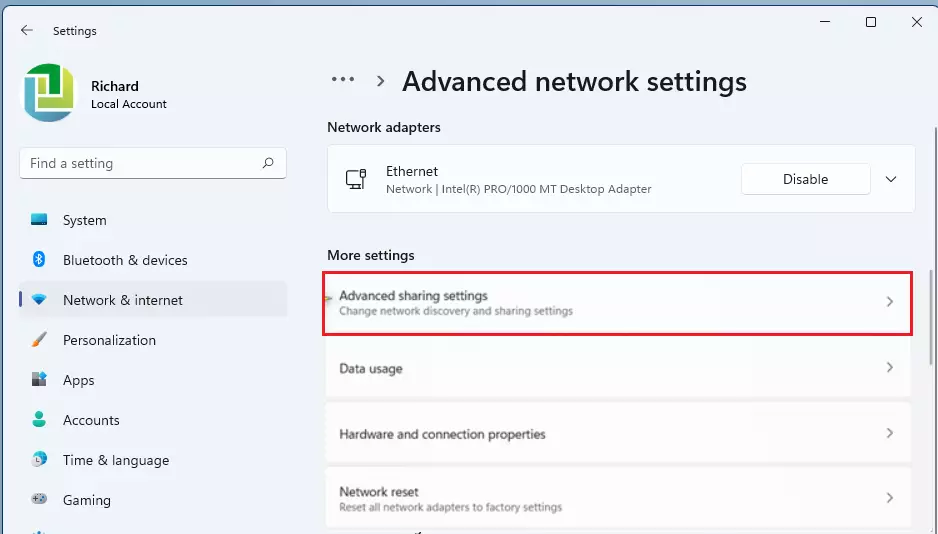
windows 11 advanced sharing settings tile - Click on Private or Public networks to see more options.
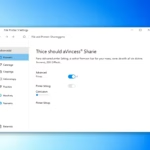
- Use the toggle switch to turn File and printer sharing to On or Off.
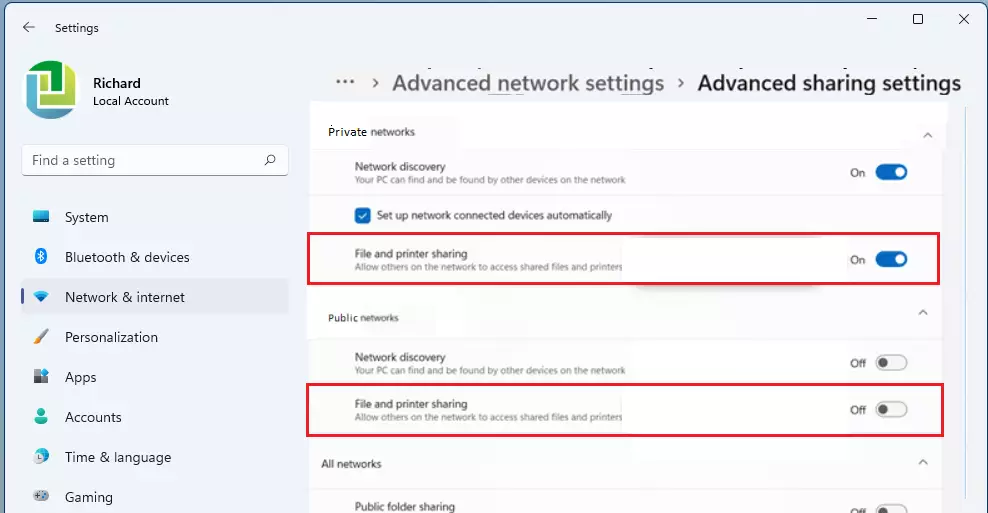
windows 11 file and printer sharing pane updated
Understanding Network Profiles: Private vs. Public
Windows treats different networks differently. A Private network profile is intended for home or work where you trust the other devices. A Public network profile is for coffee shops or airports; Windows automatically tightens security here, often disabling discovery to prevent unauthorized access.
How to Use Command Prompt (Admin Required)
You can turn file and printer sharing on using the Command Prompt if you have administrator rights by typing a specific command.
To turn sharing On for all networks, type this command and press Enter:
netsh advfirewall firewall set rule group="File and Printer Sharing" new enable=Yes
To turn sharing Off for all networks, type this command and press Enter:
netsh advfirewall firewall set rule group="File and Printer Sharing" new enable=No
Troubleshooting Persistent Sharing Issues
If you’re having trouble with file and printer sharing, first check if the Function Discovery Provider Host service is running by typing ‘services.msc’ in the Run dialog. Also, make sure your Windows Firewall isn’t blocking sharing traffic and consider enabling SMB 1.0 if needed, though it’s less secure.
Summary
File and printer sharing lets other devices on your network access your files or printers. You can turn this feature on or off using Windows Settings or the Command Prompt. Remember to keep sharing off on public networks for safety, and check Microsoft’s documentation for more details.
Why can’t I see my printer on the network?
First, ensure both the computer and printer are on the same network subnet. Check that Network Discovery is turned on in Advanced Sharing Settings. If the issue persists, verify that the printer is shared in its properties and that your Windows Firewall is not blocking the connection.
Is it safe to enable file and printer sharing on public networks?
No, it is not safe. Enabling sharing on public networks exposes your shared files and devices to strangers on the same Wi-Fi. Always set your network profile to Public when in a coffee shop or airport to ensure Windows automatically disables these sharing features for your protection.
How do I fix ‘File and printer sharing is turned off’ error?
Navigate to Settings > Network & internet > Advanced network settings > Advanced sharing settings. Ensure the toggle for File and printer sharing is set to On for your current network profile. If it remains disabled, check if a Group Policy object is overriding your local settings.
Was this guide helpful?

About the Author
Richard
Tech Writer, IT Professional
Richard, a writer for Geek Rewind, is a tech enthusiast who loves breaking down complex IT topics into simple, easy-to-understand ideas. With years of hands-on experience in system administration and enterprise IT operations, he’s developed a knack for offering practical tips and solutions. Richard aims to make technology more accessible and actionable. He's deeply committed to the Geek Rewind community, always ready to answer questions and engage in discussions.

No comments yet — be the first to share your thoughts!