How to Create Shared Folders in Windows 11

You create shared folders in Windows 11 to easily swap files with others on your local network without needing USB drives or cloud services.
A shared folder acts as a central hub on your PC, allowing designated users to access, modify, or add files. This is incredibly useful for collaboration on projects or for quickly transferring large files between computers within your home or office.
For instance, you might set up a shared folder for your family to gather vacation photos or for a small team to store project documents. This feature is built into Windows 11 and works seamlessly with computers running compatible operating systems.
Be mindful that any files you place in a shared folder become accessible to others on your local network who have been granted permission. Always consider the sensitivity of the data before sharing.
Ensure both computers are on the same network and have Network Discovery and File and Printer Sharing enabled. Check that the SMB feature is turned on in “Turn Windows features on or off” and that your computer is part of the same Workgroup as the other computer.
Prerequisites for Network Sharing
Before sharing folders in Windows 11, make sure both computers are on the same network and that Network Discovery and File and Printer Sharing are turned on.
Create a folder to share
If you do not have a folder ready, create one now. Open File Explorer, go to where you want the folder, click New, and select Folder.
Give your new folder a descriptive name.
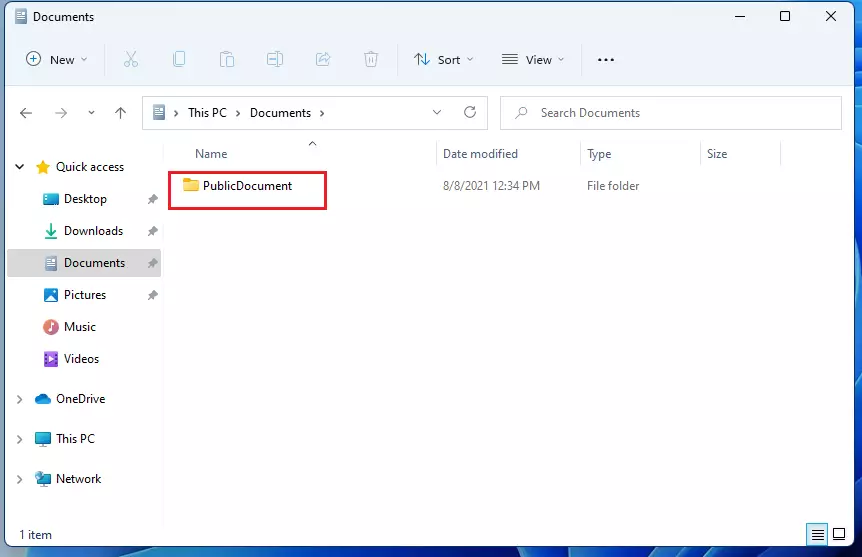
Create a share in 🪟 Windows 11
You can create a share in Windows 11 using the Computer Management tool to let others access files on your PC.
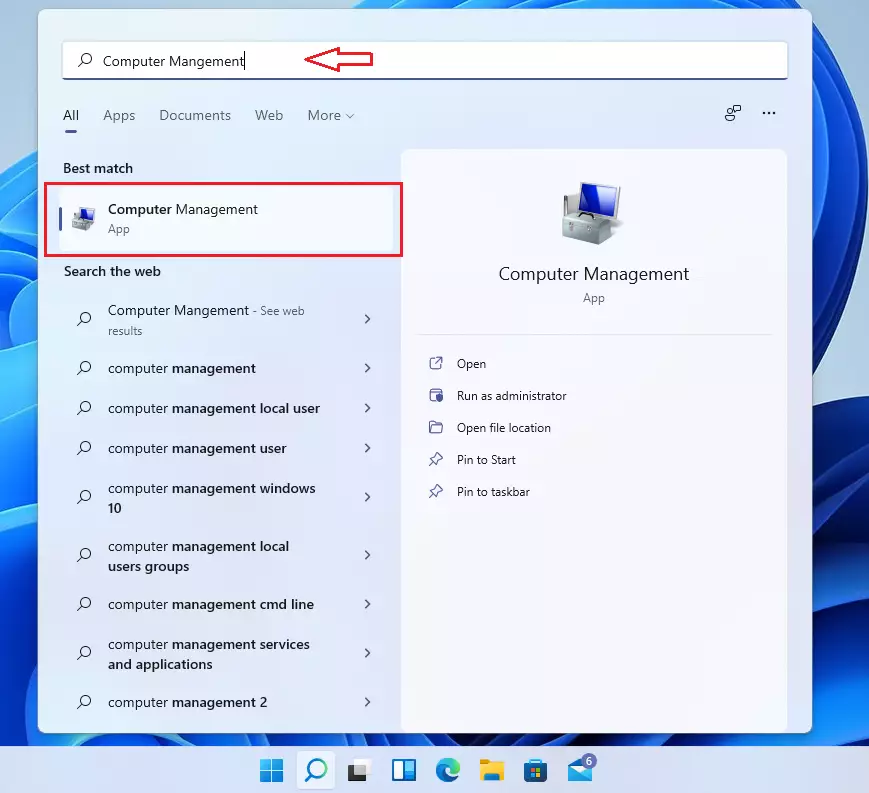
Click the Start menu and search for “Computer Management.” Click the result to open it.
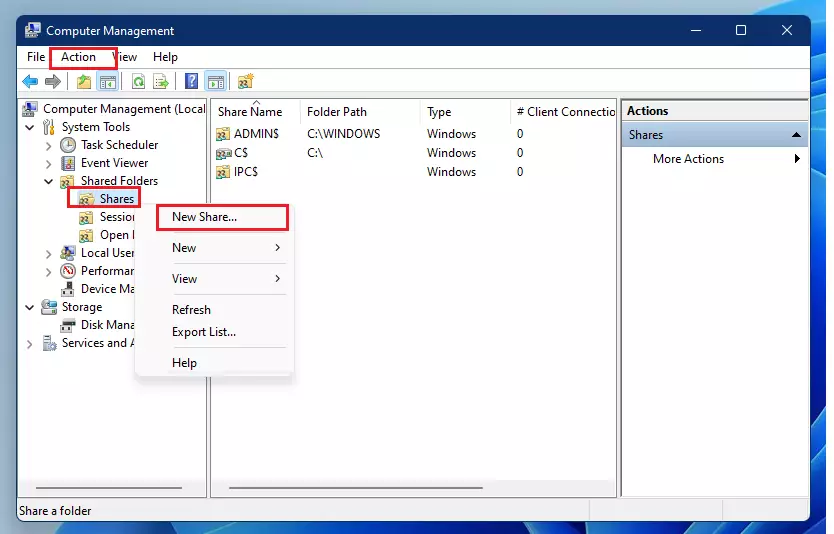
In the app, look at the left side. Expand Shared Folders, then right-click on Shares and select New Share.
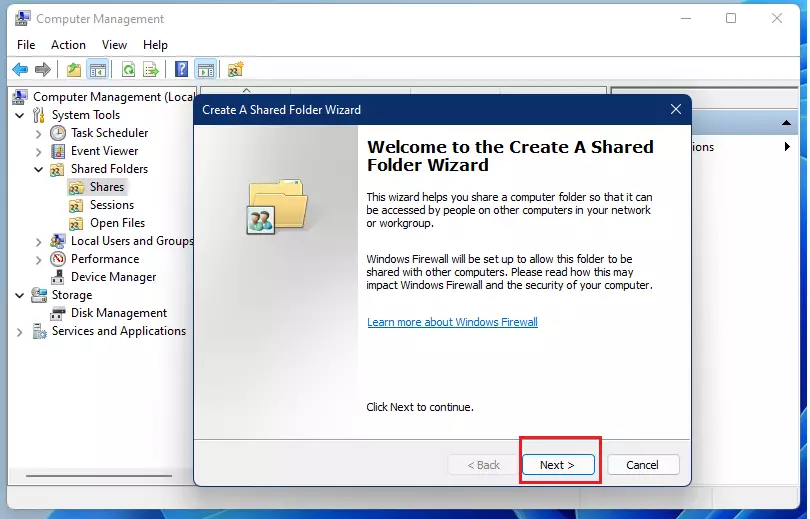
A wizard will open and guide you through the process.
Click Browse to find the folder you created earlier.
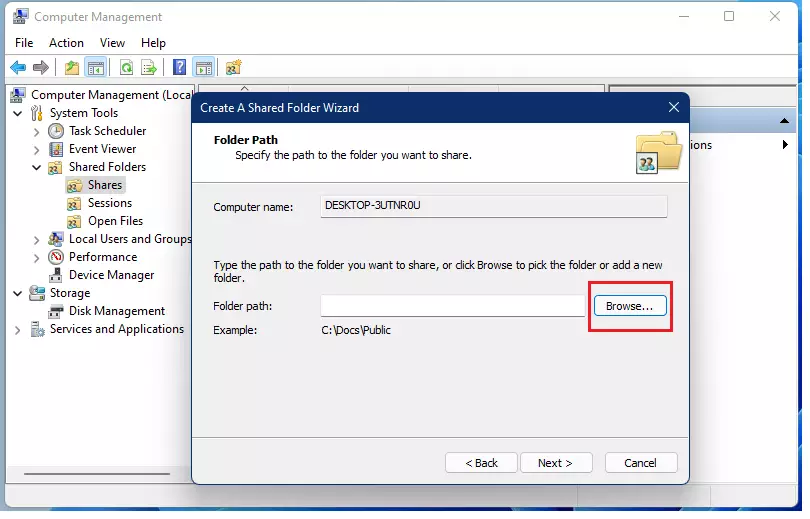
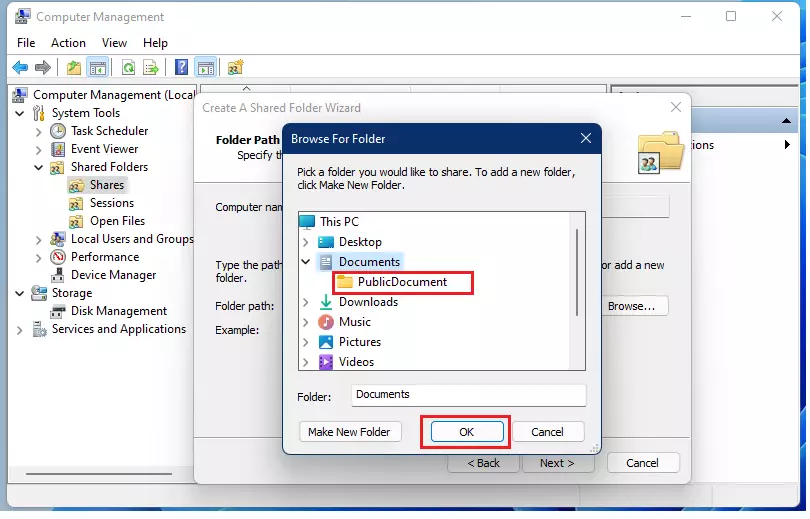
Select your folder from the list and click OK.
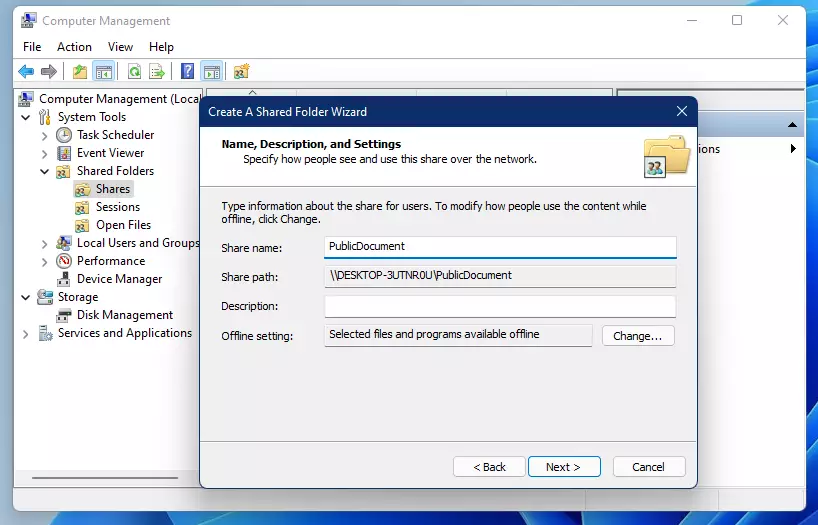
Give your share a name. You can use the default name or pick a new one.
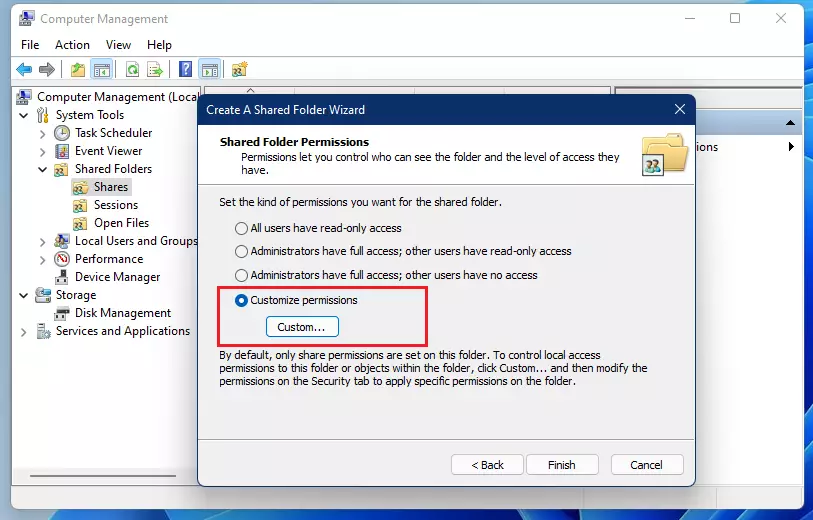
Next, you must set permissions. Select the Customize permissions option to ensure everyone gets full access.
Select Everyone from the list, then check the Allow box for Full Control. Click OK.
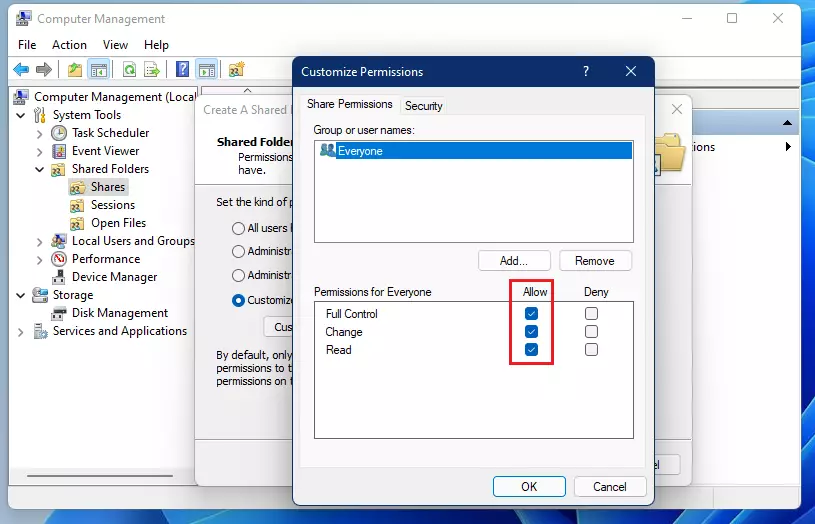
Click Finish to close the wizard.
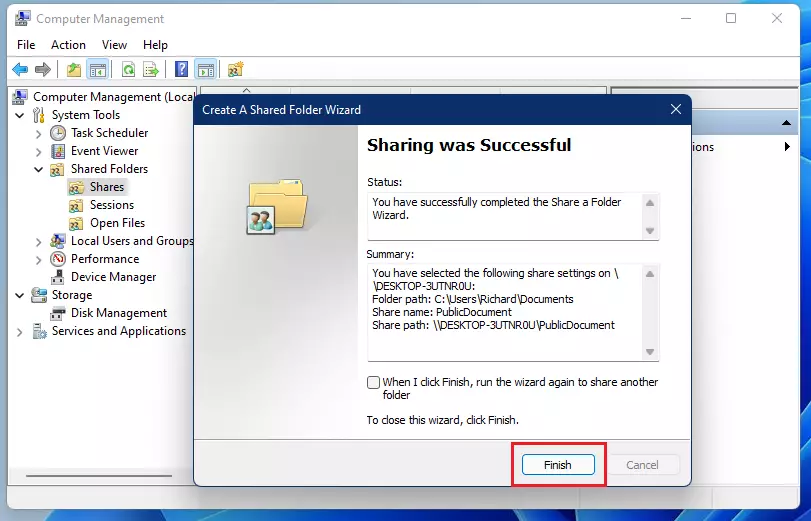
You have successfully shared your folder! To reach this folder from another computer, use the computer name and the folder name in this format:
\\COMPUTERNAME\SharedFolderName
For example, if your computer is named COMPUTERNAME and the folder is PublicDocument, you would type \\COMPUTERNAME\PublicDocument.
Managing Permissions and Security
You can manage who sees and changes your shared folders in Windows 11 by adjusting permissions through the folder’s Properties, specifically on the Sharing and Security tabs.
How to stop sharing a folder
To stop sharing, open Computer Management, go to Shared Folders, and click Shares. Right-click the folder you want to stop sharing and select Stop Sharing. This immediately removes network access for all users.
Troubleshooting Connectivity Errors
If you’re having trouble accessing shared folders in Windows 11, check that both computers are on the same network, ensure SMB is turned on, and verify your saved login details.
Summary
Sharing folders in Windows 11 makes it easy to collaborate and exchange files, but remember to be cautious about who has access and avoid storing sensitive data.
Why can’t I see my shared folder on another computer?
This usually happens because Network Discovery is turned off or the computers are on different network profiles. Ensure both devices are set to ‘Private’ network mode in settings. Also, verify that the folder is correctly shared in Computer Management and that your firewall is not blocking file sharing traffic.
Do I need a password to access shared folders?
Yes, Windows 11 typically requires a password to access shared folders by default, which is a security feature to protect your files from unauthorized network access.
How do I share a folder between 🪟 Windows 11 Pro and Home?
Sharing a folder between Windows 11 Pro and Home editions works the same way; just ensure both PCs are on the same network with Network Discovery enabled and use the computer name path to connect.
Was this guide helpful?

About the Author
Richard
Tech Writer, IT Professional
Richard, a writer for Geek Rewind, is a tech enthusiast who loves breaking down complex IT topics into simple, easy-to-understand ideas. With years of hands-on experience in system administration and enterprise IT operations, he’s developed a knack for offering practical tips and solutions. Richard aims to make technology more accessible and actionable. He's deeply committed to the Geek Rewind community, always ready to answer questions and engage in discussions.


Thanks for help
My computer screen shakes and hangs when it shakes what can be the posible blobem
Useless, it still wants effin permissions
[…] you begin, ensure you have enabled file sharing on both computers and that you have shared the folder for the files you are […]