How to Install Additional Software on Ubuntu

You install additional software on Ubuntu by using its built-in package management tools and external sources like Snaps or Flatpak. Ubuntu allows you to expand its capabilities far beyond the pre-installed applications.
This process lets you tailor your Ubuntu system for specific tasks, whether for professional work, creative hobbies, or entertainment. You might need specialized graphic design software or the latest gaming clients, for example.
Ubuntu primarily uses the APT package manager, which handles .deb files. For even broader compatibility, you can easily integrate newer formats like Snaps and Flatpaks. For instance, to enable Flatpak support on Ubuntu 24.04 LTS, you’d run the command: sudo apt install flatpak.
Install software using the graphical App Center or the terminal. In the App Center, click the icon, search for your app, and press Install. Alternatively, open the terminal and use `sudo snap install [app-name]` for Snaps or `sudo apt install [app-name]` for Debian packages.
How to install software in Ubuntu Linux
You have two main ways to install programs: using the graphical App Center or using the terminal.
Using the App Center
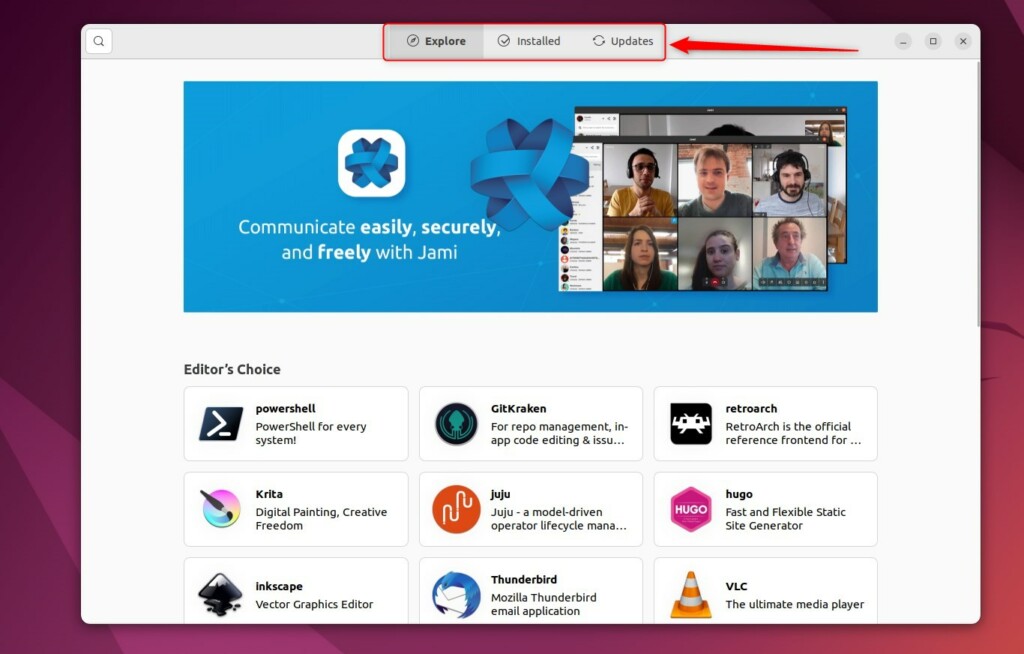
You can easily install software on Ubuntu using the App Center, which is like a built-in app store.
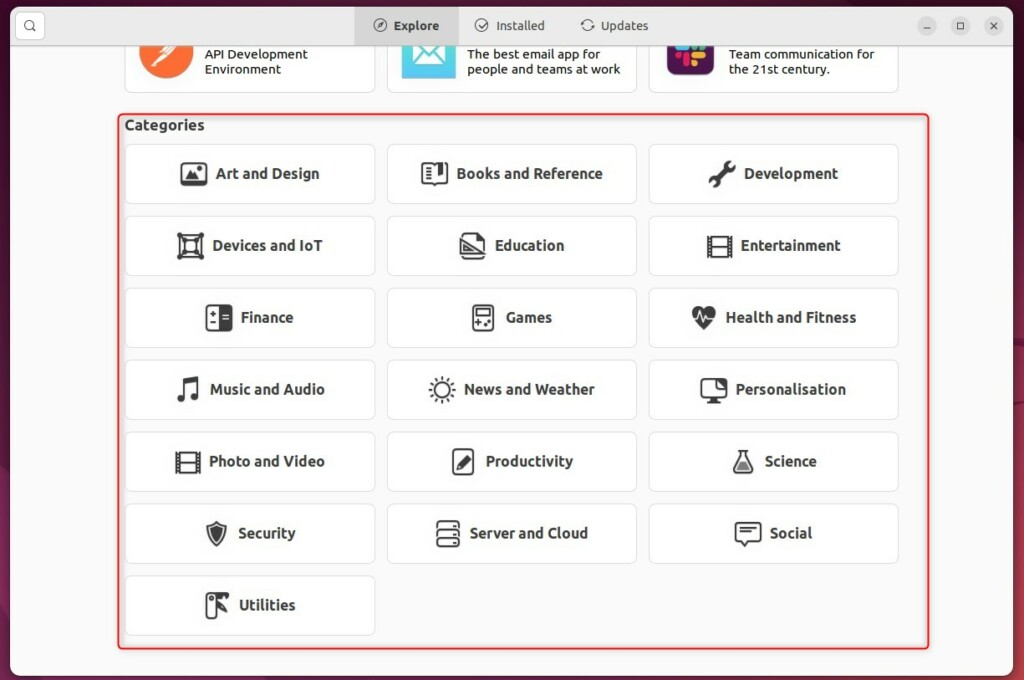
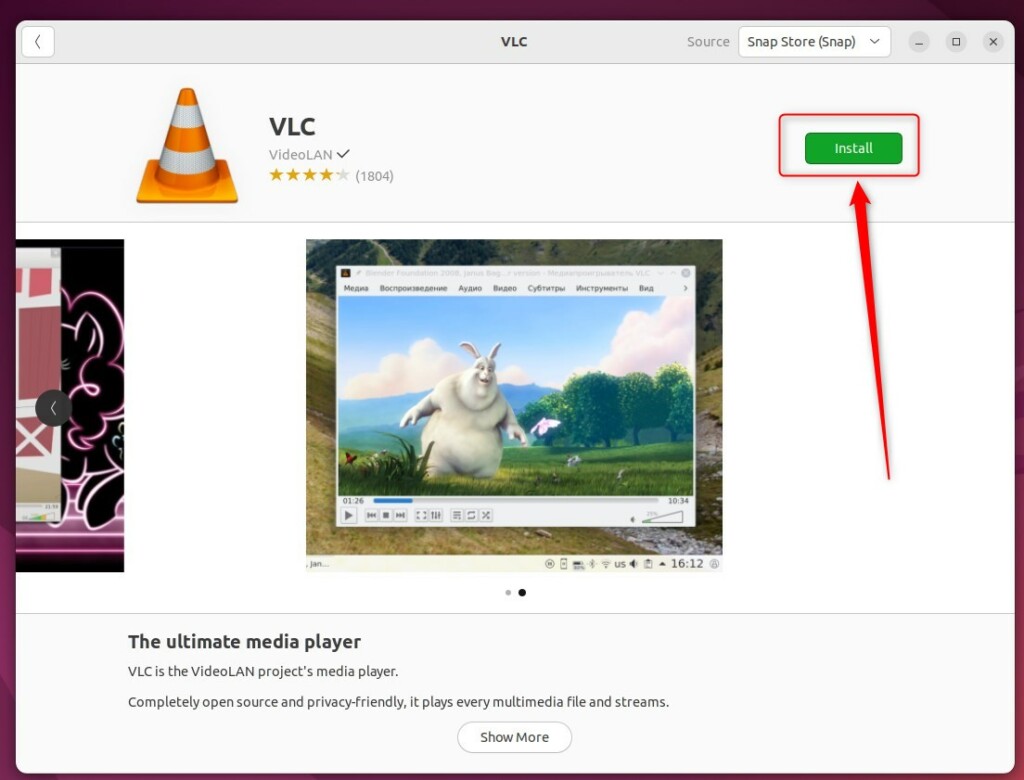
Once open, you can browse categories or use the search bar to find a specific app. When you select an app, click the Install button.
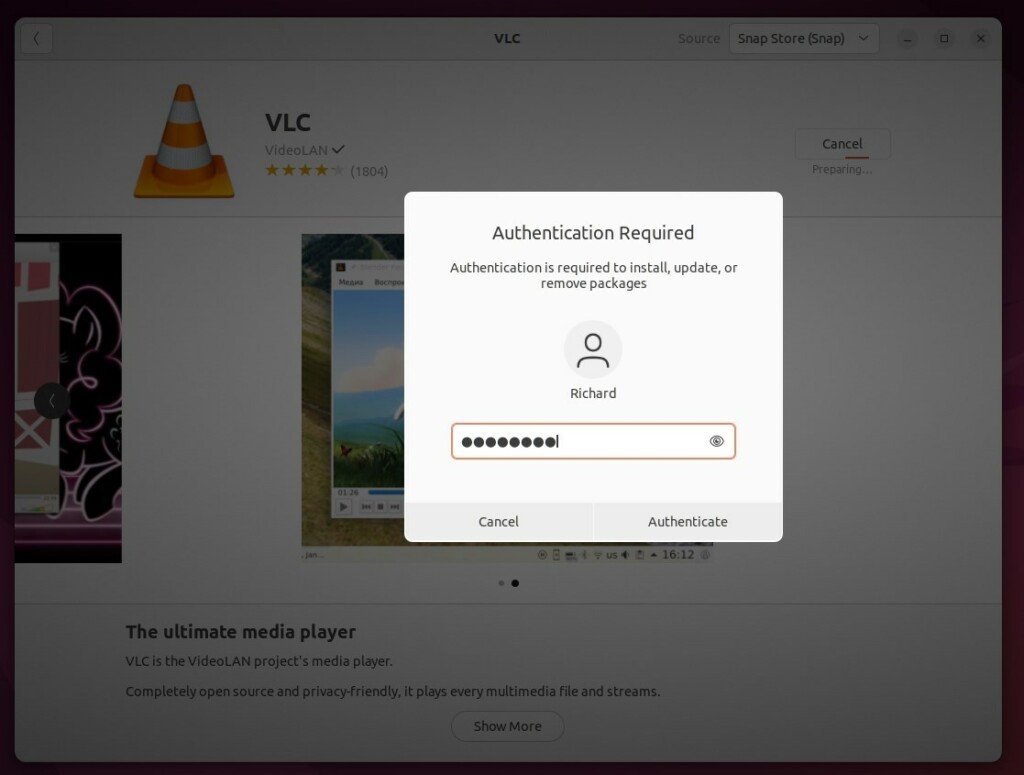
You will be asked for your system password to confirm the change. Once you enter it, the download and installation will begin.
If you need to update your apps, use the Software Updater utility or click the Updates section inside the App Center.
Using the Terminal
Installing software on Ubuntu using the Terminal is a quick way to get programs onto your computer.
- For Snap packages:
sudo snap install [app-name] - For standard Debian packages:
sudo apt install [app-name]
After the process finishes, your new software is ready to use. Simply repeat these steps for any other programs you need.
Installing software in Ubuntu is fast and simple. Whether you prefer the visual App Center or the speed of the terminal, your system will be ready for any task in minutes.
How do I install software in Ubuntu?
There's this snap here. So I can do sudo app install snapd and it's installed now to use snap to install software the command you can use is sudo snap. Then install then the name of the package. Here.
How to install software through terminal?
List. File is pointing to that repository. So that you can search and install software from within it when you install a distribution such as Zin or Ubuntu They will usually have the sources. List.
Was this guide helpful?

About the Author
Richard
Tech Writer, IT Professional
Richard, a writer for Geek Rewind, is a tech enthusiast who loves breaking down complex IT topics into simple, easy-to-understand ideas. With years of hands-on experience in system administration and enterprise IT operations, he’s developed a knack for offering practical tips and solutions. Richard aims to make technology more accessible and actionable. He's deeply committed to the Geek Rewind community, always ready to answer questions and engage in discussions.



[…] Our previous post showed you how to install additional applications and software packages in Ubuntu Linux. […]
[…] interface. Depending on how you installed your system, you might not have Orca installed. If not, install Orca […]
[…] multiple clocks and times for other locations in Ubuntu Linux, you’ll need to install the Gnome Clocks application. Unfortunately, it is not installed by default in Ubuntu […]