Enable/Disable Screen Reader in Ubuntu Linux

You enable or disable the Ubuntu Linux screen reader, Orca, through the system’s accessibility settings to assist users with visual impairments.
Orca is a powerful built-in accessibility tool that reads aloud your graphical interface and web content.
This feature is pre-installed on most Ubuntu desktop versions, meaning you won’t need to download anything extra. Orca has seen significant enhancements, particularly in recent Ubuntu releases like 22.04 LTS, improving its integration with core system functions.
Open System Settings, navigate to Accessibility, then select Screen Reader. Toggle the switch to On to enable or Off to disable. Once enabled, it can also be controlled via the accessibility icon in the top bar.
How to enable or disable Screen Reader in Ubuntu Linux
You can turn the Ubuntu Screen Reader on or off directly from your system settings if you’re having trouble seeing text or no longer need it.
If you want to use the Screen Reader in Ubuntu Linux because you’re having difficulties seeing text clearly on your screen or want to turn it off because you don’t need it, the steps below show you how.
Ubuntu Linux keeps most of its settings in one central spot. From system settings to creating new users and updating your system, you can do it all from the System Settings panel.
Alternatively, click on the System menu at the top-right corner of the top bar on your desktop.
On the System menu, select Settings, as highlighted below.

In the Settings app, click on the Accessibility tile to open the panel.

In the System Settings -> Accessibility panel, under Seeing, select the Screen Reader tile to expand.
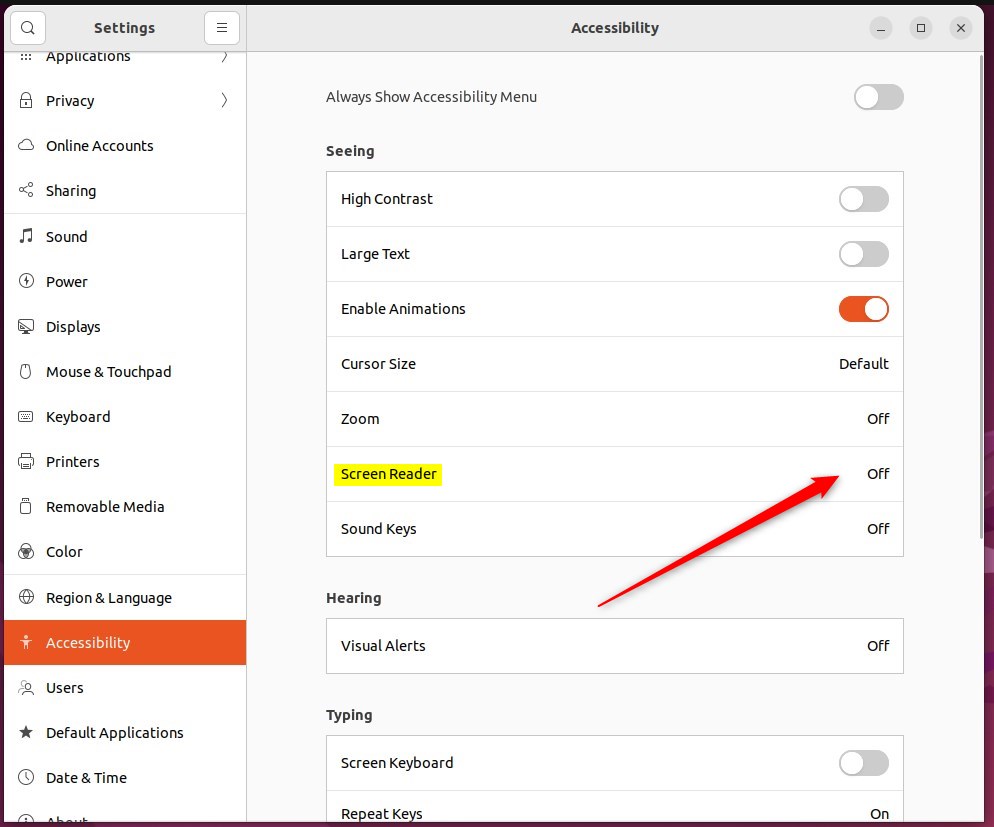
On the Screen Reader pop-up window, toggle the Screen Reader switch to the On position to enable.
To disable it, toggle the switch back to the Off position.
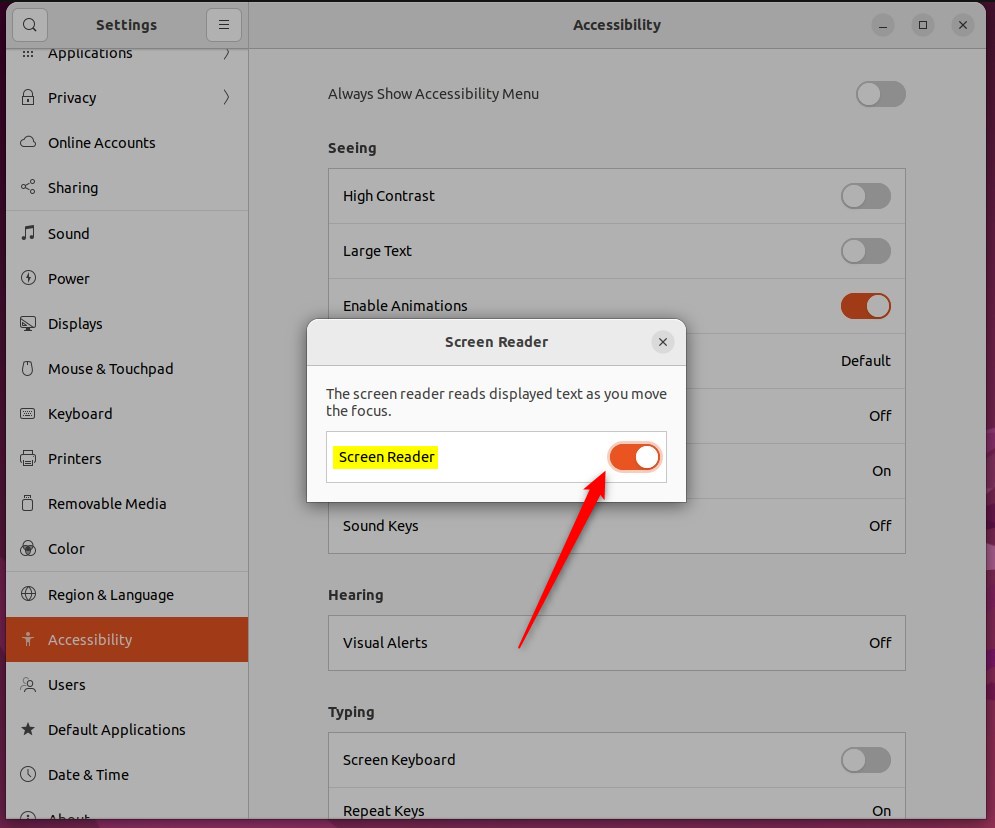
When you enable Screen Reader, you will be able to turn Screen Reader on and off by clicking the accessibility icon in the top bar and selecting Screen Reader.

That should do it! You can now close the Settings app.
Conclusion:
This post showed you how to enable or disable Screen Reader in Ubuntu Linux. Please use the comment form below if you find any errors above or have something to add.
- Enabling Screen Reader in Ubuntu Linux provides accessibility to users with limited vision or difficulty in reading text on the screen.
- The feature can be easily enabled or disabled through the System Settings panel under Accessibility.
- Once enabled, the Screen Reader can be controlled through the accessibility icon in the top bar, allowing for convenient toggling on and off.
- The tight integration of the Orca screen reader with Ubuntu Linux reflects the platform’s commitment to enhancing accessibility for all users.
How to enable screen reader in Ubuntu?
To turn on the screen reader in Ubuntu, simply press the Super key (that’s the Windows key on most keyboards) along with Alt and S together.
Is there a screen reader for Linux?
Windows: Chrome and JAWS or NVDA. Windows: Edge and Narrator. Linux: Firefox and Orca.
Was this guide helpful?

About the Author
Richard
Tech Writer, IT Professional
Richard, a writer for Geek Rewind, is a tech enthusiast who loves breaking down complex IT topics into simple, easy-to-understand ideas. With years of hands-on experience in system administration and enterprise IT operations, he’s developed a knack for offering practical tips and solutions. Richard aims to make technology more accessible and actionable. He's deeply committed to the Geek Rewind community, always ready to answer questions and engage in discussions.



No comments yet — be the first to share your thoughts!