How to Change Dock Position in Ubuntu Linux

You can change the Ubuntu Linux Dock’s position to the bottom, right, or keep it on the left.
The Dock is your primary app launcher, often seen on the left side of your screen, providing quick access to your favorite programs and running applications. You can reposition it to suit your workflow.
Starting with Ubuntu 22.04 LTS, moving the Dock is straightforward, often mimicking the macOS or Windows 11 experience with a bottom dock. While the top is reserved for the system menu, you have flexibility for the other three sides.
You can change the Ubuntu Dock’s position by opening Settings, navigating to Appearance, and selecting your desired position under “Position on screen.” The Dock can be moved to the left, right, or bottom of your screen.
How to align the Dock to the left, right, or Bottom in Ubuntu Linux
You can change the Dock position in Ubuntu Linux to the left, right, or bottom of your screen using the system settings.
Here’s how to align the Dock in Ubuntu Linux.
Ubuntu Linux keeps most of its settings in one place. You can find everything from system configurations to user management and updates in the System Settings panel. To open System Settings, go to the Activities overview and start typing ‘Settings’. Or, click the System menu in the top-right corner of your desktop’s top bar. Then, select Settings, just like you see below.
To get to System Settings, open the Activities overview and start typing Settings.
Alternatively, click on the System menu at the top-right corner of the top bar on your desktop.
On the System menu, select Settings, as highlighted below.

In the Settings app, click on the Appearance tile.
In the System Settings -> Appearance, under Dock, select Position on the screen tile and choose the Position to the Left, Right, or Bottom, as highlighted below.
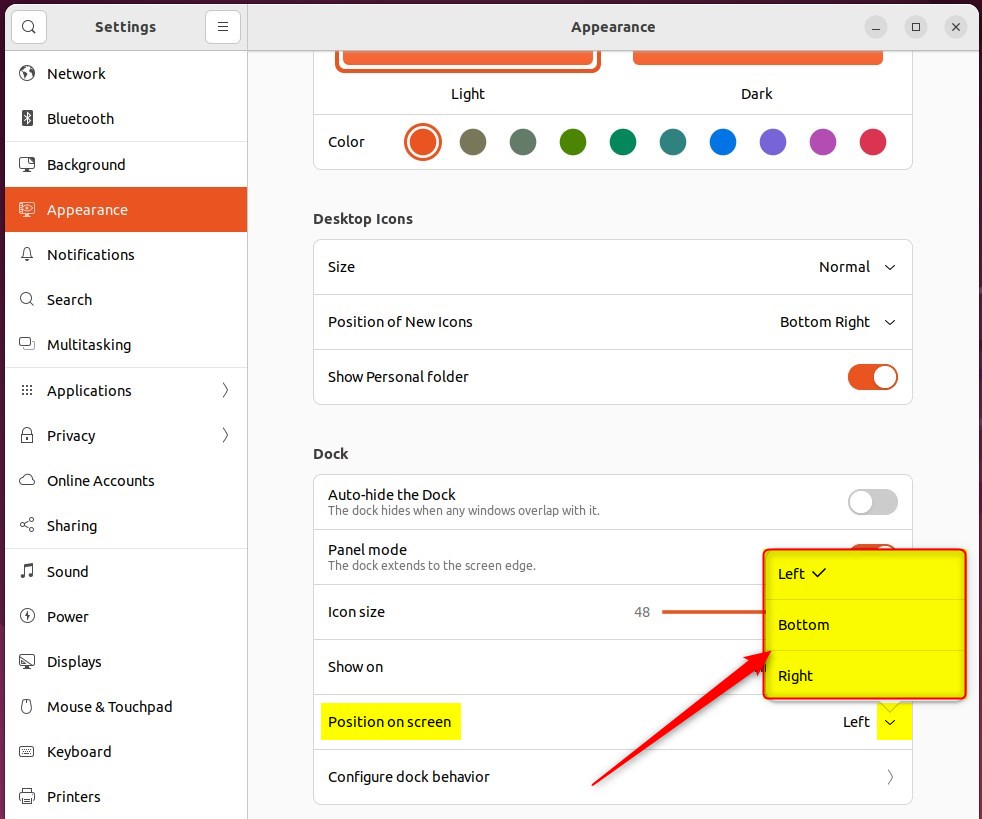
That should do it! You can now close the Settings app.
Conclusion:
- In Ubuntu Linux, the default position for the Dock is left-aligned, but users can easily change it to the Bottom or right through the system settings.
- The Appearance tile in the System Settings allows users to select the Dock position on the screen and customize the desktop environment to their preference.
- Changing the Dock position to the Bottom, left, or right can improve the user experience for those accustomed to having the app launcher in a different location on the screen.
How do I move the Dock to the bottom in Ubuntu 25?
You can move the Ubuntu Dock to the bottom of your screen by opening the system settings and selecting ‘Bottom’ from the ‘Position on Screen’ options.
Was this guide helpful?
0% of readers found this helpful (1 votes)

About the Author
Richard
Tech Writer, IT Professional
Richard, a writer for Geek Rewind, is a tech enthusiast who loves breaking down complex IT topics into simple, easy-to-understand ideas. With years of hands-on experience in system administration and enterprise IT operations, he’s developed a knack for offering practical tips and solutions. Richard aims to make technology more accessible and actionable. He's deeply committed to the Geek Rewind community, always ready to answer questions and engage in discussions.



[…] Dock or launcher shows you your favorite running applications. You can add, remove, and rearrange applications on […]
[…] you install Ubuntu Linux, default application icons are automatically added to the Dock or launcher by […]
[…] Like Windows and other operating systems, when the taskbar or launch automatically hides or disappears when out of focus to make the screen look bigger, Ubuntu Linux can do the same with the Dock. […]
[…] Linux File Manager has its icon on the Dock by default. Open File […]
[…] the Ubuntu Software icon in the Dock, or search for Software in the Activities overview search […]
[…] primary Display is the one with the Dock, the top bar with the menu, and where the Activities overview is […]
[…] the File Manager app icon on the Dock or from the Activities […]
[…] the Ubuntu Software icon in the Dock, or search for Software in the Activities overview search […]