Set Up Dual Monitors in Ubuntu Linux: A Step-by-Step Guide

You set up dual monitors in Ubuntu Linux by connecting your second display and configuring its display settings within Ubuntu’s System Settings application.
This process allows you to expand your workspace across multiple screens, significantly boosting your productivity. Ubuntu Linux, especially recent versions like Ubuntu 22.04 LTS (Jammy Jellyfish), offers robust support for multi-monitor configurations.
Once you connect your second monitor, Ubuntu typically detects it automatically. If not, or if you wish to customize how your displays work together, you access the dedicated Display settings.
Here, you can choose to extend your desktop across both screens, mirror your primary display content onto the second monitor, or select a single monitor to use.
Connect your external monitor, then open System Settings and select the Display panel. Drag the monitor icons to arrange them, choose “Join Displays” or “Mirror,” and click Apply. You can also set a primary display and adjust resolution or orientation.
How to set up additional monitors in Ubuntu Linux
As described above, Ubuntu Linux can work with multiple displays or monitors. Below, we’ll show you how to add a second monitor to Ubuntu Linux.
Ubuntu Linux has a centralized location for the majority of its settings. From system configurations to creating new users and updating, all can be done from the System Settings panel.

Alternatively, click on the System menu at the top-right corner of the top bar on your desktop.
On the System menu, select Settings, as highlighted below.

Click on the Display tile to open the panel in the Settings app.
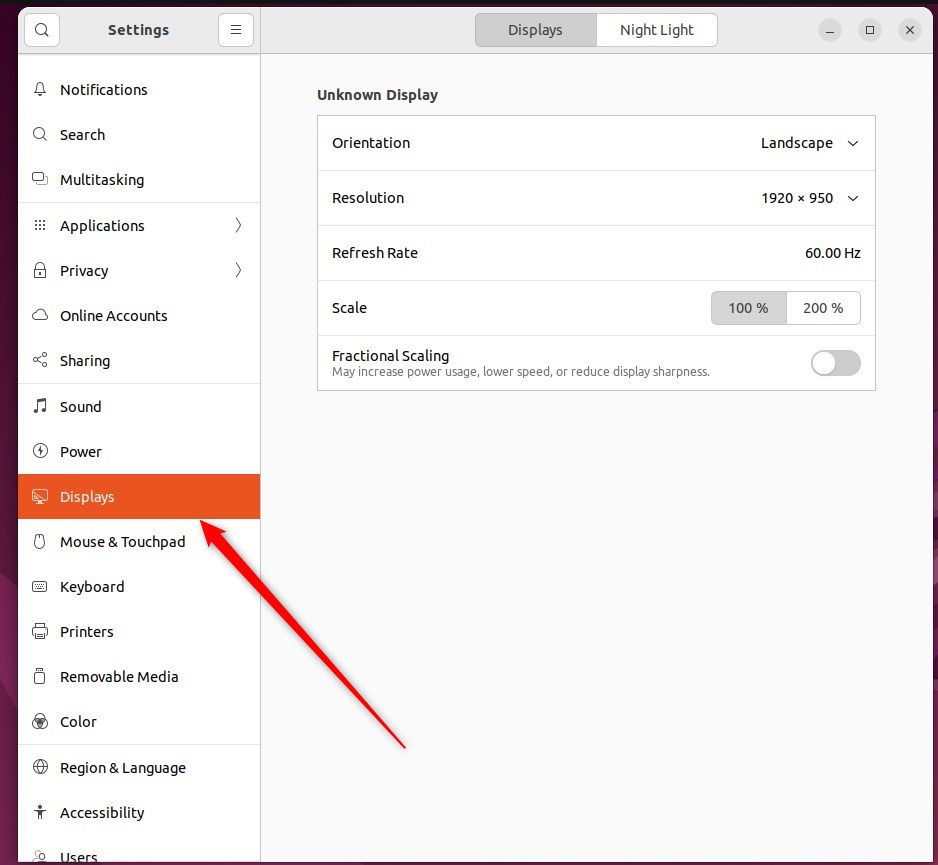
In the display arrangement diagram, you can drag your displays to set them up in the positions you want.
Then, select the display number you’d like to configure as primary or secondary. Feel free to drag the screens again to get the relative positions just right.
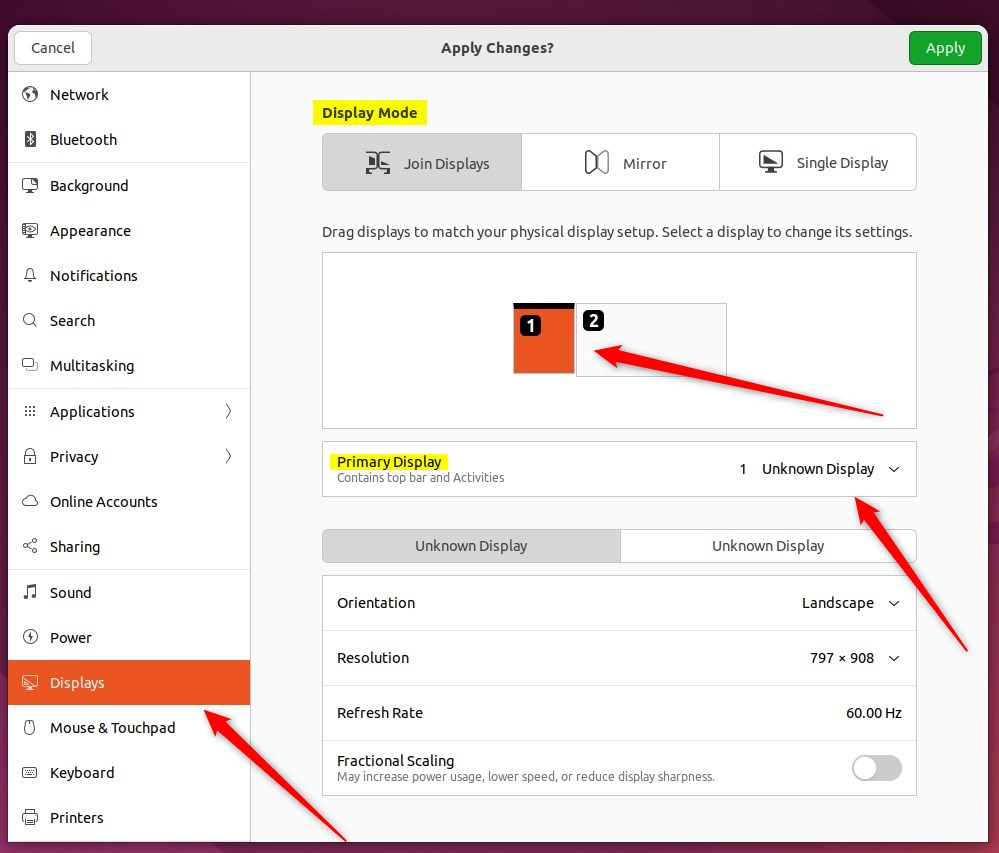
Your primary display is the one showing the Dock, the top bar with menus, and where you access the Activities overview.
With two screens, these display modes are available:
- Join Displays: screen edges are joined so things can pass from one Display to another.
- Mirror: the same content is shown on two displays with the same resolution and orientation.
- Single Display: only one Display is configured, effectively turning off the other.
With both monitors shown, you can select each monitor’s orientation, resolution or scale, and refresh rate if they need adjustments.
After making all your changes, click Apply. The new settings will be applied for 20 seconds before reverting.
And that’s all there is to it! You can now close the Settings app.
Conclusion:
- Adding a second monitor to Ubuntu Linux is a simple process that enhances productivity.
- Ubuntu’s system settings provide a user-friendly interface for configuring multiple displays, offering options for display arrangement and modes such as Join Displays, Mirror, and Single Display.
- Users can effortlessly set the primary and secondary displays, adjust the orientation, resolution, scale, and refresh rate, and apply the changes with just a click.
- Enjoy the expanded workspace and improved multitasking capabilities with the seamless integration of additional monitors in Ubuntu Linux.
Was this guide helpful?
0% of readers found this helpful (1 votes)

About the Author
Richard
Tech Writer, IT Professional
Richard, a writer for Geek Rewind, is a tech enthusiast who loves breaking down complex IT topics into simple, easy-to-understand ideas. With years of hands-on experience in system administration and enterprise IT operations, he’s developed a knack for offering practical tips and solutions. Richard aims to make technology more accessible and actionable. He's deeply committed to the Geek Rewind community, always ready to answer questions and engage in discussions.




how do I keep the dual display settings, i have to reset them most times I turn my laptop back on, as my second monitor has moved to the top right of the screen rather than being beside my primary screen.