Change Ubuntu Display Resolution: A Step-by-Step Guide

You change your Ubuntu display resolution within the system’s Display Settings. This process adjusts how many pixels your screen uses, directly impacting how much content you see and the sharpness of your display.
A higher resolution, like 1920×1080, fits more information on your screen and makes text and images appear crisper. Conversely, a lower resolution magnifies elements, making them easier to see but reducing the amount of usable screen space.
While Ubuntu typically detects and applies the optimal resolution for your monitor automatically, you can easily override this default. This guide shows you how to manually select the perfect resolution for your needs.
Access System Settings, then click Display. Select your desired resolution from the dropdown menu and click Apply. Confirm the changes to keep them.
How to adjust display resolutions in Ubuntu Linux
Ready to change your display resolution? Here’s how to do it in Ubuntu Linux. If the default resolution isn’t displaying items correctly, adjust it. The steps below will show you how.
Ubuntu Linux keeps most of its settings in one handy place. From system configurations to creating new users and updating, all can be done from the System Settings panel.

Alternatively, click on the System menu at the top-right corner of the top bar on your desktop.
In the System menu, choose Settings, as highlighted in the image below.

Click on the Display tile to open the panel in the Settings app.
In the System Settings -> Display settings panel, under Device Display, select a resolution that fits your needs.
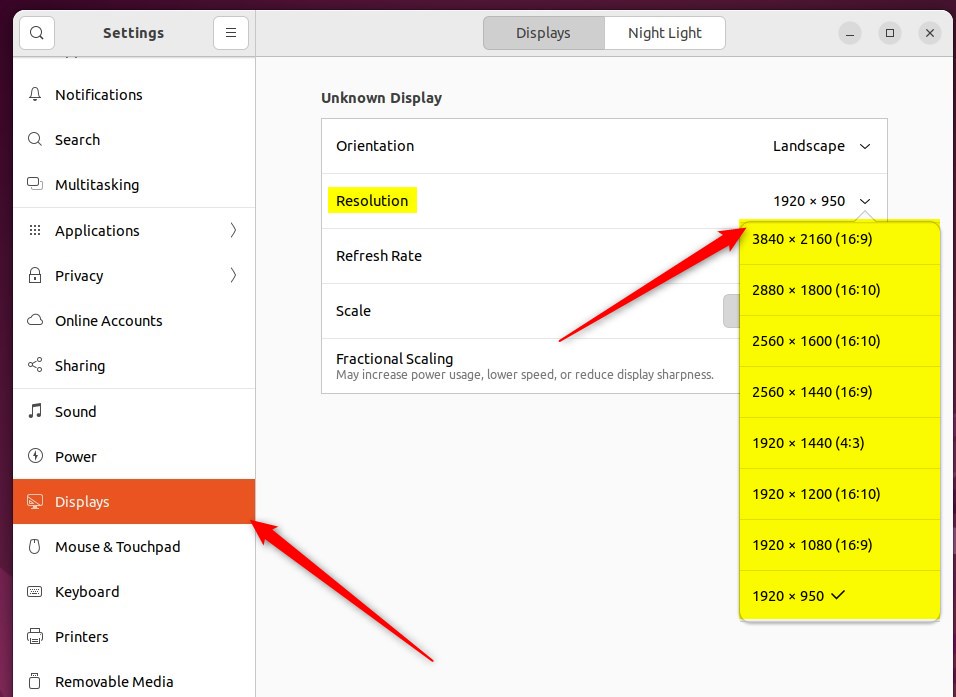
You can have different settings on each display if multiple displays are not mirrored. First, select a display in the preview area.
When you select a resolution, click Apply.
The new settings will be applied for 20 seconds before reverting.
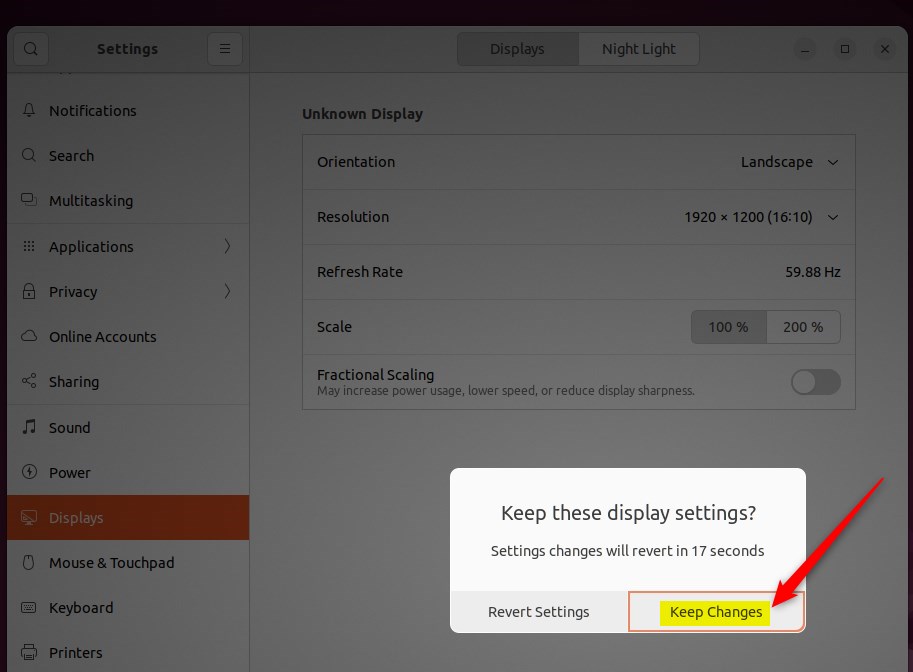
If you are happy with the new settings, click Keep Changes.
That should do it! You can now close the Settings app.
That’s it! Changing your display resolution in Ubuntu can really improve how your desktop looks and works.
- Changing the display resolution in Ubuntu Linux can optimize the appearance and usability of your desktop.
- Ubuntu’s user-friendly interface enables easy manual adjustment of display resolutions through the System Settings panel.
- Users can fine-tune the resolution to fit their specific needs, enhancing the visual experience on their Ubuntu Linux system.
Was this guide helpful?

About the Author
Richard
Tech Writer, IT Professional
Richard, a writer for Geek Rewind, is a tech enthusiast who loves breaking down complex IT topics into simple, easy-to-understand ideas. With years of hands-on experience in system administration and enterprise IT operations, he’s developed a knack for offering practical tips and solutions. Richard aims to make technology more accessible and actionable. He's deeply committed to the Geek Rewind community, always ready to answer questions and engage in discussions.


[…] previous post showed you how to change your display resolution in Ubuntu […]
[…] both monitors shown, you can select each monitor’s orientation, resolution or scale, and refresh rate if they need […]