Install Nexus Repository Manager on Ubuntu

You install Nexus Repository Manager on Ubuntu to create a central, self-hosted hub for storing and managing application artifacts and software packages.
Nexus acts as your team’s single source of truth for dependencies, supporting formats like Maven, npm, Docker, and PyPI. This allows you to easily share code and tools across multiple servers and development environments.
Successfully installing Nexus Repository Manager version 3.x on Ubuntu means you’ll have a powerful, web-accessible repository accessible via your browser. You can then host and distribute your own private software components and upstream dependencies.
Install Java 21, download Nexus, and move its files to /opt. Create a ‘nexus’ user, configure Nexus to run as this user in /opt/nexus/bin/nexus.rc, and create a systemd service file at /etc/systemd/system/nexus.service. Start the service with `sudo systemctl start nexus`.
Install Java
Nexus Repository Manager needs Java to run on Ubuntu, so we’ll install OpenJDK 21, a reliable version that works well with Nexus.
Run these commands to update your system and install OpenJDK 21:
sudo apt update
sudo apt install openjdk-21-jdk
You can find more details on managing Java versions at How to install and use OpenJDK on Ubuntu Linux.
Install Nexus Repository Manager
We’ll install Nexus Repository Manager on Ubuntu by downloading the latest version and putting its files in the /opt directory.
Run these commands to download and extract the files:
cd /tmp
wget https://download.sonatype.com/nexus/3/nexus-3.77.0-02-unix.tar.gz
tar xzf nexus-3.77.0-02-unix.tar.gz
sudo mv nexus-3.77.0-02 /opt/nexus
sudo mv sonatype-work /opt/
Next, we create a dedicated user account to run Nexus safely. This account will not be used to log in to the system.
sudo useradd -m -d /opt/nexus -U -r -s /bin/bash nexus
sudo chown -R nexus:nexus /opt/nexus /opt/sonatype-work
Configure Nexus to run on Ubuntu
Setting up Nexus Repository Manager to run as a specific user and start automatically when your Ubuntu server boots up is the next step.
Edit the configuration file to set the user:
sudo nano /opt/nexus/bin/nexus.rc
Uncomment the line and set it to: run_as_user="nexus".
For custom settings like memory limits, use the nexus.vmoptions file or the dedicated configuration directory instead of changing default files.
Now, create a system service file to manage the application:
sudo nano /etc/systemd/system/nexus.service
Paste these lines into the file:
[Unit]
Description=nexus service
After=network.target

[Service]
Type=forking
LimitNOFILE=65536
ExecStart=/opt/nexus/bin/nexus start
ExecStop=/opt/nexus/bin/nexus stop
User=nexus
Restart=on-abort

[Install]
WantedBy=multi-user.target
Start the service with these commands:
sudo systemctl daemon-reload
sudo systemctl start nexus.service
sudo systemctl enable nexus.service
To access the web interface, open your browser and go to http://your-server-ip:8081.
To log in for the first time, you need the initial admin password. Retrieve it by running:
sudo cat /opt/sonatype-work/nexus3/admin.password
Enter this password in the browser. You will be prompted to create a new, secure password. 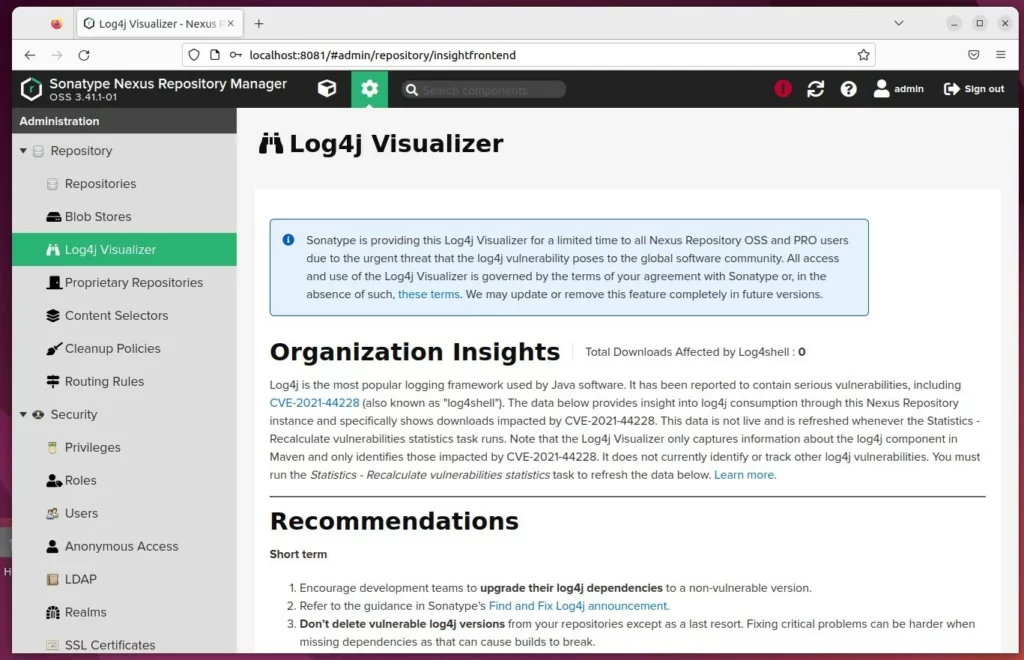
Run Nexus behind a proxy
Running Nexus Repository Manager behind a web server like Nginx or Apache on Ubuntu improves security and performance.
How to set up a reverse proxy with Nginx
How to set up a reverse proxy with Apache
For more official documentation, visit https://help.sonatype.com/docs.
[Unit] [Service] [Install]
What is the Nexus Repository manager?
Sonatype Nexus Repository is a software repository manager, available under both an open-source license and a proprietary license. It can combine repositories for various programming languages, so that a single server can be used as a source for building software. The open source version uses the H2 database.
Is Nexus Repository Manager free?
Understand the true cost of Sonatype Nexus including OSS vs Pro differences, self-hosted TCO, and how pricing actually works. Compare with predictable alternatives. Nexus Repository OSS is free. Completely free.
Was this guide helpful?

About the Author
Richard
Tech Writer, IT Professional
Richard, a writer for Geek Rewind, is a tech enthusiast who loves breaking down complex IT topics into simple, easy-to-understand ideas. With years of hands-on experience in system administration and enterprise IT operations, he’s developed a knack for offering practical tips and solutions. Richard aims to make technology more accessible and actionable. He's deeply committed to the Geek Rewind community, always ready to answer questions and engage in discussions.


No comments yet — be the first to share your thoughts!