How to Change Time Zone in Ubuntu Linux

You change your time zone in Ubuntu Linux by selecting it from a list of locations.
Your system’s time zone dictates how it displays and records time, which is vital for accurate logging and scheduling. For instance, Ubuntu 22.04 LTS allows you to choose your specific time zone from an extensive selection of cities and regions.
While Ubuntu often automatically detects your location using network time protocols (NTP), you might need to manually set it if you travel or collaborate with teams in different time zones.
You can change the time zone in Ubuntu by going to Settings, then Date & Time. Toggle off Automatic Time Zone, then click Time Zone to select your location from the map or by searching for your city.
How to manually change the time zone in Ubuntu Linux
You can manually change the time zone in Ubuntu Linux if you don’t want it to update automatically.
Here’s how to do that.
Ubuntu Linux centralizes most of its settings in one place. You can find system configurations, user creation, and updates all within the System Settings panel.
Alternatively, look for the System menu in the top-right corner of your desktop’s top bar.
Select Settings from this menu, as shown below.

Click on the Date & Time tile in the Settings app to open the panel.
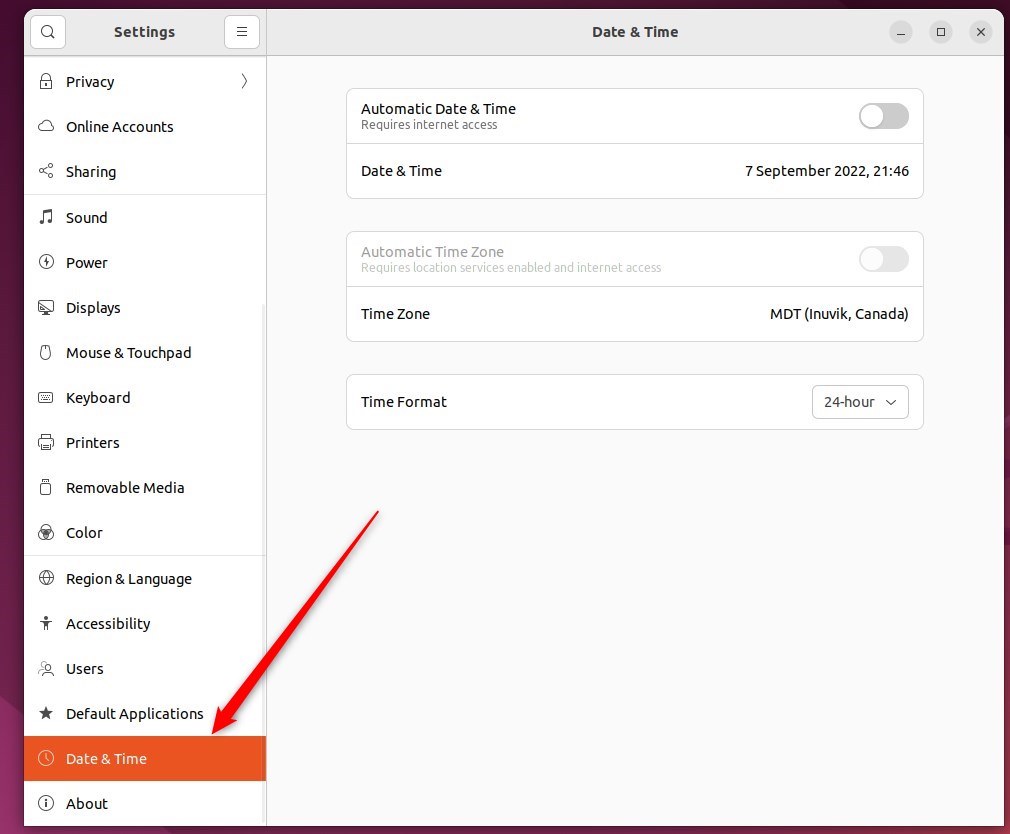
In the System Settings -> Date & Time panel, toggle the Automatic Time Zone switch to the Off position.
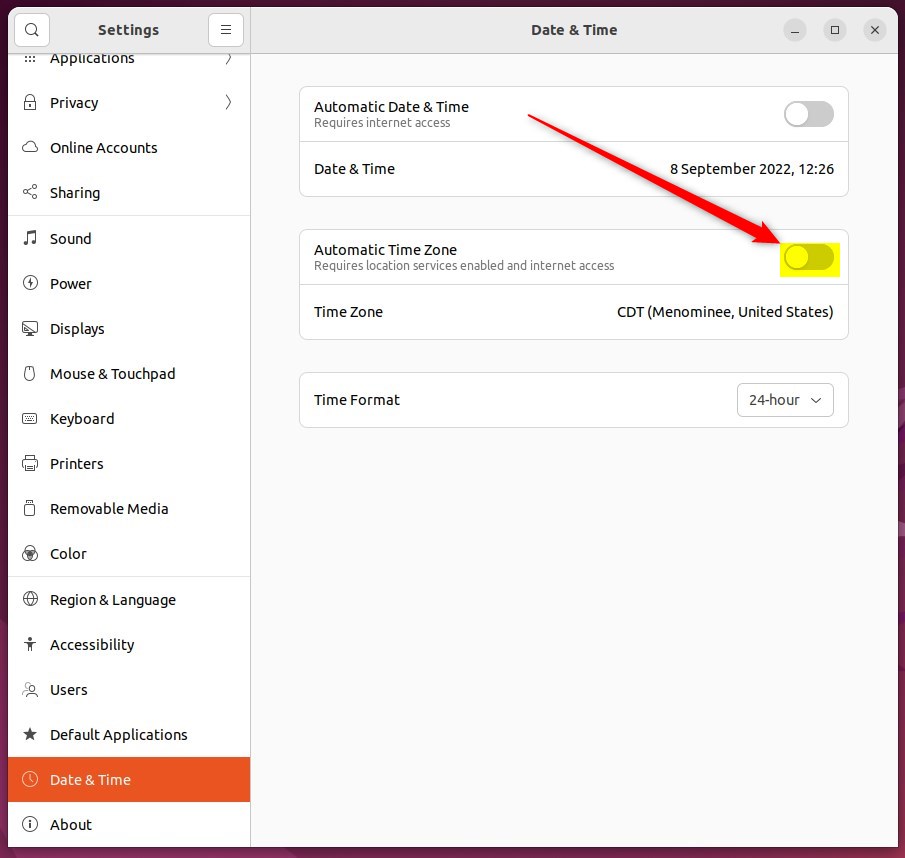
You cannot set the time zone manually when Automatic Time Zone is on. Turn off Automatic Time Zone to manually set your system’s time zone.
Once the Automatic Time Zone setting is turned Off, click the Time Zone to set it manually.
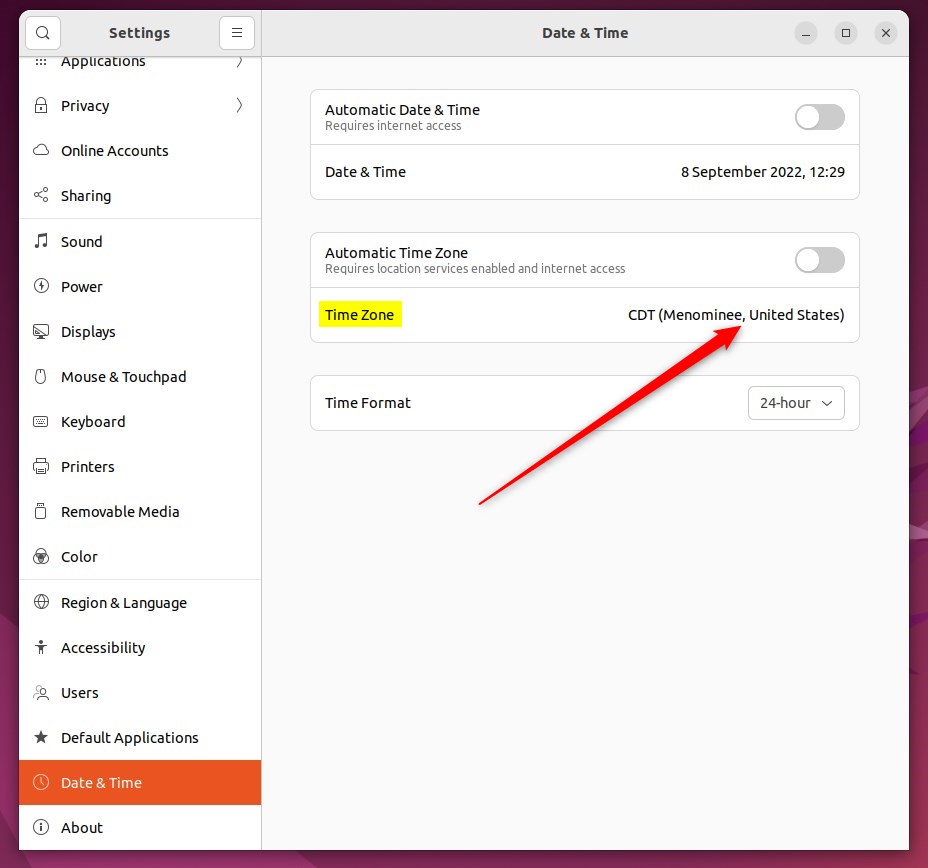
Click Time Zone, then select your location on the map or search for your current city.
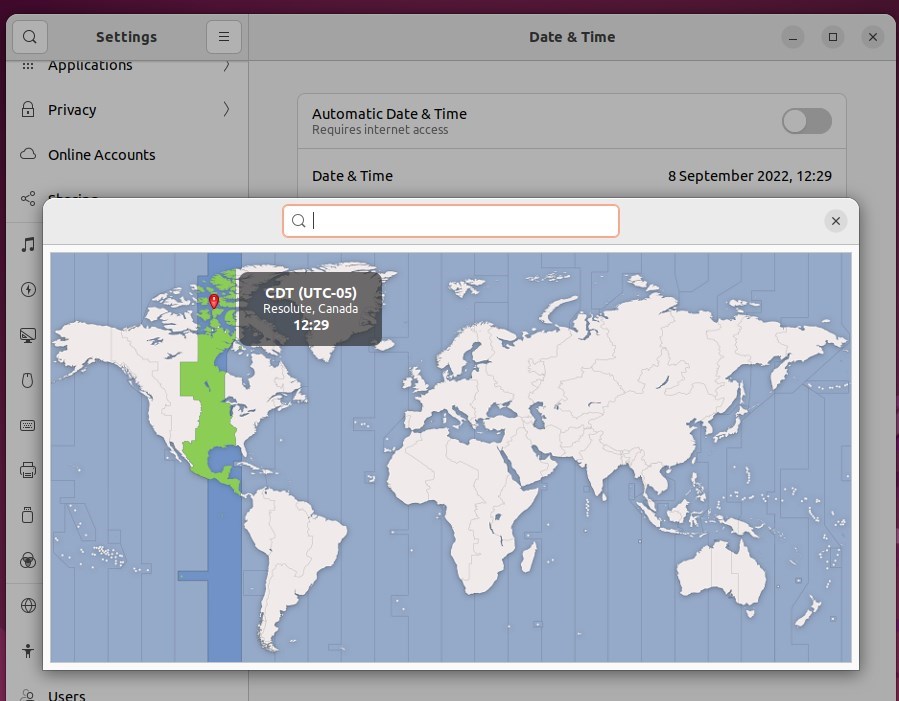
The time will update automatically when you select a different location.
That should do it! You can now close the Settings app.
Conclusion:
- Manually changing the time zone in Ubuntu Linux can be useful when you want more control over your system’s time settings.
- You can manually set the time zone by toggling off the Automatic Time Zone switch in the Date & Time settings panel.
- Selecting your location on the map or searching for your current city allows you to update the time zone easily.
- Remember that when managing the time zone manually, you must make adjustments if you change your region or travel to a different location with a distinct time zone.
How do I change the time zone in Ubuntu desktop?
To change the timezone in Ubuntu, use the GUI Date & Time settings on the desktop or timedatectl in the terminal for a permanent server-side update. For the GUI method, disable Automatic Time Zone, click Time Zone, and select the correct region or city.
Was this guide helpful?

About the Author
Richard
Tech Writer, IT Professional
Richard, a writer for Geek Rewind, is a tech enthusiast who loves breaking down complex IT topics into simple, easy-to-understand ideas. With years of hands-on experience in system administration and enterprise IT operations, he’s developed a knack for offering practical tips and solutions. Richard aims to make technology more accessible and actionable. He's deeply committed to the Geek Rewind community, always ready to answer questions and engage in discussions.


No comments yet — be the first to share your thoughts!