How to Change Date and Time in Ubuntu Linux

You change the date and time in Ubuntu Linux using either its graphical settings or the command line.
Manually adjusting your system’s clock allows you to set a precise date and time, overriding automatic synchronization. This is helpful for testing time-sensitive applications or correcting occasional network time inaccuracies.
For instance, on Ubuntu 22.04 LTS, you can quickly set a specific date and time using the `timedatectl` command in the terminal.
While Ubuntu typically manages your time automatically, knowing how to adjust it manually gives you complete control over your system’s clock.
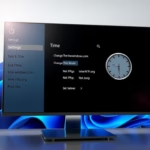
Open Settings, click Date & Time, and toggle off Automatic Date & Time. Then, click the Date & Time section again to manually set your desired date and time.
How to manually change system date and time in Ubuntu Linux
You can manually change the date and time in Ubuntu Linux if you prefer not to use automatic settings.
Below is how to do that.
Ubuntu Linux has a centralized location for the majority of its settings. From system configurations to creating new users and updating, all can be done from the System Settings panel.
Alternatively, click on the System menu at the top-right corner of the top bar on your desktop.
On the System menu, select Settings, as highlighted below.

Click the ‘Date & Time’ tile in the Settings app to open its panel.
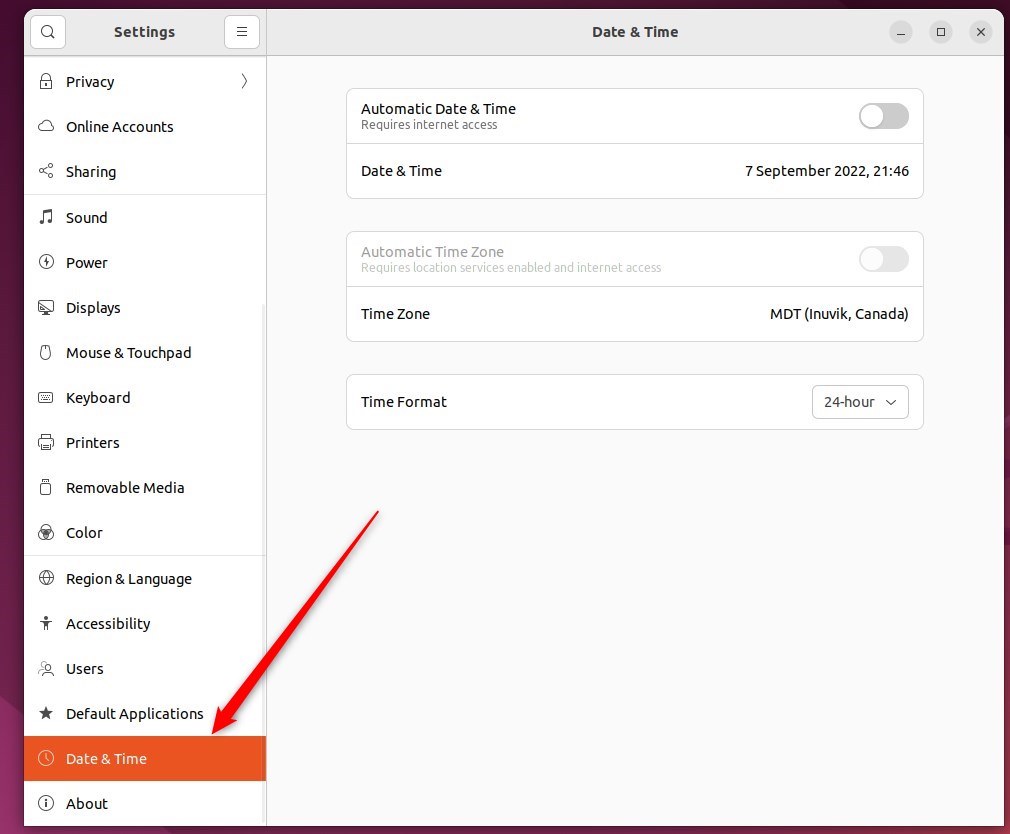
In the ‘System Settings -> Date & Time’ panel, toggle the ‘Automatic Date & Time’ switch to the ‘Off’ position.
You can’t manually set the date and time when Automatic Date & Time is on. Turn off Automatic Date & Time to manually set your system’s date and time.
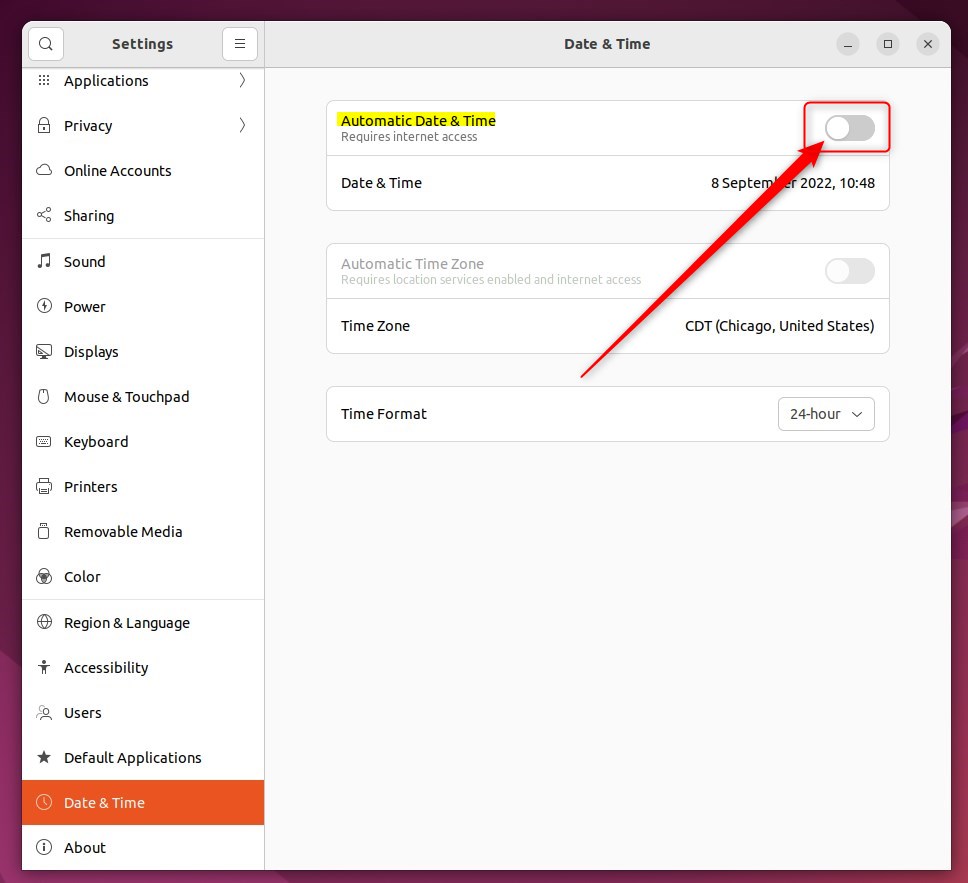
Once the Automatic Date & Time setting is turned Off, click the Date & Time to set it manually.
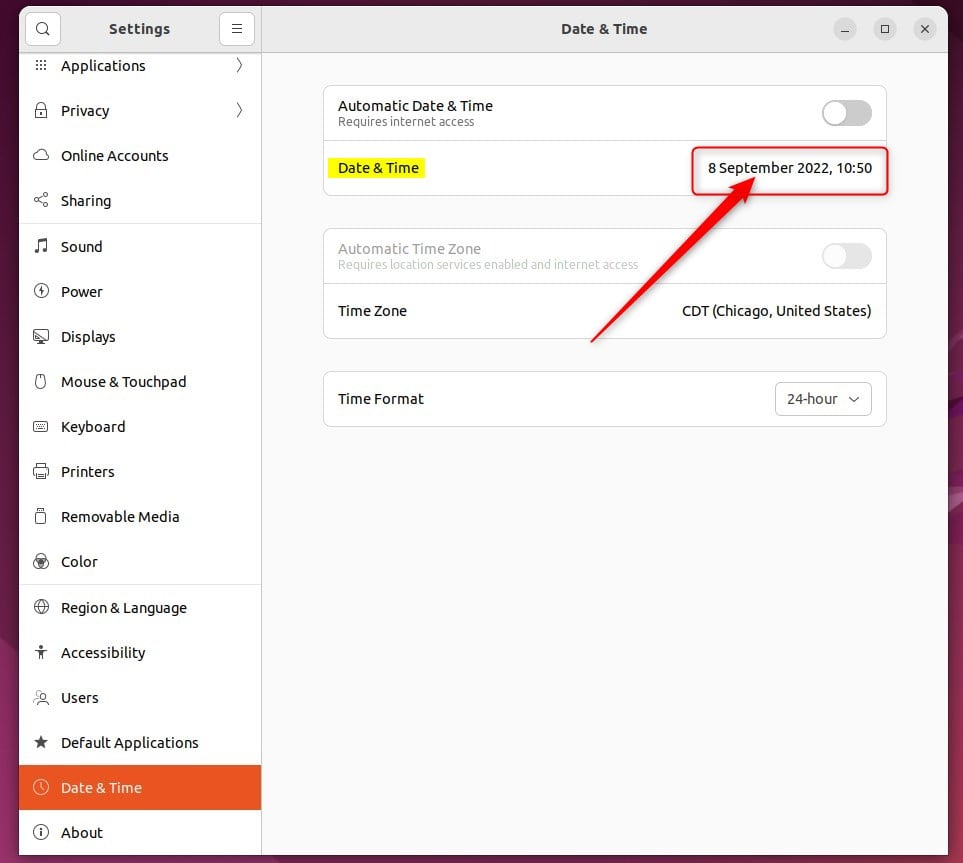
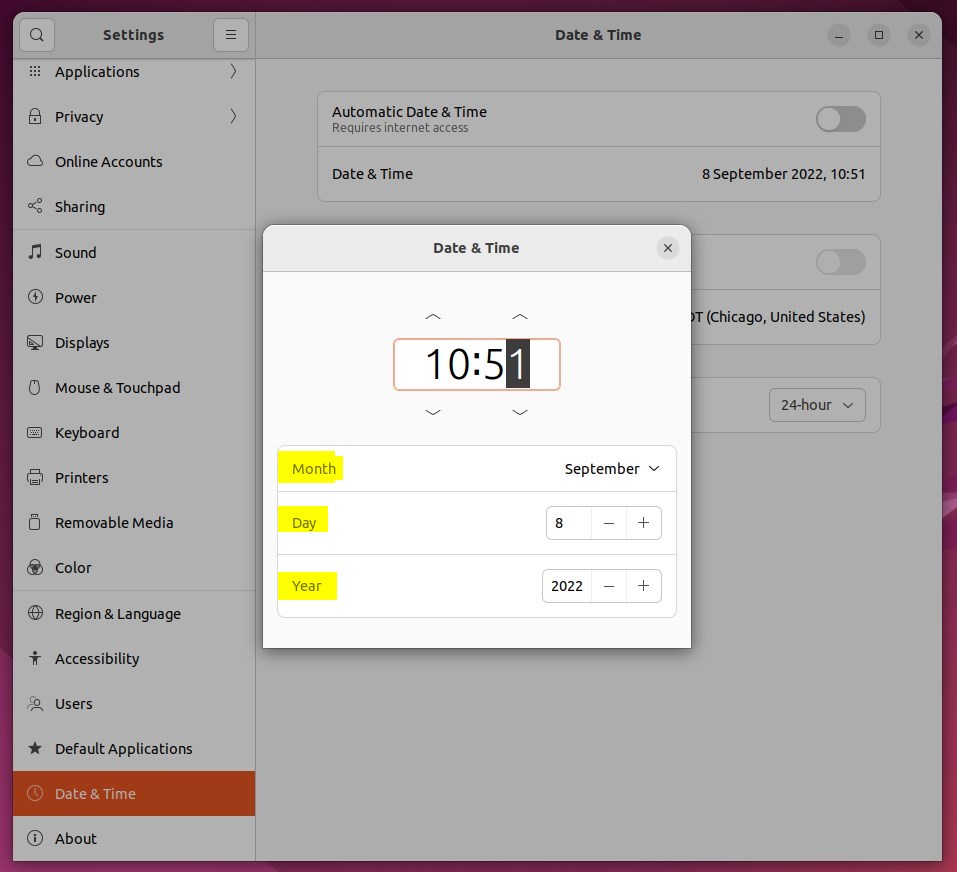
You should be able to set the Time, Month, Day, and Year on the pop-up window. Whatever settings you choose here will be applied system-wide.
That should do it! You can now close the Settings app.
Conclusion:
- Changing the date and time in Ubuntu Linux is feasible through the System Settings panel.
- Toggling the Automatic Date & Time switch to the off position allows users to set the date and time manually.
- By selecting the Date & Time tile, users can easily set the date and time according to their preferences.
Was this guide helpful?

About the Author
Richard
Tech Writer, IT Professional
Richard, a writer for Geek Rewind, is a tech enthusiast who loves breaking down complex IT topics into simple, easy-to-understand ideas. With years of hands-on experience in system administration and enterprise IT operations, he’s developed a knack for offering practical tips and solutions. Richard aims to make technology more accessible and actionable. He's deeply committed to the Geek Rewind community, always ready to answer questions and engage in discussions.



No comments yet — be the first to share your thoughts!