How to Connect Bluetooth Devices to Ubuntu

You connect Bluetooth devices to your Ubuntu computer by pairing them through the system’s Settings menu. Bluetooth is a short-range wireless technology that allows devices like your PC, smartphone, or peripherals to communicate with each other without cables.
This process lets you use wireless keyboards, mice, headphones, and speakers with your Ubuntu machine. For example, pairing a Bluetooth mouse means you can control your cursor without a USB dongle.
To begin, ensure your Bluetooth device is discoverable and then navigate to Ubuntu’s Settings. You will add a new device and follow the on-screen prompts to confirm the connection, which often involves matching a code.
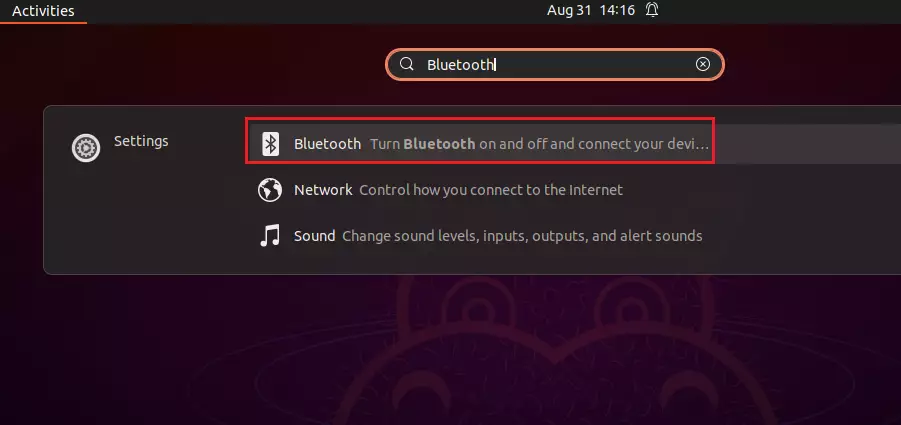
Open Bluetooth settings by searching for “Bluetooth” in the Activities overview. Ensure Bluetooth is on, then click your device in the list and follow any on-screen prompts, like confirming a PIN, to pair.
How to connect Bluetooth devices to Ubuntu Linux
Connecting Bluetooth devices to your Ubuntu computer is simple. First, open the Bluetooth settings by searching for ‘Bluetooth’ in the Activities overview. Make sure the Bluetooth switch is turned on, and Ubuntu will automatically look for nearby devices to connect.
In the Activities overview dashboard, start typing Bluetooth. Then, select the settings app to open its panel.
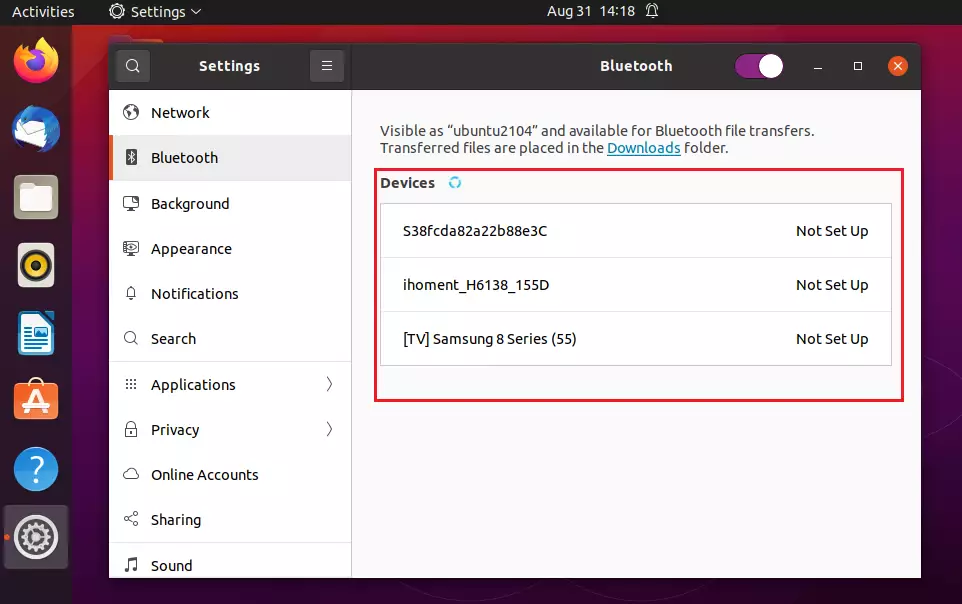
Make sure Bluetooth is enabled: the switch at the top should be set to On. With the panel open and the switch on, Ubuntu will start searching for devices.
To pair a device, click on it in the Devices list. This will open the panel specifically for that device.
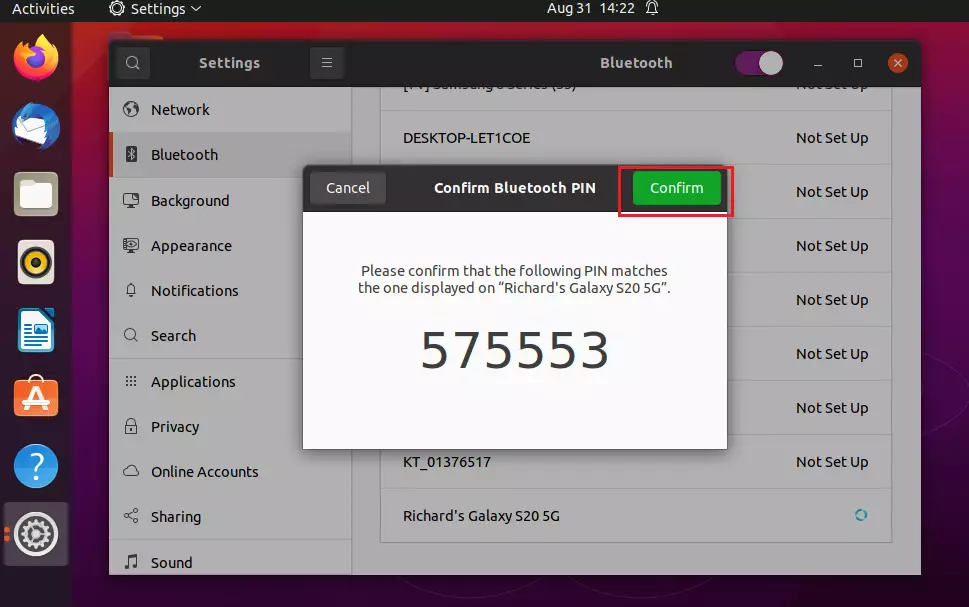
Some devices need a PIN to pair. If prompted, confirm the PIN on the other device you’re pairing with Ubuntu. On the device you’re pairing, you should see the same PIN that pops up on your Ubuntu screen.
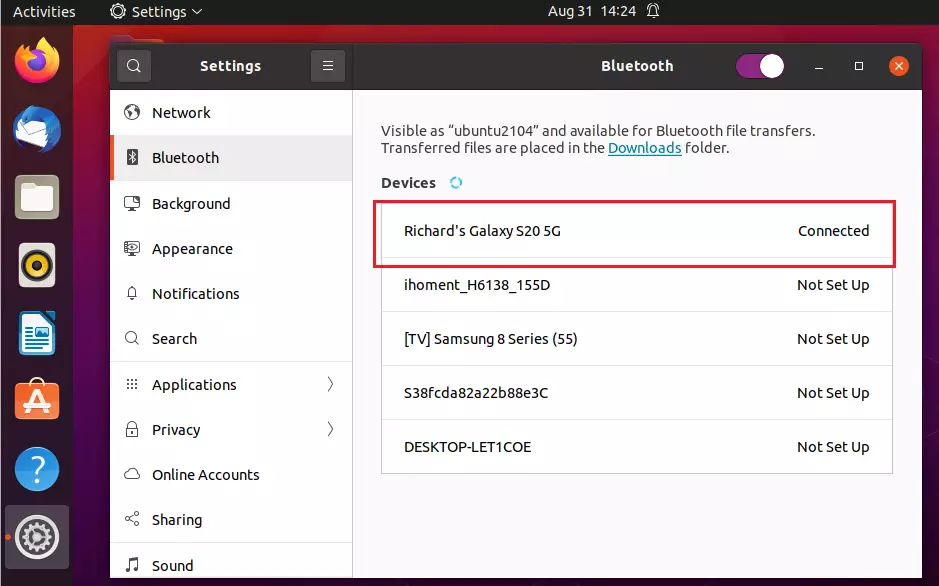
After confirming on the other device, click Confirm on your Ubuntu computer to complete the pairing. For some devices like mice or keyboards, you might not need to confirm a PIN. Once paired, the device should show as connected.
After that, the device should be paired and connected.
On most devices, you’ll need to complete any entry within about 20 seconds, or the connection might time out. If that happens, head back to the device list and try again.
How to unpair or disconnect Bluetooth device from Ubuntu Linux
Disconnecting a Bluetooth device from your Ubuntu computer is easy. Open the Bluetooth settings, find the device you want to remove, and click the ‘Remove Device’ button. This will quickly unpair the device from your system.
Then, search for and select the Bluetooth settings app. When the app panel opens, select the connected device and click Remove Device.
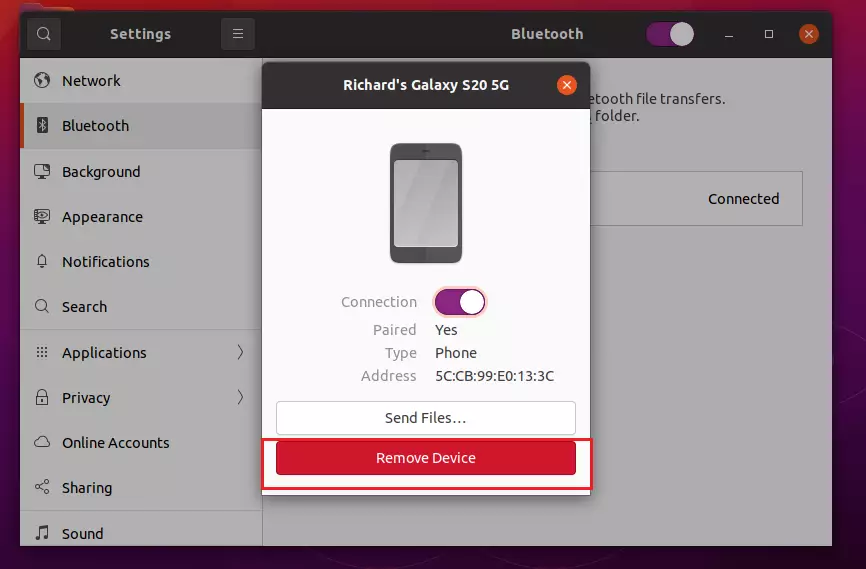
That should do it!
Conclusion:
- Pairing Bluetooth devices with Ubuntu Linux is a straightforward process that enhances the usability of your system.
- Ensure Bluetooth is enabled and visible to facilitate device discovery.
- Follow the on-screen prompts for pairing, especially regarding PIN confirmation.
- Disconnecting or unpairing devices is equally simple through the Bluetooth settings app.
- Regular practice with these steps will make the process quicker and easier over time.
Was this guide helpful?

About the Author
Richard
Tech Writer, IT Professional
Richard, a writer for Geek Rewind, is a tech enthusiast who loves breaking down complex IT topics into simple, easy-to-understand ideas. With years of hands-on experience in system administration and enterprise IT operations, he’s developed a knack for offering practical tips and solutions. Richard aims to make technology more accessible and actionable. He's deeply committed to the Geek Rewind community, always ready to answer questions and engage in discussions.



[…] you’re trying to connect to a Bluetooth device and running into problems, these tips and the steps below should be […]