How to Check Bluetooth Device Battery in Windows 11

You check your Bluetooth device battery in Windows 11 directly within the Settings app, typically by navigating to the Devices section.
Windows 11 allows you to view the remaining battery percentage for many Bluetooth devices, like mice, keyboards, and headphones, directly on your PC. This feature helps you proactively manage charging and avoid interruptions.
For instance, many popular Bluetooth headphones and mice will automatically report their battery status, often as a clear percentage, when connected. This visual indicator ensures you know exactly when to power up your peripherals.
Go to Settings, then Bluetooth & devices, and look for the battery percentage listed under your connected device. If your device supports this feature, the battery level will be displayed directly on this screen. Some devices may not report battery status to Windows.
Why 🪟 Windows 11 Does Not Show Battery for All Devices
Windows 11 needs specific communication methods, like the HID (Human Interface Device) profile or GATT (Generic Attribute Profile), to read battery data. If your device does not support these standards, Windows cannot display the battery level. This is a hardware limitation, not a software bug.
How to Check Bluetooth Device Battery in 🪟 Windows 11
You can check your Bluetooth device power status using the built-in Settings app.
Step 1Open Windows Settings
Open the Settings app using one of these methods:
- Press Windows key + I on your keyboard
- Click Start then click Settings
- Search for “Settings” in the taskbar
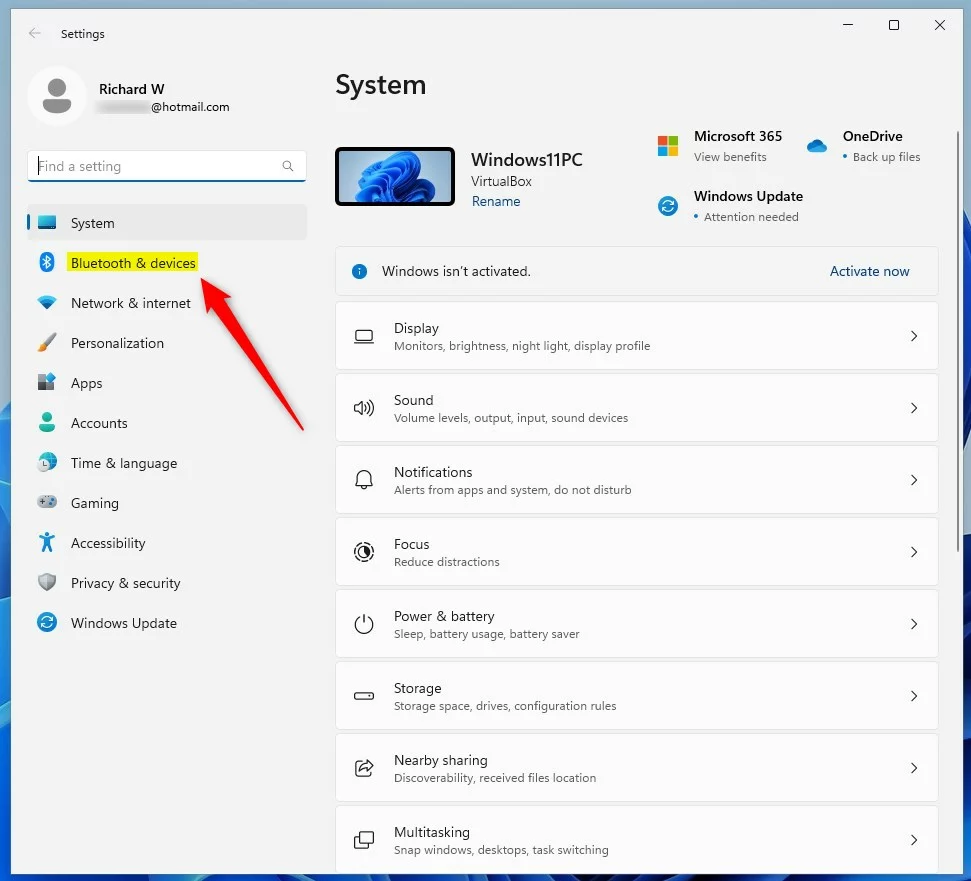
Step 2Go to Bluetooth & Devices
Click on the Bluetooth & devices tab on the left menu.
Step 3Check the Battery Level
Look at the device tiles on the right. If supported, you will see the battery percentage listed under the device name.
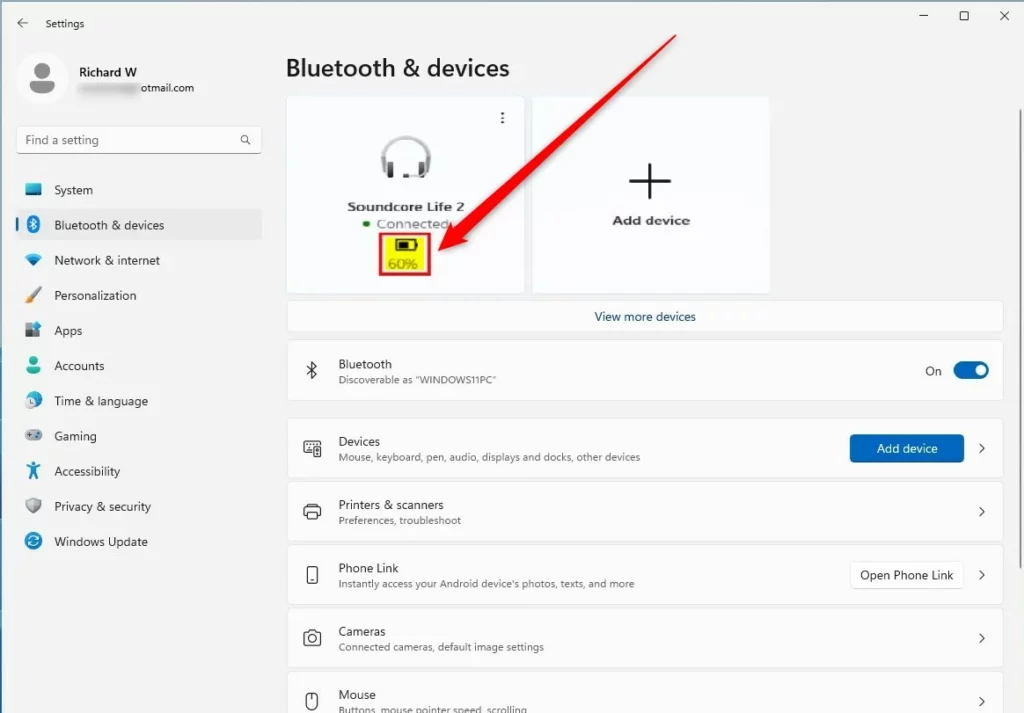
Note: Battery readings may be delayed. If the status seems stuck, try waiting a few minutes or reconnecting the device.
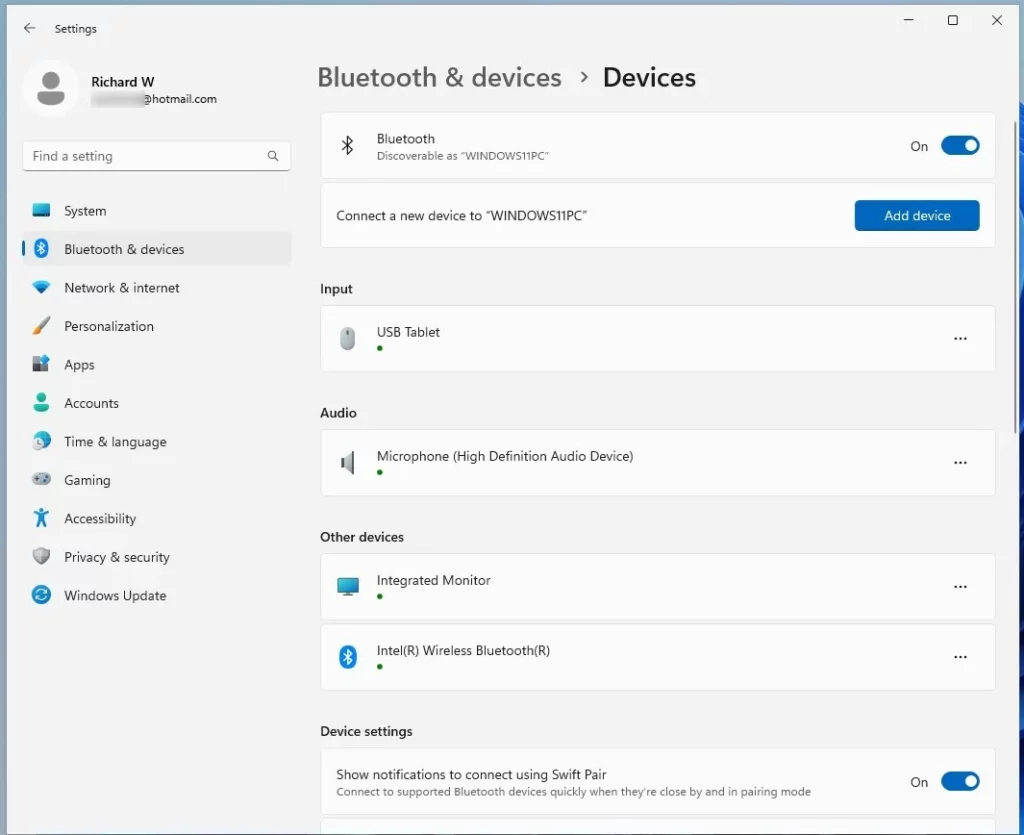
Step 4Find More Devices
If you do not see your device, click “View more devices” to see your full list of paired hardware.
Using Third-Party Bluetooth Battery Monitor Apps
If Windows 11 doesn’t show your Bluetooth device’s battery level, you can use helpful third-party apps to check it.
When to Use Native Settings vs. Third-Party Apps
Use Windows’ built-in settings for quick checks. Use third-party apps if you need constant System Tray integration or if your device is not reporting data natively. A Note About Admin Privileges: Installing some third-party drivers or monitoring software might require you to run the installer with administrator privileges.
Troubleshooting Bluetooth Battery Display
If you cannot see your battery status, try these steps:
- Unpair and re-pair the device.
- Update drivers in Device Manager (requires admin privileges).
- Check the manufacturer website for a custom companion app.
Summary
You can check your Bluetooth battery in Windows 11 using the Settings menu, but sometimes third-party apps are needed if your device doesn’t report its power level.
Why does 🪟 Windows 11 not show battery percentage for all Bluetooth devices?
Windows 11 requires specific hardware protocols to read battery data. If your device does not use the correct HID or GATT profiles, the operating system cannot retrieve power information. This means the limitation is usually tied to the device hardware rather than the Windows 11 software itself.
Are there safe third-party apps to track Bluetooth battery on 🪟 Windows 11?
Yes, there are safe apps available on the Microsoft Store designed to track Bluetooth battery levels. Look for highly-rated tools like Bluetooth Battery Monitor. Always download software from official sources to ensure your computer remains secure and free from malicious files or unwanted system changes.
Does my Bluetooth headset support battery reporting in Windows?
Check your device manual or the manufacturer website for “Windows battery reporting” support. If the device uses standard HID profiles, it likely works. If it uses a proprietary connection method, you may need the manufacturer’s specific software to see the battery level on your PC.
Was this guide helpful?

About the Author
Richard
Tech Writer, IT Professional
Richard, a writer for Geek Rewind, is a tech enthusiast who loves breaking down complex IT topics into simple, easy-to-understand ideas. With years of hands-on experience in system administration and enterprise IT operations, he’s developed a knack for offering practical tips and solutions. Richard aims to make technology more accessible and actionable. He's deeply committed to the Geek Rewind community, always ready to answer questions and engage in discussions.



No comments yet — be the first to share your thoughts!