How to Change Screen Brightness in Ubuntu Linux

You can change screen brightness in Ubuntu Linux through its system settings or by using keyboard shortcuts.
Screen brightness is the intensity of light from your display, adjustable for better visibility or to save power.
In Ubuntu 22.04 LTS and newer versions, you’ll find a quick brightness slider directly in the top-right system menu for immediate adjustments.
Many laptops also offer dedicated function keys, often marked with sun symbols, allowing you to effortlessly increase or decrease brightness with a single keypress.
Adjust screen brightness in Ubuntu by clicking the top-right status area and using the slider, or by going to Settings, then Power, and adjusting the Screen brightness slider. Many laptops also allow brightness adjustments via dedicated function keys.
How to adjust the screen brightness in Ubuntu Linux
Sometimes, you may want to turn off automatic adjustments to set the brightness yourself. If you need to change your display, follow these steps.
Method 1: Using the Quick Settings Menu
- Click the status area in the top-right corner of your screen. This is where your Wi-Fi, battery, and volume icons live.

ubuntu system menu button on top bar - Look for the brightness slider in the menu that pops up.
- Drag the slider left or right to change the light level.
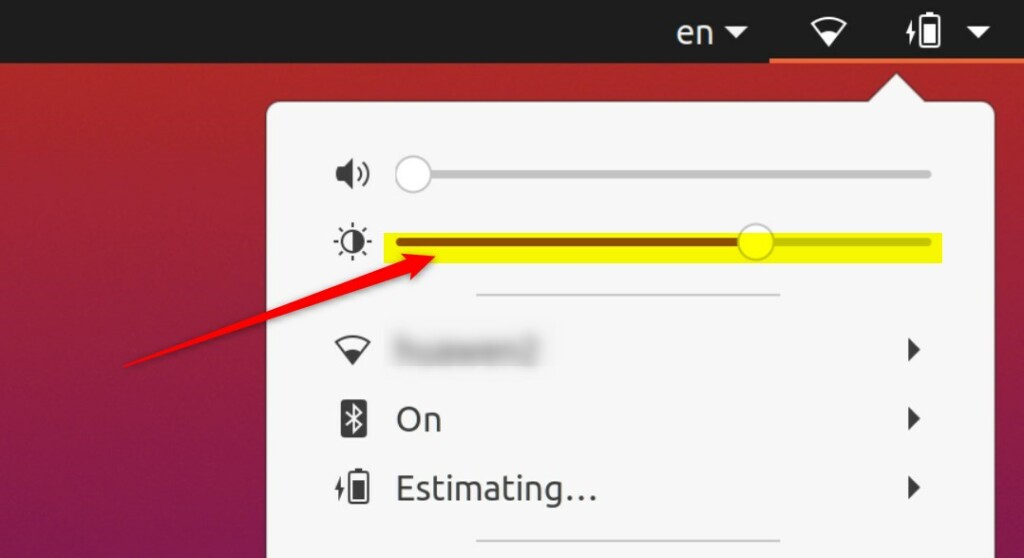
ubuntu linux screen brightness slider
Method 2: Using the Settings App
- Open your app drawer and click on Settings.
- In the left sidebar, click on the Power tab.
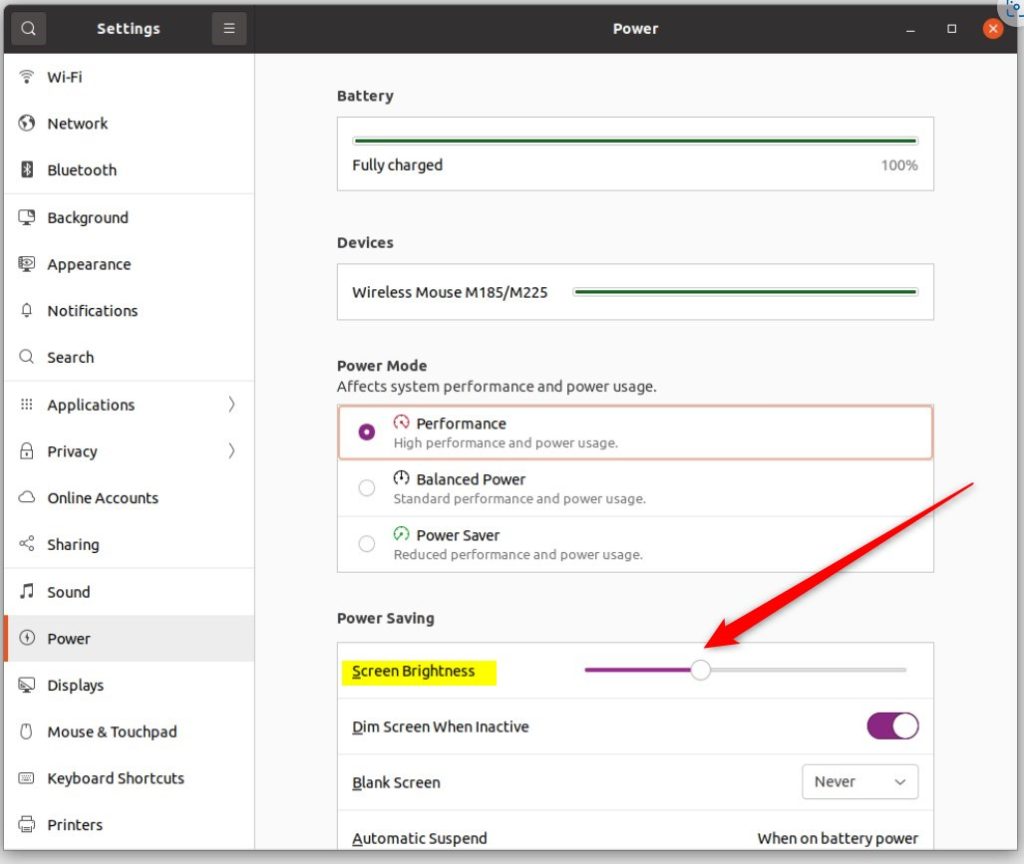
ubuntu linux screen brighness slider in settings - Under the Screen section, move the Screen brightness slider to your preferred level.
General
If you are an advanced user, you can control brightness using the command line. You can use tools like brightnessctl or by editing files in /sys/class/backlight/. These methods are useful for scripts or custom keyboard shortcuts.
Note on compatibility: Brightness control depends on your display server (Wayland vs. X11) and your graphics drivers. If the sliders do not appear or do not work, ensure your graphics drivers are up to date. Some older hardware may not support software-based brightness control, requiring you to use the monitor’s built-in hardware menu instead.
If you have trouble with these settings, you may need to disable automatic brightness to take full manual control.
Adjusting your brightness helps you see better and keeps your device running smoothly. Follow these steps whenever your screen feels too bright or too dim.
Was this guide helpful?

About the Author
Richard
Tech Writer, IT Professional
Richard, a writer for Geek Rewind, is a tech enthusiast who loves breaking down complex IT topics into simple, easy-to-understand ideas. With years of hands-on experience in system administration and enterprise IT operations, he’s developed a knack for offering practical tips and solutions. Richard aims to make technology more accessible and actionable. He's deeply committed to the Geek Rewind community, always ready to answer questions and engage in discussions.


No comments yet — be the first to share your thoughts!