Change Power Button Behavior in Ubuntu Linux

You change your Ubuntu Linux power button’s behavior through its Settings application.
This tutorial shows you how to configure what happens when you press the power button, like shutting down, sleeping, hibernating, or doing nothing.
For instance, you can prevent accidental shutdowns by setting the power button to have no action by default, a useful setting for Ubuntu 22.04 LTS.
You can change your Ubuntu Linux power button’s function by opening Settings, navigating to Power, and then selecting Power Button Behavior. Choose from options like Suspend, Power Off, Nothing, Interactive, or Hibernate to customize its action. Your selection applies immediately.
How to change power button behavior in Ubuntu Linux
You can easily change your Ubuntu power button settings directly from the main Settings app to decide what happens when you press it.
Open the Activities overview and type Settings to begin %📂%LNK0%%.
Alternatively, click the System menu at the top-right corner of your screen and select Settings %📂%LNK1%%.

Once the Settings app is open, follow this path: Power > Power Button Behavior.
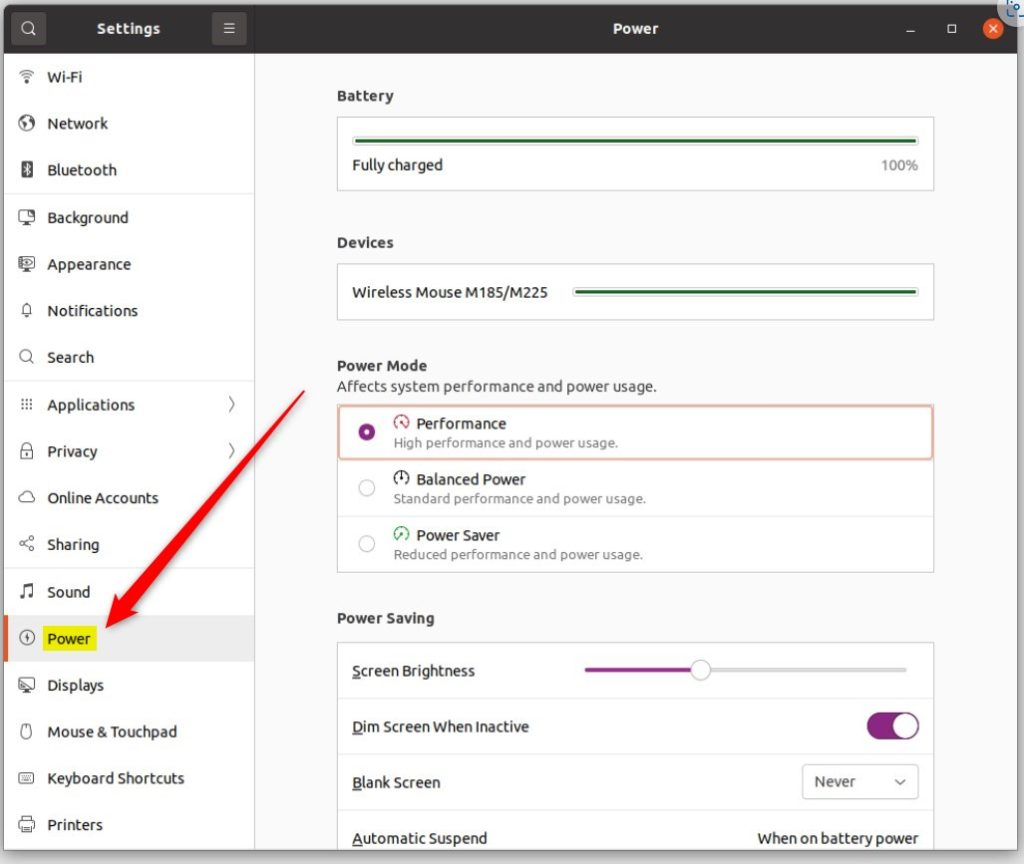
Power Button Behavior options
When you change your Ubuntu power button settings, you’ll find several options to choose from, letting you decide exactly what happens each time you press the button.
- Suspend: Puts your computer into sleep mode.
- Power Off: Shuts down the computer. This is the default setting.
- Nothing: The button will not trigger any action.
- Interactive: This option triggers a pop-up menu asking you what you would like to do.
- Hibernate: This may appear as an option if you have swap space correctly configured on your system.
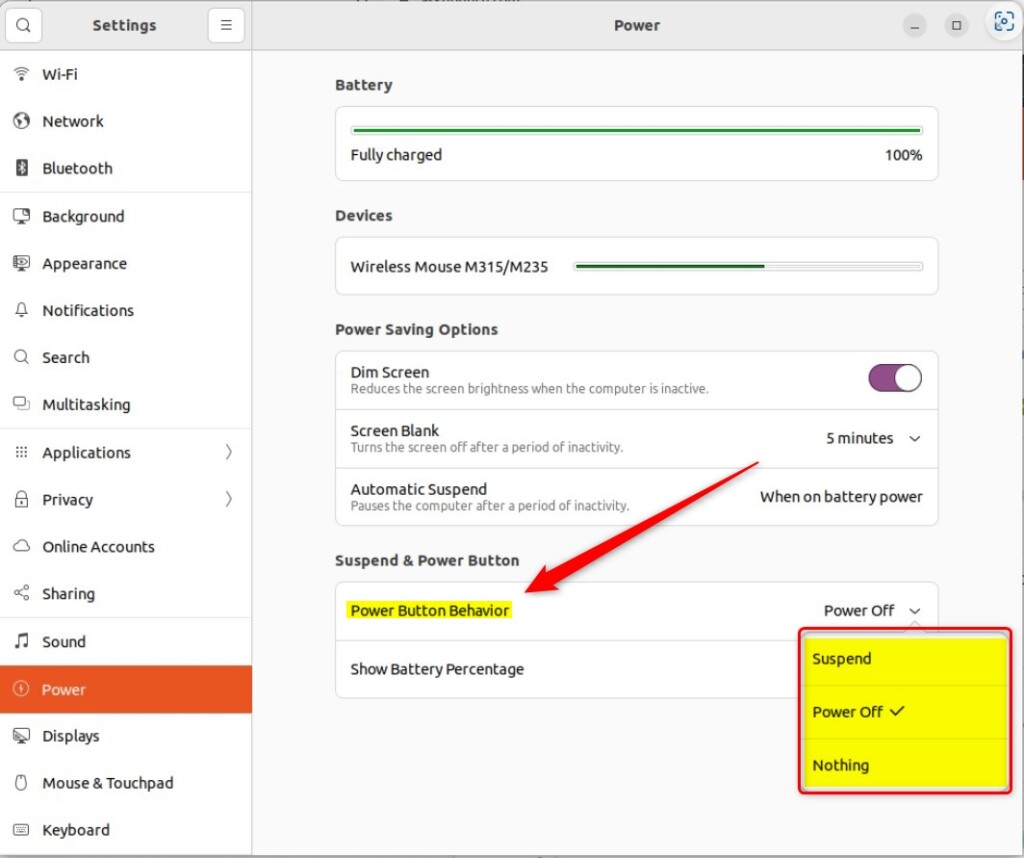
Your choice is applied immediately. You do not need to restart your computer for these changes to take effect.
Conclusion
Customizing your power button is a simple way to make your PC work the way you want. Whether you want to prevent accidental shutdowns or add a shortcut to sleep mode, these settings give you total control.
How do I change the power settings on Ubuntu?
Open the Activities overview and start typing Power. Click Power to open the panel. In the Power Mode section, choose one of the profiles.
Was this guide helpful?

About the Author
Richard
Tech Writer, IT Professional
Richard, a writer for Geek Rewind, is a tech enthusiast who loves breaking down complex IT topics into simple, easy-to-understand ideas. With years of hands-on experience in system administration and enterprise IT operations, he’s developed a knack for offering practical tips and solutions. Richard aims to make technology more accessible and actionable. He's deeply committed to the Geek Rewind community, always ready to answer questions and engage in discussions.



No comments yet — be the first to share your thoughts!